Enable or disable JavaScript on Chrome, Cốc Cốc, Firefox, Edge, Opera, Safari, and Tor.

Knowing how to enable/disable JavaScript will give you more control when working in your browser. Let's take a look at how to turn JavaScript on and off in Chrome below; it's quite simple.

JavaScript is a feature integrated into most web browsers . This feature assists users in interacting with websites more efficiently. However, JavaScript also has limitations; some websites may use JavaScript to add malicious code or collect users' personal information.

Sometimes websites run JavaScript code that prevents you from copying content or causes uncontrolled navigation, so you want to disable JavaScript. However, many web games run on JavaScript, not to mention other elements on the website such as forms and buttons are also written in JavaScript. If you don't enable JavaScript, you won't be able to play or use the game. Therefore, knowing how to enable/disable JavaScript will help you be more proactive when working in your browser. Let's learn how to turn JavaScript on and off in your browser through the article below with TipsMake; it's quite simple.

Picture 1 of Enable or disable JavaScript on Chrome, Cốc Cốc, Firefox, Edge, Opera, Safari, and Tor.

1. Enabling and disabling JavaScript on Chrome

1.1. Enabling and disabling JavaScript on Chrome from update 60 onwards

To enable or disable JavaScript in the Chrome browser, follow these steps:

Step 1: Open your Chrome browser, click the three vertical dots icon in the upper right corner of the screen, and open Settings.

Picture 2 of Enable or disable JavaScript on Chrome, Cốc Cốc, Firefox, Edge, Opera, Safari, and Tor.

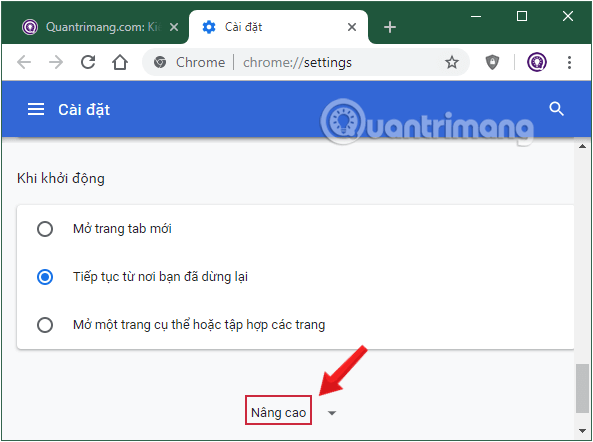
Step 2: Scroll to the bottom of the page and select Advanced.

Picture 3 of Enable or disable JavaScript on Chrome, Cốc Cốc, Firefox, Edge, Opera, Safari, and Tor.

Step 3: Go to the Privacy and Security section and click on Website Settings.

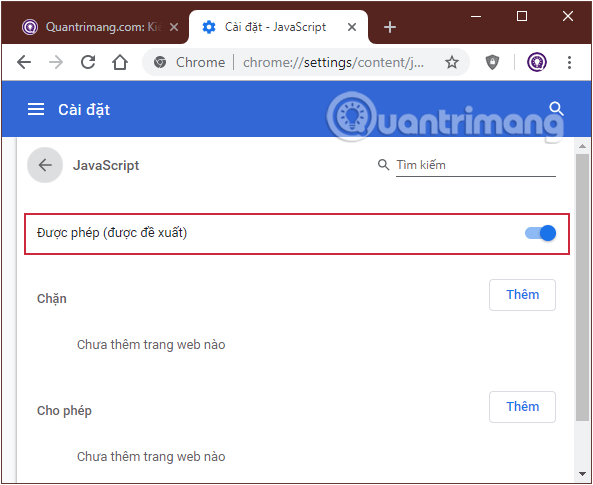
Step 4: In the Permissions section, click on Javascript to open the settings we need to use. Move the slider next to the Allowed (Recommended) option; drag it to the left to disable JavaScript (the button will turn gray), and drag it to the right to enable JavaScript (the button will turn blue).

Picture 4 of Enable or disable JavaScript on Chrome, Cốc Cốc, Firefox, Edge, Opera, Safari, and Tor.

You can specify which websites use or do not use Javascript in this section by clicking the Add button .

1.2. Enabling and disabling JavaScript on Chrome from update 59 and earlier.

If your Chrome browser cannot update to the latest version and has a different interface than the one above, try disabling JavaScript for older versions of Chrome below.

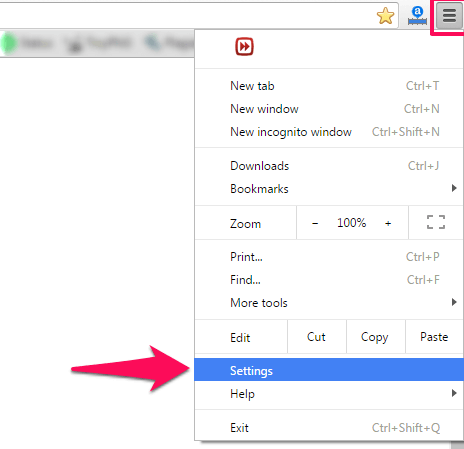
Step 1: Click the three horizontal lines icon in the upper right corner of the screen, then click Settings.

Picture 5 of Enable or disable JavaScript on Chrome, Cốc Cốc, Firefox, Edge, Opera, Safari, and Tor.

Alternatively, you can type chrome://settings/content into the Chrome browser's address bar, press Enter, and then proceed to step 4.

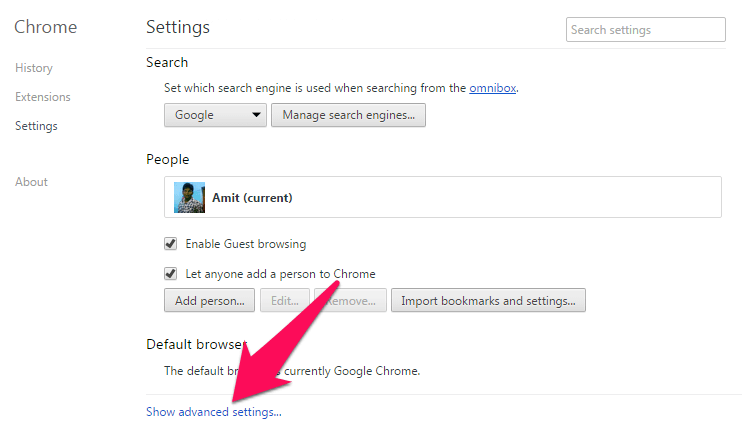
Step 2: In the Chrome browser's Settings window , find and select the " Show advanced settings" option .

Picture 6 of Enable or disable JavaScript on Chrome, Cốc Cốc, Firefox, Edge, Opera, Safari, and Tor.

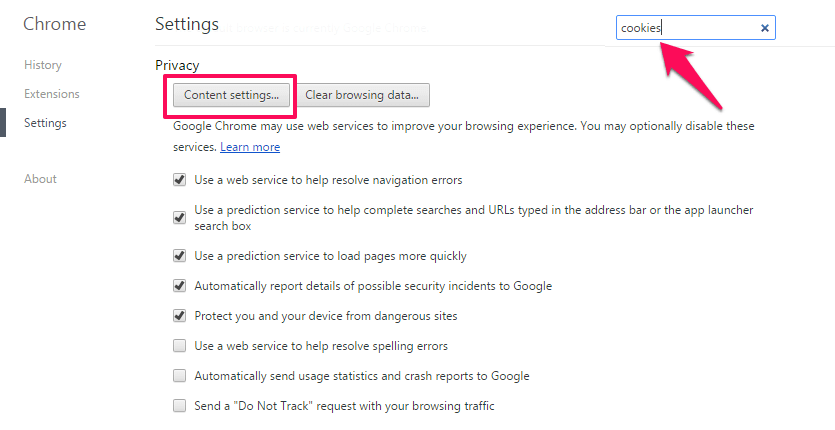
Step 3: Next, in the Privacy section, click on Content Settings .

Picture 7 of Enable or disable JavaScript on Chrome, Cốc Cốc, Firefox, Edge, Opera, Safari, and Tor.

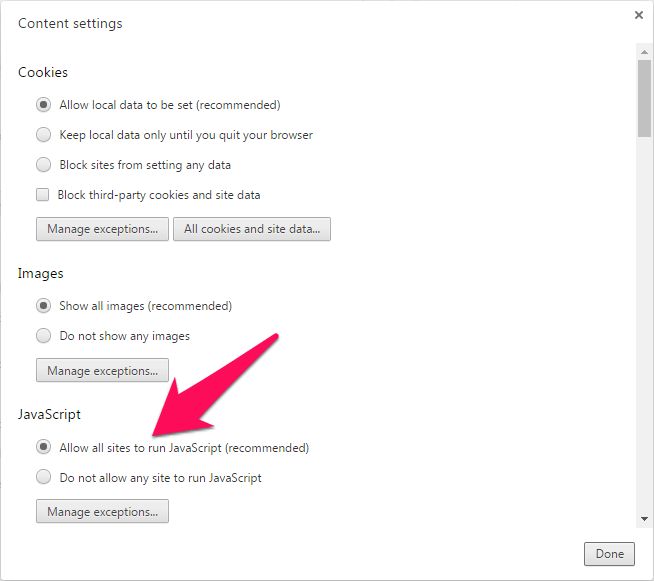
Step 4: If you want to enable Javascript in Chrome, select the option " Allow all sites to run Javascript (recommended)" . If you want to disable Javascript, select the option " Do not allow any site to run Javascript" .

Picture 8 of Enable or disable JavaScript on Chrome, Cốc Cốc, Firefox, Edge, Opera, Safari, and Tor.

If you want to enable JavaScript on the Chrome browser or prevent certain websites from running JavaScript, you can select the " Manage exceptions" option.

Click this button, then enter the website URL in the Hostname Pattern field – where you can enable or disable JavaScript in the Chrome browser. In the Behavior section, you can choose Allow or Block .

1.3. Creating a Shortcut Icon to Disable JavaScript in Chrome Browser

Alternatively, you can create a specific shortcut icon to use to disable JavaScript.

If you are a Windows user, right-click on any empty space on the Desktop and select NewShortcut .

Next, enter the following path into the "Type the location of the item" box :

C:Users[Username]AppDataLocalGoogleChromeApplicationchrome.exe -disable-javascript

Please replace [Username] with your computer's username.

Picture 9 of Enable or disable JavaScript on Chrome, Cốc Cốc, Firefox, Edge, Opera, Safari, and Tor.

3. Enabling and disabling JavaScript in Cốc Cốc

To enable or disable JavaScript in the Cốc Cốc browser, follow these steps:

Step 1: Open the Cốc Cốc browser, click on the blue Cốc Cốc logo in the upper left corner of the screen, and select Settings from the dropdown menu.

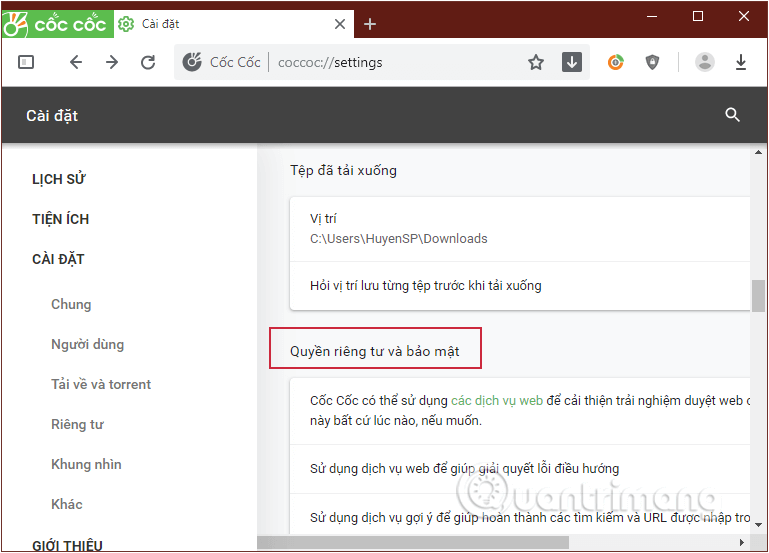
Step 2: Scroll down to find the Privacy and Security section.

Picture 10 of Enable or disable JavaScript on Chrome, Cốc Cốc, Firefox, Edge, Opera, Safari, and Tor.

Step 4: Click on Website Settings in Privacy and Security.

Step 5: In the Permissions section, click on Javascript to open the settings we need to use. Uncheck the box next to the Allowed (Recommended) option to disable Javascript.

If you want to turn it back on, follow the same steps and check the box as above.

Picture 11 of Enable or disable JavaScript on Chrome, Cốc Cốc, Firefox, Edge, Opera, Safari, and Tor.

You can specify which websites use or do not use Javascript in this section by clicking the Add button.

3. Enabling and disabling JavaScript in Firefox

In Firefox, JavaScript is enabled by default. However, if you or someone else has previously disabled this feature and now wants to re-enable it, it's quite easy to do so. Also, note that the instructions here apply to the desktop version of Firefox. In the Firefox mobile app, JavaScript is always enabled.

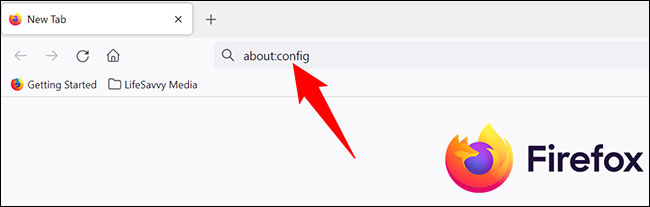
To enable JavaScript in Firefox, first, launch the Firefox application on your computer.

In the Firefox address bar at the top, type the following and press Enter:

about:config 

Picture 12 of Enable or disable JavaScript on Chrome, Cốc Cốc, Firefox, Edge, Opera, Safari, and Tor.

Firefox will display a warning, but rest assured, just click the ' Accept the Risk and Continue ' button to proceed.

Picture 13 of Enable or disable JavaScript on Chrome, Cốc Cốc, Firefox, Edge, Opera, Safari, and Tor.

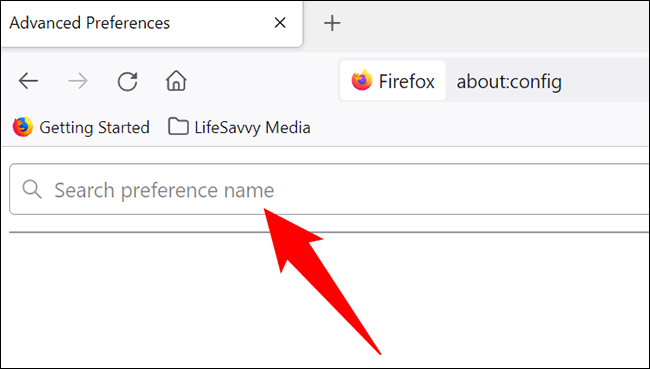
On the page that opens, in the ' Search Preference Name ' text box at the top, enter the following:

JavaScript

Picture 14 of Enable or disable JavaScript on Chrome, Cốc Cốc, Firefox, Edge, Opera, Safari, and Tor.

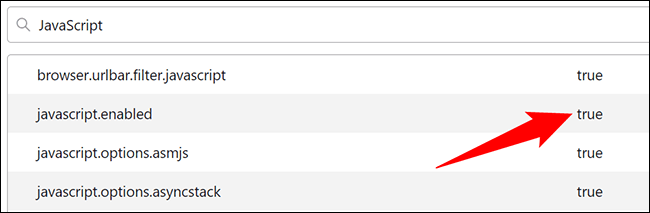
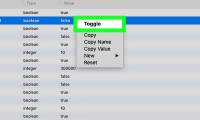
You will immediately see some search results. Here, to enable JavaScript, next to the value ' javascript.enabled ', click the corresponding toggle switch.

Picture 15 of Enable or disable JavaScript on Chrome, Cốc Cốc, Firefox, Edge, Opera, Safari, and Tor.

The value next to ' javascript.enabled ' will change to ' true ', indicating that the feature is now enabled in the browser.

Picture 16 of Enable or disable JavaScript on Chrome, Cốc Cốc, Firefox, Edge, Opera, Safari, and Tor.

To disable JavaScript again in Firefox, next to the ' javascript.enabled ' value , click this toggle switch again.

4. Enabling and disabling JavaScript in Edge

Since The Creators Update, Windows 10 has removed the ability to enable or disable JavaScript in the Microsoft Edge browser. In general, Java is not supported in the Edge browser.

5. Enabling and disabling JavaScript in IE

To enable or disable JavaScript in Internet Explorer, follow these steps:

Step 1: Open Internet Explorer and click the gear icon in the upper right corner of the browser window.

Step 2: Select Internet Options from the dropdown menu.

Picture 17 of Enable or disable JavaScript on Chrome, Cốc Cốc, Firefox, Edge, Opera, Safari, and Tor.

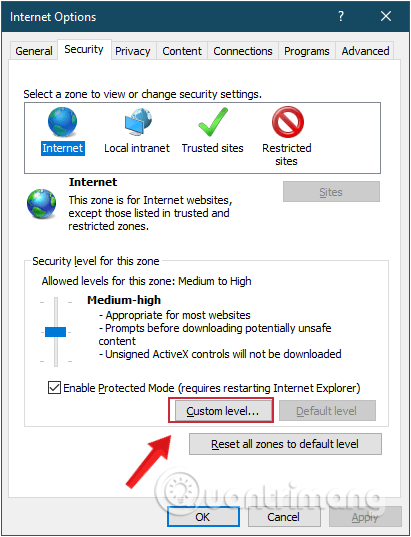
Step 3: The IE Internet Options dialog box will appear; switch to the Security tab.

Find and click the Custom Level button.

Picture 18 of Enable or disable JavaScript on Chrome, Cốc Cốc, Firefox, Edge, Opera, Safari, and Tor.

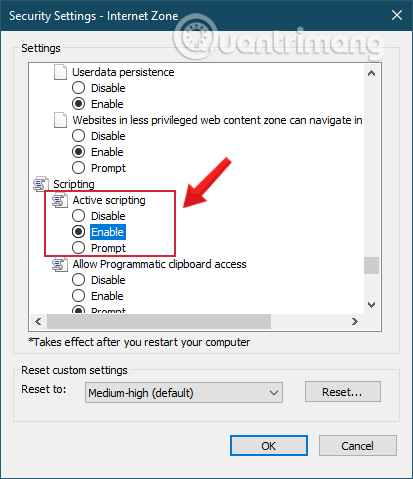
Step 4: In the next window, scroll down near the bottom, find the Active Scripting section , and select Disable, Enable , or Prompt to adjust your JavaScript settings.

Picture 19 of Enable or disable JavaScript on Chrome, Cốc Cốc, Firefox, Edge, Opera, Safari, and Tor.

6. Enabling and disabling JavaScript in Opera

Step 1: Select the Customize and control menu in Opera, located in the upper left corner of the browser window (Opera icon).

Step 2: Select Settings from the dropdown menu.

Alternatively, you can use the shortcut Alt+ key Pinstead of the two steps above.

Step 3: Scroll down to the bottom and select Advanced to display advanced settings. Find the Privacy and Security section.

Picture 20 of Enable or disable JavaScript on Chrome, Cốc Cốc, Firefox, Edge, Opera, Safari, and Tor.

Step 4: Click on Website Settings in Privacy and Security.

Step 5: In the Permissions section, click on Javascript to open the settings we need to use. Move the slider next to the Allowed (Recommended) option to enable/disable Javascript.

Picture 21 of Enable or disable JavaScript on Chrome, Cốc Cốc, Firefox, Edge, Opera, Safari, and Tor.

You can specify which websites use or do not use Javascript in this section by clicking the Add button .

7. Enabling and disabling JavaScript in Safari

To enable or disable JavaScript on your iPhone or iPad, follow the steps below.

Step 1: Tap the Settings icon on your device.

Picture 22 of Enable or disable JavaScript on Chrome, Cốc Cốc, Firefox, Edge, Opera, Safari, and Tor.

Step 2: On the Settings screen , scroll down and select Safari.

Picture 23 of Enable or disable JavaScript on Chrome, Cốc Cốc, Firefox, Edge, Opera, Safari, and Tor.

Step 3: On the Safari screen , scroll down and select the Advanced option.

Picture 24 of Enable or disable JavaScript on Chrome, Cốc Cốc, Firefox, Edge, Opera, Safari, and Tor.

Step 4: On the next screen , you will see the JavaScript option. Move the slider next to it to the left to turn JavaScript off. To turn it back on, slide it to the right.

Picture 25 of Enable or disable JavaScript on Chrome, Cốc Cốc, Firefox, Edge, Opera, Safari, and Tor.

8. Disable JavaScript on Tor Browser

When using Tor Browser to access onion websites, privacy is the browser's main focus. That's why you might see pop-up messages or responses from the website indicating that you need to disable JavaScript before continuing.

It's a simple task that only takes a minute or two to complete, and there are several good reasons to do so.

Disable JavaScript in the Tor browser using the Settings menu.

There are two methods to disable JavaScript in Tor Browser. The first method uses the Tor Browser Settings control panel.

Picture 26 of Enable or disable JavaScript on Chrome, Cốc Cốc, Firefox, Edge, Opera, Safari, and Tor.

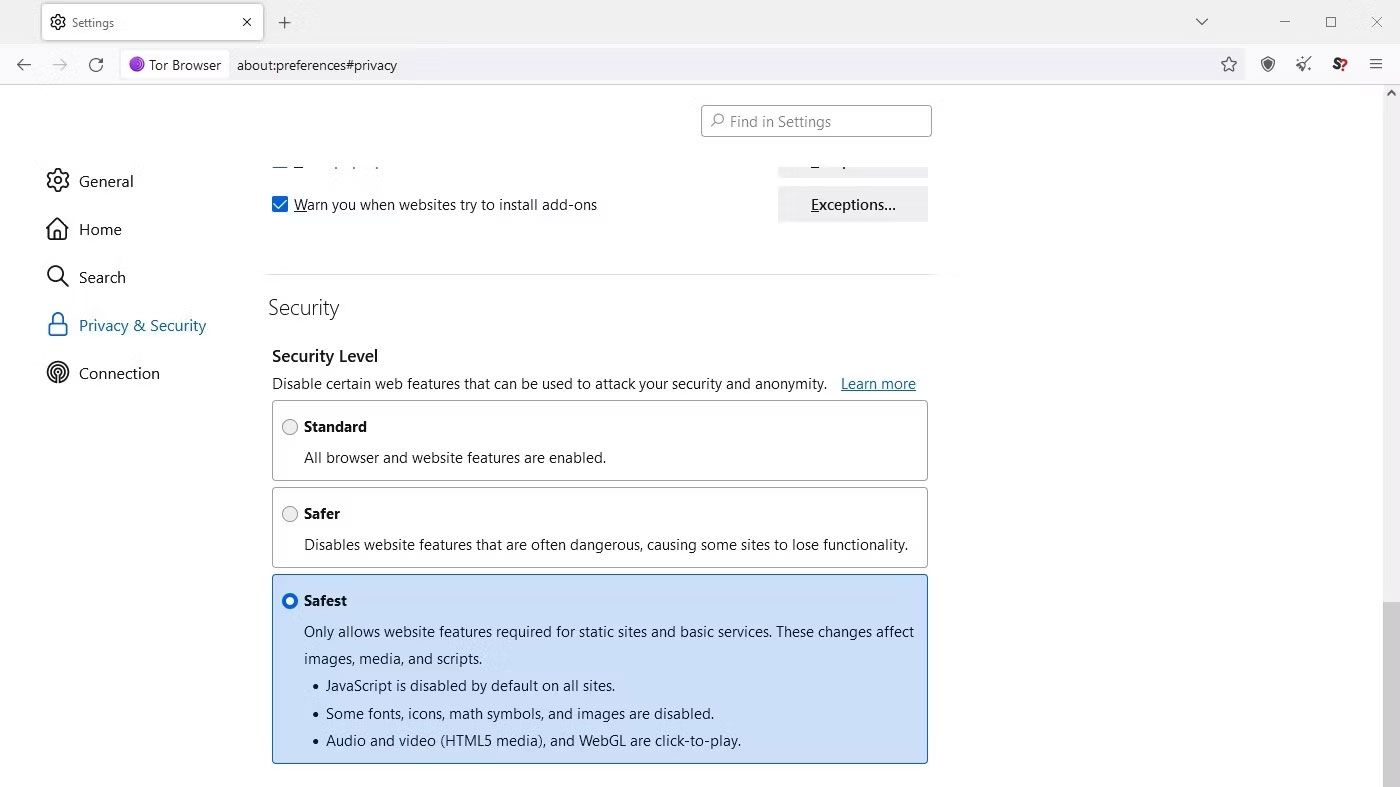
  1. Tap the three horizontal lines menu in the upper right corner, then select Settings.
  2. Go to Privacy & Security , then scroll down until you find the Security section.
  3. Choose Safest from 3 options.

JavaScript is now disabled on all websites you visit when using Tor Browser.

Disable JavaScript in the Tor browser using Advanced Settings.

Another way to disable JavaScript in Tor Browser is to use the Advanced Settings menu, about:config , which allows access to all Tor Browser settings.

However, before proceeding, please note that this article does not recommend attempting any other settings in this menu. Changing Tor Browser settings without understanding their function can lead to privacy issues and render Tor Browser insecure. Furthermore, while this backend option exists, manually disabling JavaScript can make the browser more inconspicuous (this is one of the things Tor Browser is designed to avoid).

Picture 27 of Enable or disable JavaScript on Chrome, Cốc Cốc, Firefox, Edge, Opera, Safari, and Tor.

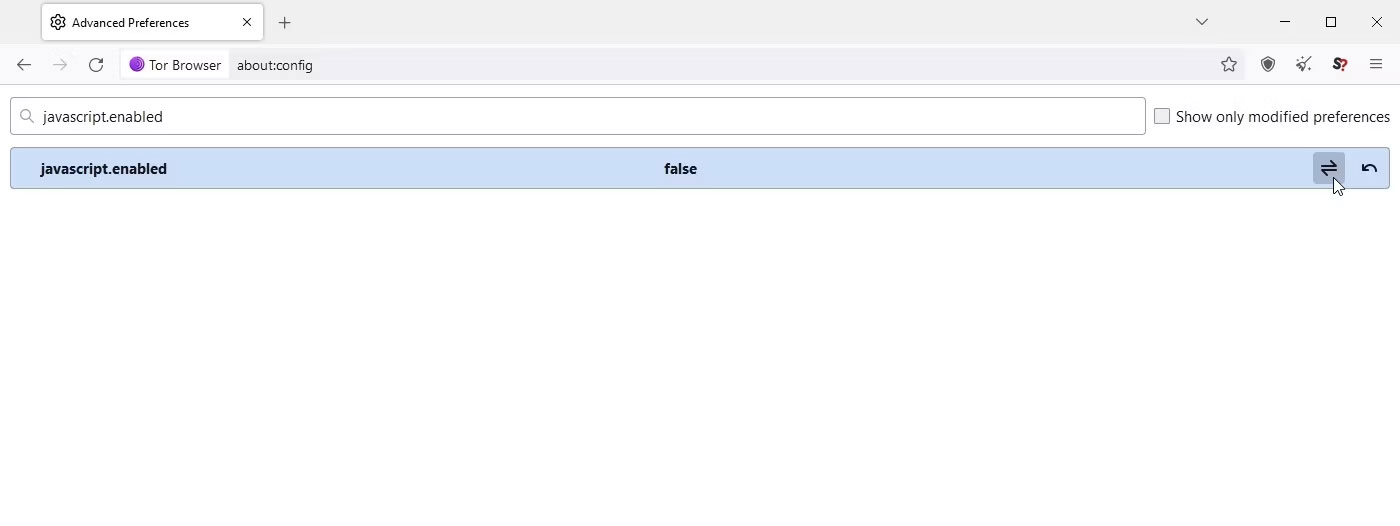
  1. In Tor Browser, type about:config into the address bar and press Enter.
  2. Press Accept the Risk and Continue on the warning screen.
  3. Now, in the search bar, type javascript.enabled , then press the toggle button to change it to False .
  4. Closing the about:config window will do the trick.

You've just finished reading the article "Enable or disable JavaScript on Chrome, Cốc Cốc, Firefox, Edge, Opera, Safari, and Tor." edited by the TipsMake team. You can save enable-or-disable-javascript-on-chrome-coc-coc-firefox-edge-opera-safari-and-tor.pdf to your computer here to read later or print it out. We hope this article has provided you with many useful tech tips and tricks. You can search for similar articles on tips and guides. Thank you for reading and for following us regularly.

« PREV 6 OpenCode plugins that help anyone code more powerfully and practically.
NEXT » How to stop receiving messages from strangers on Messenger