Table of Contents
To restart desktop Chrome and reopen the current session, enter chrome://restart in the address bar and press Enter. Chrome closes and launches again with the open windows and tabs restored. Save work in web forms and wait for downloads to finish first, because a browser restart can interrupt them.

Restart Chrome from the address bar
- Save drafts in any open web apps and check the Downloads page for active transfers.
- Type chrome://restart in the address bar. Do not type it into a website's search box.
- Press Enter. Chrome should close, relaunch, and reload the previous session.
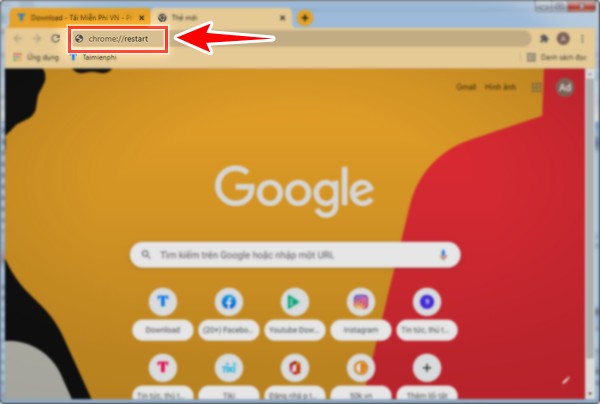
This is a Chrome internal URL, not a public webpage. It does not restart the computer and is different from refreshing one page. If a single tab is stale, use the normal reload button or the methods in our guide to refreshing a webpage.
Create a one-click Chrome restart bookmark
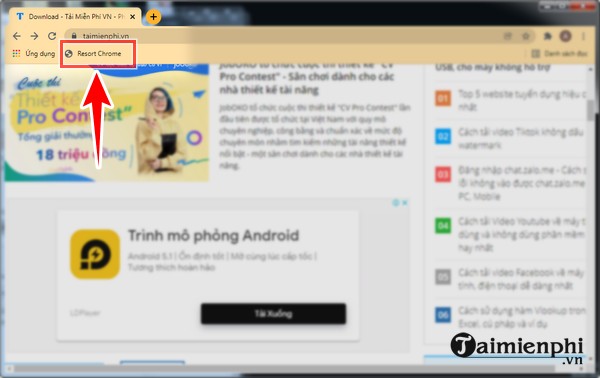
If you restart Chrome regularly while testing extensions or settings, save the command on the bookmarks bar:
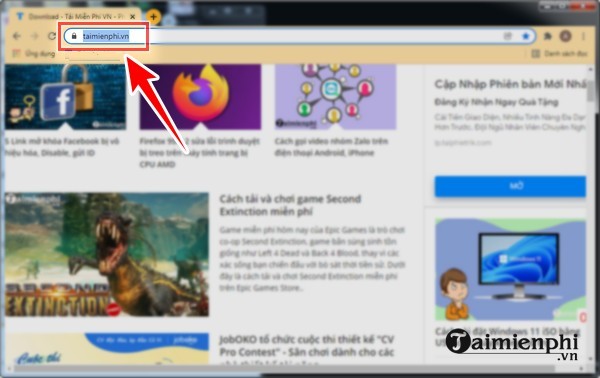
- Show the bookmarks bar with Ctrl+Shift+B on Windows/Linux or Command+Shift+B on macOS.
- Create any bookmark by dragging a page's site icon to the bar, or open Bookmark Manager and add one.
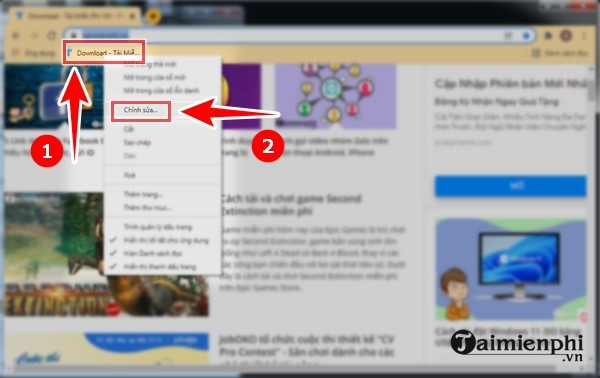
- Right-click the new bookmark and select Edit.
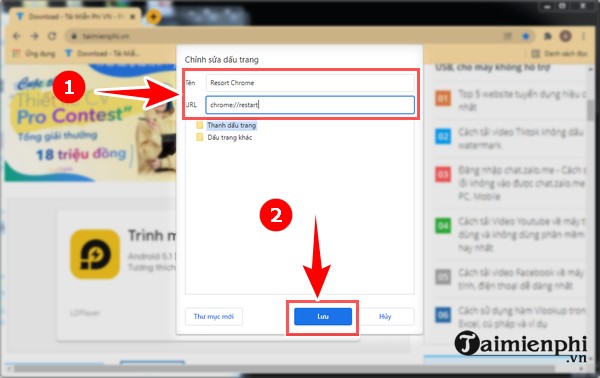
- Set the name to Restart Chrome and the URL to chrome://restart.
- Select Save. Clicking the bookmark will restart Chrome immediately, so place it where it is unlikely to be clicked accidentally.
Make Chrome reopen tabs after a normal exit
The internal restart command usually restores the current session automatically. For times when you close and reopen Chrome normally, enable the startup setting:
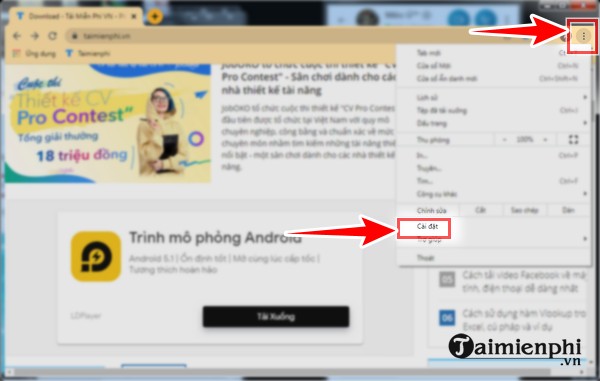
- Open the three-dot menu and select Settings.
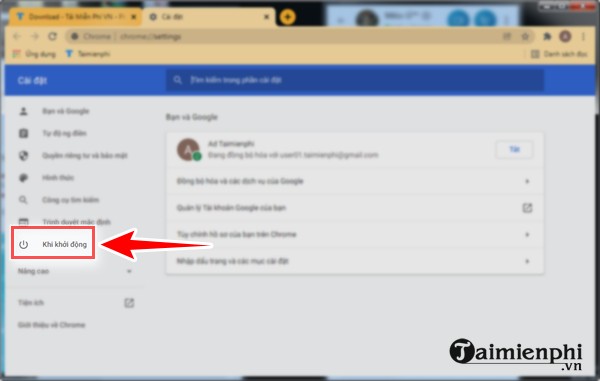
- Select On startup, or enter chrome://settings/onStartup.
- Choose Continue where you left off.
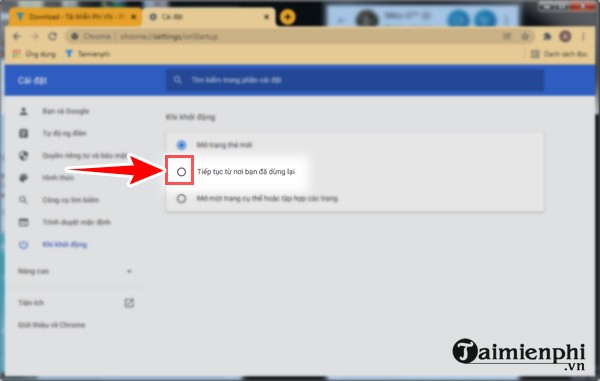
This setting is convenient on a personal computer, but it can expose previously open pages to the next person who launches the browser on a shared device. Close sensitive tabs and use a separate operating-system account or Chrome profile when privacy matters.
If Chrome does not restore the tabs
- Press Ctrl+Shift+T on Windows/Linux or Command+Shift+T on macOS. Repeat the shortcut to reopen additional recently closed tabs or windows.
- Open Menu > History and look under recently closed tabs.
- Confirm that you reopened the same Chrome profile. Each profile has its own history and session.
- Do not repeatedly reopen and close new windows before recovery; newer history entries can push older sessions down the list.
- If the computer crashed or profile data is corrupt, complete recovery is not guaranteed. Bookmark essential pages and save important tab groups before maintenance.
For long-term organization, compare these bookmark-management options rather than relying on a single open session.
Restart Chrome on Android or iPhone
chrome://restart is intended for desktop Chrome and may not work consistently on mobile. On Android or iPhone, open the recent-apps or app-switcher view, dismiss Chrome, and launch it again. This is not the same as clearing app storage; do not clear Chrome's data just to restart it.
When a restart helps—and when it does not
A restart is useful after an extension update, a changed browser setting, or a temporary rendering fault. It does not install an operating-system update, repair a damaged Chrome profile, or guarantee recovery of unsaved web-form data. If a problem returns after every restart, test extensions, update Chrome, and try a clean profile instead of treating repeated restarts as a permanent fix.
Related Articles
 How to Restart Chrome Without Losing Open Tabs5 minutes read
 Click: How to Restart Windows 82 minutes read
 Open the File, Open the Folder with a Mouse Click5 minutes read
 Dont Complain About Why Youre Single, This Is the Answer for You6 minutes read
 Create Shortcut Icon, Quick Boot on Screen - Create Shortcut Shutdown3 minutes read
 How to Log Out the Entire Account Only 1 Click4 minutes read
Reader Comments 0
Sign in with email or Google to join the discussion.