Table of Contents
You cannot fix a blocked Adobe Flash message in a current version of Chrome or Cốc Cốc by updating a plug-in or changing a browser setting. Adobe ended Flash Player support after December 31, 2020 and blocked Flash content from running beginning January 12, 2021. Chromium-based browsers removed their Flash integration. The old Allow sites to run Flash and Adobe Flash Player component controls no longer exist.
What to do as a visitor
- Update the browser. Install the current Chrome or Cốc Cốc release. Updating improves security, but it will not restore Flash.
- Look for an HTML5 version. Check the site's menu, help page, or newer URL for a replacement game, video, animation, or form.
- Ask the site owner. If the content is needed for work or study, request a supported version rather than installing an unknown player.
- Use an emulator only for content you trust. Ruffle can emulate many SWF files in modern browsers, but compatibility is not complete. Use the project's official download or a site that embeds it; avoid extensions and “Flash Player updates” from ads.
- Keep legacy systems isolated. An organization that must run a historical Flash application should use a vendor-supported migration or a tightly controlled, offline archival environment—not an old everyday browser connected to the internet.
Why the old Chrome instructions no longer work
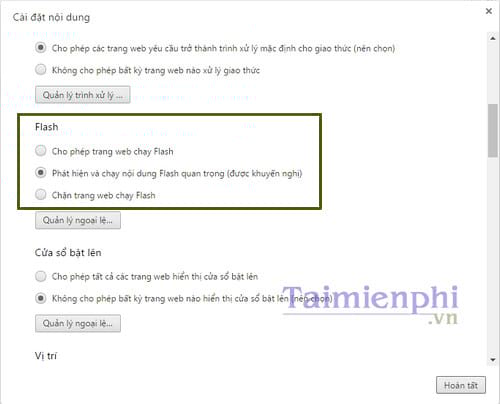
Earlier Chrome versions exposed a Flash section under content settings. The screenshots below are historical: current Chrome does not provide this switch.
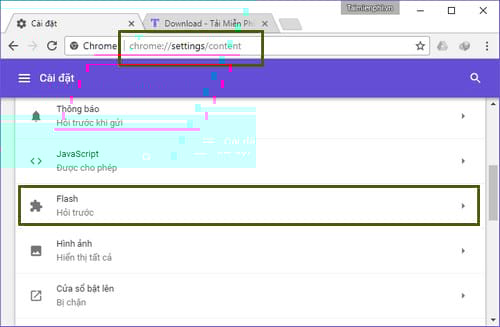
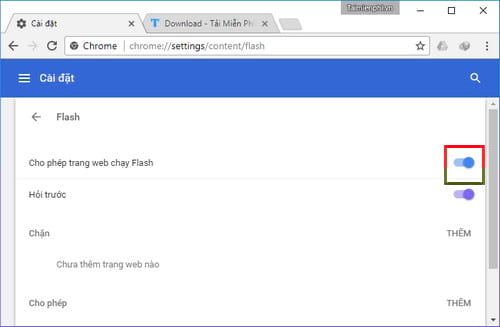
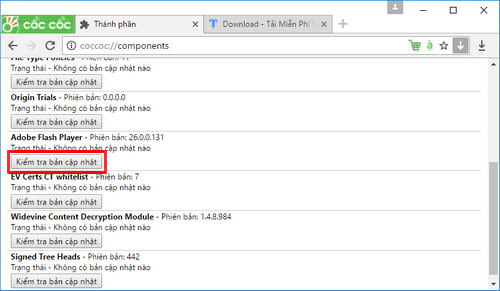
The chrome://components page also used to list Adobe Flash Player. That component was removed, so clicking Check for updates is no longer possible.
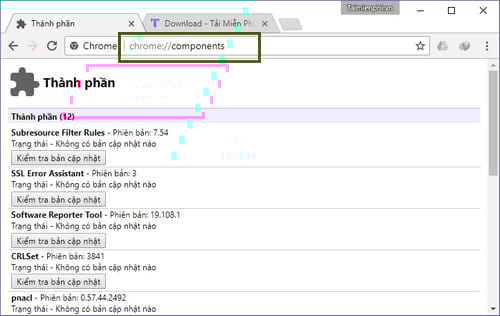
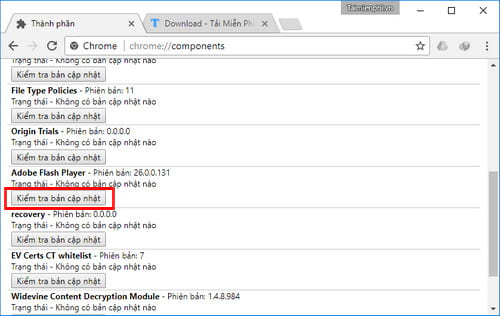
Google announced that Chrome would remove Flash support at the end of 2020 in its Flash retirement plan. Installing an old Chrome release would reintroduce unpatched browser vulnerabilities and is not a safe workaround.
Why the old Cốc Cốc instructions no longer work
Cốc Cốc is Chromium-based. Its old prompt to Update plugin or Run this time belonged to the retired Flash integration.
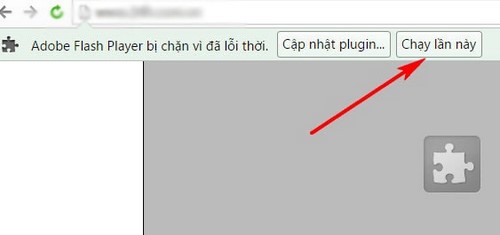
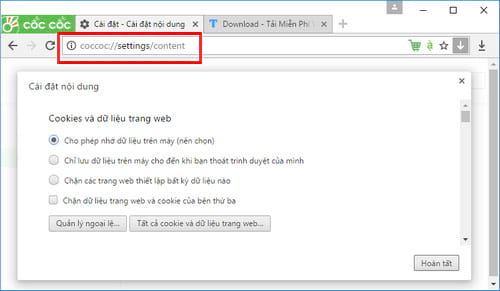
The old coccoc://settings/content Flash options and Flash entry under coccoc://components are likewise obsolete. Resetting Cốc Cốc or reinstalling Adobe Flash Player will not bring them back.
Use Ruffle for compatible archived SWF content
Ruffle is an open-source Flash emulator that runs through modern web technologies rather than installing Adobe Flash Player. It can help with many older animations and games, but not every ActionScript feature or application is compatible.
For a visitor
- Prefer a website that already embeds Ruffle, because the publisher can test its own content.
- If you install the Ruffle browser extension, download it from the official Ruffle site or the browser's official extension store and verify the publisher.
- Open only SWF files from a source you trust. Emulation does not make malicious or privacy-invasive content trustworthy.
For a site owner
- Keep a backup of the original SWF and any external assets it loads.
- Test the content with the current Ruffle build before publishing.
- Replace important video, forms, learning modules, and business tools with HTML5 rather than depending indefinitely on emulation.
- Add a clear fallback message when the content is not compatible.
Adobe Animate can export some projects to modern formats, but conversion depends on the original source files and code. See our overview of Adobe Animate for the distinction between the authoring tool and the retired Flash Player.
Opening a local SWF file
Do not download a random executable named “Flash Player” from a search result. If you own a local SWF, use an official Ruffle desktop build or another maintained archival tool, keep the file offline when possible, and scan downloaded archives before opening them. Our guide to opening SWF files provides additional file-handling context, but any instructions that depend on Adobe Flash Player should be treated as historical.
Signs of a fake Flash update
- A web page says Flash is outdated and immediately downloads an installer.
- The file comes from a domain unrelated to Adobe, the browser vendor, or the chosen emulator.
- The installer asks you to disable antivirus protection or install unrelated software.
- A support caller tells you to install Flash or remote-control software to fix the page.
Close the page, delete the untrusted installer without running it, and run a security scan if you already opened it. The correct modern fix is to replace or emulate the content safely—not to reactivate Adobe Flash inside Chrome or Cốc Cốc.
Related Articles
 Fix the Abrupt Flash Player Error on Google Chrome4 minutes read
 How to Install Adobe Flash Player on Your Computer5 minutes read
 4 Useful Browsers That Integrate Ad Blocking Features4 minutes read
 5 Simple Steps to Activate Flash in Chrome5 minutes read
 Fix Shockwave Flash Crash Error in Google Chrome4 minutes read
 Google Chrome Blocks Ads with Tools Available from February 153 minutes read
Reader Comments 0
Sign in with email or Google to join the discussion.