Table of Contents
To take a screenshot in Firefox, right-click an empty part of the page and choose Take Screenshot, or press Ctrl+Shift+S on Windows and Linux. You can also add the Screenshot button to the toolbar. Use Save full page for a scrolling webpage, Save visible for the current viewport, or drag to select a region.
Take a screenshot in Firefox
- Open the webpage you want to capture.
- Right-click an empty area and select Take Screenshot. If the page suppresses the context menu, use the keyboard shortcut or toolbar button.
- Select one of the available capture modes:
- Save full page captures the webpage from top to bottom.
- Save visible captures only the portion currently shown.
- Click or drag on the page to capture a specific element or rectangular area.
- Choose Copy to place the image on the clipboard or Download to save it as a local file.
Firefox Screenshots captures webpage content, not browser chrome such as the address bar, tabs, or another application's window. For the entire desktop, use the operating system's screenshot controls. Windows users can follow our Windows screenshot guide.
Add or remove the Screenshot toolbar button
- Open the Firefox menu and choose More tools > Customize toolbar, or right-click the toolbar and select Customize Toolbar.
- Find Screenshot in the palette.
- Drag it to the toolbar or the overflow menu. To remove only the button, drag it back into the palette.
- Select Done.
Removing the toolbar button does not disable the feature; the context-menu command and keyboard shortcut can still work.
Restore Firefox Screenshots if it is missing
First update Firefox, restart it, and check Customize Toolbar. If the button and context-menu command are both missing, a changed advanced preference or an organization policy may have disabled the feature.
- Type about:config in the address bar and press Enter.
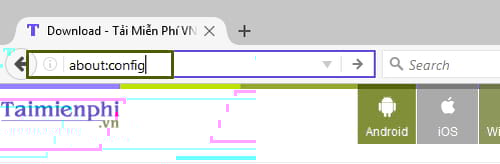
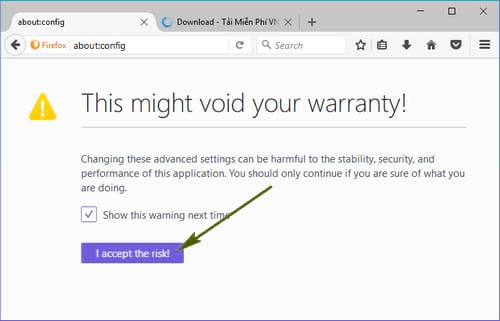
- Select Accept the Risk and Continue if Firefox displays its warning. Advanced preferences can affect stability and security, so change only the setting named below.
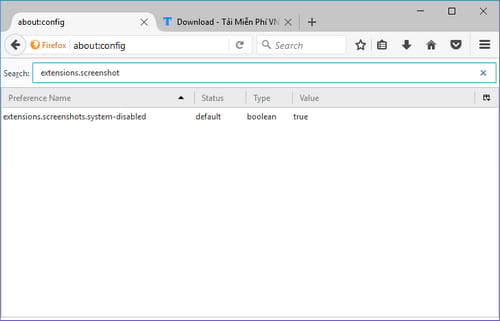
- Search for extensions.screenshots.disabled. Note the plural screenshots; older guides that search only for “extensions.screenshot” are incomplete.
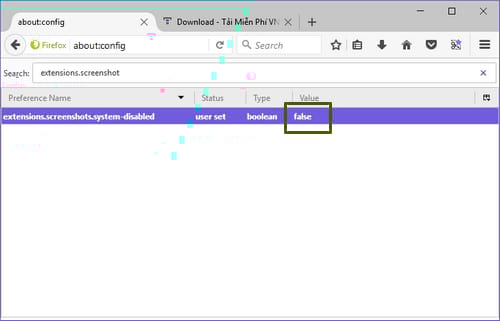
- Set extensions.screenshots.disabled to false to enable Firefox Screenshots. Use the reset button if the preference is marked as user-modified and you want Firefox's default.
The command should return without reinstalling Firefox. If it does not, open about:policies. A work or school administrator can disable browser features; do not bypass an active organization policy.
Disable Firefox Screenshots completely
Use toolbar customization if you merely want a cleaner toolbar. To disable the feature and remove its command:
- Open about:config and accept the warning.
- Search for extensions.screenshots.disabled.
- Toggle the value to true.
- Restart Firefox if the menu item does not disappear immediately.
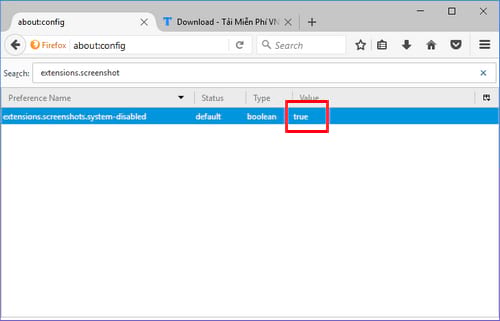
This change is profile-specific. Another Firefox profile can have a different value, and an administrator can enforce the setting through enterprise configuration.
Where the Screenshot button appears
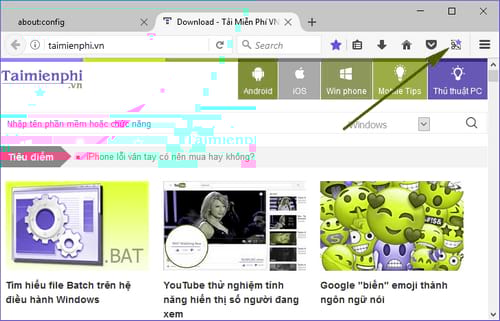
Firefox moved the Screenshot control over time. The older screenshot below shows an earlier toolbar location. In current Firefox, use Customize Toolbar to place the standalone Screenshot button where you want it.
The old Firefox Screenshots upload service is gone
Firefox once allowed screenshots to be uploaded to screenshots.firefox.com and managed through My Shots. That sharing service was discontinued. The historical screen below no longer describes the current workflow.
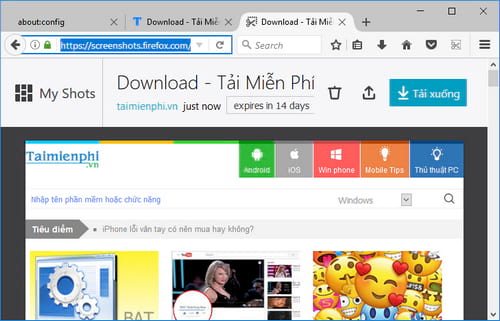
Current Firefox saves the capture to your device or copies it to the clipboard. To share it, upload the downloaded file through a service you trust and check the link's visibility and expiration settings.
Troubleshooting capture problems
- The context-menu item is missing: check toolbar customization and ensure extensions.screenshots.disabled is false.
- The shortcut does nothing: try a normal webpage. Firefox cannot capture some internal pages, extension pages, protected content, or surfaces outside the webpage.
- A full-page capture cuts off content: let lazy-loaded images finish, expand collapsed sections, then capture again. Pages with independently scrolling panels may need multiple captures.
- The download cannot be found: open Firefox's Downloads panel and check the configured download folder.
- An extension interferes: test Firefox Troubleshoot Mode. If the feature works there, re-enable extensions one at a time.
Mozilla's Firefox Screenshots documentation covers the current capture controls. If you need annotation, timed captures, or cross-application screenshots, compare dedicated screenshot tools for Windows and macOS instead of installing an unmaintained Firefox add-on.
Related Articles
 How to Disable Chatbot AI Firefox3 minutes read
 Enable or Disable JavaScript on Chrome11 minutes read
 How to Enable Site-Specific Browser (SSB) in Firefox4 minutes read
 How to Turn On/off the Automatic Screenshot Saving Feature in Snipping Tool on4 minutes read
 How to Enable and Disable Full Screen Mode on Google Chrome3 minutes read
 How to Enable and Disable WebGL on Chrome, Coc Coc, and Firefox Browsers6 minutes read
Reader Comments 0
Sign in with email or Google to join the discussion.