Table of Contents
WebGL lets websites render interactive 2D and 3D graphics through the browser without a separate plug-in. Modern Chrome, Cốc Cốc, and Firefox releases normally enable it automatically. If a site reports that WebGL is unavailable, first check graphics acceleration and the browser's diagnostics instead of changing experimental flags at random.

Check whether WebGL is working
- Update the browser and restart it.
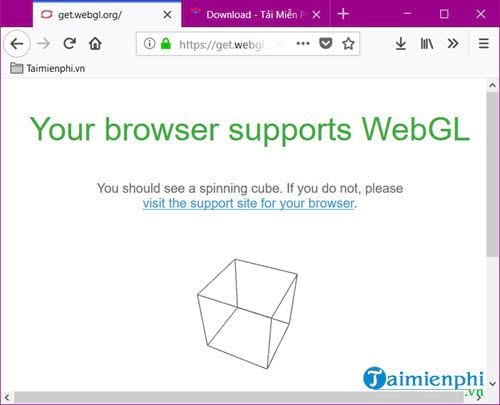
- Open a trusted WebGL test, such as get.webgl.org. A rendered spinning cube confirms that a basic WebGL context can be created.
- Test the affected website in a private window. If it works there, an extension or customized browser setting may be interfering.
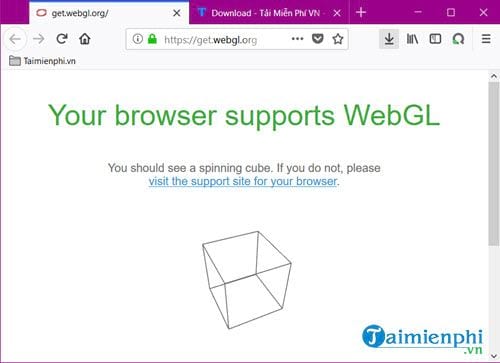
An error such as “Your graphics card does not seem to support WebGL” does not always mean the GPU lacks the feature. Hardware acceleration may be off, the graphics driver may be outdated, the browser may have blocked an unstable driver, or an enterprise policy may be disabling 3D APIs.

Enable WebGL in Chrome
Chrome no longer provides a reliable, permanent “Enable WebGL” switch on chrome://flags. WebGL is normally on when the browser can create a safe graphics context. Use the stable settings first:
- Open Chrome menu > Settings > System.
- Turn on Use graphics acceleration when available. The wording may appear as “hardware acceleration” in an older release.
- Select Relaunch.
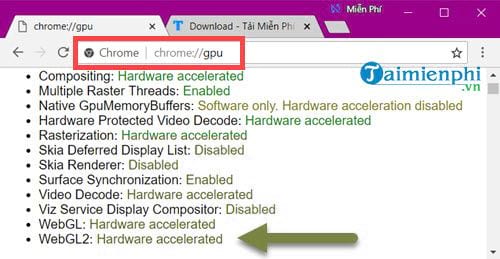
- Enter chrome://gpu in the address bar. Under Graphics Feature Status, check WebGL and WebGL2. “Hardware accelerated” is the expected result; a disabled or software-only result usually includes a reason farther down the page.
The following screenshots show the older Chrome flags workflow. They remain useful for recognizing the diagnostics, but flags and labels change between releases.
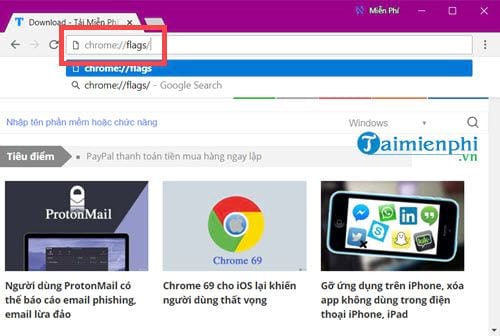
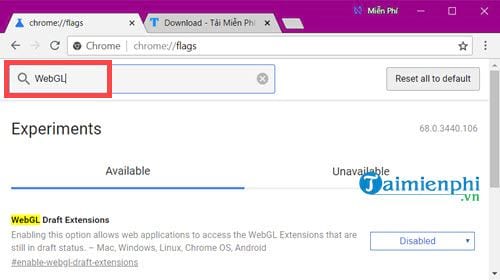
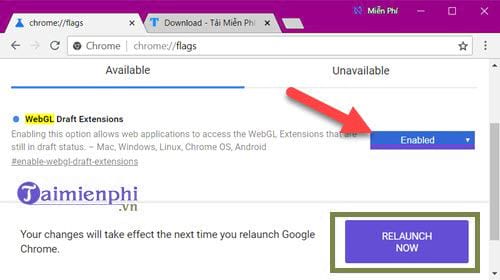
Can you disable WebGL in Chrome?
Consumer Chrome settings do not offer a dedicated, stable WebGL off switch. Turning off graphics acceleration can help diagnose rendering crashes, but it affects more than WebGL and may reduce performance. Managed devices may disable 3D graphics through organizational policy. Do not enable Override software rendering list merely to bypass a driver block; Chrome may have blocked that configuration for stability or security reasons.
Enable WebGL in Cốc Cốc
Cốc Cốc is Chromium-based, so the current process is similar:
- Open the browser's settings and search for graphics acceleration or hardware acceleration.
- Enable it, relaunch the browser, and test the site again.
- Open coccoc://gpu if supported by your version and inspect the WebGL status.
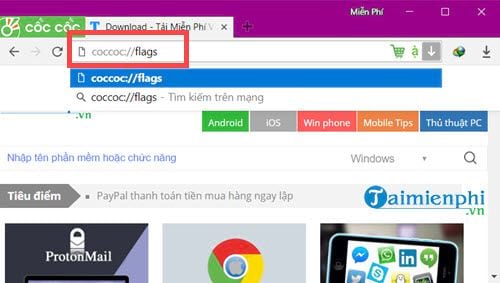
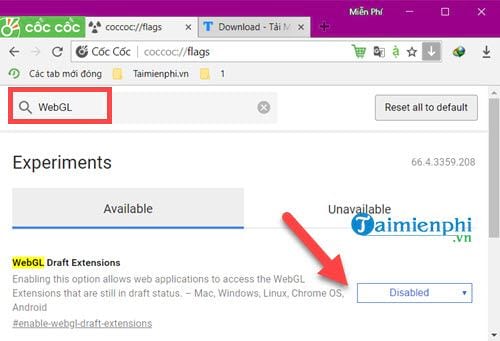
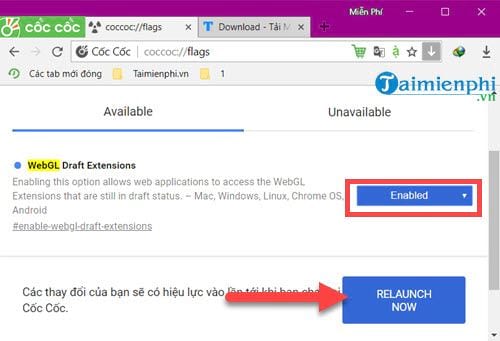
Old versions exposed WebGL experiments at coccoc://flags. These archived screenshots should not be treated as a promise that the same flags still exist.
Enable or disable WebGL in Firefox
Firefox normally enables WebGL. To inspect the current state, enter about:support in the address bar and find the Graphics section. Look for WebGL 1 and WebGL 2 renderer details, failure messages, and blocked-driver information.
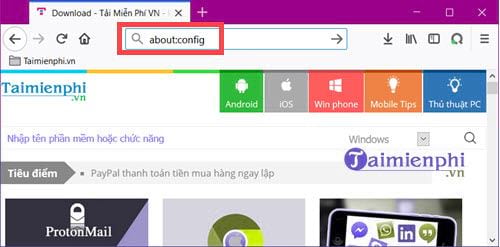
To check the explicit disable preference:
- Enter about:config in the address bar.
- Select Accept the Risk and Continue. Mozilla warns that advanced changes can affect stability, security, and performance.
- Search for webgl.disabled.
- Set it to false to allow WebGL. Set it to true only if you intentionally need to disable WebGL for troubleshooting or policy reasons.
- Restart Firefox and test again.
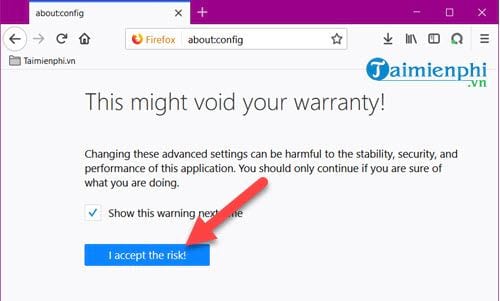
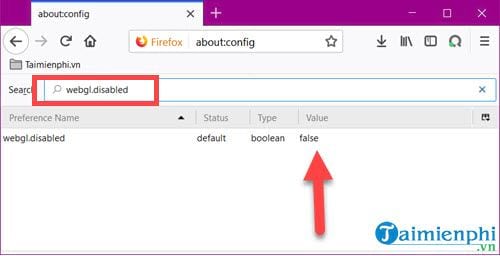
Mozilla's graphics acceleration guidance documents this disable setting. Avoid forcing WebGL on with undocumented preferences unless you are diagnosing a known driver issue and can undo the change.
Do not create obsolete WebGL preferences
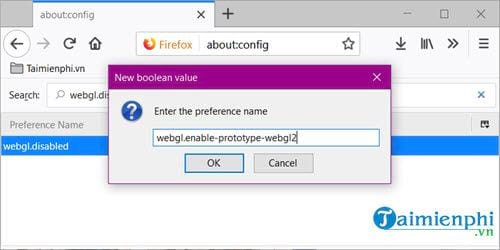
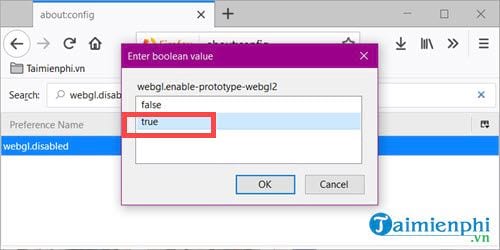
Older guides suggested manually creating webgl.enable-prototype-webgl2. That prototype-era preference is obsolete. Do not add it to a current Firefox profile; reset any custom WebGL preferences that are not part of a deliberate configuration.
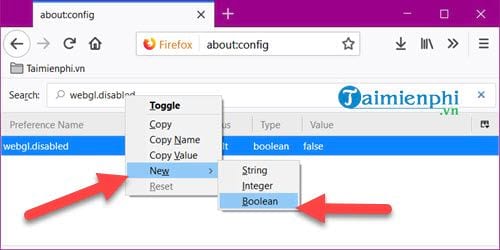

Troubleshoot WebGL errors safely
- Update the browser and operating system. Browser GPU blocklists and graphics components change over time.
- Install the graphics driver from the device or GPU manufacturer. Create a restore point before replacing a working driver.
- Disable extensions temporarily. Privacy, script-blocking, remote-desktop, and graphics extensions can change what a site detects.
- Close GPU-heavy apps. A driver reset or exhausted GPU resources can prevent a new WebGL context.
- Try a clean browser profile. This separates profile corruption from a system-wide driver problem.
- Compare browsers. If every current browser fails, investigate the driver, virtual machine, remote session, or device policy rather than repeatedly editing browser flags.
For another step-by-step reference, see TipsMake's WebGL setup guide. Treat old flag screenshots as historical because experimental options can disappear without notice.
Related Articles
 How to Enable Webgl6 minutes read
 6 Impressive Browser Features You May Not Know Yet6 minutes read
 How to Enable JavaScript in Browsers3 minutes read
 Enable or Disable JavaScript on Chrome11 minutes read
 When the Network Speed Is Slow, Turn This Feature Off to Browse the5 minutes read
 Goodbye Chrome, We Switch to Firefox13 minutes read
Reader Comments 0
Sign in with email or Google to join the discussion.