Table of Contents
Most Windows users do not need to remove Microsoft Edge to stop using it. Set another browser as the default, turn off Edge’s startup and background features, and remove its shortcuts. This leaves Windows components and apps that rely on Edge or the separate WebView2 runtime intact.
Do not rename Edge program folders or add unverified Registry values. Updates can undo those changes, and damaged browser or WebView components can break Windows features and applications.
1. Change the default browser
- Install and open the browser you want to use.
- Open Settings > Apps > Default apps.
- Select the browser, then choose Set default. On older builds, assign it to HTTP, HTTPS, HTML, and related web file types.
- Open a normal web link to confirm it uses the new browser.
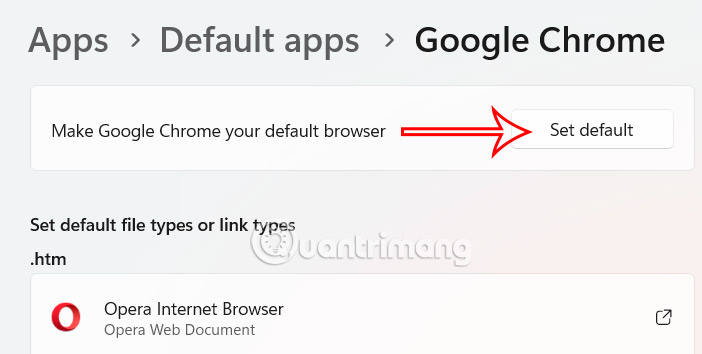
Some Windows experiences can still use Microsoft components for embedded web content. Changing the default handles ordinary links; it is not a promise that no Edge-related process will ever appear.
2. Close Edge and stop background operation
In Edge, select the three-dot menu and choose Close Microsoft Edge, or close every window. Then open edge://settings/system and turn off:
- Startup boost; and
- Continue running background extensions and apps when Microsoft Edge is closed.
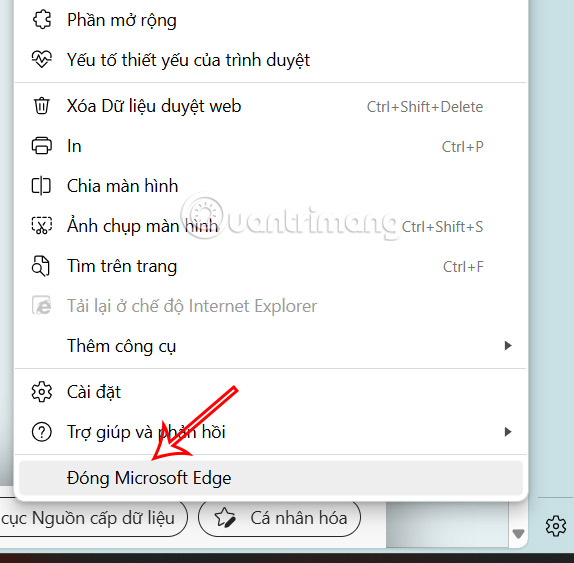
Restart Windows and check Task Manager again. An msedgewebview2.exe process belongs to WebView2 content used by another app; it does not necessarily mean the Edge browser is open.
3. Prevent Edge from reopening at sign-in
Windows can restore apps that were open before a restart. Go to Settings > Accounts > Sign-in options and turn off Automatically save my restartable apps and restart them when I sign back in. Microsoft documents this as its supported way to stop Edge from reopening automatically after sign-in.
Also open Settings > Apps > Startup and disable any Edge entry if one is listed. This affects browser startup, not WebView2 components launched by other software.
4. Remove Edge shortcuts and taskbar pins
- Right-click the Edge icon on the taskbar and select Unpin from taskbar.
- Remove a desktop shortcut normally.
- Move Edge out of the pinned area in the Start menu.
Deleting a shortcut does not uninstall or damage the browser and can be reversed by creating another shortcut later.
Can Microsoft Edge be uninstalled?
Open Settings > Apps > Installed apps, find Microsoft Edge, and check whether Windows offers an enabled Uninstall command. Availability depends on the Windows build, region, device management, and how Edge was installed. If Windows provides the option, use it and follow the supported prompt.
If Uninstall is unavailable, do not force removal with setup commands copied from old guides. Microsoft can service Edge as a Windows component, and an update may restore missing files. Keep Edge updated even if it is not your default browser, because an unpatched installed browser remains a security risk.
Do not rename the Edge version folder
An older workaround opened Edge’s installation directory and renamed its version folder so msedge.exe could no longer find its files. The screenshots below illustrate that obsolete approach; they are not recommended steps.
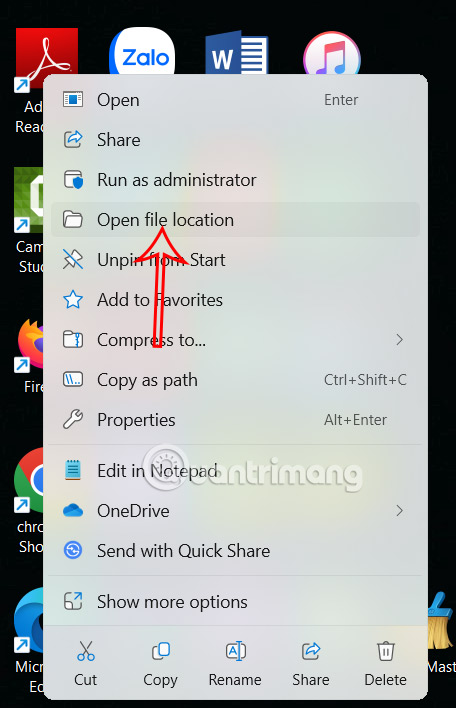
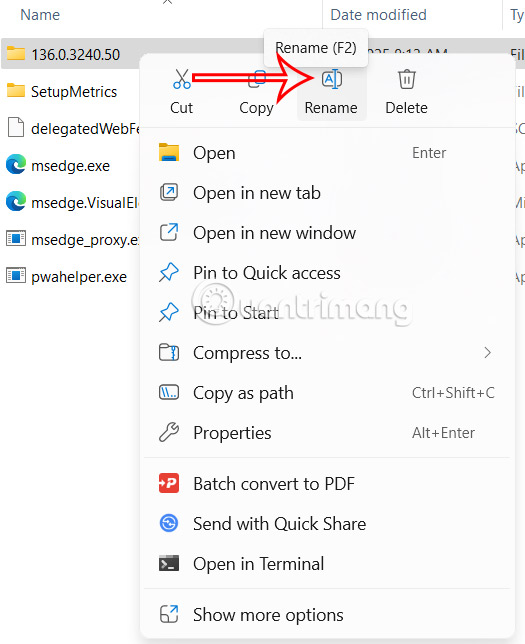
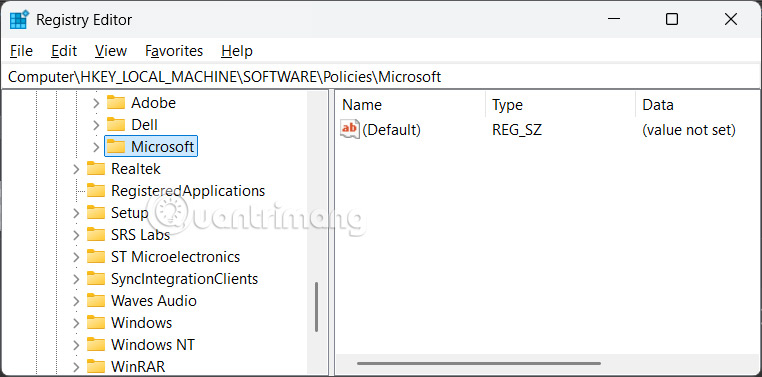
Renaming files can cause failed updates, confusing repair prompts, or missing components. If you previously used this method, restore the folder’s exact original name and repair Edge from Installed apps if the browser no longer updates correctly.
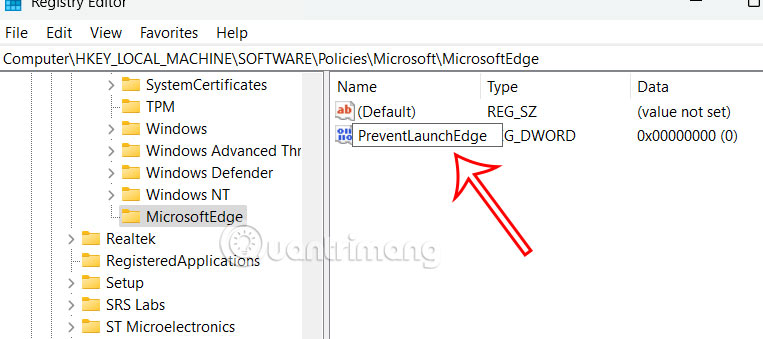
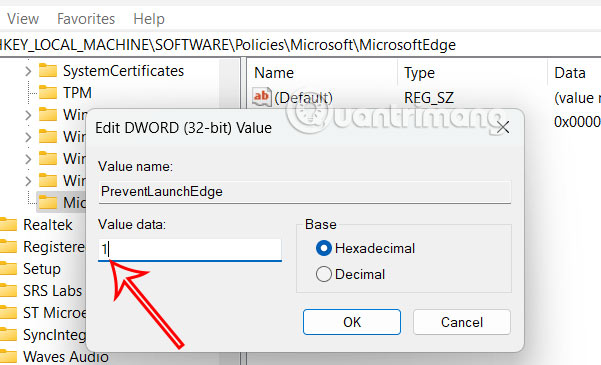
Do not use the PreventLaunchEdge Registry hack
Some legacy instructions create this path and value:
HKEY_LOCAL_MACHINESOFTWAREPoliciesMicrosoftMicrosoftEdge
PreventLaunchEdge = 1
That is not a current documented Microsoft Edge policy for disabling the Chromium-based browser. Creating arbitrary policy keys can give a false sense that Edge is blocked and can complicate troubleshooting.
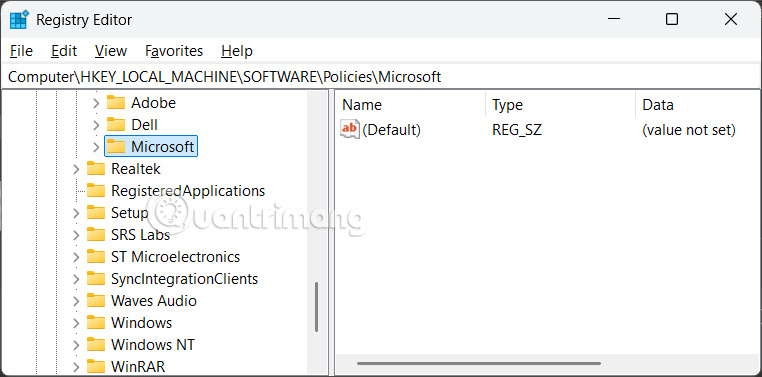
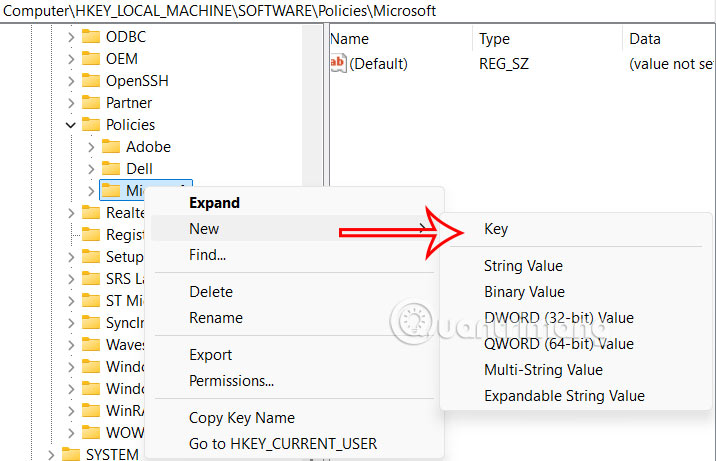
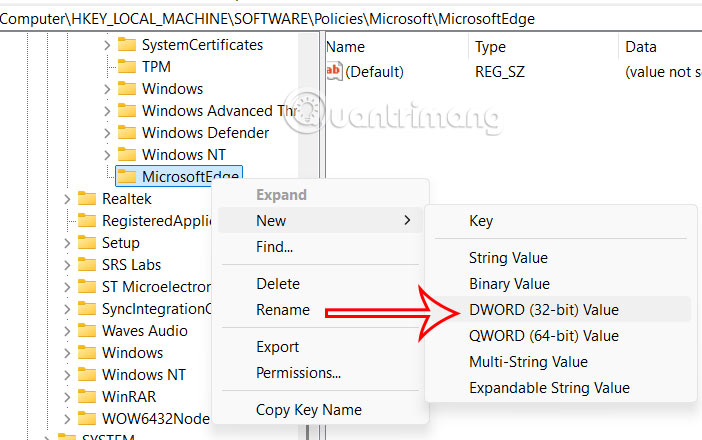
If an organization must prevent browser use, administrators should use an approved application-control design such as AppLocker or Windows Defender Application Control, test the effect on updates and support tools, and deploy it through managed policy. Blocking the browser is different from removing WebView2.
Do not remove WebView2 just to hide Edge
Microsoft Edge WebView2 Runtime lets applications display web-based interfaces inside their own windows. New Outlook, Teams, Windows Widgets, and many business apps can depend on it. Removing or blocking WebView2 can break those applications without preventing every Edge browser launch.
If WebView2 processes use excessive resources, identify the parent application in Task Manager and change or repair that app. Do not terminate or delete the shared runtime repeatedly.
Recommended configuration
| Goal | Supported action |
|---|---|
| Use Chrome, Firefox, or another browser | Set it under Default apps |
| Reduce Edge background activity | Disable Startup boost and background extensions/apps |
| Stop reopening after a reboot | Turn off Windows restartable-app restoration |
| Hide Edge | Unpin its shortcuts |
| Remove Edge where Windows permits it | Use the Installed apps Uninstall command |
| Block browser execution in an organization | Use tested enterprise application-control policy |
See Microsoft’s current Edge automatic-start guidance before changing system files. If the browser itself is acceptable but its AI interface is not, follow TipsMake’s guide to disable Copilot features in Edge. You can also compare alternatives in the 2026 web-browser guide.
Related Articles
 How to disable Copilot on Microsoft Edge in Windows 113 minutes read
 How to Disable Custom Scroll Bars on Microsoft Edge3 minutes read
 Instructions for Restoring Microsoft Edge on Windows 104 minutes read
 How to Disable Copilot in Microsoft Edge5 minutes read
 How to Disable Office File Viewer in Microsoft Edge3 minutes read
 How to Enable/disable Enhance Images in Microsoft Edge: Step-by-Step Guide6 minutes read
Reader Comments 0
Sign in with email or Google to join the discussion.