Table of Contents
You can explore a Windows-style desktop in a browser, but the options fall into three different categories. A true emulator reproduces PC hardware and boots an older operating system; a simulator recreates the interface with web code; a cloud PC streams a real remote Windows machine. Choose the category that matches your goal—nostalgia, UI exploration, software testing, or running an application.
Browser Windows options compared
| Option | Type | Best for | Can install normal Windows apps? |
|---|---|---|---|
| v86 Windows 95 | x86 emulator | Retro OS exploration | Limited legacy software |
| v86 Windows 98 | x86 emulator | Windows 98 and classic apps | Limited legacy software |
| PCjs Windows 3.1 | PC emulator | Computing history and education | Only compatible vintage software |
| Internet Archive Windows 95 | DOSBox-based emulation | Quick nostalgic demo | Generally no practical installation workflow |
| Win7 Simu | Web simulator | Windows 7-style interface | No |
| Win11React | Web simulator | Windows 11-style UI demo | No |
| OnWorks Windows theme | Linux cloud desktop with Windows-like theme | Free remote desktop experimentation | Linux apps, not native Windows software |
| AppOnFly | Cloud Windows VPS | Running real Windows software remotely | Yes, subject to licensing and plan limits |
1. v86 Windows 95
v86 emulates an x86-compatible CPU and PC hardware in the browser. Its Windows 95 profile boots a real vintage environment with included demos and programs. It is suitable for experimentation and software-history lessons, not as a secure modern workstation.
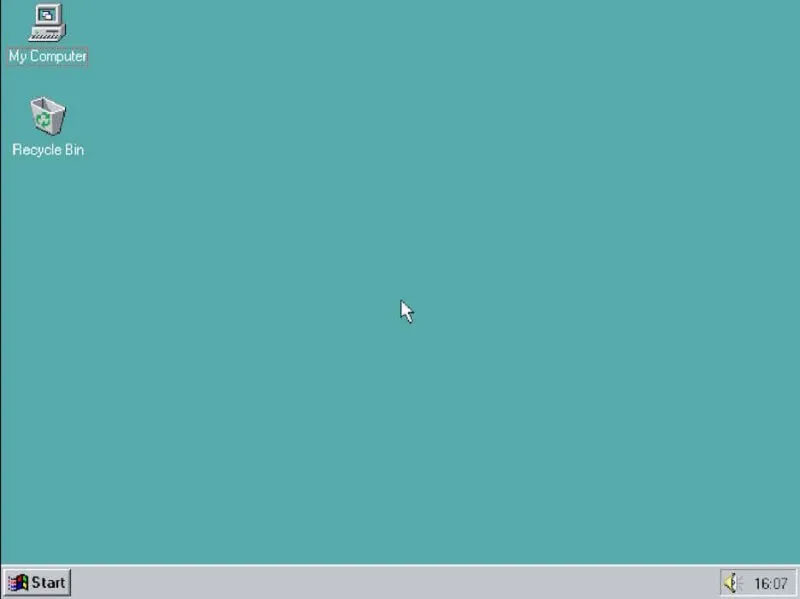
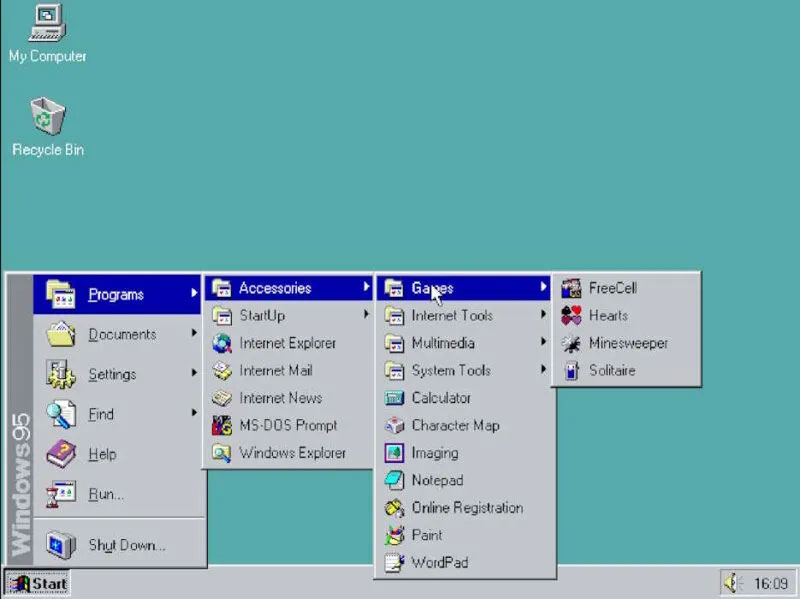
Performance depends on the browser and device. Modern websites generally will not work in period browsers because current encryption and web standards did not exist when Windows 95 shipped.
2. v86 Windows 98
The main v86 profile page also offers Windows 98. It supports emulated disks and, for experienced users, local disk images. Treat downloaded or uploaded images carefully and use only software you are licensed to run.
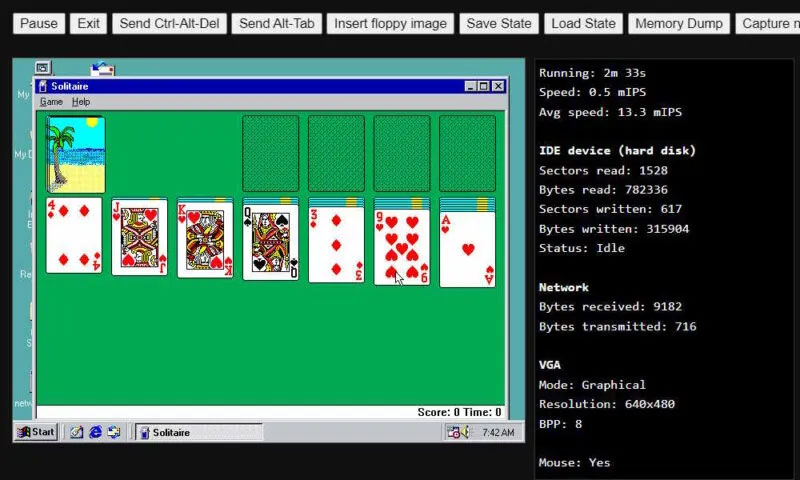
Windows 98 is useful for observing classic menus, utilities, and compatible applications. It should not be used for email, online banking, or any sensitive account.
3. PCjs Windows 3.1
PCjs Machines provides JavaScript-based PC emulators with historical software and documentation. Its Windows 3.1 machine is especially useful for classrooms, museums, and anyone studying the transition from DOS applications to graphical desktop computing.
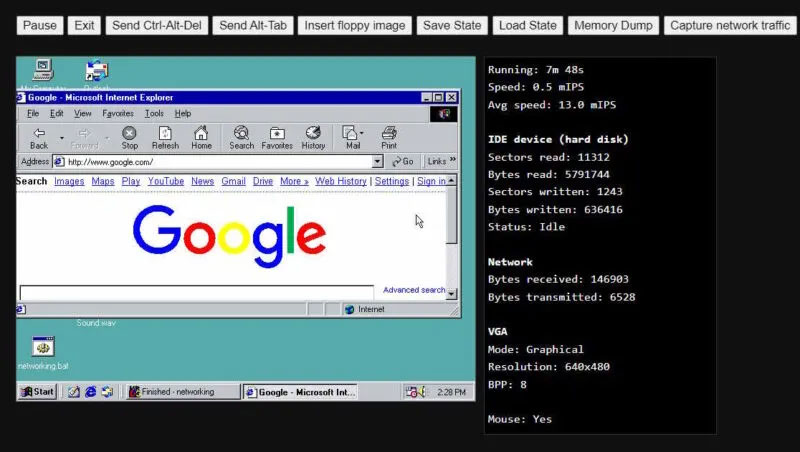
This is a curated historical machine, not a place to test a current Windows application or website.
4. Internet Archive Windows 95
The Internet Archive's Windows 95 in DOSBox item is an easy way to launch a compact preconfigured image. It is best for a short nostalgic visit to Paint, WordPad, menus, and included games.
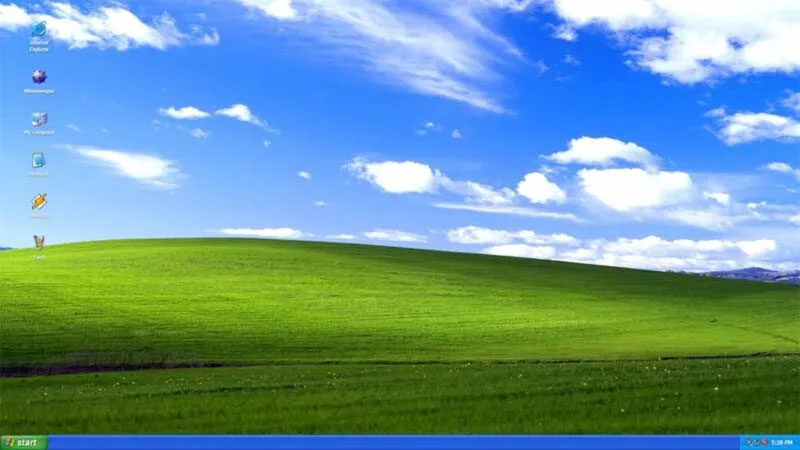
Browser storage and session persistence vary. Do not create the only copy of a file inside a demo; save important work in a normal local application.
5. Win7 Simu
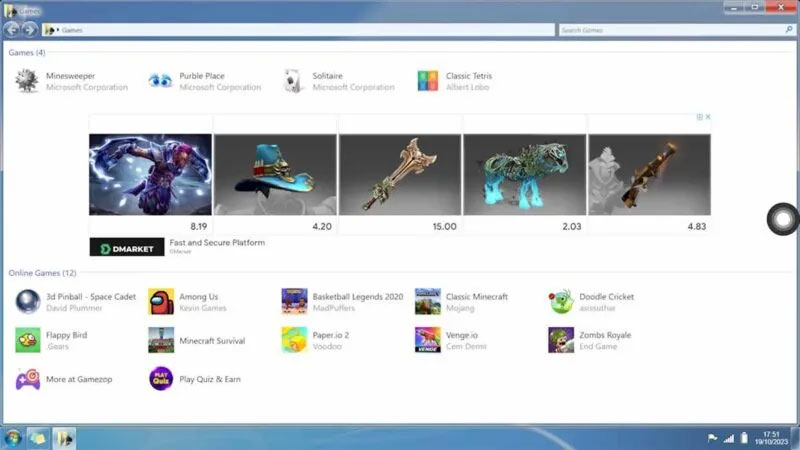
Win7 Simu recreates a Windows 7-inspired desktop with web technologies. It includes simulated apps, themes, and games, but it does not boot Microsoft Windows and cannot run an arbitrary .exe program.
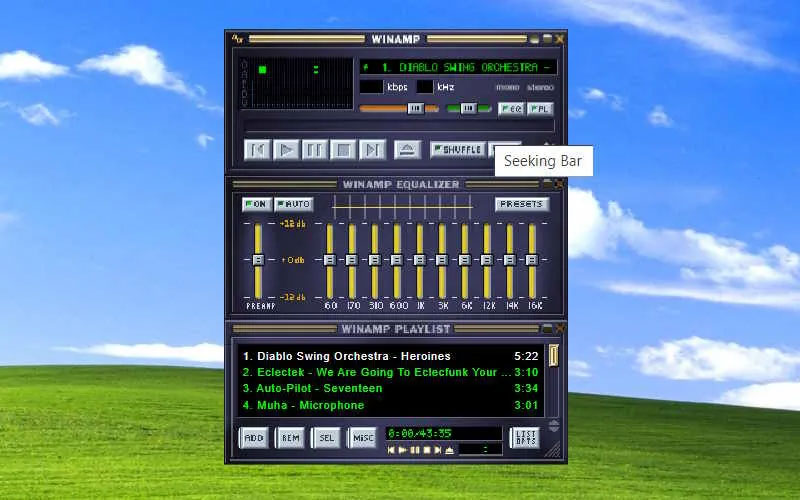
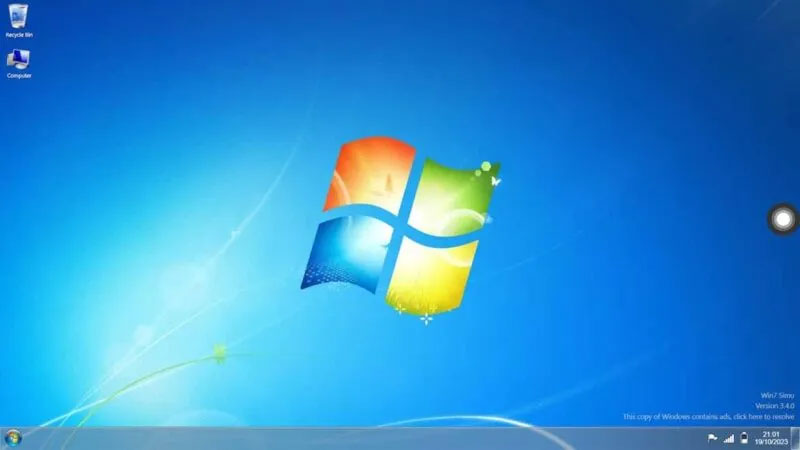
Use it to revisit the look and navigation pattern or demonstrate the interface. Do not use it to judge software compatibility, driver behavior, or Windows security settings.
6. Win11React
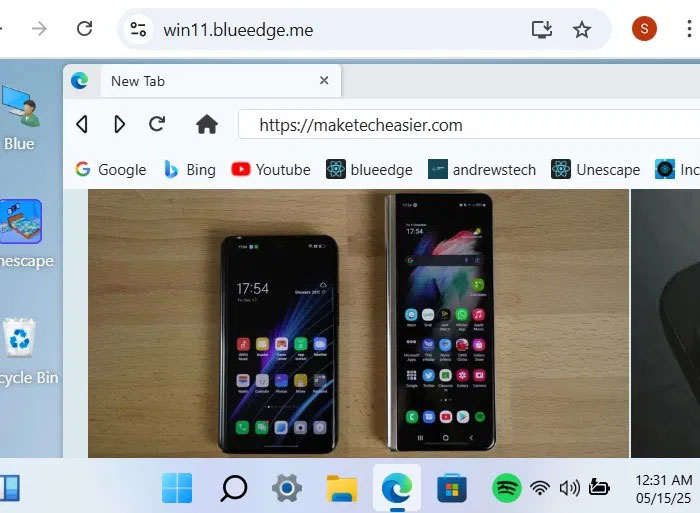
Win11React is an open-source recreation of the Windows 11 desktop built with React, CSS, and JavaScript. The Start menu, taskbar, windows, and selected apps are interactive enough for a visual demo.
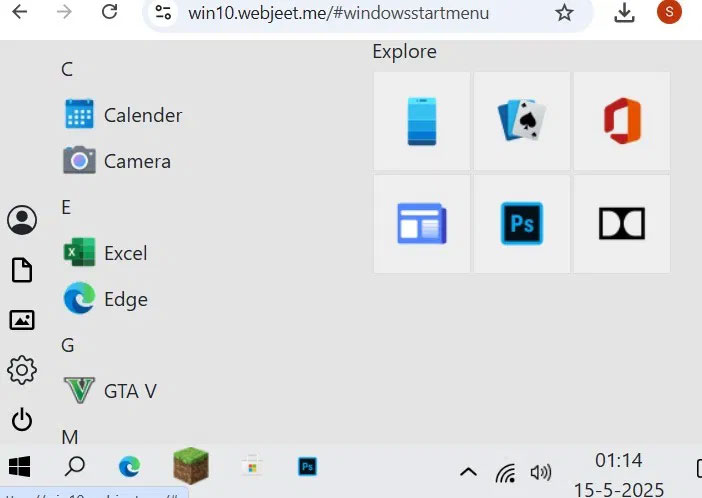
It is a simulator, not a licensed Windows 11 installation. Settings changes and files exist only within what the web project implements.
7. OnWorks Windows 10 theme
OnWorks' Windows 10 online theme is a remote Ubuntu desktop styled to resemble Windows. The service itself states that it is not a perfect Windows imitation. It can be useful for trying a cloud Linux workstation with familiar visual elements.
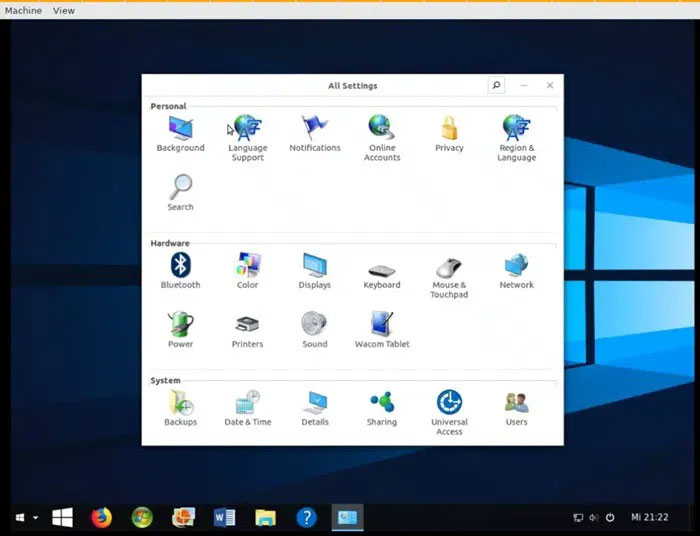
Do not assume a Windows-looking menu means native Windows compatibility. Review session limits, privacy terms, advertising, storage persistence, and download behavior before uploading a file.
8. AppOnFly Windows VPS
AppOnFly streams a real Windows virtual private server into the browser. It can install Windows applications when you have the appropriate software licenses and sufficient server resources. Current advertising starts at $0.06 per hour, but configurations, storage, traffic, taxes, and long-running use affect the final cost.
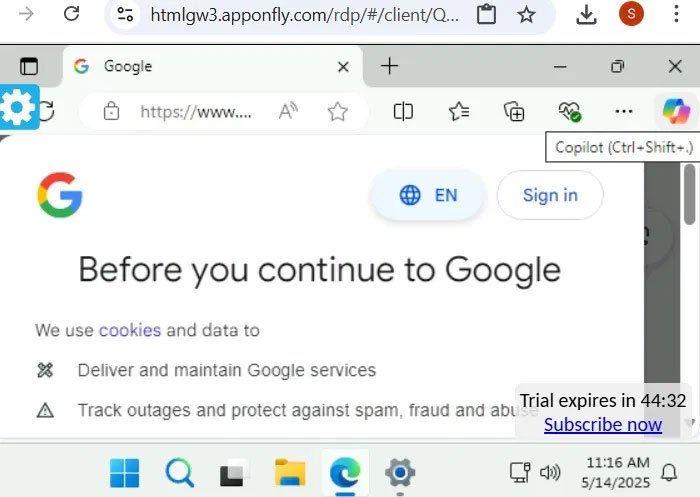
This is the closest option in the list to a normal remote Windows PC. It is also a paid cloud service, so protect the account with strong authentication, install updates, and shut down resources you no longer need.
Which option should you use?
- For nostalgia: v86, PCjs, or Internet Archive.
- For showing a familiar interface: Win7 Simu or Win11React.
- For a free cloud desktop: OnWorks, with the understanding that it is Linux-themed like Windows.
- For real Windows applications: a licensed cloud Windows VPS such as AppOnFly.
- For professional browser compatibility testing: use a dedicated testing service that states which real Windows and browser versions it provides.
Safety and legal cautions
- Do not enter passwords, payment data, or confidential files in an unknown simulator.
- Old Windows versions are unsupported and unsafe for ordinary internet use.
- Browser emulation does not provide a legal license for commercial Windows software.
- A visual simulator cannot validate drivers, installers, Group Policy, security tools, or performance.
- Cloud sessions may be temporary; export files and stop billable resources when finished.
The old “WinXP,” Web Jeet, and similar interface demos were not kept as primary recommendations because their functionality, maintenance, or current availability could not be verified as confidently as the options above.
Related Articles
 Top Best iOS Emulators Help Run Applications on Windows9 minutes read
 6 Windows Emulators for Browsers: Expert Selection Guide9 minutes read
 Pros and Cons of Playing Games on Emulators11 minutes read
 8 Top PlayStation Emulators for PC 2023: Expert Selection Guide10 minutes read
 3 Best Nintendo Switch Emulators for Windows5 minutes read
 8 Best PlayStation Emulators for PC in 202610 minutes read
Reader Comments 0
Sign in with email or Google to join the discussion.