Table of Contents
A Limited or No internet message means Windows can reach the local network but cannot verify internet access. Work from the least disruptive checks to a full network reset, testing after each section so you know which change solved the problem.

1. Isolate the router, service, and PC
- Try another device on the same network. If every device is offline, focus on the modem, router, or internet provider.
- Try a different website and temporarily disconnect any VPN. A single failed site is not a Windows connection failure.
- If possible, test the PC on Ethernet or a phone hotspot. This distinguishes a Wi-Fi fault from a wider networking problem.
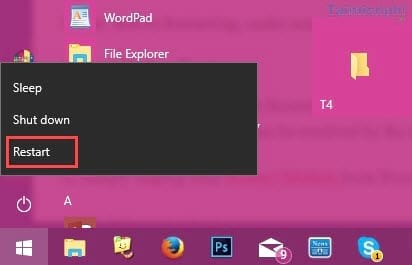
Restart Windows first; this clears temporary adapter and service state.
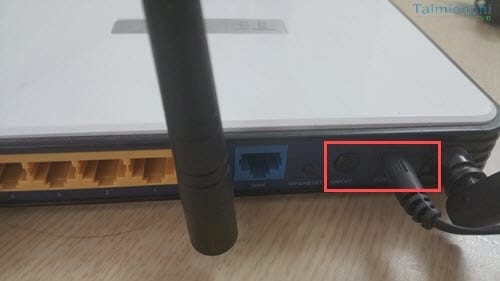
If all devices are affected, power off the modem and router, wait about 30 seconds, power on the modem first, and then the router. Allow several minutes for their status lights to stabilize.
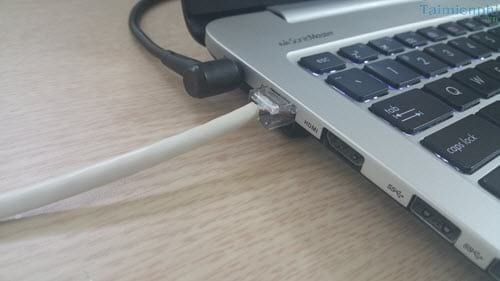
For Ethernet, reseat the cable at both ends, try another router port, and replace the cable if a link light never appears. Cables and ports can fail, so do not dismiss this check.
2. Run the Windows network troubleshooter
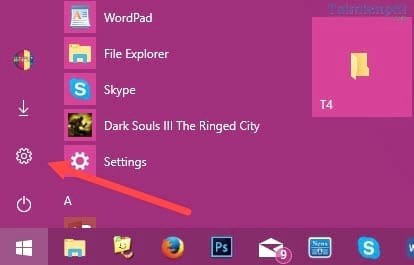
- Open Start > Settings.
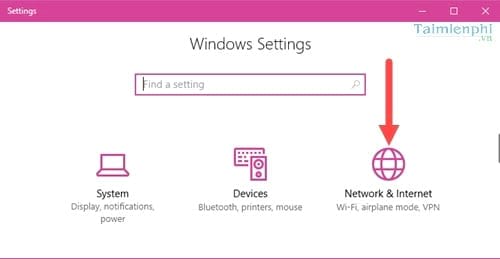
- Select Network & Internet.
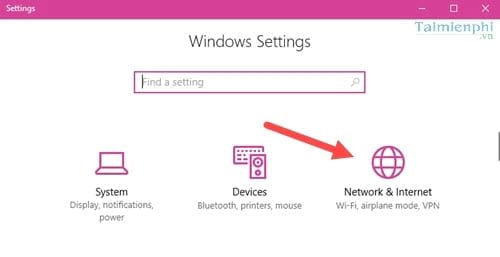
- On the Status page, select Network troubleshooter and follow the prompts.
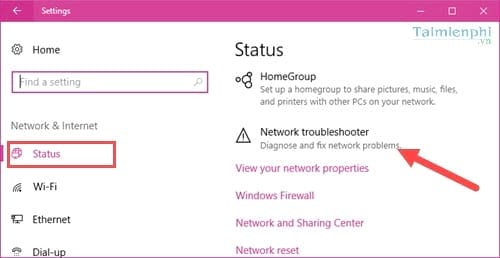
Apply only recommendations relevant to the active connection, then test again.
3. Reconnect Wi-Fi and check addressing
For Wi-Fi, open Settings > Network & Internet > Wi-Fi > Manage known networks, select the network, choose Forget, and reconnect with the password. If ipconfig shows an IPv4 address beginning with 169.254, Windows did not receive an address from the router; see the IP 169 troubleshooting guide.
4. Renew IP and repair the network stack
Right-click Start and open Windows PowerShell (Admin) or Command Prompt (Admin).
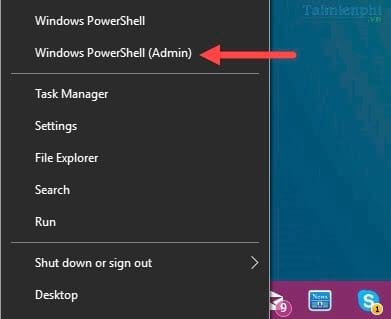
Run these commands one at a time:
ipconfig /release
ipconfig /flushdns
ipconfig /renew
netsh winsock reset
netsh int ip reset
The first command temporarily releases the current address.
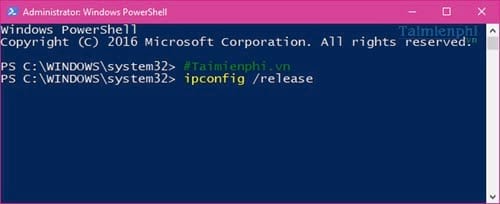
The renew command asks the router's DHCP service for a new address.
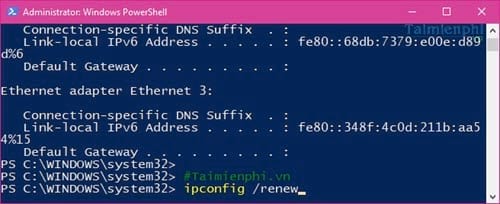
Restart Windows after the reset commands. If the PC uses a required static address, do not replace it with automatic settings without the network administrator's instructions.
5. Check Wi-Fi adapter power management
This setting is most relevant when Wi-Fi drops after sleep or during idle periods.
- Right-click Start and open Device Manager.
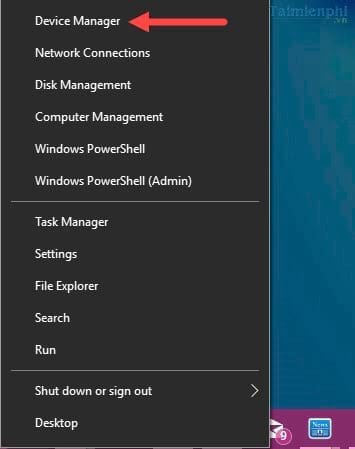
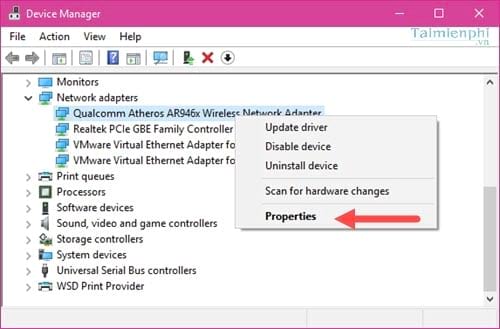
- Expand Network adapters, right-click the active Wi-Fi adapter—not necessarily the model shown in the screenshot—and select Properties.
- On Power Management, clear Allow the computer to turn off this device to save power, then restart and test.
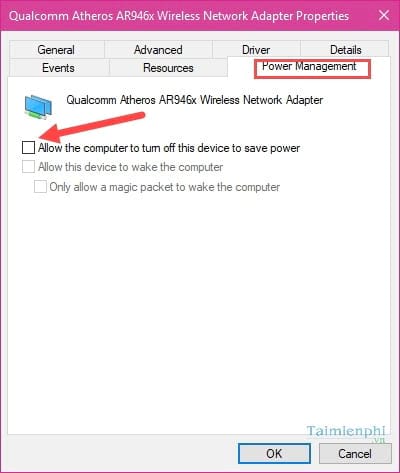
If there is no improvement, restore the setting. Also update or roll back the adapter driver using the PC manufacturer's official package.
6. Use Network reset only after recording custom settings
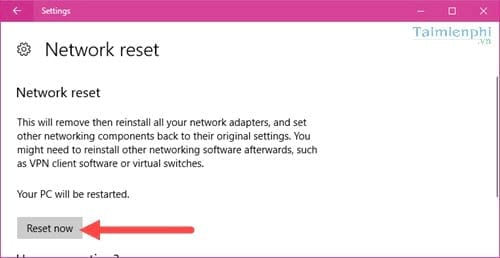
Network reset removes and reinstalls network adapters and returns their settings to defaults. VPN adapters, virtual switches, static IP information, and other custom configuration may need to be recreated.
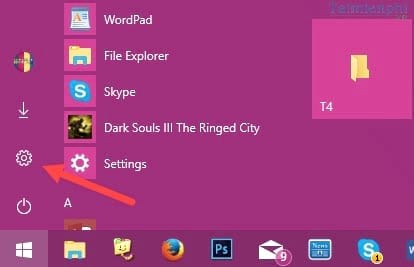
- Open Start > Settings.
- Select Network & Internet.
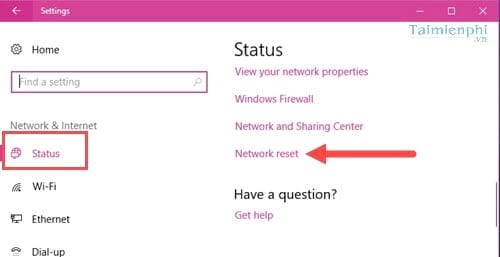
- On Status, select Network reset.
- Select Reset now, confirm, and allow Windows to restart.
When to escalate
If every device remains offline after the router restarts, contact the internet provider. If only this PC fails on every network, review its wireless driver and hardware using the complete Windows Wi-Fi checklist. An organization-managed PC may require proxy, certificate, or security settings that should be handled by its administrator.
Related Articles
 The 'Connected with Limited Access' Error in Windows4 minutes read
 Fixing the Limited Wi-Fi Error on Windows 103 minutes read
 Fix Network Error with Yellow Exclamation Mark in Windows 10 Explained9 minutes read
 Troubleshoot 'Limited or No Connectivity' Errors in Windows XP2 minutes read
 The Way to Fix Windows 8 Error Does Not Catch Wi-Fi5 minutes read
 Fix 'a Duplicate Exists Name on the Network' Error4 minutes read
Reader Comments 0
Sign in with email or Google to join the discussion.