Table of Contents
Windows 10 can connect to a Wi-Fi network whose name is not broadcast, but it needs an exact SSID, the matching security type, and the password. Obtain those details from the network owner. Hiding an SSID does not prevent nearby devices from detecting wireless activity and should not be treated as a substitute for WPA2 or WPA3 security.
Before adding the network
- Copy the SSID exactly; capitalization and spaces matter.
- Confirm whether the router uses WPA2-Personal, WPA3-Personal, an enterprise mode, or another option.
- Use only a network you own or are authorized to access.
- Avoid open networks and obsolete WEP/WPA security. Router owners can review stronger controls in the Wi-Fi access protection guide.
Method 1: Add the network in Windows 10 Settings
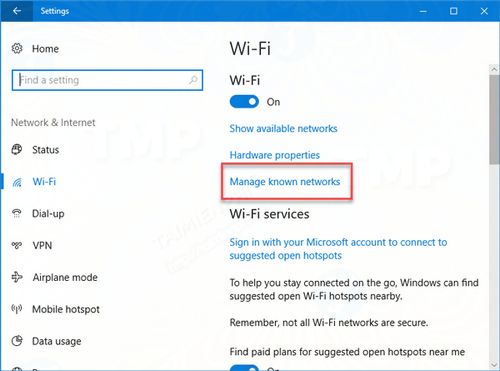
- Press Windows + I and open Network & Internet > Wi-Fi.
- Select Manage known networks.
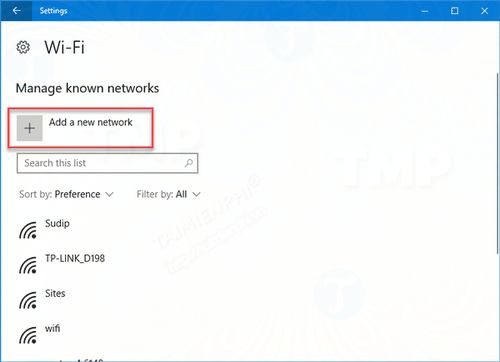
- Select Add a new network.
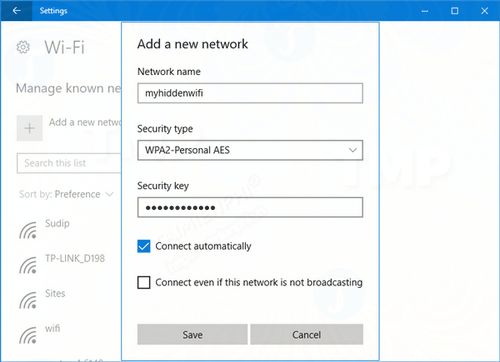
- Enter the Network name (SSID), choose the security type that matches the router, and enter the security key.
- Enable Connect automatically only if the PC should use this network whenever it is nearby. Enable Connect even if this network is not broadcasting only for this intentionally hidden SSID.
- Select Save.
Windows saves a profile and attempts the connection. Open the taskbar network panel to confirm the network is connected and internet access works.
Method 2: Use the taskbar Wi-Fi panel
- Select the Wi-Fi icon in the notification area.
- Choose Hidden Network and select Connect.
- Enter the network name, select Next, and enter the password.
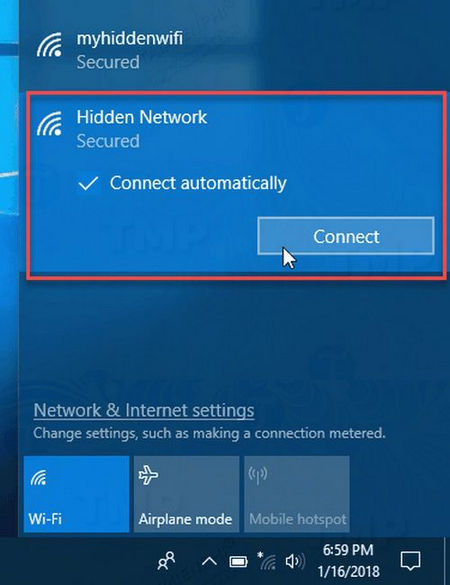
The generic Hidden Network entry may not appear on every PC or in every location. The Settings method is more reliable because it creates the profile directly.
If the hidden network will not connect
- Go to Manage known networks, select the profile, and choose Forget. Add it again to eliminate an old password or security setting.
- Check the SSID character by character. A similar-looking space, hyphen, or letter creates a different profile.
- Verify the router's security mode. Selecting WPA2-Personal for an enterprise network, for example, will fail even with the correct password.
- Move closer to the router and test another authorized device.
- Restart the wireless adapter and update its driver from the PC or adapter manufacturer.
If the PC connects but reports no internet, the hidden SSID is no longer the main issue. Follow the Wi-Fi troubleshooting sequence to isolate the router, DNS, IP configuration, and driver.
Should you keep the SSID hidden?
A non-broadcasting SSID can reduce casual visibility, but the network can still be identified through normal wireless traffic. Devices configured to find it may also probe for the network while away from home. For a network you administer, a visible SSID, modern encryption, a strong unique password, updated router firmware, and a separate guest network are more meaningful protections.
Related Articles
 Connect Your Windows 7 Computer to the Hidden Wi-Fi Network6 minutes read
 Connect Your Computer to the Hidden Wi-Fi Network on Your Computer or Laptop4 minutes read
 How to Hide Hidden Wi-Fi Network Ssid on Windows 105 minutes read
 How to Turn on / Off Automatically Wireless Network Connection in Windows5 minutes read
 How to Connect to the Network for Android TV Box6 minutes read
 This Is How to Reset Network Settings on Windows 10 with Just One4 minutes read
Reader Comments 0
Sign in with email or Google to join the discussion.