Table of Contents
Clearing your search history on Microsoft Edge is the quickest way to ensure your privacy when other people are using your computer. However, clearing only your search history in Edge is different from clearing your browsing data on Edge. Here's how to clear your search history on Microsoft Edge.
How to find search history on Edge
Step 1:
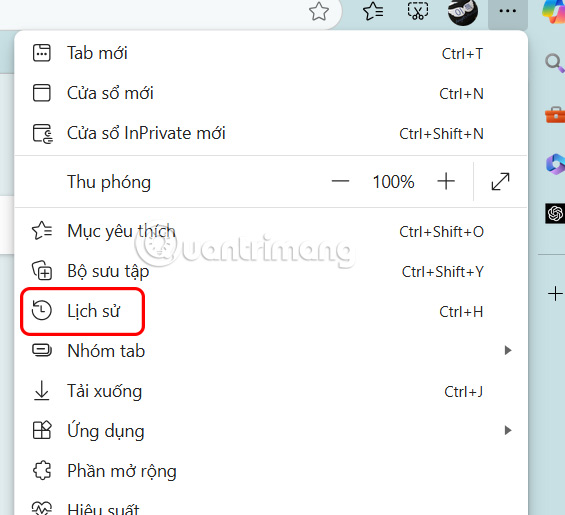
At the Edge browser interface, select the 3-dot icon and select History in the displayed list.
Step 2:
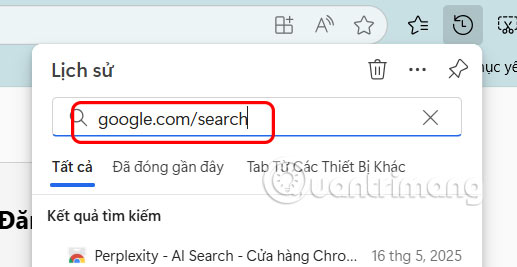
In the Search History box, enter any of the following to filter the search query:
- bing.com/search
- google.com/search
- Or just type search
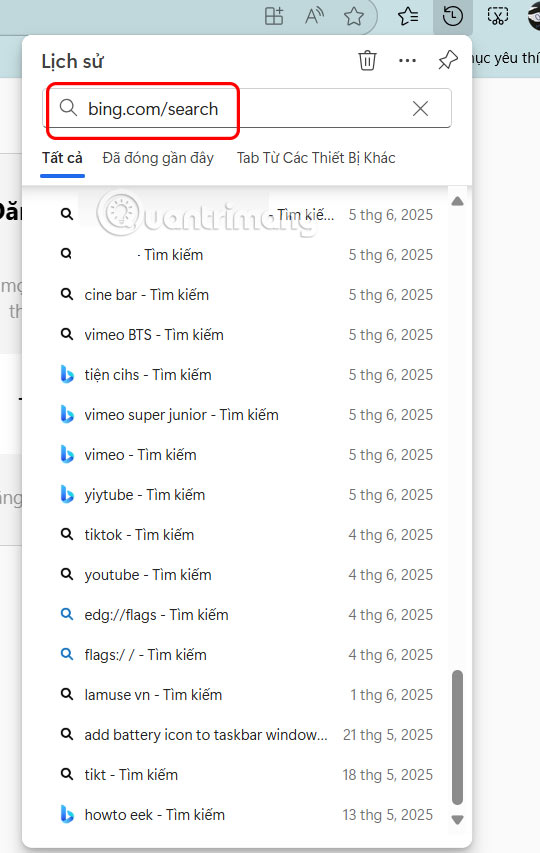
The results will show you searches listed in reverse chronological order with timestamps, making it easy to identify specific searches you want to delete.
How to clear search history in Edge
Step 1:
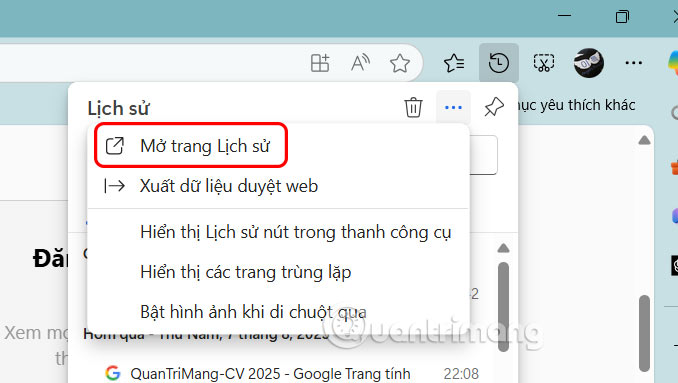
select the 3 dots icon and select History , then display the history on the Edge browser, click Open history page to do so.
Step 2:
Enter search keyword in the search box to filter all your search queries.
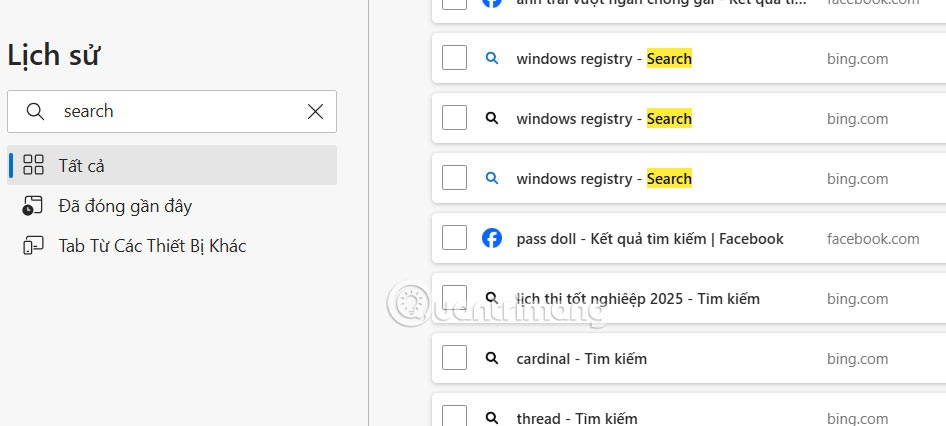
At this interface, you will manually delete the search on the Edge browser, by clicking the x icon to delete .
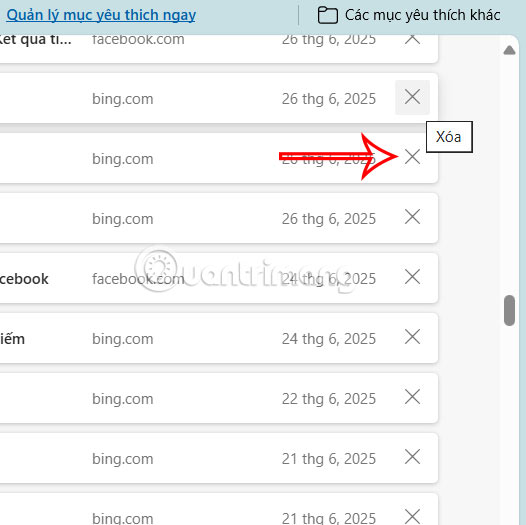
Step 3:
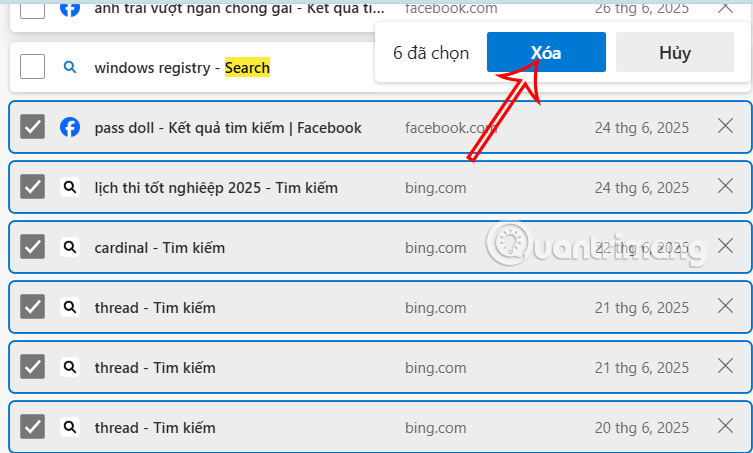
To delete multiple searches , check the box next to each search and press Delete above to do so. You can also press Ctrl+A to select all searches and then press Delete.
Final Thoughts
Following the steps in order and checking version-specific settings should make it easier to Clear Search History on Microsoft Edge. If an option looks different, verify the device, app, or operating-system version before changing additional settings.
FAQ
What is the best way to Clear Search History on Microsoft Edge?
Start with the requirements described in the article and follow the steps in order. Clearing your search history on Microsoft Edge is the quickest way to ensure your privacy when other people are using your computer. However, clearing only your search history in Edge is different from clearing your browsing data on Edge.
What should you know about How to find search history on Edge?
At the Edge browser interface, select the 3-dot icon and select History in the displayed list.
What should you do if the instructions do not match your screen?
Check the device, software version, account permissions, and regional settings. Interfaces can change after updates, so use the closest matching option and consult the official support documentation when necessary.
Related Articles
 Microsoft Will Integrate Browsing History on Edge into3 minutes read
 How to Automatically Clear Your Browsing History When Exiting the4 minutes read
 View and Delete Browsing History in Microsoft Edge Browser4 minutes read
 How to Delete Copilot History in Edge Windows5 minutes read
 How to Clear Cortana's Search History in Windows 102 minutes read
 How to Clear Safari Search History: Clear Instructions3 minutes read
Reader Comments 0
Sign in with email or Google to join the discussion.