Table of Contents
Microsoft Copilot can generate an image from a text prompt or transform an uploaded image. The most consistent workflow is to open Copilot on the web or in the current app, describe the result, review the output, and ask for specific revisions. The older Windows 11 taskbar interface shown in some screenshots is no longer required.
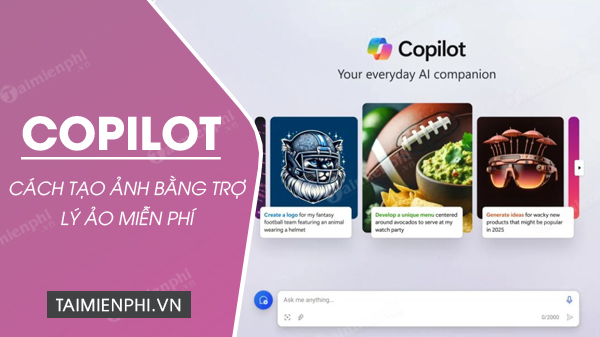
Create an image in Copilot on Windows or Mac
- Open the official Microsoft Copilot website in a supported browser, or launch the current Copilot app on Windows.
- Sign in with a Microsoft account if the feature or saving workflow requires it.
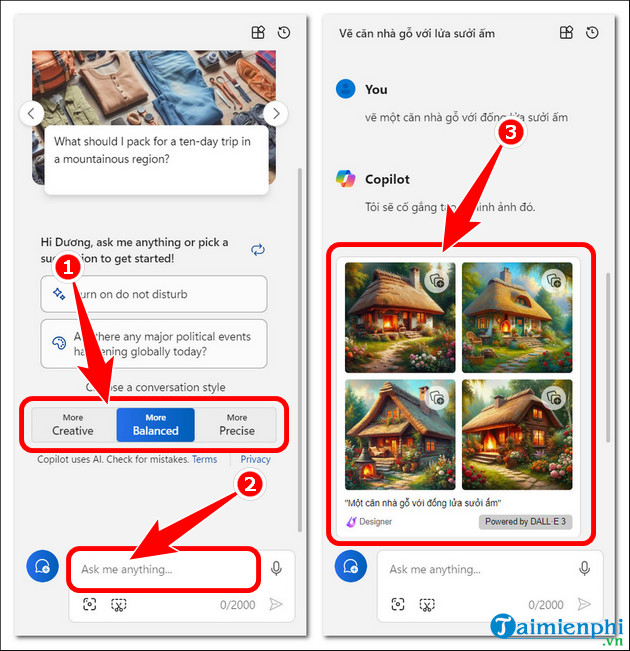
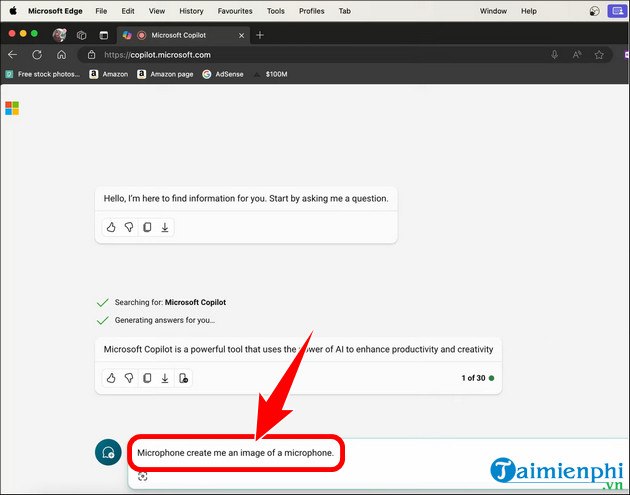
- In the message box, write a direct request beginning with “Create an image...” and describe the subject, setting, composition, and visual style.
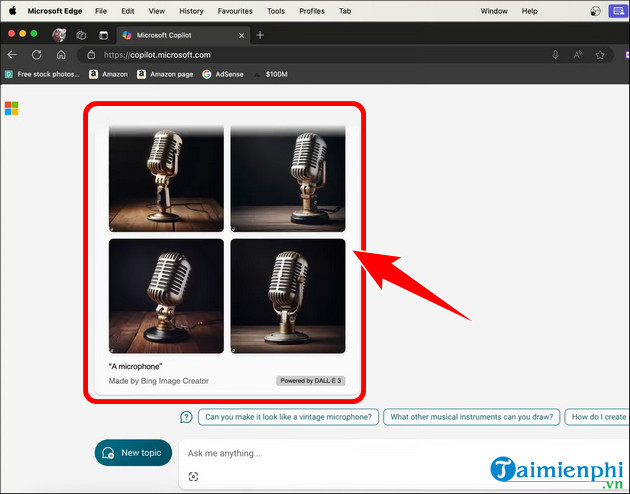
- Send the prompt and wait for the result. Select an image to view it at a larger size.
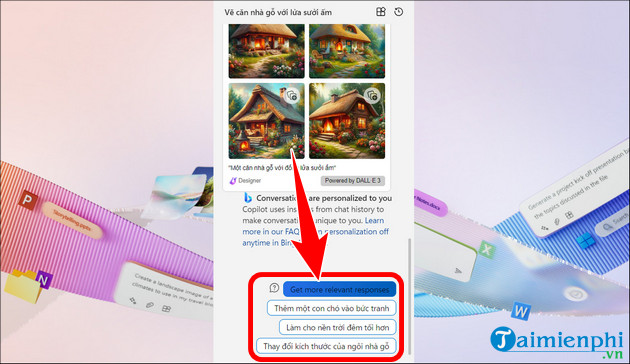
- Use the available download or save control. If something is wrong, request a targeted change instead of starting over.
Example:
Create a wide editorial illustration of a small repair shop at night, one mechanic at a workbench, warm task lighting, blue shadows, no logos, no text.
Microsoft's current Copilot image-generation guide confirms that Copilot can generate from text and transform an uploaded image.
Use Create in the Microsoft 365 Copilot app
Work or school accounts may also have a dedicated creation workspace:
- Open Microsoft 365 Copilot and select Create in the left navigation.
- Select Create an image.
- Choose Describe your image and enter the prompt.
- If appropriate, add an existing image as a visual reference.
- Choose style, dimensions, or brand options that are available to the account, then generate and save the result.
Availability depends on the Microsoft account, organization policy, subscription, region, and current usage limits. If Create is missing, use regular Copilot chat instead.
Older Windows 11 taskbar workflow
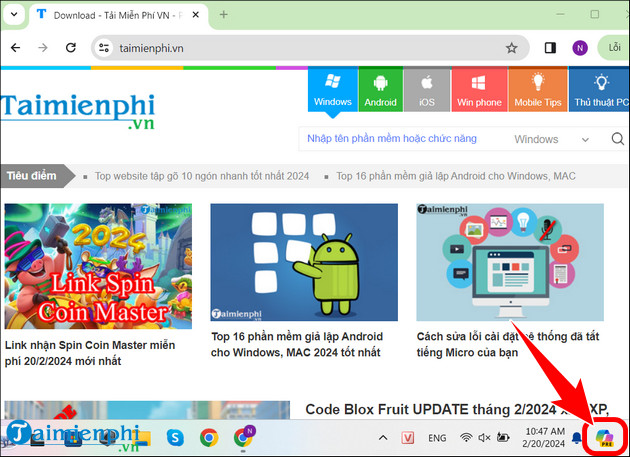
The next screenshots document an earlier Windows Copilot preview. They show Settings > Personalization > Taskbar, a Copilot taskbar toggle, and the old conversation-style selector. Current Windows installations may use a standalone app or web experience and may not show these controls.
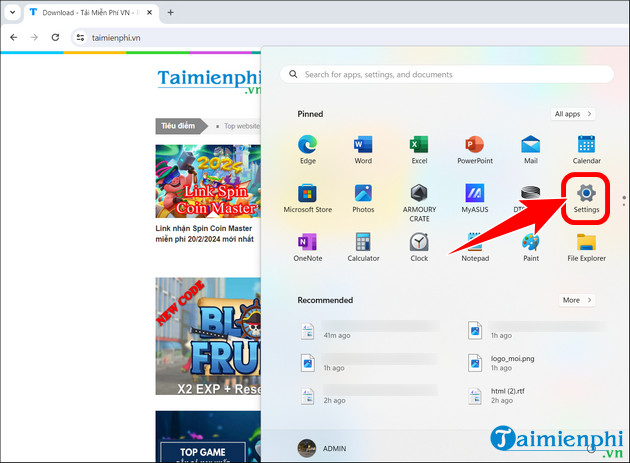
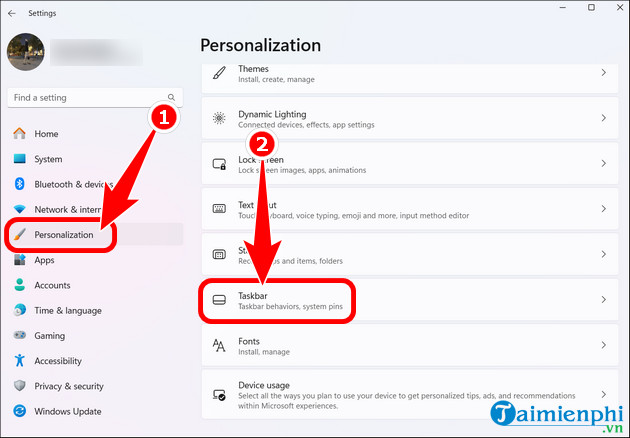
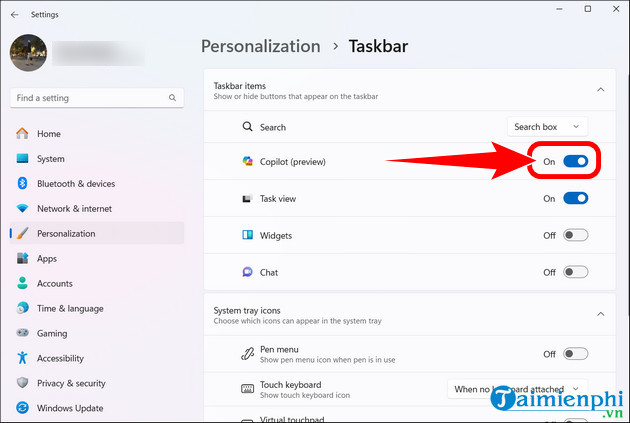
Create an image on a Mac
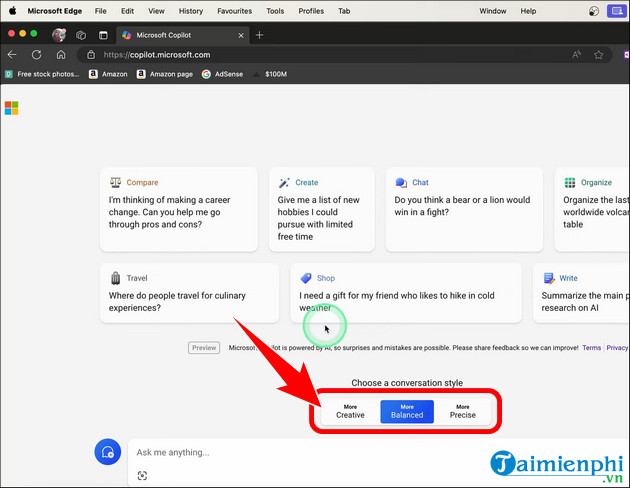
On macOS, the web workflow is the same: open Copilot in a browser, sign in, enter an image request, and refine the result with follow-up prompts. These screenshots show the older Bing/Copilot design; current button names and layout may differ.
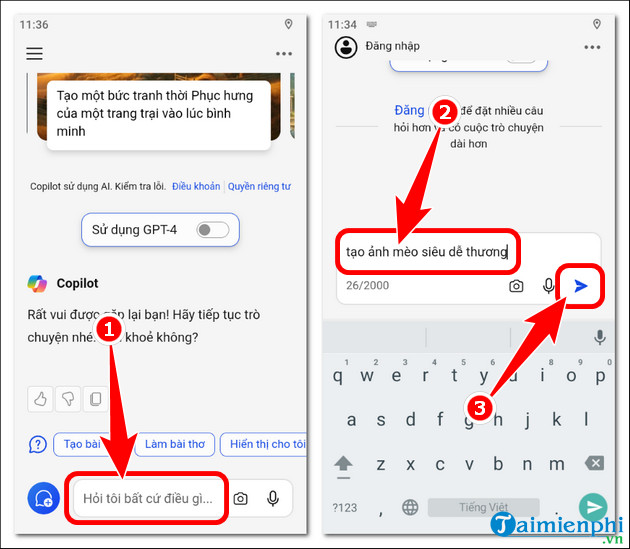
Create an image in the Copilot mobile app
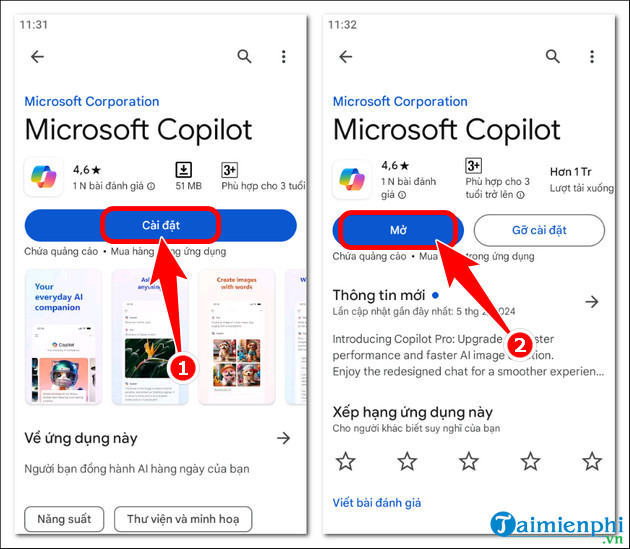
- Install the official Microsoft Copilot or Microsoft 365 Copilot app from Google Play or the App Store. Verify that Microsoft Corporation is listed as the developer.
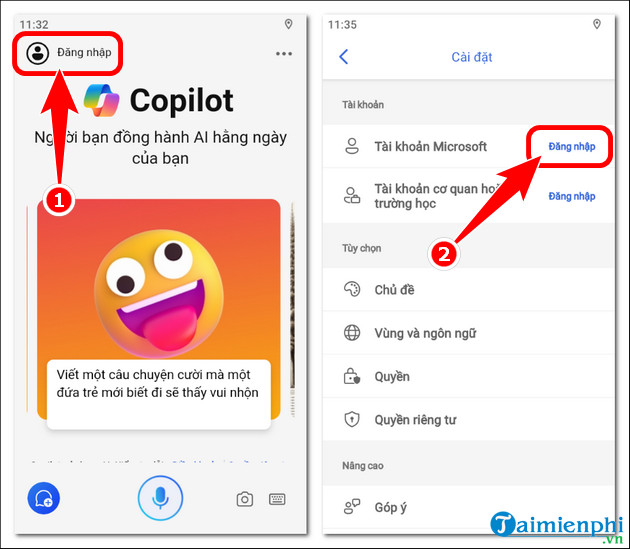
- Open the app and sign in with the appropriate Microsoft account.
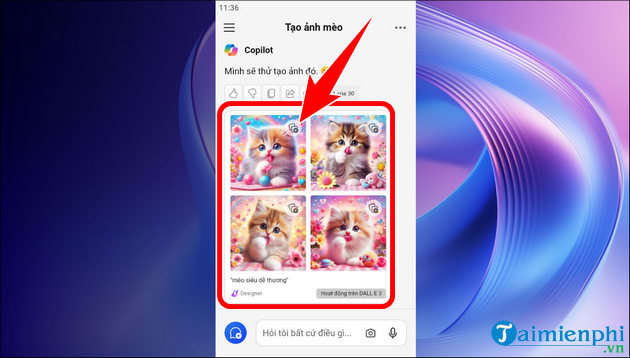
- Open Copilot Chat and type an image request, or choose Create > Create an image if that option is available.
- Tap a result to inspect it, ask for revisions, and use the share or save command to store it on the device.
Transform an existing image
Attach a photo or illustration that you own or have permission to use, then describe the change. Be explicit about what should remain unchanged.
Example: Keep the person's pose and the room layout. Replace the daytime view outside the window with a rainy evening, remove the wall logo, and preserve the 16:9 crop.
Do not upload confidential documents, private client photos, or images of children unless the applicable policy and consent clearly allow it.
Prompt details that improve control
- Subject: who or what must appear.
- Action and setting: what is happening and where.
- Composition: close-up, overhead, centered, wide shot, or another viewpoint.
- Lighting and palette: practical details such as soft window light or muted blue and amber.
- Output constraints: aspect ratio, transparent background, no text, or space for a headline.
Inspect small details and any generated text before publishing. AI output can contain misspellings, implausible objects, or misleading depictions. Also check the current service terms when the result will be used commercially.
For more choices, compare TipsMake's AI image generators. To improve prompt-writing technique, see how to find and study AI prompts.
Related Articles
 How to Convert 2D Images to 3D with Copilot: Step-by-Step Guide3 minutes read
 Template for Creating Caricatures in Copilot8 minutes read
 How to Edit Images on Copilot AI to Create Impressive Photos: Practical Guide3 minutes read
 How to Create GIF Images on Viber2 minutes read
 How to Create a Personalized Podcast with Copilot Podcasts7 minutes read
 Instructions on Creating ID Photos from Portrait Photos Using Copilot5 minutes read
Reader Comments 0
Sign in with email or Google to join the discussion.