Table of Contents
Windows 11 Copilot brings AI support directly to users. Among them, Copilot can help you create eye-catching 3D images.
Windows 11 Copilot brings AI support features directly to users. Among them, the Copilot feature can help you create eye-catching 3D images without installing additional software. you can access the Copilot website on any browser, as long as it is convenient for users. Below are instructions for converting 2D images to 3D with Copilot.
Instructions for creating 3D images on Copilot
Step 1:
First, you go to the Copilot website and log in with your Microsoft account. Then you click on The Labs icon On the left side of the interface as shown.
- Access Microsoft Copilot

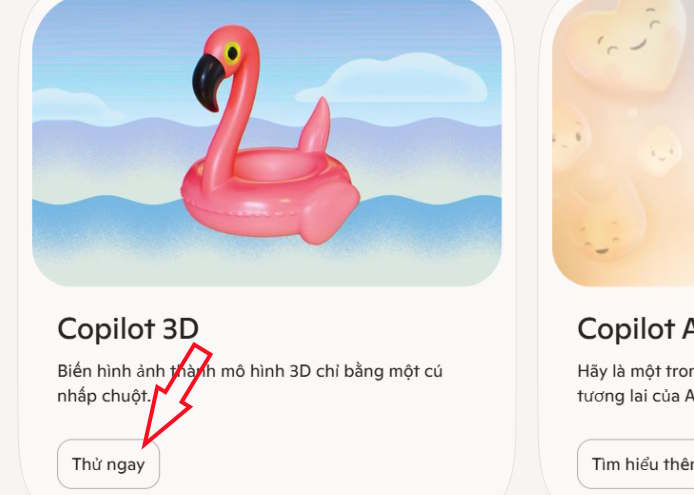
Then you will see the 3D image creation tool on Copilot, Click Try Now To use the tool.
Step 2:
In the new interface, the user Clicks the Upload photo button With an optional photo from you.
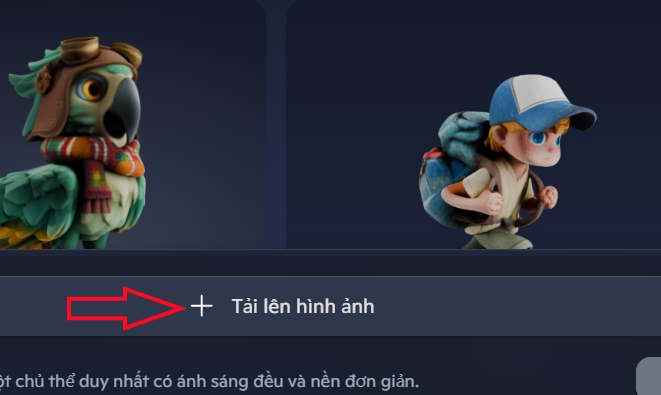
Then you Click on the Create button To proceed with creating the 3D image.

Step 3:
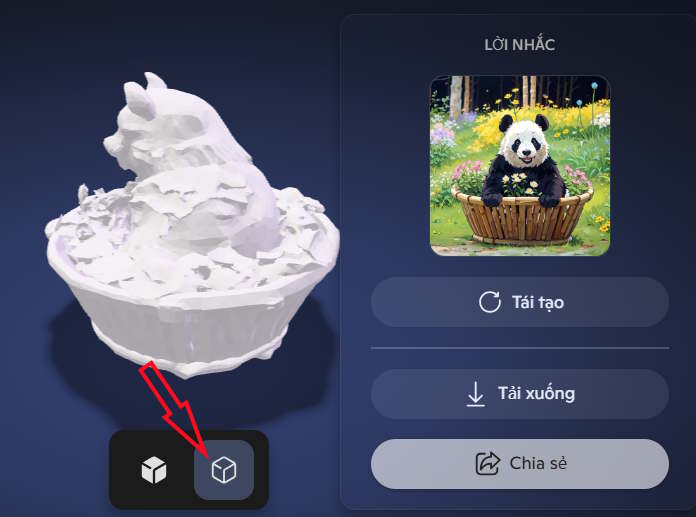
You wait a moment for Copilot to create a 3D image from the 2D image you uploaded. This creation process is relatively long because it converts to 3D image. When the image is available, click to view it.

You can rotate the 3D image in different directions. To rotate, hold down the left mouse button and move the mouse in any direction. If you are not satisfied with the output, you can recreate the 3D model by clicking the Regenerate button.

You can also Check the clay model By clicking on the clay model icon.
Step 4:
To download the created model, click Download. If you want to share your image, click Share then click Copy Link. Now you can share that link with anyone.

FAQ
How do you convert 2D images to 3D with Copilot: step-by-step guide?
In practical terms, Windows 11 Copilot brings AI support directly to users. Among them, Copilot can help you create eye-catching 3D images.
What should you check before getting started?
Review the requirements, compatible device or software version, and any warnings described in the guide before making changes.
What should you do if the steps do not work?
Repeat the steps in order, confirm that your app or system is up to date, and review the troubleshooting details provided above.
Related Articles
 Turn 2D Photos into 3D Objects with Copilot's New Feature3 minutes read
 How to Create Images Using Copilot on PC and Phone, Creating Images Using AI4 minutes read
 How to Edit Images on Copilot AI to Create Impressive Photos: Practical Guide3 minutes read
 Guide to Converting Text to Expressive Speech in Copilot4 minutes read
 How to Convert PNG Images to JPG Does Not Degrade Quality5 minutes read
 How to Edit Images on Copilot AI: Step-by-Step Guide4 minutes read
Reader Comments 0
Sign in with email or Google to join the discussion.