Table of Contents
Learn how to create checkboxes in Google sheets - managing content on Google sheets with practical instructions, useful tips, and troubleshooting guidance…
Creating checkboxes in Google Sheets allows you to quickly create surveys directly within your data. Alternatively, creating checklists in Google Sheets makes it easier to summarize information by counting the number of checkboxes. Creating checkboxes in Google Sheets is very simple, with several methods as outlined in the guide below.
1. How to Insert a Tick Box in Google Sheets Using Checkboxes
Step 1:
You can log into Google Sheets and enter the content you want to create a checkbox for, or create a checkbox first and then insert the content.
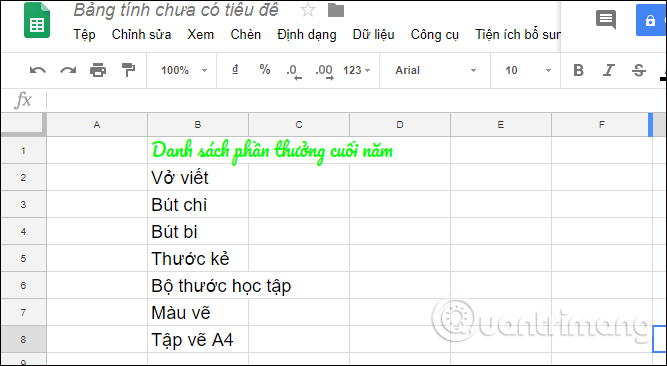
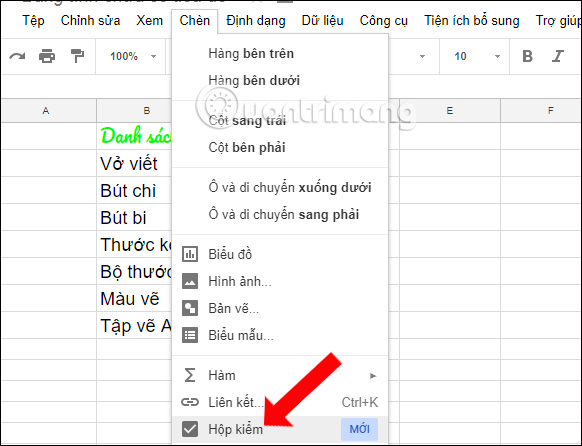
Next, select the content you want to insert the checkbox into, then click Insert on the toolbar and click Checkbox .
Step 2:
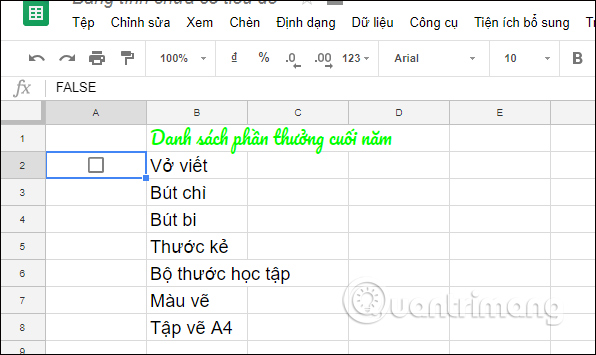
Immediately afterwards, we will see a checkbox appear next to the selected content.
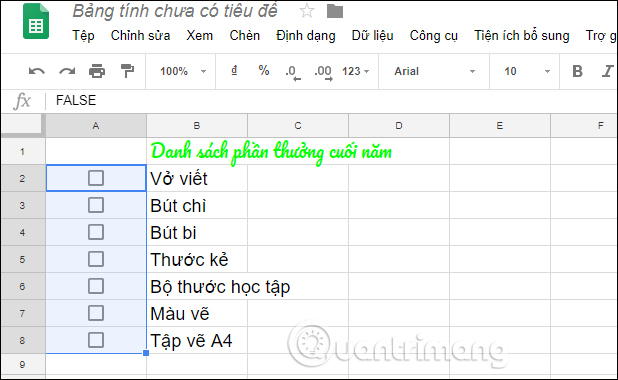
To add more checkboxes to the remaining content, scroll down to the remaining boxes or click copy.
To adjust the size of these checkboxes, you need to adjust the font size using the toolbar. If you want to delete a checkbox, simply select it and then press the Delete key.
2. Insert Google Sheets Checkboxes Using Data Validation
Additionally, Google Sheets allows you to change custom values with checkboxes. For example, a checkbox assigned the value TRUE will be checked, while an unchecked checkbox will be assigned the value FLASE.
Step 1:
Select the checkbox containing the value you want to change, then click on the Data item in the toolbar, and select Data validation... .
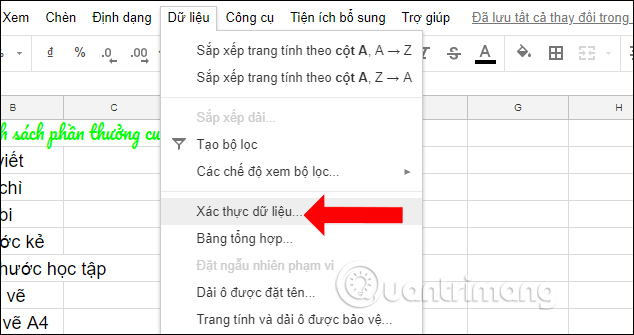
Step 2:
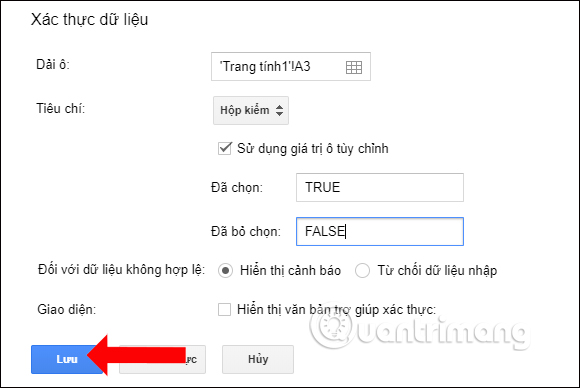
In the new interface, check the box " Use custom cell values ". Enter the custom cell value in the "Ticked" and "Unticked" fields.
Then press the Save button to save it.
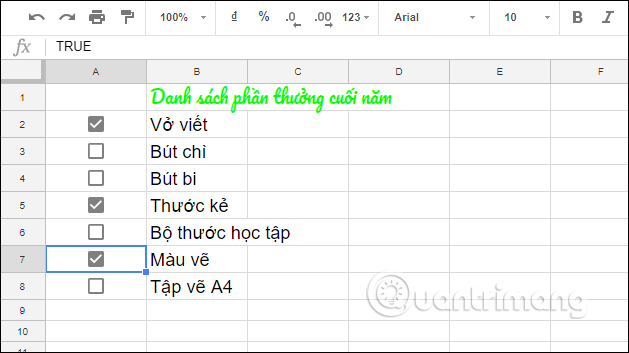
Finally, we will have the complete list as shown below.
3. How to Insert Checkboxes in Google Sheets Using Keyboard Shortcuts
Step 1:
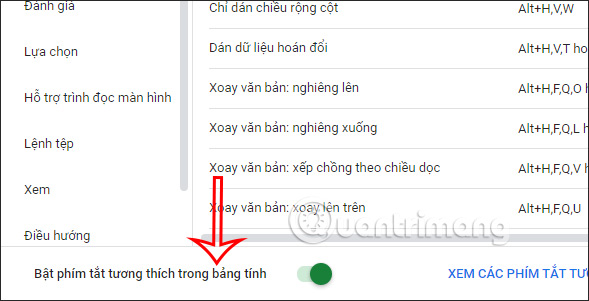
In the Google Sheets interface, click on Help and then select Shortcuts from the list that appears.
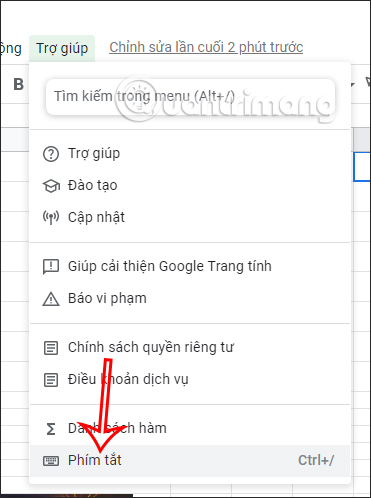
Step 2:
The shortcut interface will appear for us to set up. First, you activate the "Enable compatible shortcuts in spreadsheets" setting .
Now you can use keyboard shortcuts in your Google Sheets data table.
Step 3:
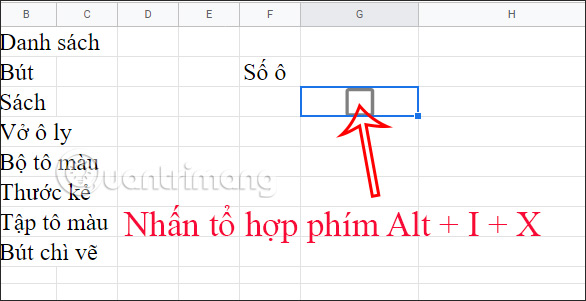
Now press the Alt + I + X key combination, pressing these three keys consecutively on your keyboard. The result will display a checkbox in the data table as shown below.
Now you just need to drag the first checkbox down to the same size as the other one you want to insert.
4. Insert Checkboxes in Google Sheets Using the CHAR Function
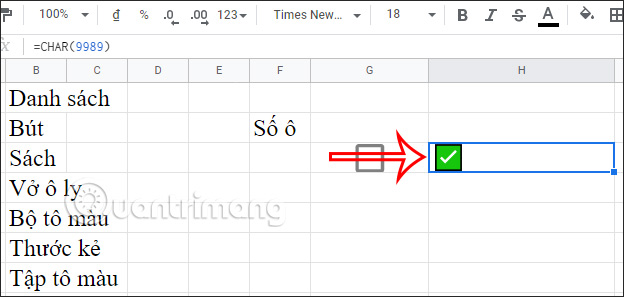
The CHAR function returns a character from the character set based on its corresponding number from 1 to 255 in the character set. The checkbox symbol in Windows has the code 9989. You can simply apply the CHAR function formula =CHAR(sheet_number) to display the checkbox in Sheets.
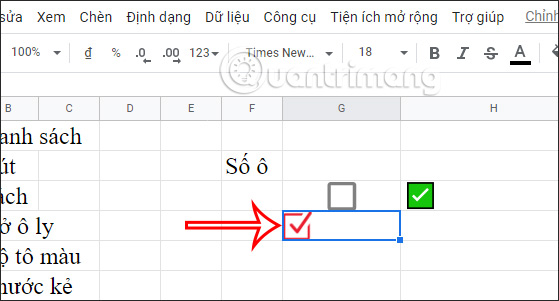
5. Insert Image-based Checkboxes into Google Sheets
If you only want to use the checkboxes for documentation purposes, without requiring any selections, and prefer a more aesthetically pleasing design, you can insert them as images.
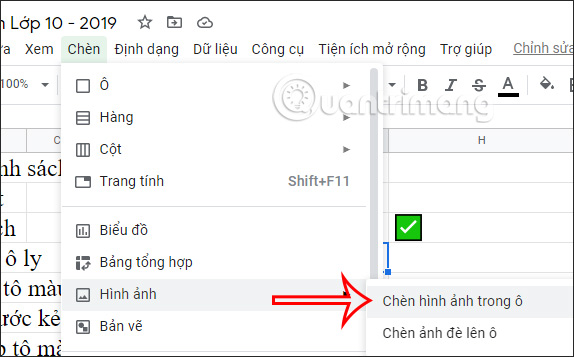
We find the checkbox image you want to use online and insert it into Google Sheets as usual. Note that when inserting an image in Google Sheets, in this case a checkbox image, you must select to insert the image in the checkbox field .
The resulting checkbox image can also be inserted into the Google Sheets spreadsheet.
So, you now have many ways to insert checkboxes in Google Docs, depending on your needs when inserting checkboxes into Google Sheets.
Video Tutorial on How to Insert Checkboxes in Google Sheets
FAQ
What is the best way to create checkboxes in google sheets - managing content on google sheets?
Learn how to create checkboxes in Google sheets - managing content on Google sheets with practical instructions, useful tips, and troubleshooting guidance...
What should you prepare before you create checkboxes in google sheets - managing content on google sheets?
Key takeaway: Learn how to create checkboxes in Google sheets - managing content on Google sheets with practical instructions, useful tips, and troubleshooting guidance...
What common mistakes should you avoid?
Creating checkboxes in Google Sheets allows you to quickly create surveys directly within your data.
Related Articles
 How to Insert Checkboxes on Google Sheets: Google Sheets Tricks4 minutes read
 How to Inserting Checkboxes on Google Sheets, Google Spreadsheets4 minutes read
 How to Count Checkboxes in Google Sheets5 minutes read
 How to Create Graphs, Charts in Google Sheets5 minutes read
 minutes read
 Working with Sheets: Explained5 minutes read
Reader Comments 0
Sign in with email or Google to join the discussion.