Table of Contents
Learn how to create a calendar in Google sheets with practical instructions, useful tips, and troubleshooting guidance for common issues.
To create a calendar in Google Sheets, you can use pre-made calendar templates or create your own using formulas and functions. Creating a calendar in Google Sheets will assist you in your work, especially for teachers who can create timetables in Google Sheets, similar to creating timetables in Excel. This guide explains how to create a calendar in Google Sheets.
1. Create a Calendar in Google Sheets Using a Pre-made Template
Step 1:
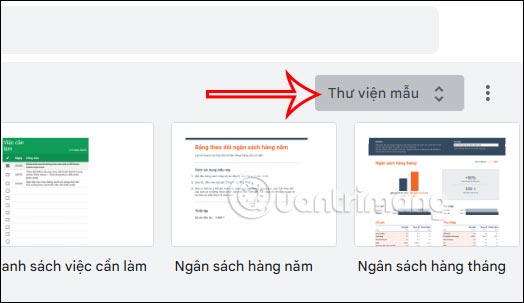
In the Google Sheets interface, click on the Template Library option as shown below.
Step 2:
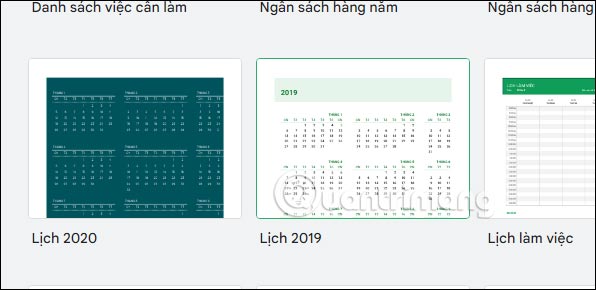
You will then be taken to the template interface in Google Sheets. We will find the Calendar template to use, and click on the calendar template you want to use.
Step 3:
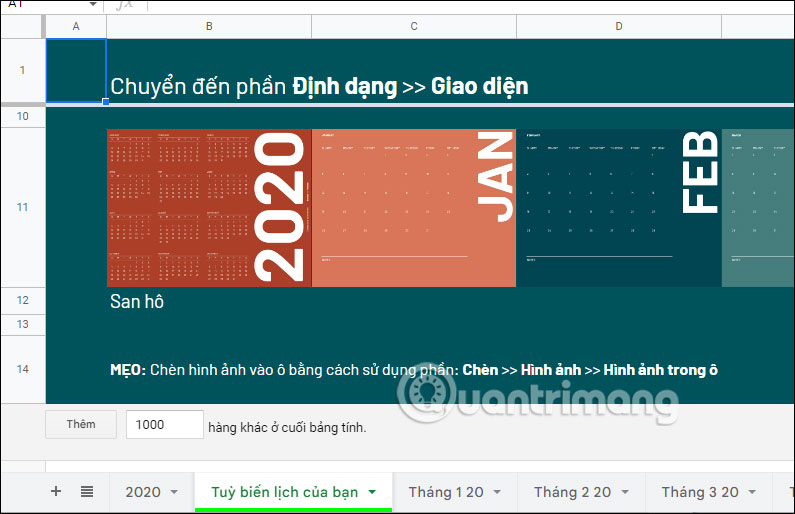
You will then see the calendar template displayed in your sheet interface. Here you can change and customize your calendar using the options available in this template.
2. Create Google Sheets Calendars from Third-party Templates
Alternatively, we can also create Google Sheets calendars using templates downloaded from third parties.
1. Google Sheets Calendar Template on Vertex42
https://www.vertex42.com/calendars/You can access the Vertex42 website below to find calendar templates. The website provides calendar templates for Excel, so look for templates with the GS symbol to download for Google Sheets .
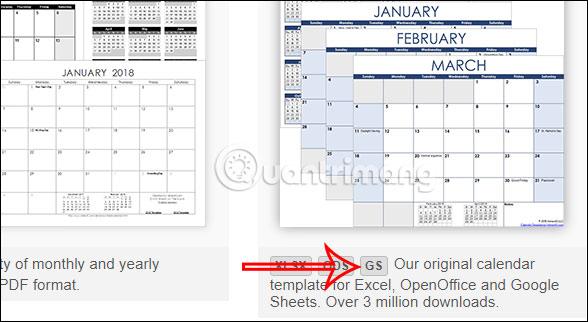
You click on that calendar template and find the version for Google Sheets.
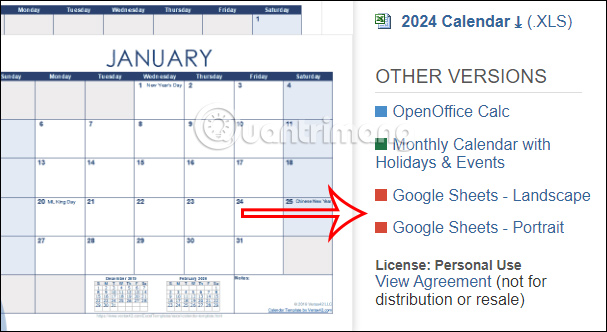
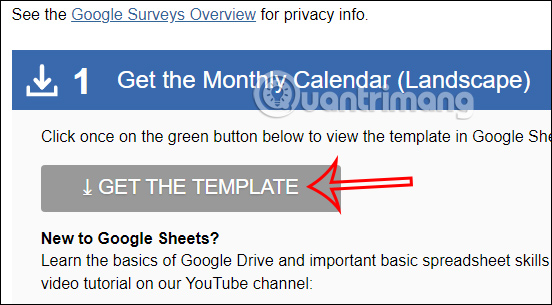
Then click on Get the Template to download this calendar template to your Google Sheets account.
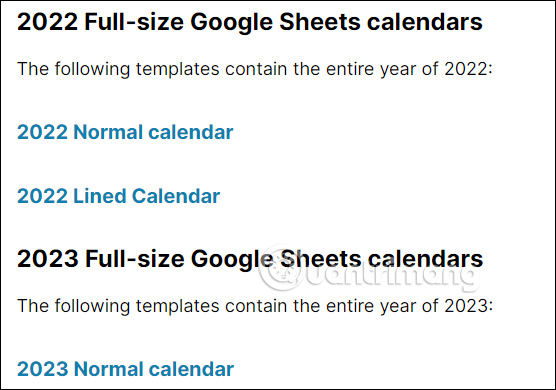
2. Spreadsheet Class
https://www.spreadsheetclass.com/google-sheets-calendar-templates/You just need to access the link above and find the link to download the calendar template.
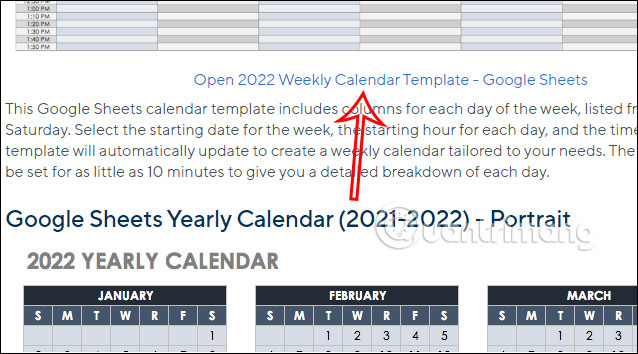
3. Download the Google Sheets Calendar Template on Smartsheet
https://www.smartsheet.com/free-google-calendar-templatesYou can also access the link above, then find the calendar templates to use and download them to Google Sheets.
3. Instructions on Creating a Calendar Yourself on Google Sheets
Step 1:
First, you will fill in the full days of the week and enter the first day of that month.
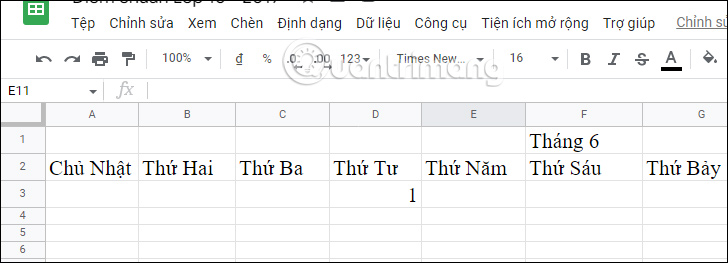
Next, fill in the remaining days of the first week , if the month starts in the middle of the week. Then, fill in the two new days for the second week .
Next, highlight the first two days of the second week of the month and drag to the right . This will give you the complete date for the second week of that month.
Leave one line space between weeks to make your Google Sheets calendar easier to read.
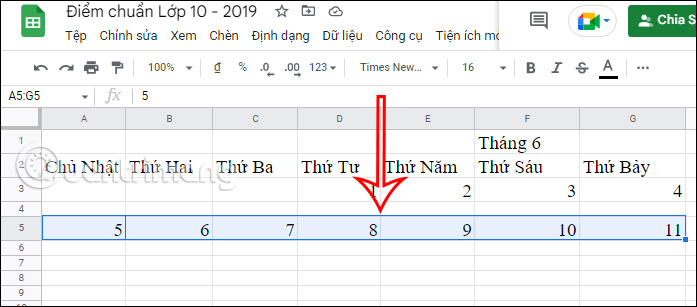
Step 2:
Continue filling in the first two days of the third week, then drag to the right to complete the days of that week.
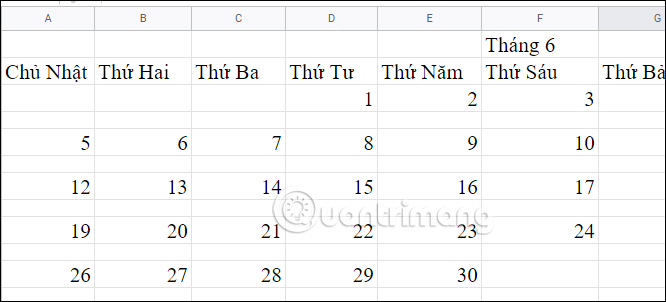
Step 3:
In the calendar interface, there will be blank rows . Click on a blank row , then press Ctrl and click on other blank rows .
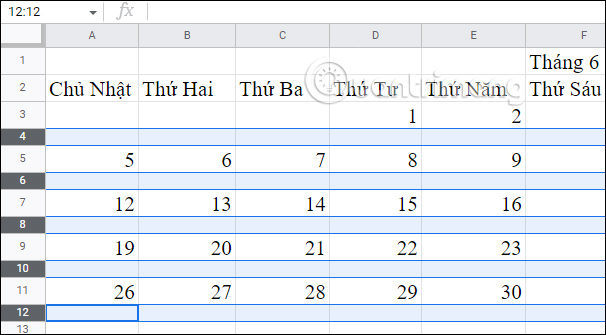
Next, you will adjust the size of each cell in the empty row. In the column with the serial number on the left , we will drag the empty row downwards to change the size.
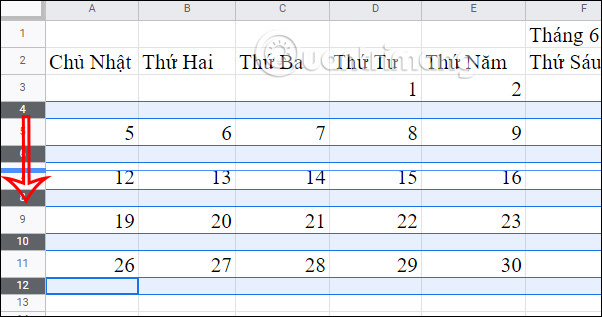
When you release the mouse button, all the cells in the empty row will resize as shown below.
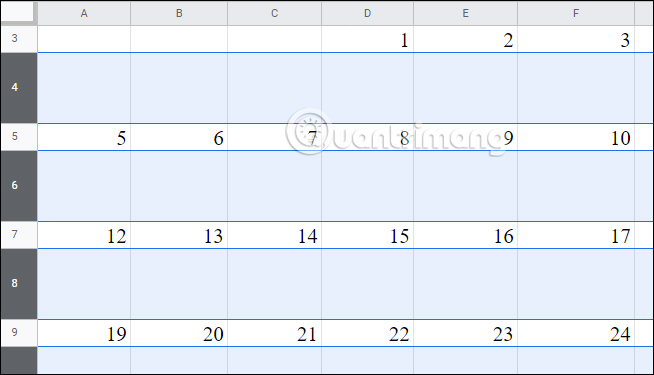
Step 4:
Now we'll move on to adjusting the calendar , coloring the date boxes, and customizing the font to our liking.
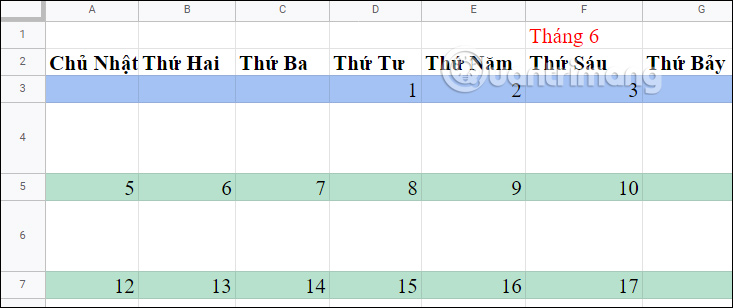
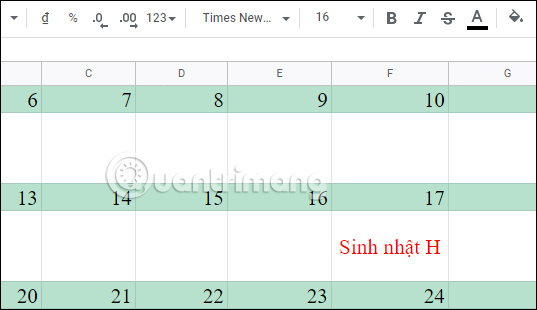
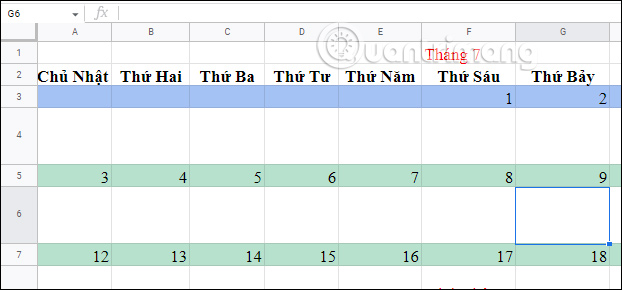
Next, you can write notes for each day with an event if needed. The calendar interface is quite similar to a wall calendar.
Step 5:
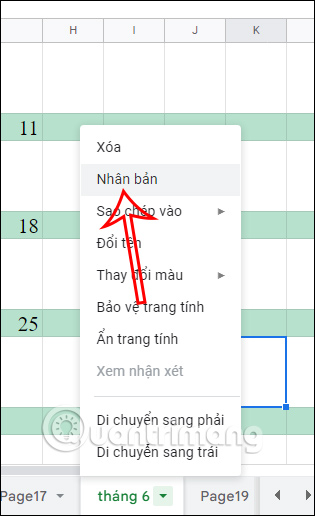
To create a copy of this month, click on the current sheet name and select Duplicate to create a new sheet. Then, adjust the dates and content of the calendar accordingly.
You enter the first two days of the week, then drag to the right to automatically fill in the remaining days. After that, just fill in the events you want to pay attention to; the calendar formatting will remain unchanged.
FAQ
What is the best way to create a calendar in google sheets?
Learn how to create a calendar in Google sheets with practical instructions, useful tips, and troubleshooting guidance for common issues.
What should you prepare before you create a calendar in google sheets?
Key takeaway: Learn how to create a calendar in Google sheets with practical instructions, useful tips, and troubleshooting guidance for common issues.
What common mistakes should you avoid?
To create a calendar in Google Sheets, you can use pre-made calendar templates or create your own using formulas and functions.
Related Articles
 How to Create Graphs, Charts in Google Sheets5 minutes read
 List of Shortcuts for Google Calendar3 minutes read
 How to Use Google Calendar from A - > Z8 minutes read
 How to Create a Phone Number Can Be Called on Google Sheets4 minutes read
 How to Use Google Calendar to Schedule Classes8 minutes read
 How to Remove Spam in Google Calendar3 minutes read
Reader Comments 0
Sign in with email or Google to join the discussion.