Table of Contents
Word supports two different kinds of checkboxes. Use a static symbol such as ✓ or ☑ for a document that will be printed or read only. Use a Check Box Content Control when someone needs to click the box in the Word file. Choosing the right type avoids a common problem: a symbol looks like a checkbox but cannot be toggled.
Insert a static checkbox with Unicode and Alt+X
This method works in desktop Word for Windows. Type a Unicode code, then press Alt+X immediately after it. On a Mac or in Word for the web, use Insert > Symbol or copy and paste the character instead.
Step 1: Place the cursor before the list item or other text.
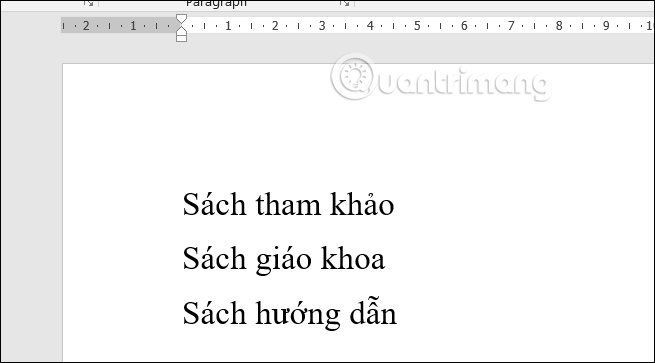
Step 2: Type 2612 for a ballot box with an X (☒).
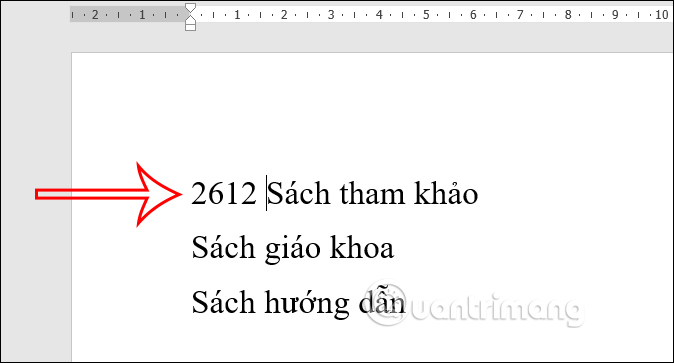
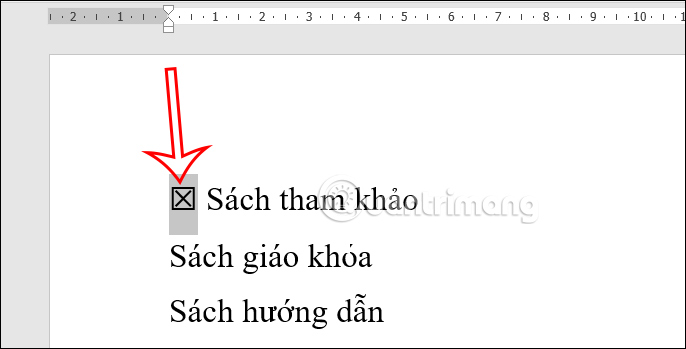
Step 3: Press Alt+X. Word converts the code to ☒. Copy the resulting character if it is needed on several lines.
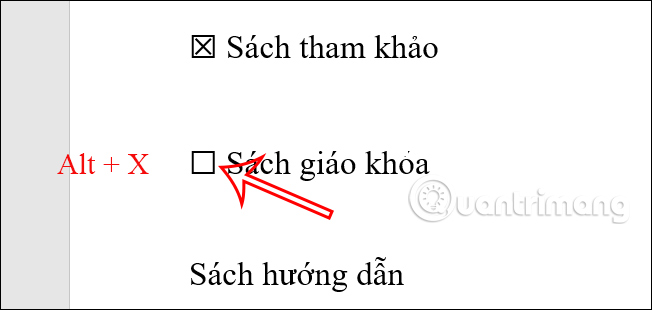
For an empty ballot box, use 2610.
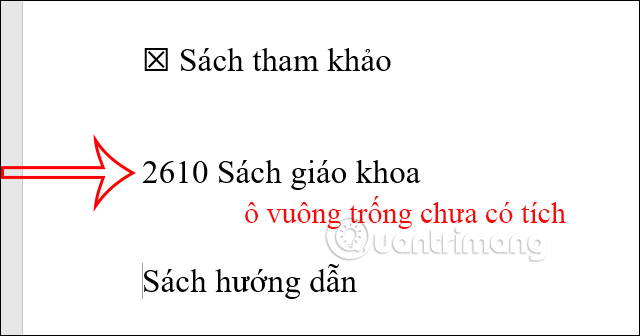
Press Alt+X to convert it to ☐.
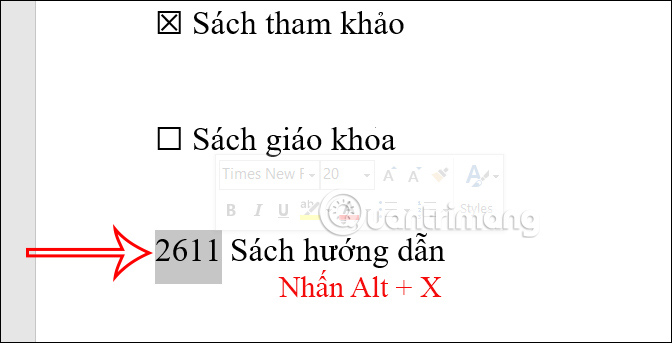
For a ballot box with a check, type 2611 and press Alt+X.
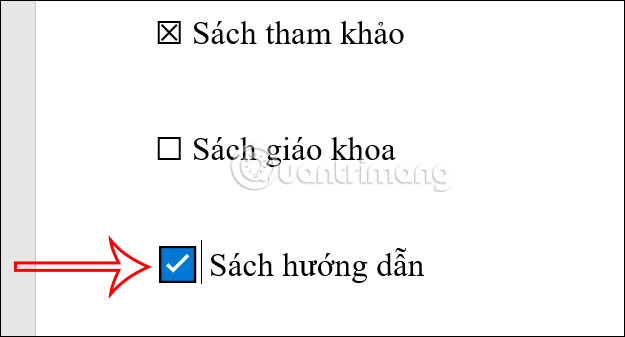
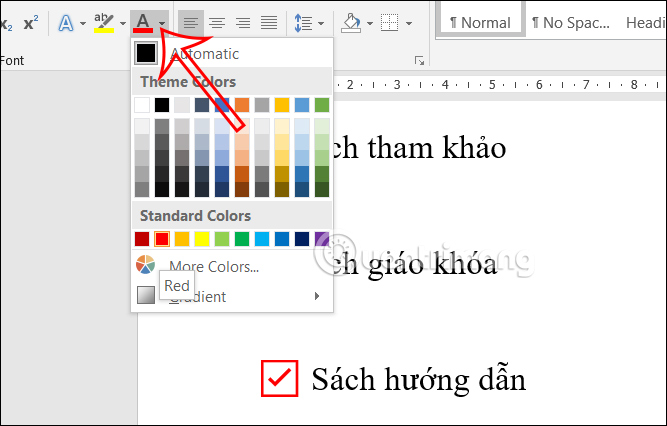
Because these are text characters, you can change their color, font size, and alignment like other text. A font must contain the chosen symbol or Word may display a missing-character box.
Insert a check mark from the Symbol dialog
Step 1: Place the cursor, then choose Insert > Symbol > More Symbols.
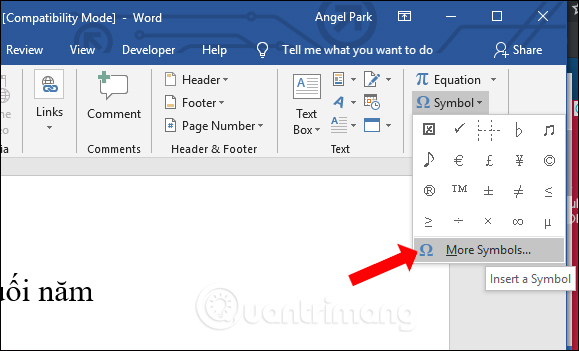
Step 2: Select a font that contains check marks, such as Segoe UI Symbol, Wingdings, or Wingdings 2. Choose the symbol and click Insert. A standard Unicode check mark is preferable when the file will be shared across different systems.
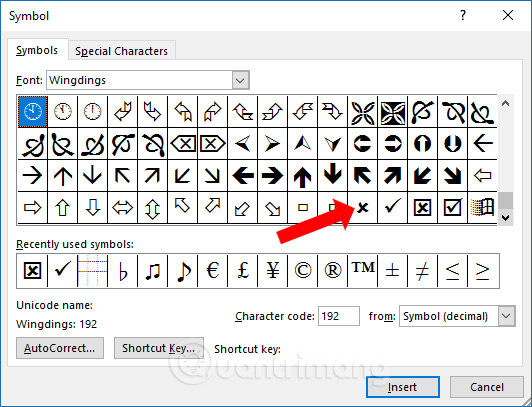
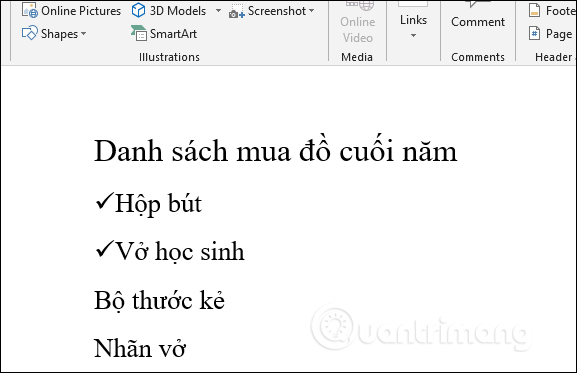
The symbol appears at the cursor. Format or copy it as needed.
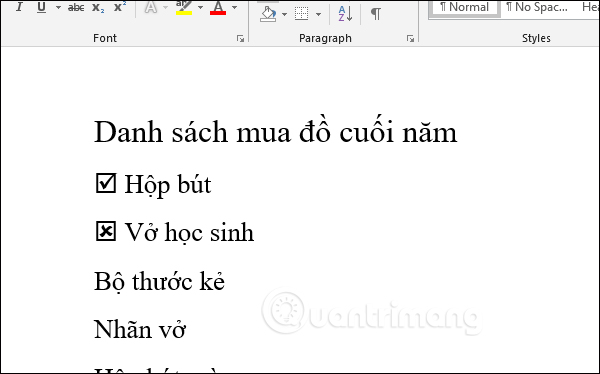
A boxed symbol is suitable for a printed form, but clicking it in Word will not switch its state.
Create a clickable checkbox in Word
Clickable boxes require the desktop app’s Developer tools. Word for the web can display many content controls but may not provide the same authoring options.
- In Word for Windows, go to File > Options > Customize Ribbon. On a Mac, open Word’s ribbon preferences.
- Enable Developer in the main tabs and confirm.
- Place the cursor where the box belongs.
- Open Developer and select Check Box Content Control.
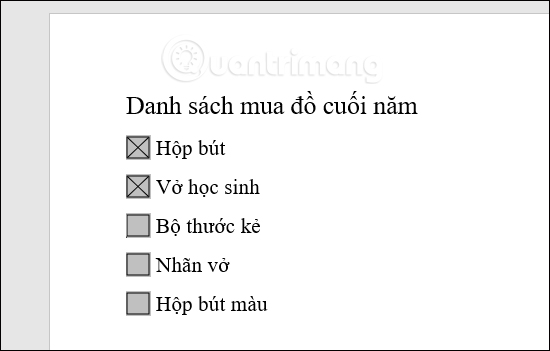
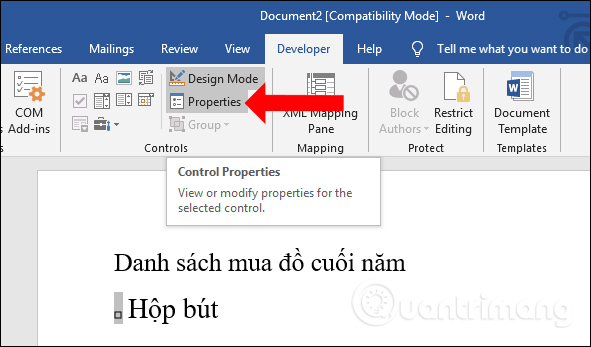
With the content control selected, choose Properties to change its title, tag, locking behavior, and checked or unchecked symbols. Do not lock the control against editing if recipients need to toggle it.
Legacy form-field checkboxes
Older Word templates may use a legacy checkbox form field. Its Options dialog can set an exact box size, but this is different from the modern content control. Use legacy fields mainly when maintaining an existing template that already depends on them.
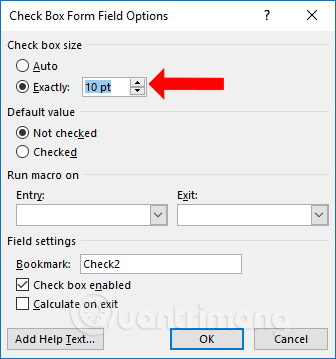
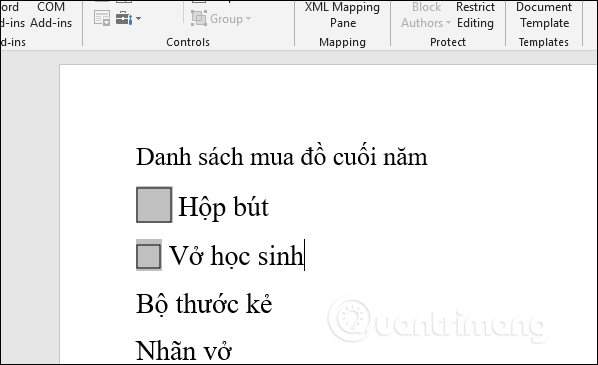
Legacy form fields may need document protection enabled for form filling before users can toggle them. For a new form, a Check Box Content Control is usually easier to configure and maintain.
Fix common checkbox problems
- Alt+X does nothing: place the cursor directly after the code, use desktop Word for Windows, or select the code first.
- The symbol changes when opened elsewhere: use a Unicode symbol font rather than relying on a Wingdings character mapping.
- The box cannot be clicked: it is probably a static character; insert a content control from the Developer tab.
- The control cannot be changed: review its locking settings and any Restrict Editing protection applied to the document.
Related Articles
 How to Create a Checkbox in Word: Insert Checkbox Word5 minutes read
 Inserting Traces into Word: Insert Traces in Words4 minutes read
 How to Add a Check Mark to a Word Document7 minutes read
 Instructions for Inserting Checkmarks in Powerpoint4 minutes read
 Instructions for Inserting Checkboxes in Powerpoint3 minutes read
 Mark Tick in Excel: How to Mark Products in Excel4 minutes read
Reader Comments 0
Sign in with email or Google to join the discussion.