Table of Contents
The IMPORTRANGE function copies a range from one Google Sheets file into another and refreshes the result when the source data changes. It is useful for dashboards, consolidated reports, and summary sheets that should not require repeated copy-and-paste work.
IMPORTRANGE imports values, not the source sheet's formatting. You also need permission to view the source file and must authorize the connection the first time one destination spreadsheet reads from a source spreadsheet.
IMPORTRANGE syntax
=IMPORTRANGE(spreadsheet_url, range_string)- spreadsheet_url: the source spreadsheet's full URL, its spreadsheet key, or a cell containing either value.
- range_string: the source tab and cells in the form
"Sheet1!A2:C20". The sheet name is optional if the range is on the first tab.
If a tab name contains spaces, wrap the name in single quotation marks inside the range string: "'Math Scores'!A2:B10".
Examples in this guide use commas between function arguments. Some Google Sheets locales use semicolons instead; use the separator shown by formula suggestions in your spreadsheet.
Import a range from another spreadsheet
In this example, the source contains school scores and the destination should display cells B2 through C29 from the tab named Page1.
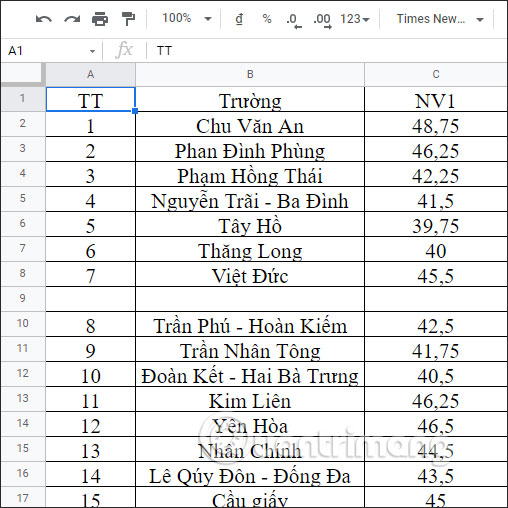
- Open the source spreadsheet and copy its URL from the browser address bar.
- Open the destination spreadsheet and select the top-left cell where the imported result should begin.
- Enter the formula, replacing the sample URL and range with your own:
=IMPORTRANGE("https://docs.google.com/spreadsheets/d/19AGre5-Fvin6Z4D0bW6e4iq6yYX13kar0EIvXAVh-VQ/edit", "Page1!B2:C29")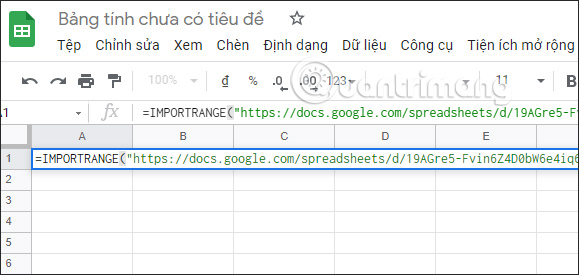
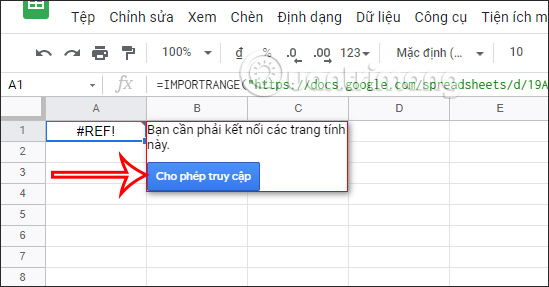
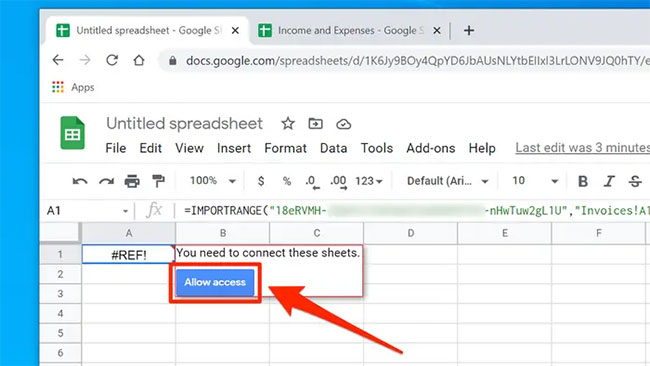
The first attempt normally returns #REF!. Select that cell and click Allow access. This authorizes the connection between the two spreadsheet files.
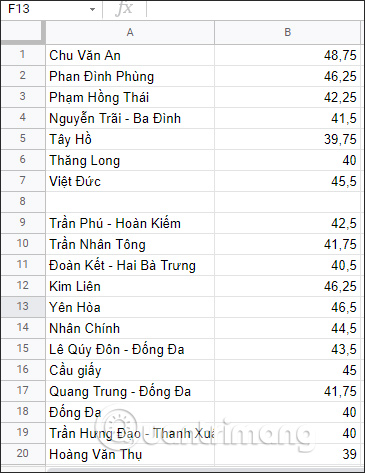
After authorization, the imported array fills the required cells in the destination.
Use a spreadsheet URL or key
You can pass the complete URL or only the spreadsheet key—the characters between /d/ and the next slash in a standard Sheets URL.
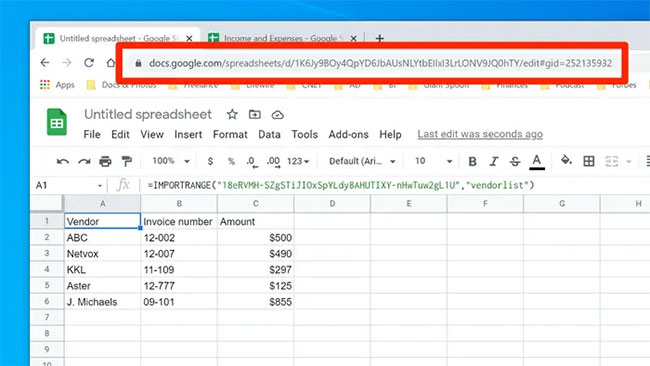
A formula using the full URL looks like this:
=IMPORTRANGE("https://docs.google.com/spreadsheets/d/1Zoq0M0RG-RLYZ9HjOf01ff9eSPIYY3s/edit", "Sheet2!A1:C12")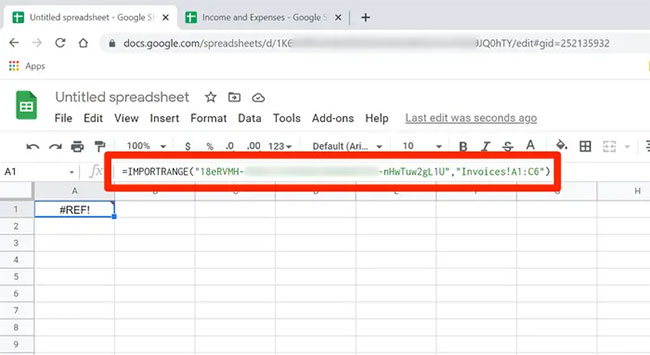
If the two files have not been connected, select the #REF! cell and authorize access. You normally do this once for each source-to-destination spreadsheet connection, not for every formula.
Filter imported data with QUERY
IMPORTRANGE can be nested inside QUERY to select columns or rows. In a QUERY expression, imported columns are referenced as Col1, Col2, and so on, based on their position in the imported range.
To return only the second column from B2:C29:
=QUERY(IMPORTRANGE("https://docs.google.com/spreadsheets/d/19AGre5-Fvin6Z4D0bW6e4iq6yYX13kar0EIvXAVh-VQ/edit", "Page1!B2:C29"), "select Col2", 0)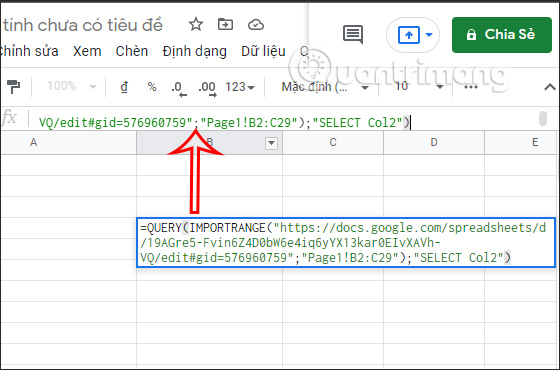
The result contains only the second imported column.
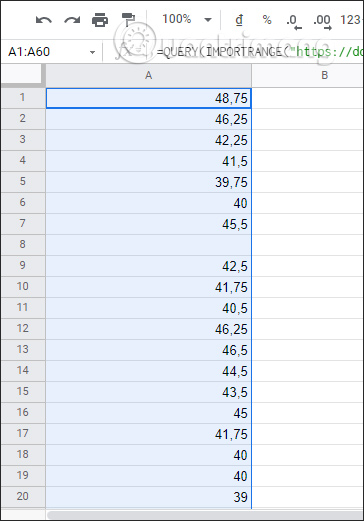
To return values from the first column only where the second column is below 40:
=QUERY(IMPORTRANGE("https://docs.google.com/spreadsheets/d/19AGre5-Fvin6Z4D0bW6e4iq6yYX13kar0EIvXAVh-VQ/edit", "Page1!B2:C29"), "select Col1 where Col2 < 40", 0)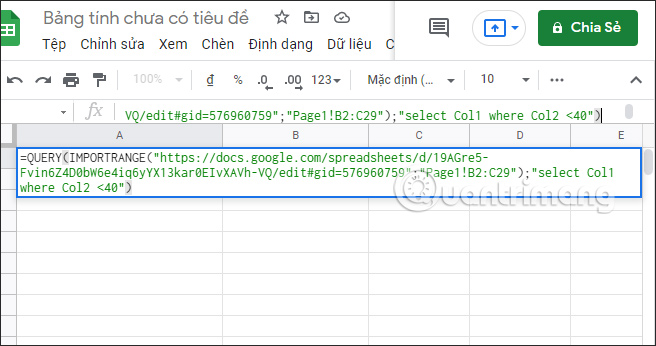
The filtered result displays only rows meeting that condition.
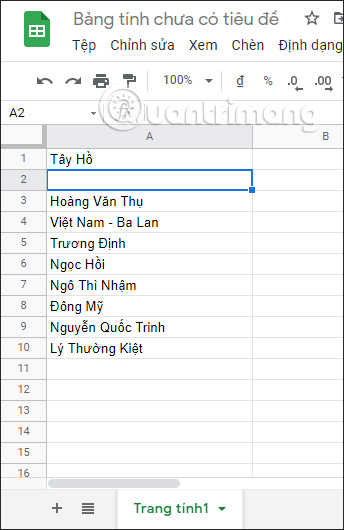
If the imported range includes a header row, change the final QUERY argument from 0 to 1. To simplify troubleshooting, first enter IMPORTRANGE by itself and authorize it, then wrap it in QUERY.
Example: consolidate scores from separate files
Suppose different spreadsheet files contain Math, English, and Science results. A summary file can import the required columns from each source.
- Open a source file and copy its URL.
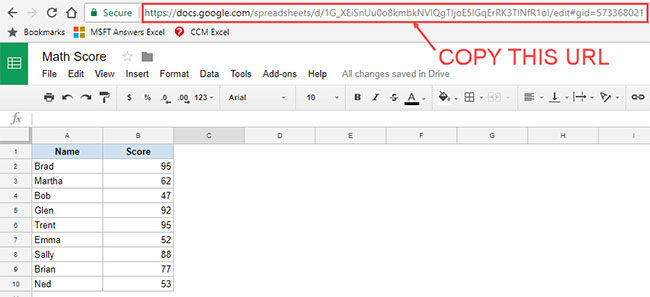
You may use only the spreadsheet key if you prefer a shorter formula.

- In the summary file, enter a formula such as:
=IMPORTRANGE("1G_XEiSnUu0o8kmbkNVlQgTIjoE5lGqErRK3TlNfR1oI", "'Math Score'!A2:B10")- Select the initial #REF! result and click Allow access.
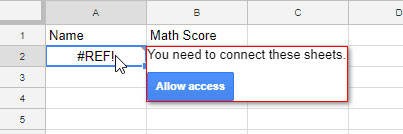
The imported names and scores will spill into adjacent cells.
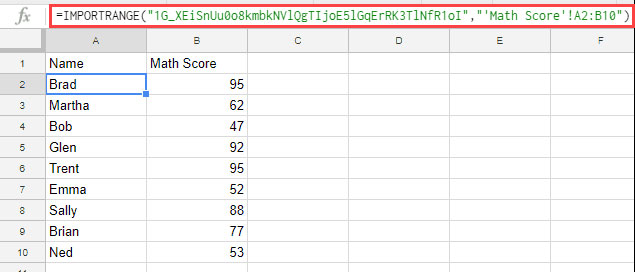
Repeat with each source file, placing every result where it has enough empty rows and columns. Avoid building long chains in which one imported result feeds another spreadsheet and then another; changes take longer to propagate and failures are harder to diagnose.
Import a named range
A named range makes a formula easier to read and reduces errors when the source has several similar blocks.
- In the source spreadsheet, select the cells and choose Data > Named ranges. Depending on the interface, the same command may appear in the range's context menu.
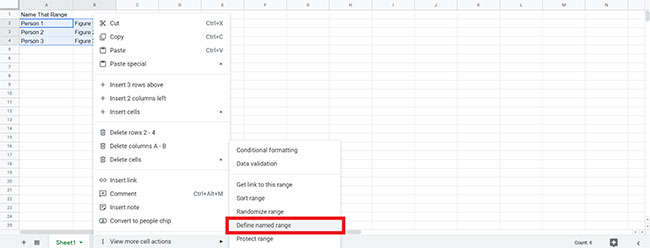
- Give the range a clear name, such as
MathScores.
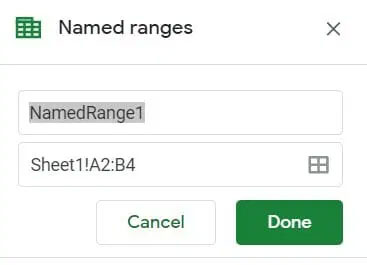
- Use that name as the second IMPORTRANGE argument:
=IMPORTRANGE("1G_XEiSnUu0o8kmbkNVlQgTIjoE5lGqErRK3TlNfR1oI", "MathScores")A named range belongs to the source spreadsheet. Do not add a sheet name unless the named range itself is not being used.
Fix common IMPORTRANGE errors
#REF! and “You need to connect these sheets”
Select the formula cell and click Allow access. The person authorizing the connection must be able to view the source. Remember that editors of the destination may then be able to see the imported values.
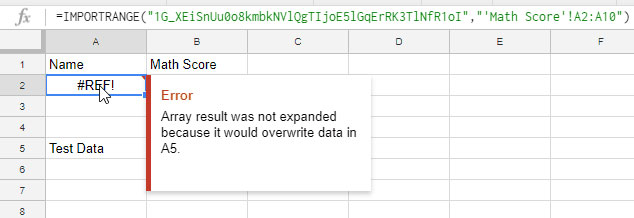
“Array result was not expanded”
Clear cells that block the output. IMPORTRANGE returns an array, so only the top-left formula cell can be edited.
Formula parse error
Check quotation marks, parentheses, the sheet name, and your locale's comma or semicolon separator. Copying a formatted quotation mark from a web page can also break a formula; retype it as a straight double quote.
Imported range not found
Confirm the tab name and cell reference. A renamed tab or a misspelled range string causes the import to fail. Use single quotes around a tab name containing spaces or punctuation.
Slow updates or “Loading”
Cross-spreadsheet imports travel over the network and update periodically rather than instantly. Import only the columns and rows you need, prefer closed ranges such as A2:D1000 over entire columns such as A:D, calculate summaries in the source before importing, and avoid long chains of IMPORTRANGE formulas.
Important behavior to remember
- The destination shows imported values; edit the source to change them.
- Formatting, comments, and most spreadsheet objects are not copied by IMPORTRANGE.
- For another tab in the same spreadsheet, use a direct reference such as
='Sheet2'!A1:C10instead. - Use import functions for a modest amount of changing data. For large, static data, copying a sheet may be faster; for very large datasets, consider a database or Connected Sheets workflow.
- Google documents traffic-based usage limits rather than a universal “50 formulas” rule. Too many imports or chained dependencies can trigger delays and loading errors.
Related Articles
 Data: How to Use Importrange on Google Sheets on PC or Mac4 minutes read
 5 Hidden Functions in Google Sheets That Excel Doesn't Have: Practical Guide6 minutes read
 5 Google Sheets Formulas That Will Save You Hours of Tedious Work8 minutes read
 How to Use the AND and OR Functions in Google Sheets7 minutes read
 How to Use the SMALL Function in Google Sheets8 minutes read
 30+ Useful Google Sheets Functions: Main Insights7 minutes read
Reader Comments 0
Sign in with email or Google to join the discussion.