Table of Contents
Gemini Canvas can turn a lesson outline into a visual explainer, a simple interactive app, an infographic, a quiz, or a set of flashcards. Start with verified teaching content, choose the format that supports the learning objective, and treat Gemini's output as a draft that requires factual and classroom review.
Canvas is most useful when interaction helps students understand a relationship: changing a variable, arranging a sequence, labeling a diagram, comparing cases, or checking an answer. A static explanation is better when clicking and animation would add distraction rather than insight.
The screenshots in this guide show the interface when they were captured. Gemini features and labels can vary by account, platform, age, language, and rollout.
Start a visual lesson in Gemini Canvas
Sign in at Gemini on the web. Below the prompt box, open the file or tool menu and select Canvas. Enter a request that specifies the audience, learning objective, source material, and desired output.
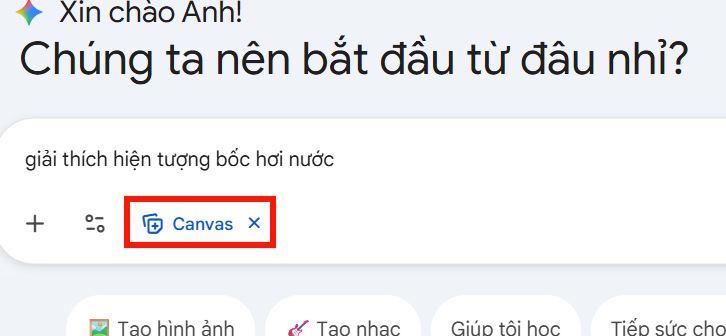
For example:
Create a Canvas document for a Grade 6 science lesson.

Topic: changes of state
Learning objective: Students will explain how particle motion changes during melting, evaporation, condensation, and freezing.
Use only the attached approved lesson notes for factual content.

First create:
- a concise explanation;
- a comparison table;
- four everyday examples;
- five misconceptions to check;
- a short exit question.

Flag any fact that is not supported by the source. Do not create the interactive app yet.
Building the content first makes it easier to find gaps before adding design or code. Gemini will draft a document in the Canvas panel, where you can edit text directly or request revisions.
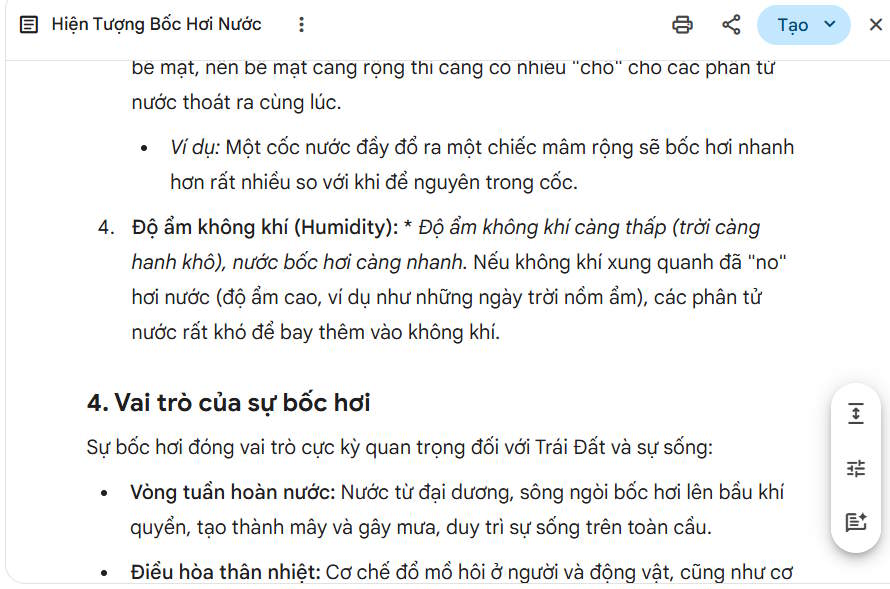
Check the lesson content before choosing a format
Read every definition, label, example, date, equation, and unit. Compare the draft with the approved curriculum or source. Remove interesting details that do not support the lesson objective.
Then decide what students should do:
| Learning need | Useful Canvas output | Example |
|---|---|---|
| See a process change | Interactive visual or app | Adjust temperature and observe a particle model |
| Compare related ideas | Infographic or comparison visual | Contrast evaporation and boiling |
| Practice retrieval | Quiz or flashcards | Match vocabulary to definitions |
| Follow an explanation | Document or slide deck | Step-by-step worked example |
| Apply a rule | Small simulation | Change values and predict an output |
If the main deliverable is a conventional deck, use the separate workflow for planning and presenting effective slides and finish the layout in Google Slides.
Create an interactive visual or app
With the reviewed Canvas document open, select Create and ask Gemini to turn the material into a custom visual or app. The available menu may offer a suggested format; you can also describe the interaction directly in the prompt.
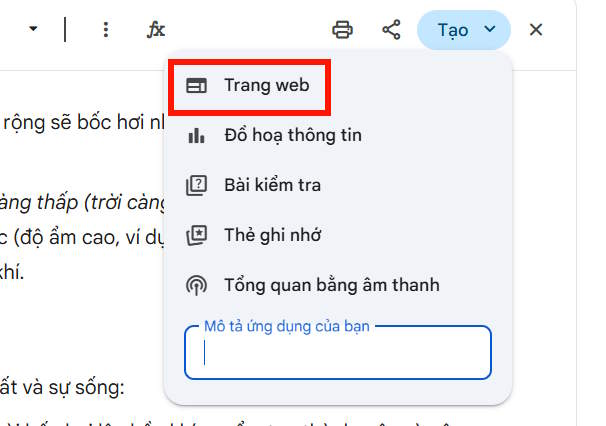
A good app prompt identifies the concept, controls, visible output, boundaries, and accessibility needs:
Turn this reviewed lesson into a single-page interactive particle model.

Students can:
- choose solid, liquid, or gas;
- move a temperature slider;
- click Play or Pause;
- reset the model;
- answer one prediction question before seeing the explanation.

Requirements:
- keep the science consistent with the supplied lesson notes;
- label the model as a simplified representation, not a literal scale view;
- use keyboard-operable controls;
- do not rely on color alone;
- include text descriptions of each state;
- show a clear error if the app cannot load;
- do not collect or transmit student data.
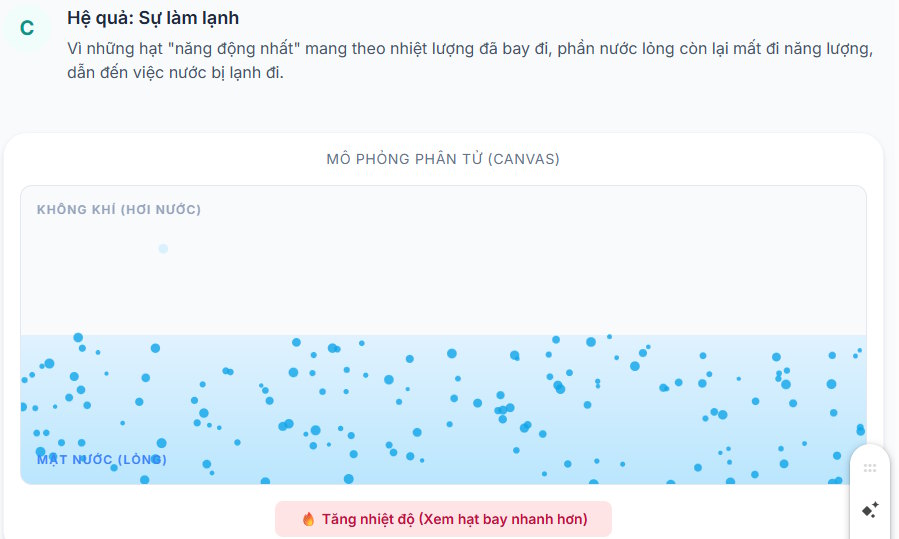
Canvas can generate a preview and code for the app. Navigation or topic controls may appear at the top or side, depending on the design.
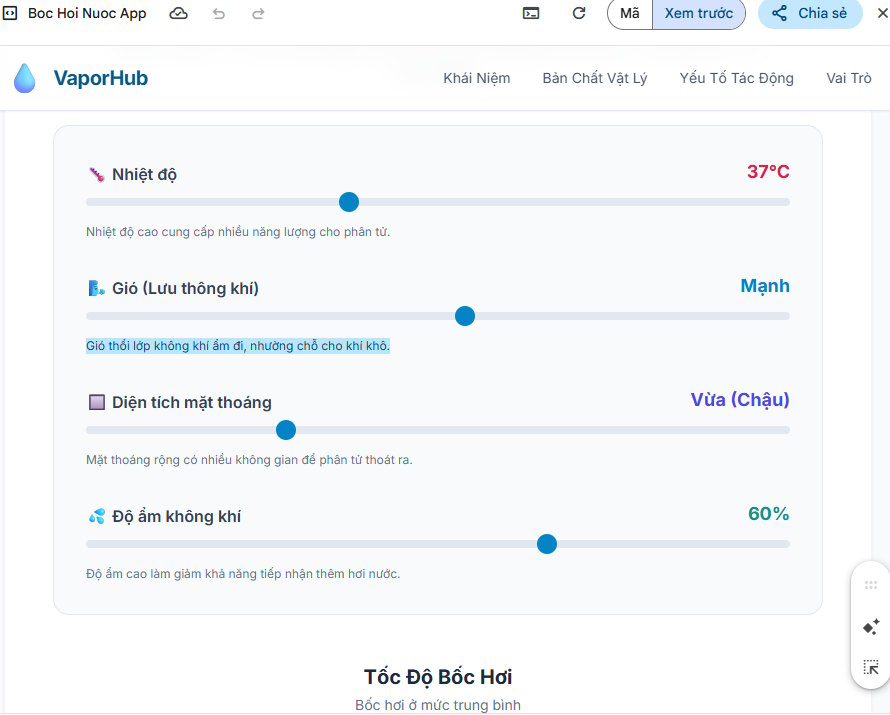
Students can then interact with the controls, such as changing a variable and observing a corresponding model.
Inspect and test the generated app
Use Canvas's preview and, where available, its code and console views. Test every button, input, keyboard path, reset action, and boundary value. Ask Gemini to repair a specific failure, then test again; a generated success message is not evidence that the bug is fixed.
- Try the smallest, largest, empty, and invalid inputs.
- Refresh the page and confirm the state resets appropriately.
- Check the app at narrow and wide screen sizes.
- Navigate without a mouse.
- Confirm labels are announced in a sensible order by assistive technology.
- Verify that calculations and displayed units are correct.
- Make sure no link or form sends student information elsewhere.
Teachers looking beyond Gemini can compare its use with the options in this guide to AI tools for teachers, but school policy and student privacy requirements should guide the choice.
Create an infographic or custom visual
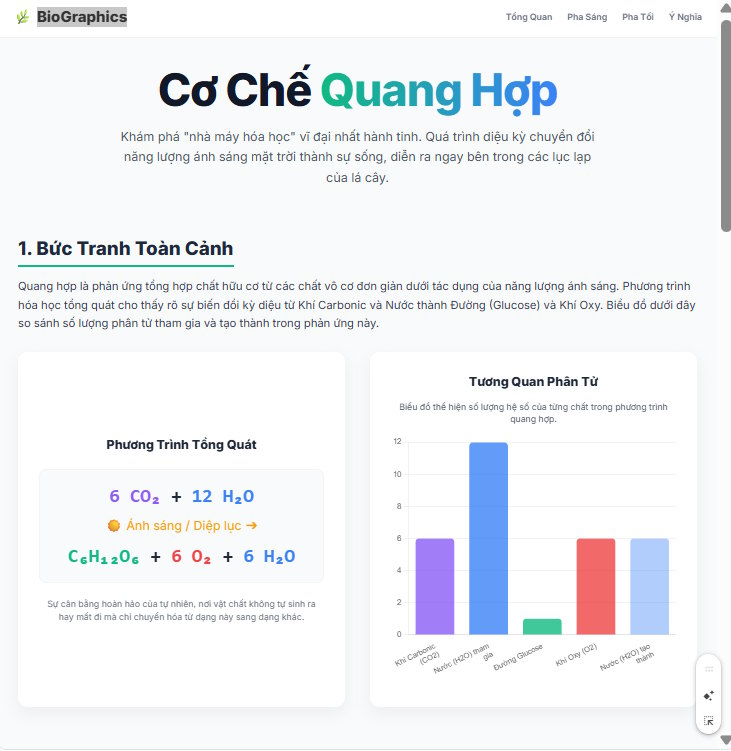
An infographic is useful when students need a compact relationship or sequence they can review at a glance. In the Create menu, choose a visual option if one is shown, or describe the desired layout in the prompt.
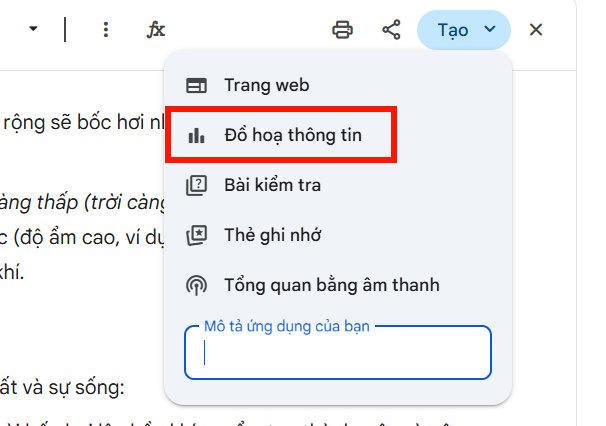
Ask for content and structure rather than vague decoration:
Create a one-page infographic from the verified lesson content.

Audience: Grade 6
Purpose: Compare melting, freezing, evaporation, and condensation.
Layout:
- central particle model;
- four labeled process arrows;
- one everyday example for each process;
- a temperature and energy note;
- a small misconception box.

Use a high-contrast palette, large labels, and icons that remain understandable in grayscale. Do not add facts or numerical values that are absent from the source.
Review text for truncation, duplicated labels, misplaced arrows, and unreadable contrast. If a generated visual contains incorrect embedded text, it is often faster and safer to recreate the label as editable text than to keep regenerating the entire image.
Create quizzes or flashcards
Gemini Canvas can also turn reviewed material into questions. Specify the learning objective, question type, difficulty, feedback, and source boundary. Do not ask for a fixed number of questions if the source cannot support that many without repetition.
A strong request is:
Create an 8-question practice quiz from the attached lesson only.

Include:
- 3 retrieval questions;
- 3 application questions;
- 2 misconception checks.

For each item provide:
- the correct answer;
- a one-sentence explanation;
- the source section used;
- feedback for each incorrect option.

Avoid trick questions, ambiguous wording, "all of the above," and clues caused by one answer being much longer than the others.
Check that each question has one defensible answer and measures the stated objective. For formal assessment planning, use an assessment blueprint; the guide to creating an exam matrix with Gemini and ChatGPT explains how to balance content and cognitive demand.
Accuracy, privacy, and classroom safety
- Factual review: Verify all generated content against an approved source before students see it.
- Model honesty: Label simplified simulations and generated illustrations clearly. Do not present them as measured data or documentary images.
- Privacy: Do not paste student names, work, grades, disability information, or other personal data into an unapproved service.
- Copyright: Use source material and images you are permitted to upload, transform, and distribute.
- External connections: Inspect generated code and links before sharing. Do not publish an app that quietly sends data to an unknown service.
- Accessibility: Provide keyboard access, text alternatives, sufficient contrast, captions, and a non-interactive equivalent when needed.
- Age and account rules: Follow the school's policies and Google's current eligibility requirements, especially for features that add Gemini-powered behavior to an app.
Google's current Gemini Canvas documentation explains how to start Canvas, edit documents or code, use the preview and console, and transform a document into another format.
Final review before sharing
- The visual or interaction directly supports a stated learning objective.
- All facts, labels, calculations, sources, and answer keys are correct.
- The app behaves safely at invalid and boundary inputs.
- Instructions are understandable without the teacher explaining the interface.
- Keyboard navigation, contrast, text alternatives, and responsive layout work.
- No personal data, hidden trackers, or unnecessary external requests are present.
- A static or printable alternative is available.
- The lesson has been tested on the same type of device students will use.
Gemini Canvas can make a concept more visible and interactive, but interactivity is not a learning objective by itself. Start with the understanding students need, choose the smallest format that helps them reach it, and test the result as carefully as any other classroom resource.
Related Articles
 A Guide to Creating Presentation Slides Quickly Using Gemini4 minutes read
 Guide to Creating Compelling Document Reports Using Gemini4 minutes read
 Guide to Designing Lecture Slides Using Gemini4 minutes read
 Use Gemini Canvas to Transfer Photos to Google Docs: How-To Guide3 minutes read
 5 Ways Gemini Helps Students Learn Smarter7 minutes read
 Google Search Upgrades Its AI Mode: Canvas Can Now Write, Plan, and Program Applications5 minutes read
Reader Comments 0
Sign in with email or Google to join the discussion.