Table of Contents
Gemini Canvas can turn a topic or uploaded source into a themed slide deck, but the first output should be treated as a draft. The most reliable workflow is to define the audience and learning goal, generate a concise structure, verify every claim, and finish the deck in Google Slides.
Prepare the source and slide plan
Collect the material the presentation must follow: a lesson outline, approved textbook excerpt, notes, or a document with verified facts and image sources. Remove student data and material you are not permitted to upload.
Before asking for slides, decide:
- who will view the deck and what they should understand afterward;
- the approximate presentation time;
- the required sections and assessment activity;
- the reading level, language, and accessibility needs;
- which claims must cite the uploaded source.
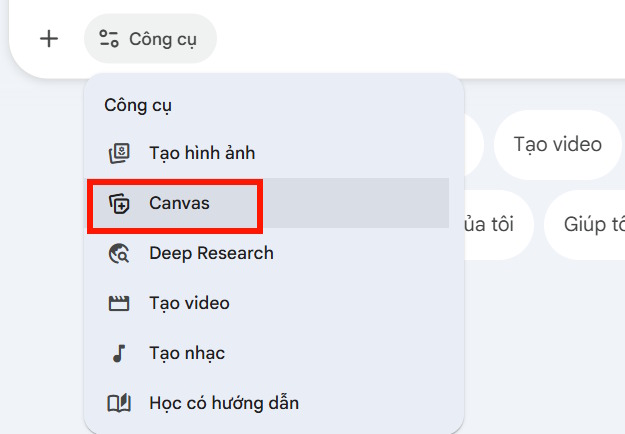
1. Open Canvas and add your material
In Gemini, start a new chat and choose Canvas—not Canva, the separate design service. Upload the reference files if the account and file type support them, then ask Gemini to base the presentation on those files.
2. Request a structured presentation
A strong prompt sets constraints without demanding that every slide be crowded with text. Adapt this template:
Create a slide presentation for a Grade 7 history lesson using only the uploaded source.

Audience: Grade 7 students
Lesson goal: Explain [topic] and compare the main causes and effects
Length: 12 slides for a 25-minute lesson
Structure:
1. Title and lesson question
2. Prior-knowledge prompt
3-9. Core ideas in a logical sequence
10. Source-analysis activity
11. Three-question knowledge check
12. Key takeaways

Requirements:
- One main idea per slide
- No more than four concise bullets on a content slide
- Put suggested speaker notes below each slide
- Cite the uploaded source for dates, quotations, and statistics
- Mark unsupported information as [VERIFY]
- Suggest visuals, but do not invent historical images or captions
- Use high-contrast layouts and readable text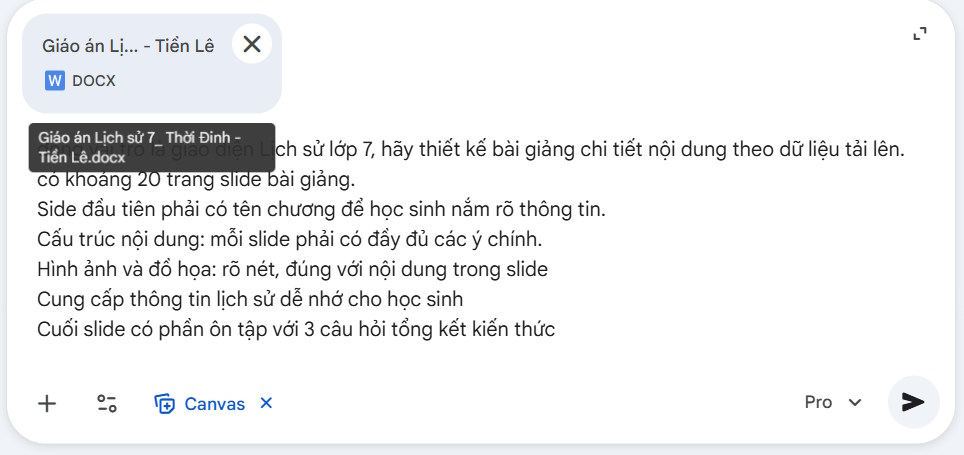
Ask for an outline first when the source is long or the sequence matters. Correcting twelve slide titles is faster than regenerating a finished deck with the wrong structure.
3. Review the Canvas draft
Gemini creates the slides, theme, and suggested visuals in Canvas. Read the deck as a presentation rather than as a document: each slide should advance the explanation, and details that belong in narration should move to speaker notes.

Check names, dates, quotations, calculations, image labels, and source attributions against the original material. Generated visuals may illustrate a concept but should not be presented as authentic documentary evidence.
4. Revise specific slides
Give targeted instructions instead of asking Gemini to “make it better.” Identify the slide number, the problem, and the intended change:
- “On slide 4, replace the paragraph with a three-step timeline.”
- “On slide 7, remove the decorative image and add a source-analysis question.”
- “Shorten the titles to six words or fewer without changing their meaning.”
- “Add alt-text suggestions for every informative visual.”
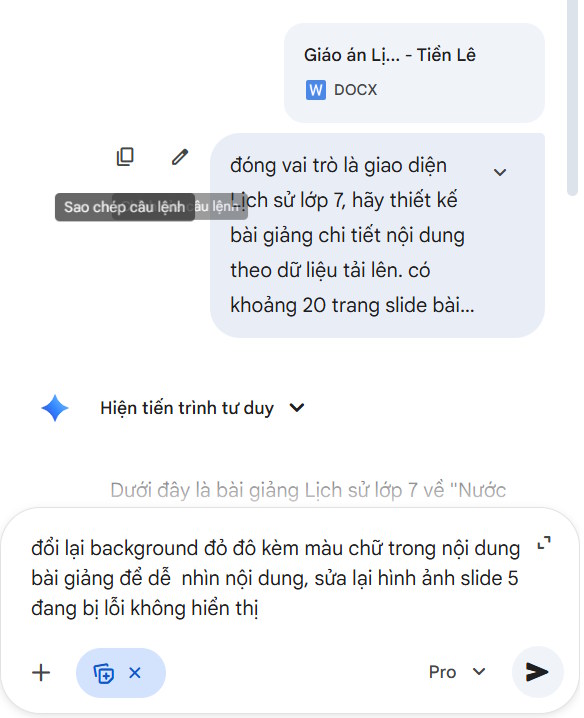
After a broad redesign, recheck facts and slide order; generated revisions can change content as well as appearance.
5. Export to Google Slides or PDF
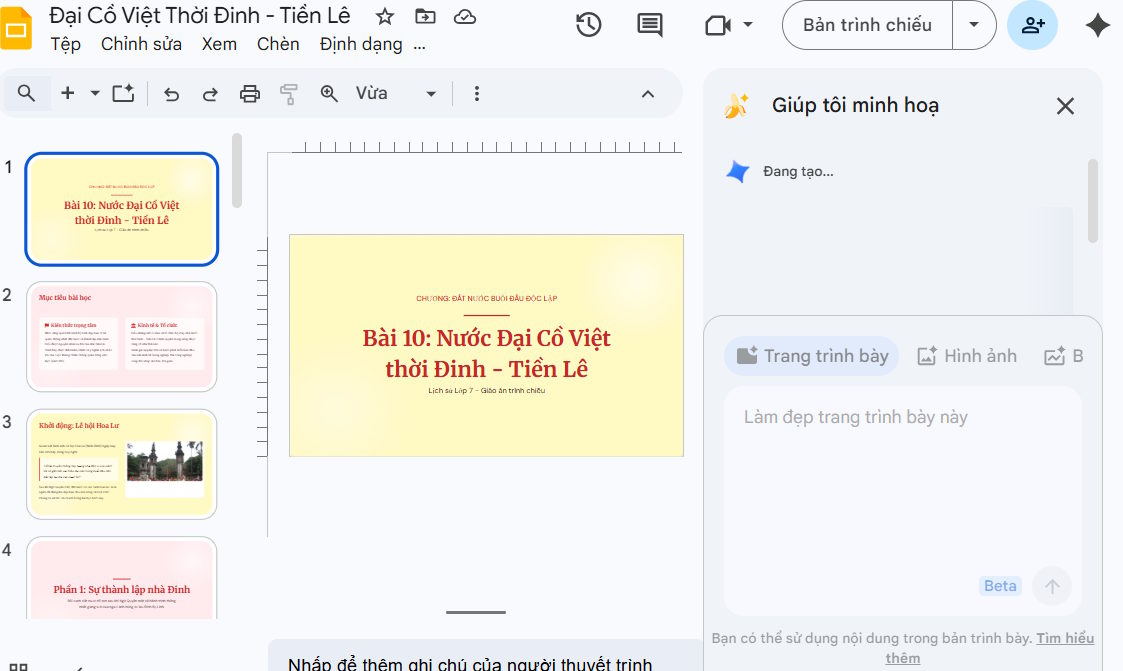
Open Share & export in the Canvas panel. Choose Export to Slides to continue editing in Google Slides, or use the available PDF export when you need a fixed-layout copy. Google's Canvas help page documents the current export choices.
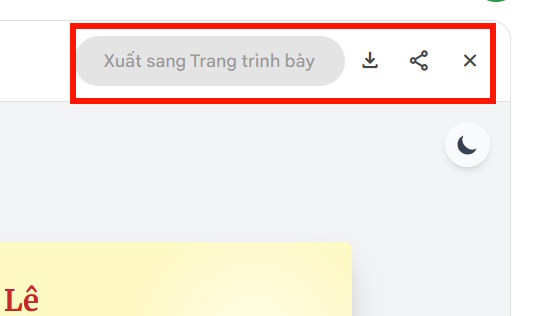
Exporting to Slides is usually the better choice before teaching because you can adjust layout, replace images, add citations, check animations, and test presenter notes.
Final checks before presenting
- Verify every factual claim against the supplied source or another reliable reference.
- Confirm that images are licensed, accurately captioned, and not misleading.
- Use sufficient color contrast and text large enough for the room.
- Add alternative text where the visual carries information.
- Run the deck in presentation mode and check timing, links, fonts, and media.
- Keep an editable copy; PDF export can change how fonts or interactive elements behave.
If the goal is a narrated video rather than a live deck, compare the workflow for creating presentations with Google Vids. For another AI slide option, see how TipsMake approaches presentation creation with Kimi AI.
Use AI to accelerate editing, not to replace review
Gemini can reduce the time spent on initial structure and layout, but it cannot know whether a lesson fits a specific curriculum, whether an image is appropriate for the class, or whether a generated explanation is accurate. A useful final deck combines the model's draft with the teacher's subject knowledge, source checks, and presentation design.
Related Articles
 Guide to Creating Lecture Slides Using Brisk AI5 minutes read
 How to Create Presentation Slides on ChatGPT5 minutes read
 How to Create Presentation Slides on TeraBox3 minutes read
 Guide to Designing Lecture Slides Using Gemini4 minutes read
 How to Create Presentation Slides Using ChatGPT4 minutes read
 4 Useful Ways to Use Gemini AI in Google Slides6 minutes read
Reader Comments 0
Sign in with email or Google to join the discussion.