Table of Contents
When you need a tool to quickly convert content from images, Gemini Canvas can help you a lot. Canvas tool scans the content in the image and then converts it into text.
If you need a tool to quickly convert content from images, Gemini Canvas supports you a lot. The Canvas tool scans the content in the image and then converts it into text. From here, You can easily transfer the text to Google Docs to share or edit if needed. Below are instructions for using Gemini Canvas to convert images to Google Docs.
How to transfer photos to Google Docs using Gemini Canvas
Step 1:
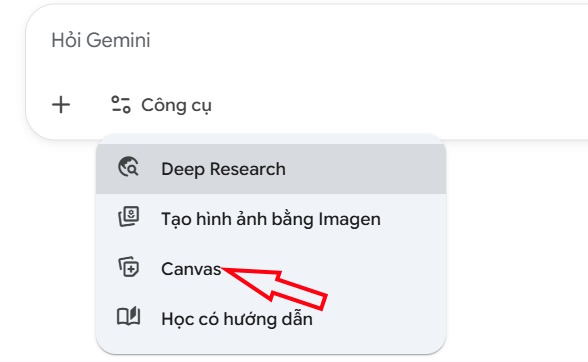
In the Gemini interface, click on Tools And Select Canvas To use.
Step 2:
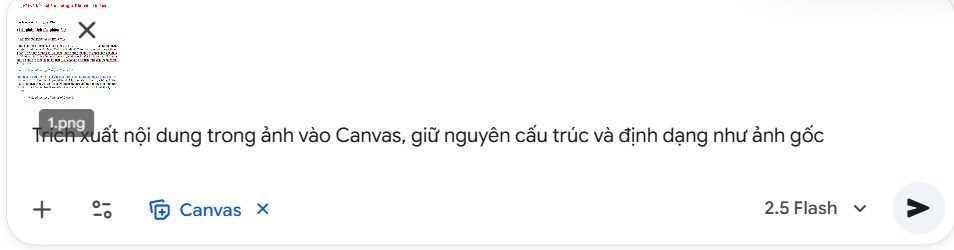
Next, we click on The plus icon To Upload the document image . Then you enter the command content below into the box and send it to Gemini.
'Extract image content into Canvas, preserving the original image structure and format'.
Step 3:
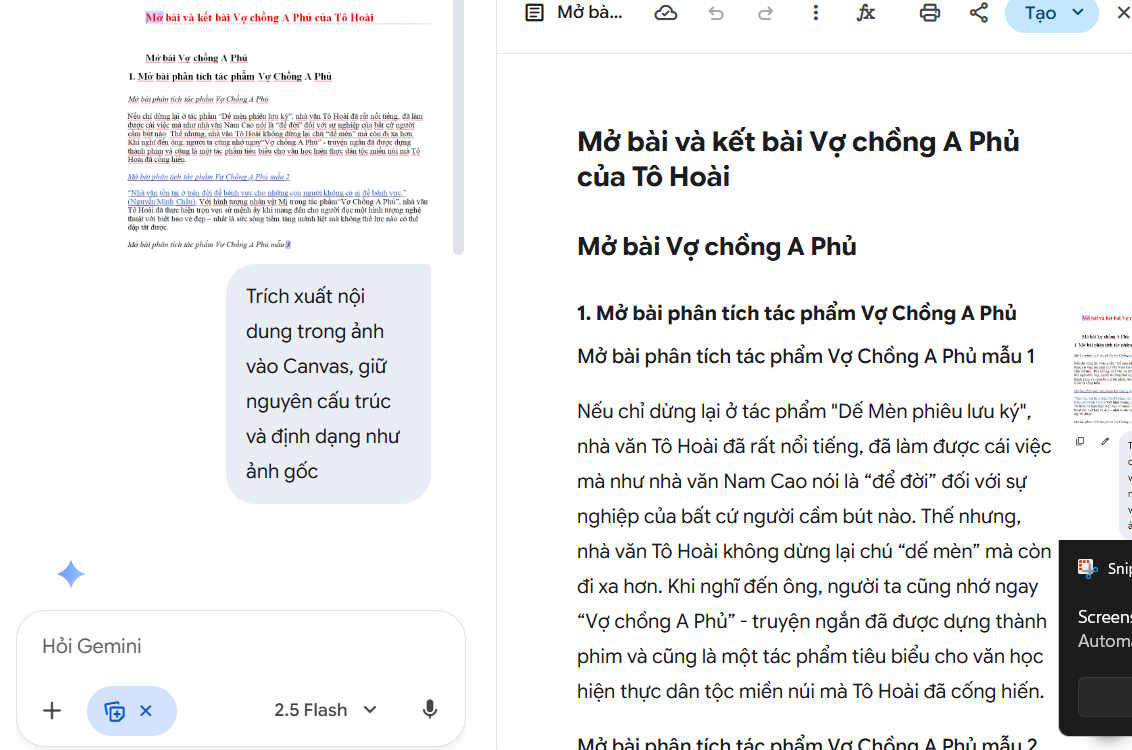
You will now see the document content extracted from the uploaded image.
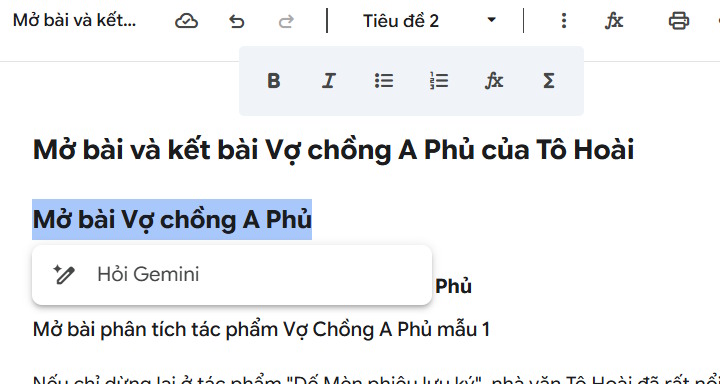
You can use some basic formatting tools for your document in Canvas. Now you can copy the content into a Docs document on your computer.
Step 4:
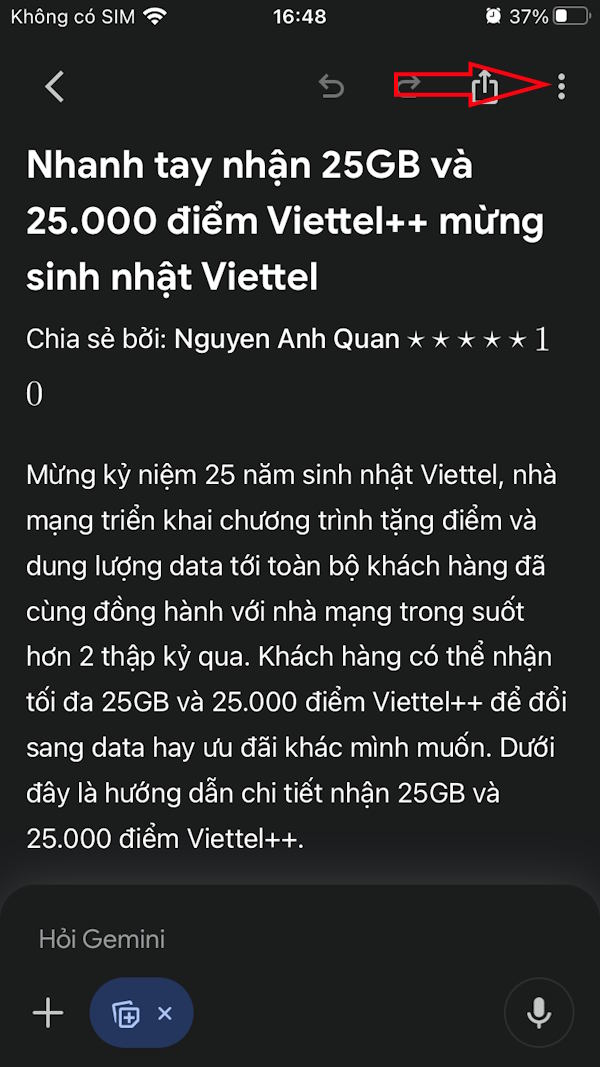
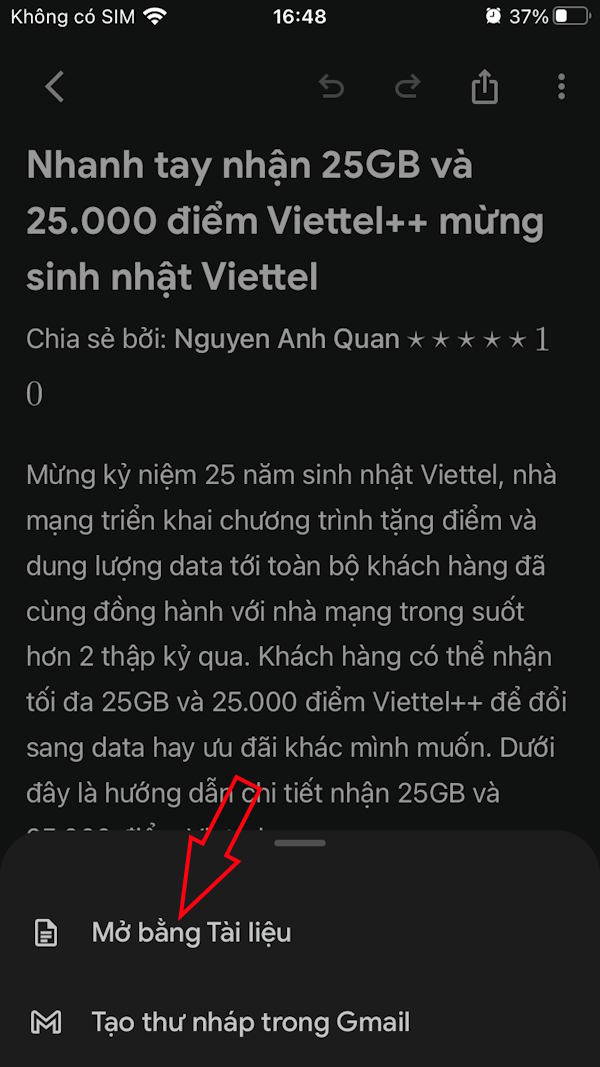
In case you are using Gemini on your phone, just tap on the 3 dots icon and select Open with Documents. You will then see the Google Docs text displayed.

FAQ
How do you use Gemini Canvas to transfer photos to Google Docs: how-to guide?
In practical terms, if you need a tool to quickly convert content from images, Gemini Canvas can help you a lot. Canvas tool scans the content in the image and then converts it into text.
What should you check before getting started?
Review the requirements, compatible device or software version, and any warnings described in the guide before making changes.
What should you do if the steps do not work?
Repeat the steps in order, confirm that your app or system is up to date, and review the troubleshooting details provided above.
Related Articles
 How to Turn Off Gemini in Google Docs10 minutes read
 How to Create Visual Lectures with Gemini Canvas4 minutes read
 Google Search Upgrades Its AI Mode: Canvas Can Now Write, Plan, and Program Applications5 minutes read
 Instructions for Cutting and Rotating Photos on Google Docs3 minutes read
 Detailed Guide on Creating Images in Google Docs Using Gemini5 minutes read
 4 Google Apps That Work Better with Gemini: Explained5 minutes read
Reader Comments 0
Sign in with email or Google to join the discussion.