Table of Contents
Gemini Canvas can turn a lesson brief or uploaded source material into a draft slide presentation. The result is a starting point, not a finished lesson: teachers still need to verify facts, align the slides with the curriculum, simplify crowded layouts, add source credit, and check that activities suit their students.
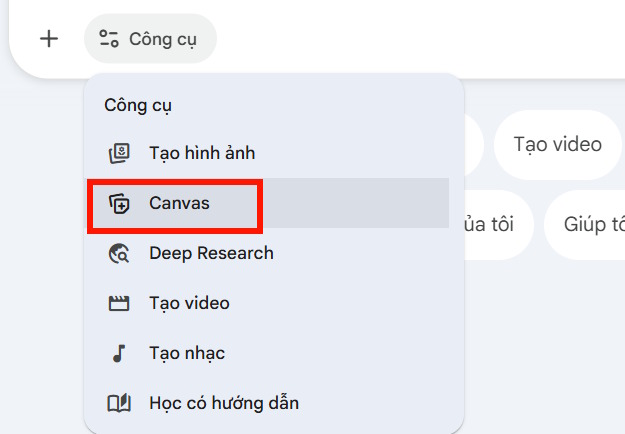
Do not confuse Canvas, Gemini's workspace for creating documents, apps, slides, and other content, with the separate design product Canva. The exact buttons and export options can vary by account and rollout, so sign in to Gemini on the web and look for Canvas or a slide-creation option.
The screenshots below reflect the interface available when they were captured. Current labels or placement may differ.
1. Prepare the lesson brief
Gemini produces a more useful deck when the task includes instructional constraints rather than only a topic. Before opening Canvas, prepare:
- grade or learner level;
- subject, unit, and lesson topic;
- learning objectives;
- lesson duration and approximate slide count;
- required source material or curriculum standard;
- prior knowledge students should have;
- activities, checks for understanding, and final assessment;
- language, accessibility, and classroom technology requirements.
A slide count is only a planning limit. It should not force one idea across several empty slides or cram an entire chapter into a single period.
2. Open Gemini Canvas and add source material
Open Gemini, start a new chat, and select Canvas. If the interface accepts file uploads or Drive references, attach only the documents that should guide the lesson. Remove outdated versions and avoid files containing student names, grades, health details, or other sensitive information.
Tell Gemini which source is authoritative. If the deck must follow a textbook chapter or approved curriculum, instruct it not to add unsupported facts and to flag gaps instead of guessing.
3. Use a structured slide prompt
A prompt should describe the learning sequence, not just ask for a beautiful presentation. For example:
Create an editable slide presentation for a Grade 7 history lesson.

Topic: [topic]
Lesson length: 45 minutes
Learning objectives:
- [objective 1]
- [objective 2]

Use the attached curriculum as the primary source. Draft 12–15 slides:
1. Title and learning objectives
2. Retrieval question based on the previous lesson
3. Essential background
4. Main ideas in a logical sequence
5. One source-analysis activity
6. A short check for understanding
7. Summary and three exit questions

Requirements:
- One main idea per slide
- Concise student-facing text
- Speaker notes for explanations that do not belong on the slide
- Cite every quotation, statistic, map, and historical image
- Do not invent dates, quotations, or source details
- Mark any claim that cannot be verified from the uploaded material
- Use high-contrast colors and descriptive image suggestions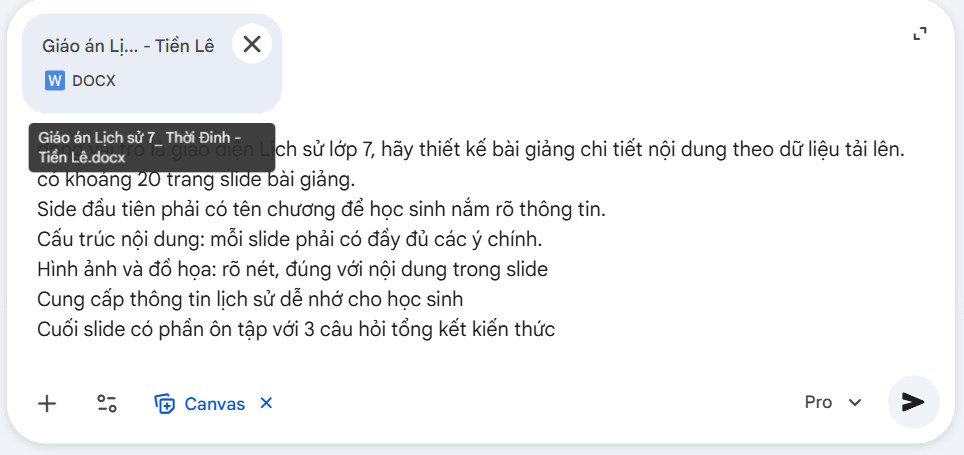
For a related visual format, see how to create visual lessons and interactive explanations with Gemini Canvas.
4. Review the outline before polishing the design
Ask Gemini to show the slide titles and purpose of each slide first. Check that the sequence moves from prior knowledge to explanation, practice, feedback, and assessment. It is faster to fix a weak outline than to regenerate a fully designed deck.
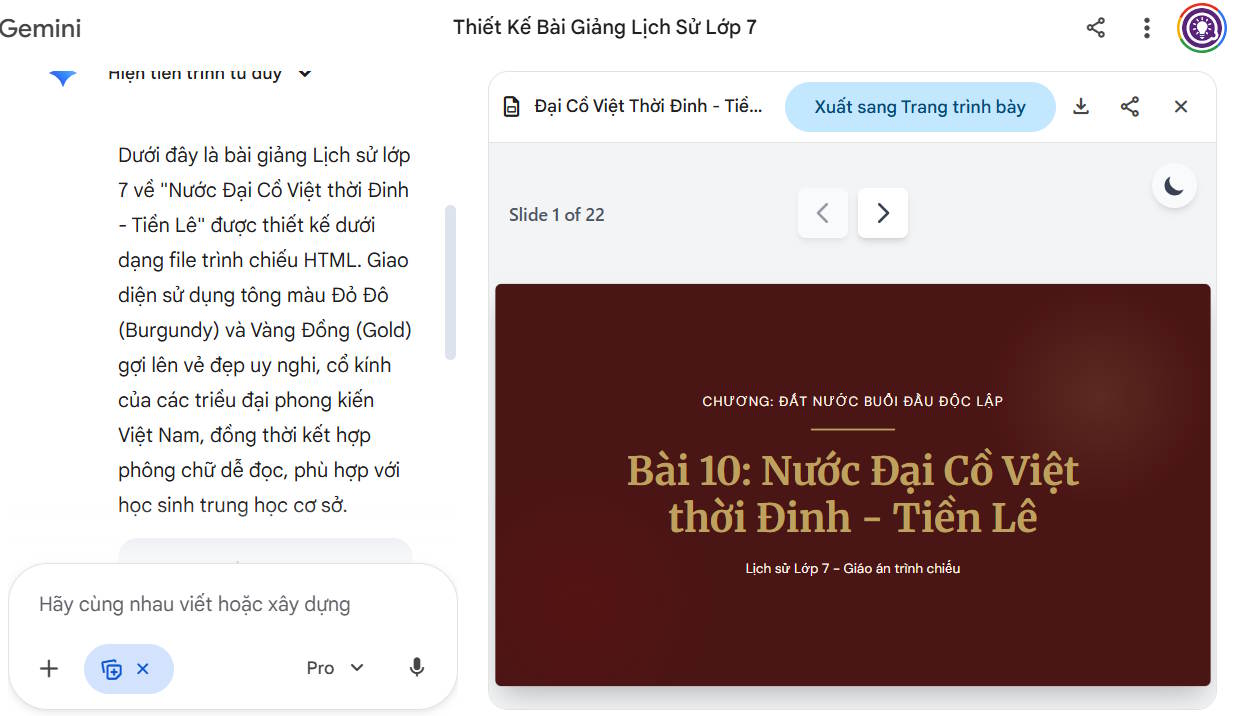
When the structure is sound, ask Canvas to create the slides. Gemini may generate text, layouts, and image suggestions or assets, depending on the available features.
5. Revise specific slides
Review the deck slide by slide. Give targeted changes such as “Split slide 6 into a map-reading task and a follow-up question” or “Reduce slide 9 to three key points and move the explanation to speaker notes.” Specific edits preserve good sections better than asking Gemini to recreate the entire presentation.
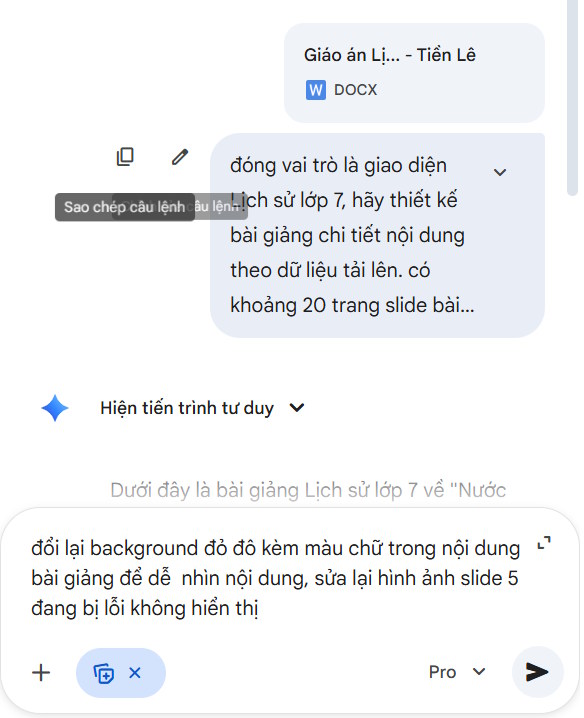
Useful revision prompts include:
- Replace this paragraph with a labeled diagram and two discussion questions.
- Add a worked example before the independent task.
- Rewrite the instructions so a student can understand them without verbal clarification.
- Create an easier scaffold and a more challenging extension for this activity.
- Identify claims on these slides that require a citation.
- Check whether the exit questions actually measure the stated objectives.
6. Export to Google Slides or PDF
When the draft is ready, use the available option to open or export it to Google Slides. A PDF download is useful for distribution or printing, but an editable Slides file is better for final layout changes, speaker notes, citations, and accessibility corrections.
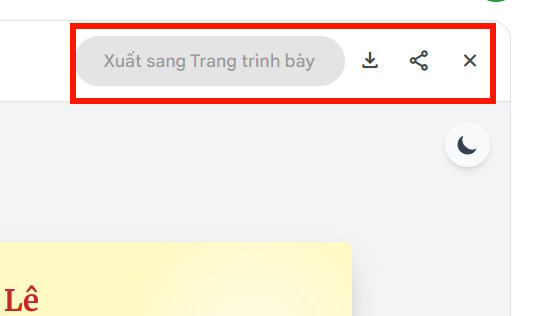
Google documents Canvas as a workspace that can create and edit slides. Consult the current Gemini Canvas help page if the expected slide or export control is not visible.
7. Finish the presentation in Google Slides
Open the exported deck and inspect it in presentation mode. Gemini in Google Slides can generate or edit slides, rewrite text, create images, summarize a presentation, and reference Drive files on eligible Google Workspace or Google AI plans.
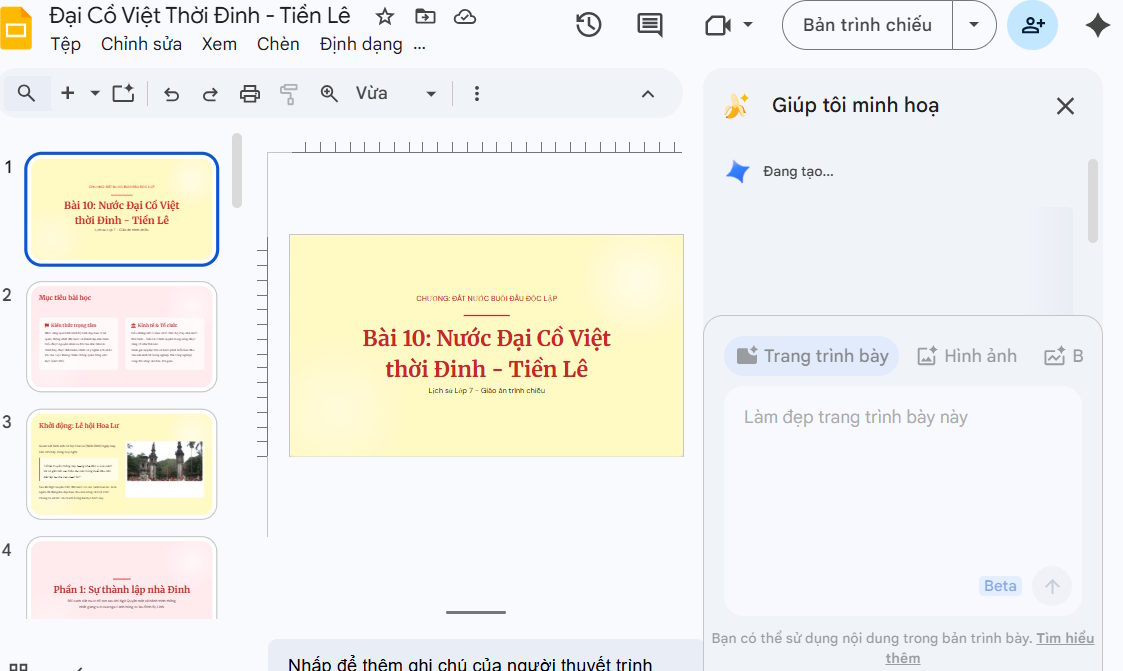
Availability depends on the plan, language, and administrator settings. Google's Gemini in Google Slides guide lists current capabilities and requirements. For general design and delivery principles, review these tips on planning and presenting effective slides; they apply beyond PowerPoint.
Accuracy and source checks for teachers
- Verify every factual claim. Check dates, names, definitions, formulas, quotations, and statistics against approved sources.
- Open every cited link. Confirm that it supports the nearby claim and is appropriate for students.
- Distinguish evidence from illustration. Do not present an AI-generated historical scene, scientific specimen, chart, or map as documentary evidence.
- Check copyright and licenses. Use images and text you are allowed to display, modify, and share, and include required attribution.
- Review cultural framing. Look for oversimplification, stereotypes, omitted perspectives, or loaded wording.
- Keep assessment aligned. Questions should measure the lesson objectives, not trivia introduced only in the generated deck.
Make the slides accessible
Use a readable font, strong color contrast, descriptive slide titles, and meaningful alternative text for images. Avoid conveying meaning through color alone. Tables should have clear headers, videos need captions, and links should describe their destination.
Keep essential text on the slide concise, but do not remove information students need to complete a task independently. Put teacher explanations in speaker notes and provide a separate accessible handout when appropriate.
Final classroom checklist
- The objectives match the approved curriculum and available lesson time.
- Each slide has a clear purpose and one main idea.
- Facts, quotations, visuals, and citations have been verified.
- Activities include instructions, timing, materials, and expected output.
- Checks for understanding reveal whether students are ready to continue.
- Fonts, contrast, alt text, captions, and reading order are accessible.
- No private student information appears in the prompt, files, or slides.
- The deck has been tested in presentation mode on the classroom equipment.
- A PDF or offline copy is available if the connection fails.
Gemini can shorten the first-draft stage, but the teacher remains responsible for instructional quality and factual accuracy. The best workflow uses AI to organize and visualize approved material, then relies on human review to make the lesson teachable.
Related Articles
 A Guide to Creating Presentation Slides Quickly Using Gemini4 minutes read
 Guide to Creating Lecture Slides Using Brisk AI5 minutes read
 How to Convert PDF Test Files into Lecture Slides Using Gemini4 minutes read
 How to Create Voiceovers for Lecture Slides3 minutes read
 4 Useful Ways to Use Gemini AI in Google Slides6 minutes read
 Gemini in Google Slides: Create Slides, Infographics, and More6 minutes read
Reader Comments 0
Sign in with email or Google to join the discussion.