Table of Contents
To create a fillable form in Word, use the desktop app’s Developer tab to insert content controls, configure each field, and restrict editing if you want to protect the surrounding text. Save the result as a Word document and test it as a recipient before distributing it.
The steps and screenshots below use Word for Windows. Word for Mac has different menus and available controls; Word for the web does not provide the same form-creation tools.
1. Plan the form and enable Developer
Start with a blank document or a suitable template from File > New. Add a title, clear field labels, and any short completion instructions. For example, a registration form might need Name, Email, Attendance type, and an optional comments field.
- Open File > Options.
- Choose Customize Ribbon.
- Under the main tabs, select Developer, then click OK.
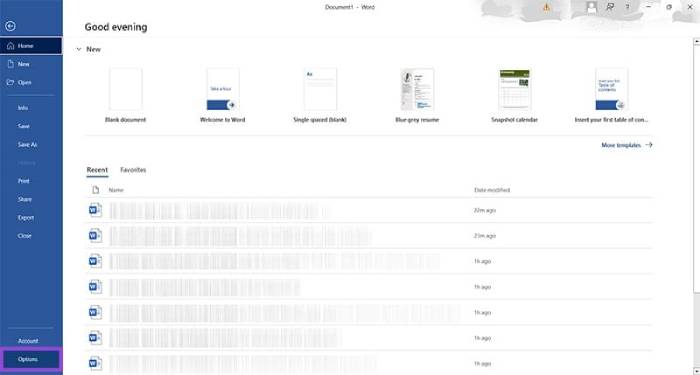
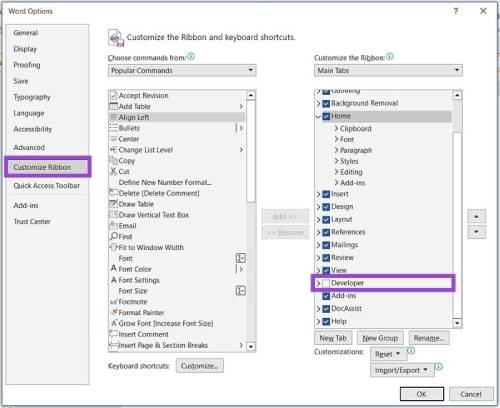

If the tab is still missing, follow this Developer tab setup guide.
2. Insert the right control for each answer
Place the cursor beside a label, then choose a control from Developer > Controls. Hover over an icon to see its name.
- Plain Text Content Control: suitable for short entries such as names.
- Rich Text Content Control: use when a response needs multiple paragraphs or text formatting.
- Check Box Content Control: adds a box the recipient can check or clear. A printed square or check-mark symbol is not an interactive control.
- Drop-Down List Content Control: limits the answer to choices you define.
- Combo Box Content Control: provides choices while also allowing a typed answer.
- Date Picker Content Control: lets the recipient choose a date where supported.

For a checklist, see how to insert a clickable checkbox in Word. Use legacy controls only when you have a specific compatibility requirement.
3. Set properties and helpful placeholder text
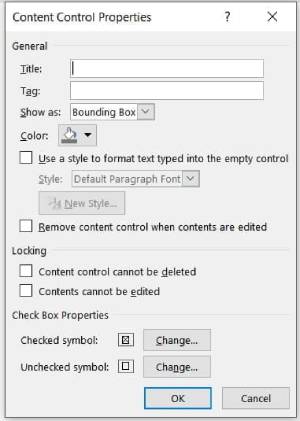
Select a control and open Developer > Properties. Give it a descriptive title. For a drop-down or combo box, add each permitted option; for a date picker, choose a suitable display format.
Use Design Mode when editing placeholder text, such as “Enter your full name.” Turn Design Mode off to try the field. Avoid locking a field’s contents if the recipient needs to enter or select an answer.
Are macros or add-ins necessary?
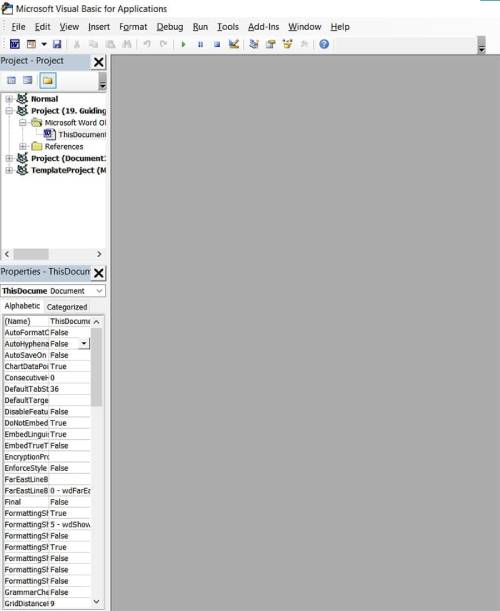
No. The built-in controls are enough for a basic form. Templates can save layout work, while VBA and add-ins are optional tools for more specialized automation.
4. Protect the layout and test the form
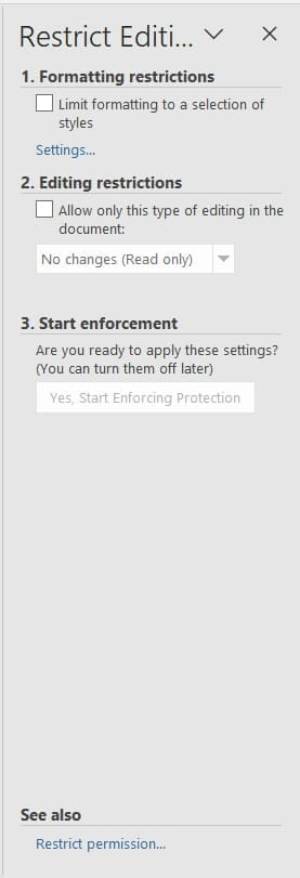
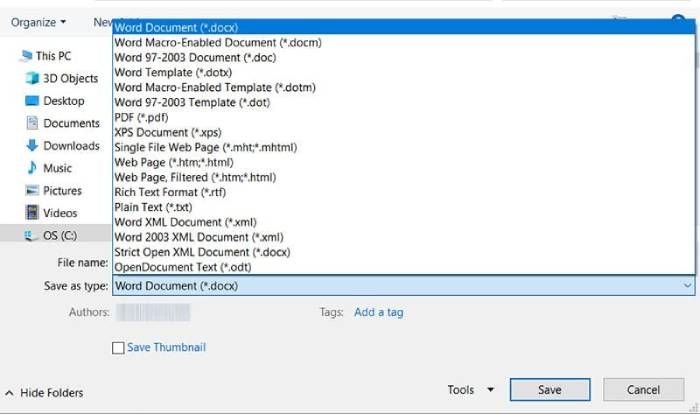
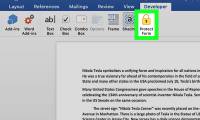
Save an editable master copy first. Then open Developer > Restrict Editing. If appropriate for your form, allow only Filling in forms, then select Yes, Start Enforcing Protection. Keep any protection password somewhere you can retrieve it.
- Save and reopen a test copy.
- Enter text, select every list, and check and clear each box.
- Confirm that instructions remain readable and longer answers do not disrupt the layout.
- Save the completed copy and reopen it to confirm the answers remain.
Editing restrictions help prevent layout changes; they are not a substitute for controlling access to sensitive information.
Word forms and fillable PDFs are different
Keep the form as .docx when recipients will complete it in Word. Ordinary Save As PDF or printing to PDF does not reliably convert Word content controls into interactive PDF fields. If recipients need a fillable PDF, use a PDF form editor to add or detect form fields, then test the exported file in the PDF viewer they will use.




Reader Comments 0
Sign in with email or Google to join the discussion.