Table of Contents
The following guide provides a clear overview of Create a dot in Word, with the most relevant background, details, and practical takeaways.
- Instructions on how to create frames in Word 2007, 2010, 2013, 2016
- How to create bookmarks in Word 2016
- Create automatic table of contents in Word 2003
1. Create a Dot (.) Quickly with a Shortcut
Open Microsoft Word, for older Word versions (before 2010), the Tabs panel will appear when you go to Format> Tabs. As for Word 2010 and above, we just need to right-click on Word text and select Paragraph> Tabs:
Create dots in old Word 2007, 2003 versions:

Create dotted lines in Word 2010, Word 2013, Word 2016:
There are 2 ways to access Tabs on Word 2010, 2013, 2016:
- Go to Home tab> find Paragraph box, click the arrow in the lower right corner.
- Right-click on the Word> Paragraph page.

- Click Tabs in the lower left corner to open the Tabs panel:

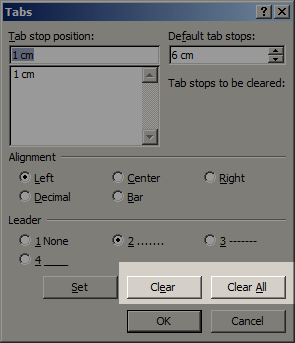
In the Tabs panel, we will see the following options:
- Stop position tab: the length of the text will appear when you press Tab (from the left margin of the text, as in the example below is 1 cm)
- Default tab stops: distance from the beginning to the end when you press the Tab key (like the example below is 6 cm).

- Alignment: align, select Left - left, Center - middle, Right - right.
- Leader: format type when pressing Tab, 1, None - nothing, 2 is a dot, 3 is a hyphen, 4 is an underscore.
Select the desired values and then press the Set button to change. As the example above, I will specify with the image below for you to imagine:

2. Uncheck the Setting When Pressing the Tab Key:
If you do not want to use the settings when you press the tab, open the Tabs control panel and press the Clear or Clear All button. Then click OK.
So is TipsMake. Com introduced and guide you how to create, set up and use the Tab key to insert dots in the text, Microsoft Word 2010. Wish you success!
- Word 2013 Complete Guide (Part 13): Divide the text column
- How to fix font errors Word, Excel, transcoding fonts super fast
- Guide font formatting, change stretch and create artistic text in Word
- Tips for handling columns in Microsoft Word
FAQ
What happened in Create a Quick Dot (……………) LINE in Microsoft Word?
The following guide provides a clear overview of Create a dot in Word, with the most relevant background, details, and practical takeaways.
What factors influenced Create a dot in Word?
Instructions on how to create frames in Word 2007, 2010, 2013, 2016 How to create bookmarks in Word 2016 Create automatic table of contents in Word 2003 1.
What was the practical impact on users?
Create a Dot (.) Quickly with a Shortcut Open Microsoft Word, for older Word versions (before 2010), the Tabs panel will appear when you go to Format> Tabs.
Related Articles
 How to Create and Use Templates in Microsoft Word6 minutes read
 How to Number Order in Word: How to Number the Word in Word7 minutes read
 How to Insert a Line in Word6 minutes read
 Create Dots in Word, How to Create Dots Lines, Tab Line Dots (.....) in3 minutes read
 5 Install Microsoft Word You Should Customize12 minutes read
 How to Create Autotext in Word14 minutes read
Reader Comments 0
Sign in with email or Google to join the discussion.