Table of Contents
An OCR tool recognizes words in a photo so you can copy, search, or edit them. For a few lines, try Google Lens or Apple’s Live Text first. For multipage documents and searchable PDFs, a dedicated scanning app offers a more organized workflow.
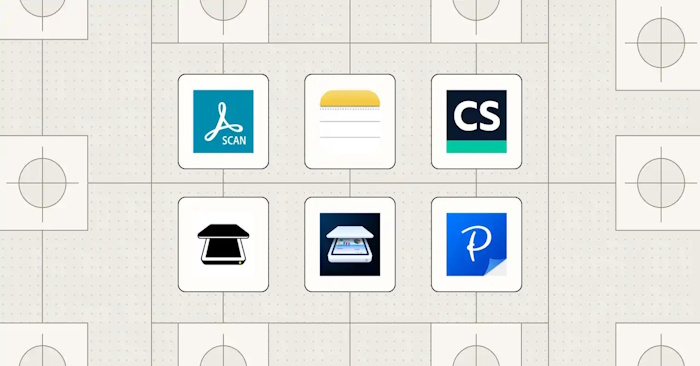
Saving a photograph as a PDF does not automatically make its text searchable. Before choosing an app, check that its OCR feature produces the output you actually need: copied text, a searchable PDF, or an editable document.
Compare mobile OCR options
This table compares intended uses rather than ranking recognition accuracy. Results depend on the document, language, handwriting, and image quality. Paid features, quotas, and subscription prices vary by platform and region; test a representative page before subscribing.
| Tool | Useful for | What to check |
|---|---|---|
| Adobe Scan | Capturing paper documents as PDFs with text recognition. | Whether the export or editing feature you need requires an additional subscription. |
| Apple Live Text | Copying text directly from images on a compatible iPhone or iPad. | Device and language support. Live Text is the recognition feature; Apple Pencil is a stylus, not an OCR app. |
| CamScanner | Scanning, organizing, and extracting text from documents. | OCR allowances, export formats, and cloud processing settings. See how to scan with CamScanner. |
| Genius Scan | Batch scanning and organizing documents, with on-device text recognition in supported plans. | Which plan includes OCR and whether the required language is supported. |
| iScanner | Combining document capture, image adjustment, and text extraction. | OCR and document export limits in the version offered on your device. |
| Tiny Scanner | Creating scans and extracting text for reuse. | The OCR allowance and available export formats; the product name is Tiny Scanner. |
| Pen to Print | Converting handwritten notes into editable text. | Recognition on your own handwriting. Cursive, crossings-out, and cramped lines still require proofreading. |
| Google Lens | Quickly selecting and copying text from a photo. | Whether the text selection keeps the correct reading order, especially in columns. Follow this Google Photos text extraction guide. |
| ABBYY FineReader PDF for iOS | Scanning and recognizing documents on supported Apple devices. | The current iOS feature list. ABBYY discontinued FineReader PDF Mobile for Android; do not assume the mobile editions have identical support. |
How to get more accurate text
- Capture a readable page. Flatten the paper, use even light, avoid glare, and keep the camera parallel to it.
- Check the crop and rotation. Include every line, but exclude distracting background objects.
- Select the right language when available. This can help with accented characters and similar-looking letters.
- Run OCR, then proofread. Compare names, dates, amounts, punctuation, and line breaks with the original. Pay special attention to 0/O and 1/I/l.
- Test the export. Search a distinctive word in the PDF, or paste the text into your destination app. Check tables and columns separately because reading order can be lost.
Check privacy before scanning sensitive documents
Find out whether recognition happens on the device or sends the image to a server, and review cloud backup and sharing settings. An app lock, a password on an exported PDF, and server-side processing are different features. Keep the original scan until you have checked the extracted text, and use an approved workflow for confidential work documents.
Related Articles
 Microsoft confirms end of Office Apps support on Windows 10 Mobile
 What are the key mobile app design services?
 Top 9 interesting mobile apps you may have never known
 Top 10 Apps providing free high quality wallpapers for phones
 Microsoft's top 10+ best rated mobile apps of 2019
 7 Framework JavaScript for mobile application development
Reader Comments 0
Sign in with email or Google to join the discussion.