Table of Contents
To check whether someone else has accessed your Gmail, review both recent activity and the settings that control where your mail goes. Unfamiliar sent messages, forwarding addresses, filters, or account changes deserve attention. A strange location alone is not proof of a hack, and a clean activity list cannot prove that no access occurred.
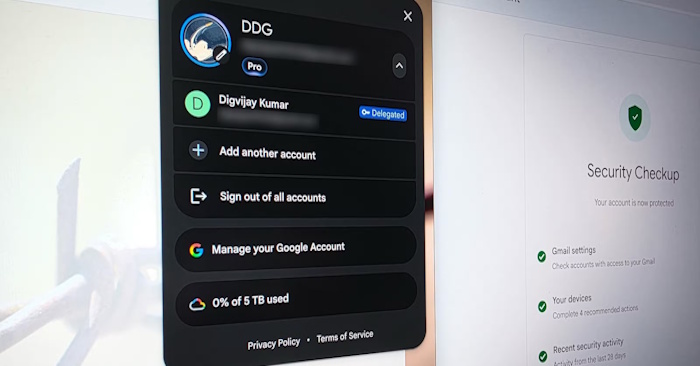
If you already see unauthorized activity, secure the account promptly from a trusted device. Changing the password is important, but it does not replace reviewing devices, connected apps, and Gmail settings.
1. Review Gmail’s recent activity
- Open Gmail in a desktop browser.
- At the bottom right of the inbox, find Last account activity and select Details.
- Compare the access type, time, and IP information with your own use, including phone apps and email clients.
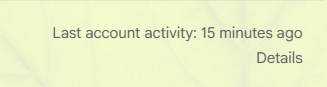
This is a recent activity view, not a complete historical audit. Mobile networks, VPNs, and authorized services can produce unfamiliar IP addresses or approximate locations. Compare several details before drawing a conclusion.
Also open your Google Account’s security section and review recent security events and signed-in devices. Follow Google’s prompts for activity you do not recognize. Signing out of Gmail browser sessions, where that option is available, does not by itself remove every other form of account access.
2. Check automatic forwarding
In Gmail, select the gear icon, then See all settings > Forwarding and POP/IMAP. Review any forwarding destination and whether forwarding is enabled.
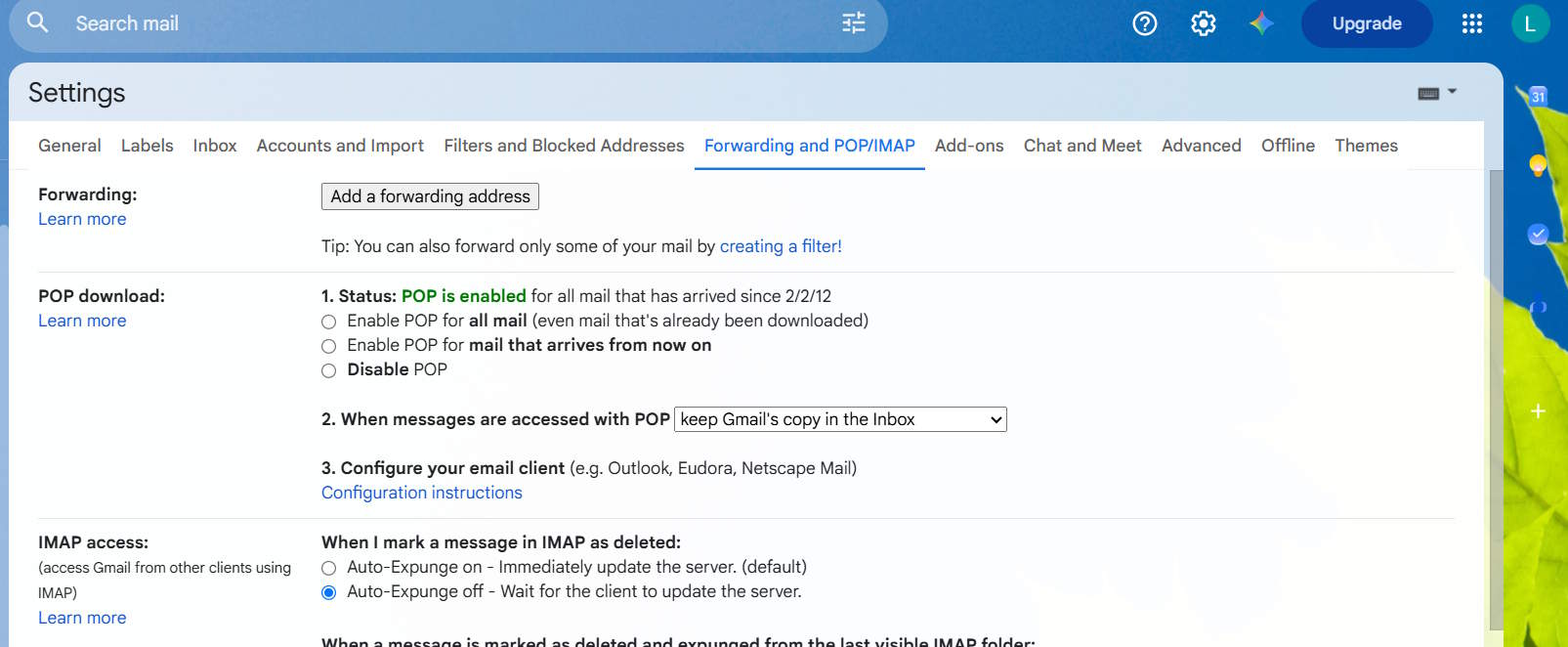
If a destination is unfamiliar and was not authorized by you or your organization, disable forwarding and remove that address using the available controls. Save any changes. A forwarding address can legitimately belong to a mailbox you use, so verify the exact address rather than assuming every external destination is malicious.
Forwarding is a mailbox setting, not simply an open browser session. Review it even after changing your password. Check POP/IMAP and connected mail clients as well, especially if you do not normally use another app to read Gmail.
3. Inspect filters separately
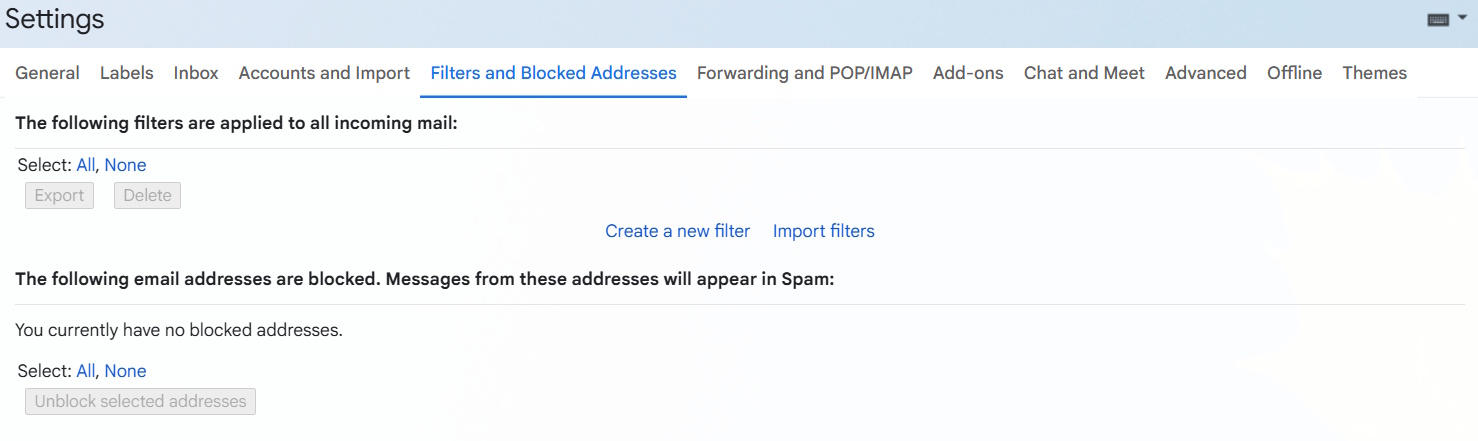
Open Settings > See all settings > Filters and Blocked Addresses. Read each filter’s matching conditions and actions.
- Forward it: verify that the destination and the rule are intentional.
- Delete it: check whether a rule removes security messages or other mail you expect to receive.
- Skip the Inbox or mark as read: investigate unfamiliar rules that could hide messages from normal view.
Remove rules you confirm are unauthorized. Do not rely only on the global forwarding setting: a filter can apply to a particular subset of incoming messages.
4. Review other ways to access the account
Under Accounts and Import, check Grant access to your account and Send mail as for entries you did not set up. Some options depend on account type and administrator policy.
In your Google Account, review third-party connections, recovery contact information, and sign-in methods. Remove access you do not recognize or no longer need. This guide explains how to review authorized websites and apps.
5. Secure or recover the account
- Change the Google Account password to a strong, unique one and review unfamiliar device sessions separately.
- Check recovery methods and two-step verification settings for unauthorized changes.
- Update your device and browser, and investigate suspicious extensions or software.
- Review Sent, Trash, and Spam for messages or changes you did not make.
If you cannot sign in, follow the Google Account recovery steps. Use Google’s compromised-account guidance for the full recovery process. For a work or school account, contact the administrator, who may have additional audit and recovery tools.
Related Articles
 How to backup all email on Gmail to your computer
 How to check the link security embedded in the email
 How to check whether the email you send via Gmail has been read or not
 Signs show clearly that your system is being hacked
 How to update the new Gmail interface if your Gmail has not been upgraded
 How to add a new email address to your Gmail contacts
Reader Comments 0
Sign in with email or Google to join the discussion.