Table of Contents
A Windows Security shortcut can do one of two different jobs: open the Virus & threat protection page so you choose a scan, or start a Microsoft Defender Antivirus quick scan immediately. The original guide mixed these up and omitted backslashes from both shortcut targets. Choose the version that matches what you want.
Create a shortcut that runs a quick scan
- Right-click an empty area of the desktop and choose New > Shortcut.
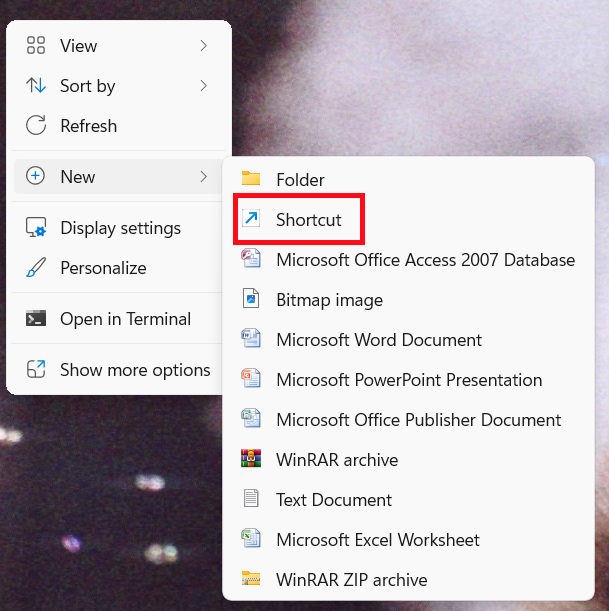
- In the location box, enter
"%ProgramFiles%Windows DefenderMpCmdRun.exe" -Scan -ScanType 1, then select Next. Keep the quotation marks because the folder name contains a space. Microsoft's MpCmdRun reference identifies scan type 1 as a quick scan.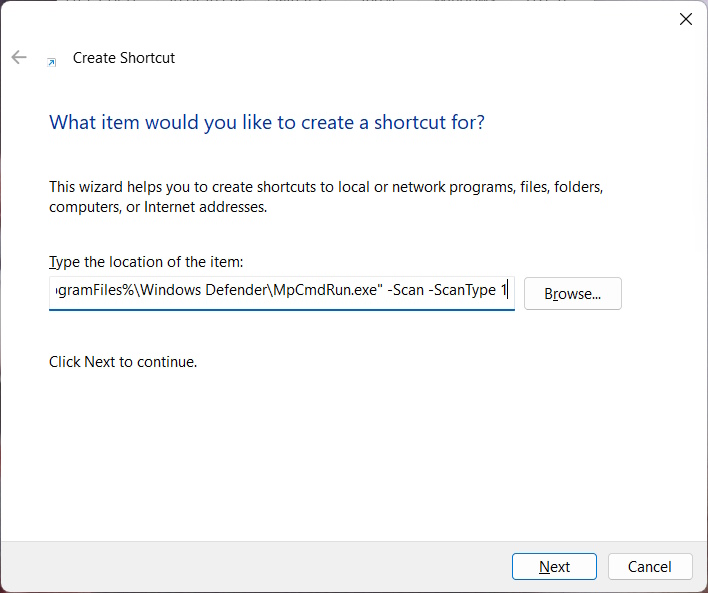
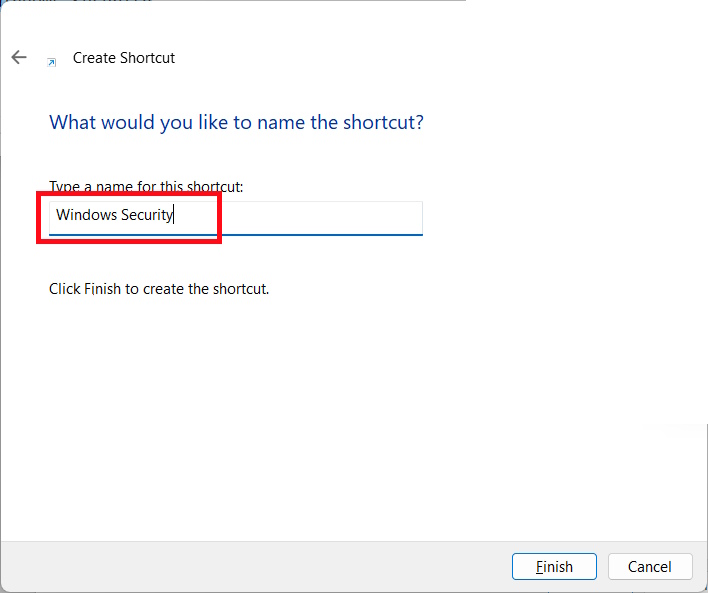
- Name it Defender Quick Scan and choose Finish. Double-clicking this shortcut starts a scan; it does not open the Windows Security dashboard. Confirm the scan result in Windows Security > Virus & threat protection.
Windows also stores an updated MpCmdRun executable in a versioned folder under %ProgramData%MicrosoftWindows DefenderPlatform. Microsoft recommends using the current platform version for command-line scanning. If the simple shortcut does not run on your installation, use the Windows Security interface below instead of guessing a versioned path. A third-party antivirus or organizational policy may also affect Defender scanning.
Optional shortcut icon
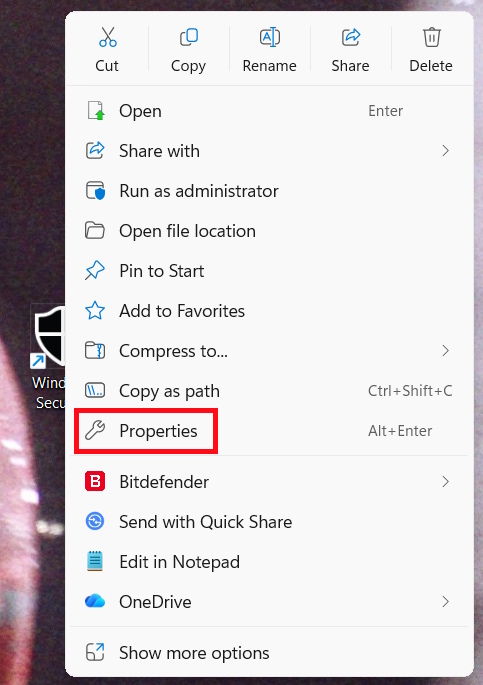
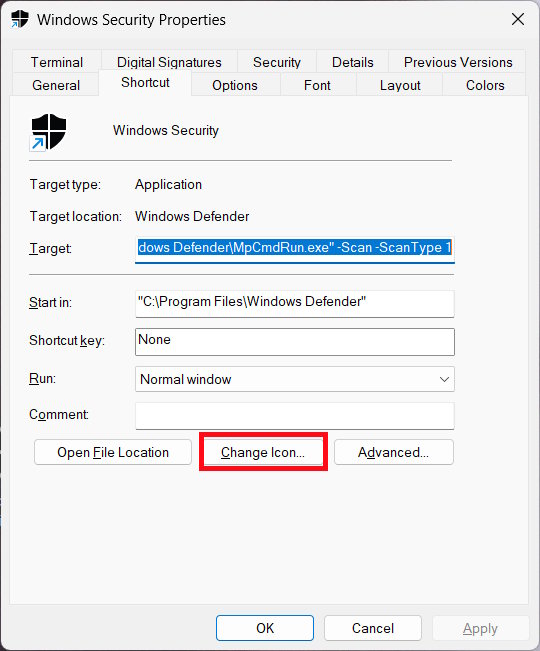
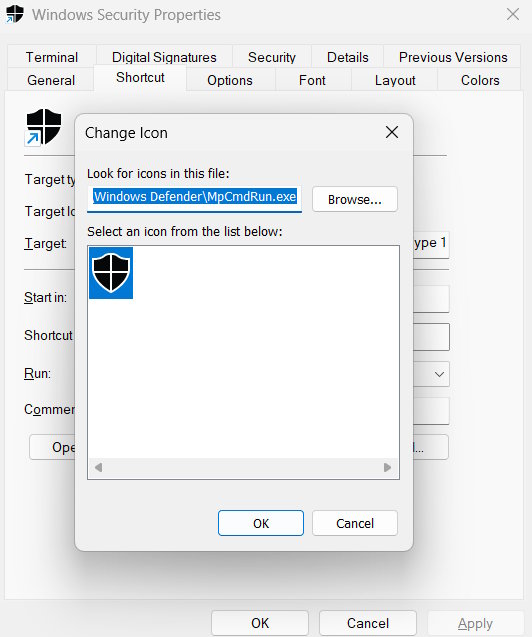
Right-click the shortcut, open Properties > Shortcut > Change Icon, and select an icon already on your computer. The icon changes only its appearance; it does not change the command. There is no need to download an icon from an unknown site.
Create a shortcut that opens scan options
For a shortcut that lets you decide between a quick, full or custom scan, create another desktop shortcut and use this location:
%windir%explorer.exe windowsdefender://threat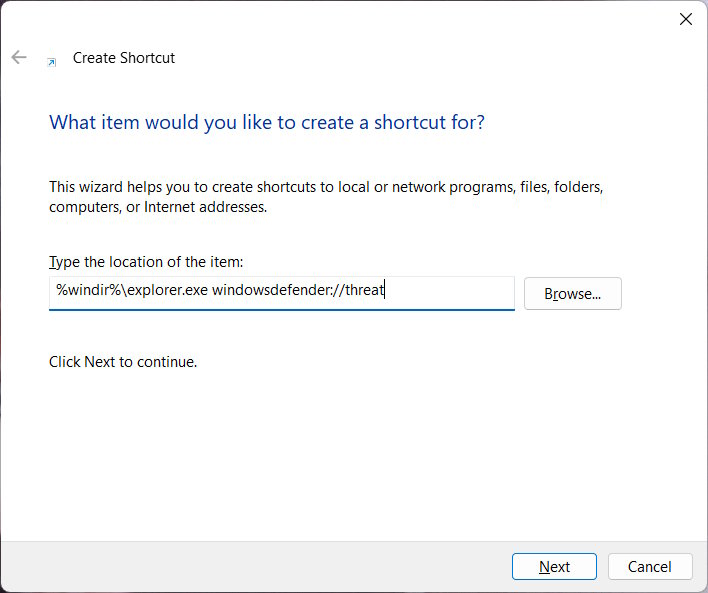
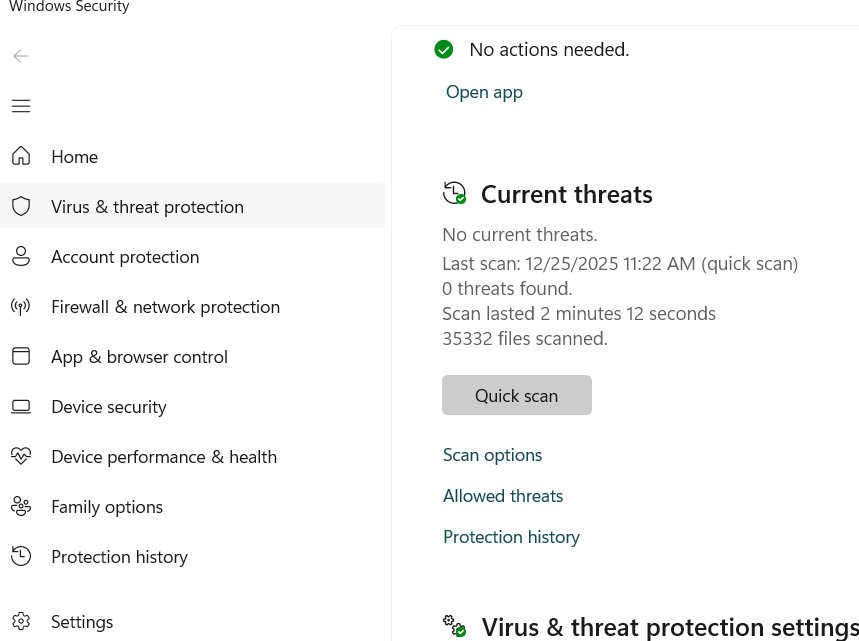
Name it Virus & threat protection, choose Finish, and open it. It should take you to the protection page; choose Quick scan or Scan options there. If a Windows update changes the deep link, search Start for Windows Security and open Virus & threat protection manually. Microsoft's Windows Security guide explains the scan choices.

For recurring scans, a desktop shortcut is not a schedule; see how to schedule Microsoft Defender scans. For a suspicious individual file, use Windows Security's context-menu scan instead of scanning the entire PC; TipsMake also covers scanning potentially unwanted programs.
Related Articles
 A Shortcut: What It Is and How to Create It on Windows3 minutes read
 How to Create a Printer Shortcut on Windows 105 minutes read
 How to Create a Shortcut to Clean the Recycle Bin on Windows 10/11: Clear8 minutes read
 How to Create Shortcuts to Turn Off Windows 11 Computers3 minutes read
 How to Create Custom Shortcut Keys for Raspberry Pi8 minutes read
 How Does Windows Stop Adding '- Shortcut' to the File Name2 minutes read
Reader Comments 0
Sign in with email or Google to join the discussion.