Table of Contents
Quick answer
Now you don't need to worry about wasting time converting from Canva to PowerPoint. Make your presentations more dynamic and convey information more clearly with Canva's free conversion feature, which is widely used and favored by many users.
With this completely free method of converting Canva to PowerPoint , you can create dynamic presentations that capture everyone's attention. You can also customize the layout, change fonts, and add relevant graphics and videos. Let your creative inspiration flow endlessly.
How to convert from Canva to PowerPoint for free
I. How to convert from Canva to PowerPoint on a computer
2. Detailed instructions
Step 1: You can download Canva to use it or access the Canva homepage HERE . Click Log in .
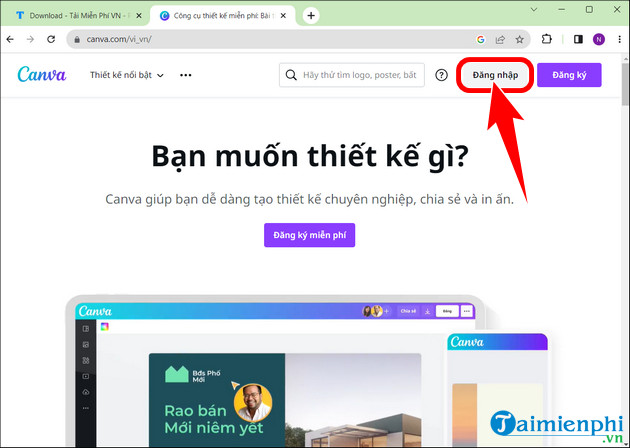
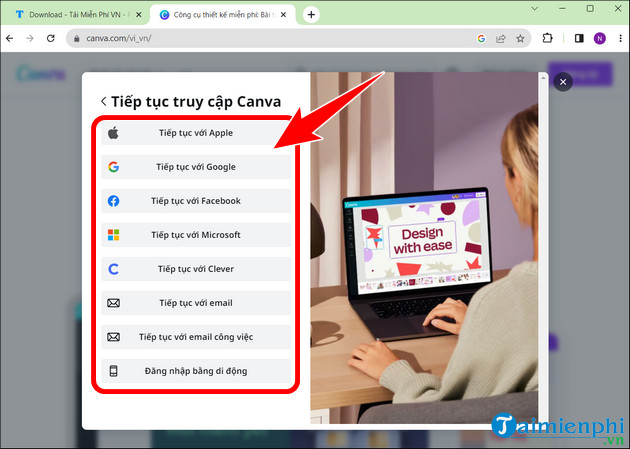
- Choose a login method . You can use a social media account like Facebook , an Apple account, a Google account , etc., to log in, or you can register a Canva account to use it.
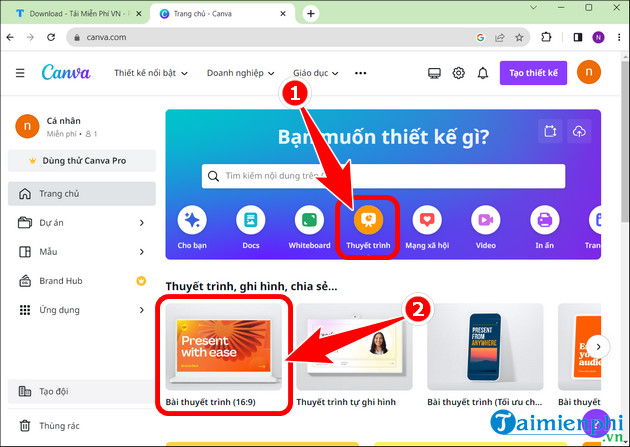
Step 2: Click on Presentation => select Presentation .
Step 3: Create your desired presentation, click Share => click Other .
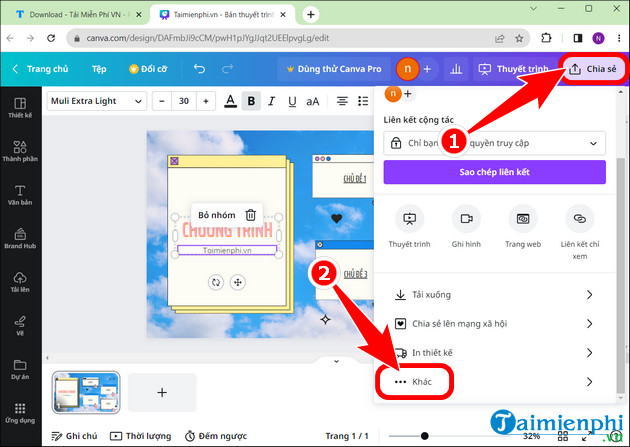
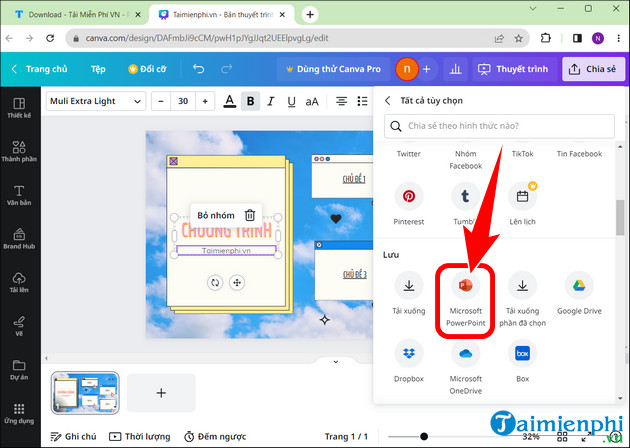
- Select Microsoft PowerPoint .
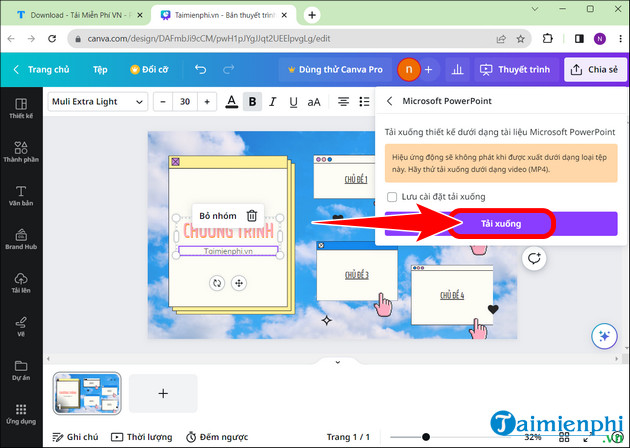
- Press the Download button .
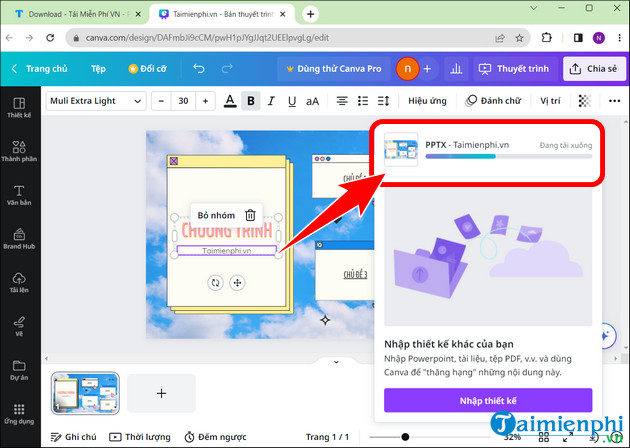
- Wait for the conversion process from Canva to PowerPoint to complete; the system will automatically download it to your computer.
II. Notes when transferring from Canva to PowerPoint
- Transferring from Canva to PowerPoint only transfers content and images; all effects will be lost.
- After a successful transfer, the presentation will become more lively and visually appealing.
- In some cases, you may encounter font errors because your computer does not have the fonts you used in Canva installed. However, you can still edit the content in PowerPoint.
III. Why is it necessary to switch from Canva to PowerPoint?
To create the presentation you want and communicate your ideas effectively, converting from Canva to PowerPoint is essential. Additionally, other users can access your file to edit or leave feedback.
The above is a complete guide to help you effectively convert from Canva to PowerPoint, unleash your creativity in creating presentations that capture the attention of your audience. Besides file conversion, you can also use Canva to design high-quality resumes , making a good impression on recruiters.
Related Articles
 How to Convert Canva Slides to Powerpoint6 minutes read
 How to Convert Canva to Word Quickly and Easily3 minutes read
 How to Convert Google Slides to Powerpoint3 minutes read
 How to Convert Word to PowerPoint Quickly and Correctly4 minutes read
 How to Convert Word to Powerpoint13 minutes read
 How to Convert a Keynote Presentation to PowerPoint7 minutes read
Reader Comments 0
Sign in with email or Google to join the discussion.