Table of Contents
You can convert a PDF to an editable Word document with Word itself, Google Docs, or Adobe Acrobat. Use Word for a mostly text-based local file, Google Docs when cloud processing is acceptable, and Acrobat when you need its export or OCR controls.
Before converting
- Keep the original PDF unchanged.
- Check whether the file contains selectable text. A scan requires OCR.
- Do not upload confidential material to a cloud service unless its handling meets your requirements.
- Confirm that you have permission to edit or reuse the document.
Method 1: Open the PDF in Microsoft Word
Word for Microsoft 365 and desktop Word 2016 or later can convert many PDFs directly. The method works best when the PDF is mostly text.
- In File Explorer, right-click the PDF and choose Open with.
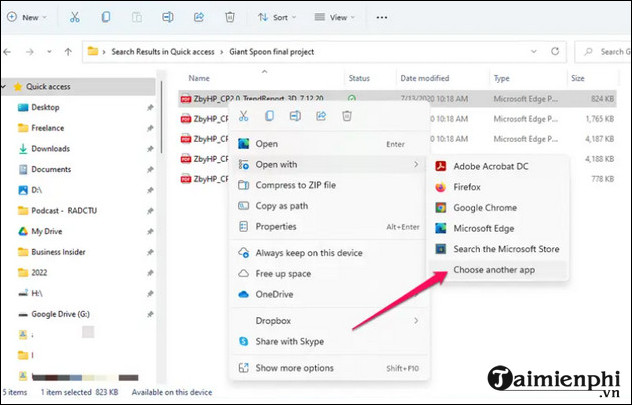
- Select Microsoft Word. If it is not listed, choose Choose another app and find Word.
- Word explains that it will create an editable copy. Select OK.
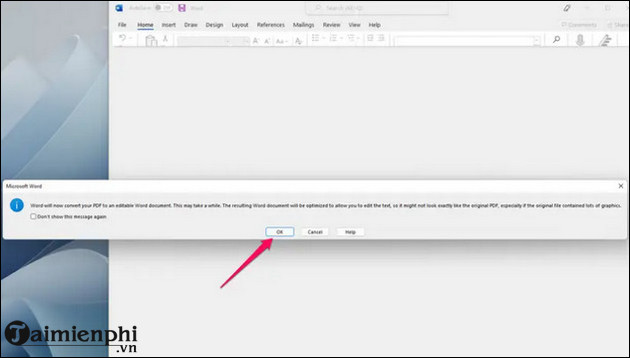
- Review the converted document.
- Select File > Save As, choose Word Document (*.docx), and save under a new name.
Opening the PDF this way does not change the original. Microsoft notes that tables, footnotes, comments, bookmarks, multimedia, and some graphical pages may not convert cleanly; see its guide to opening PDFs in Word.
Method 2: Convert through Google Docs
This method uploads the PDF to Google Drive and lets Google Docs interpret its text. It can be useful when Word is unavailable, but complex layout and images may change.
- Open Google Drive or Google Docs and select the file-picker folder icon.
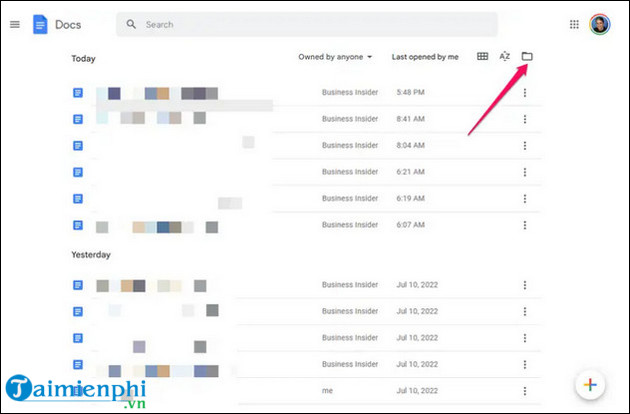
- Upload the PDF from your device.
- In Drive, right-click the PDF and choose Open with > Google Docs.
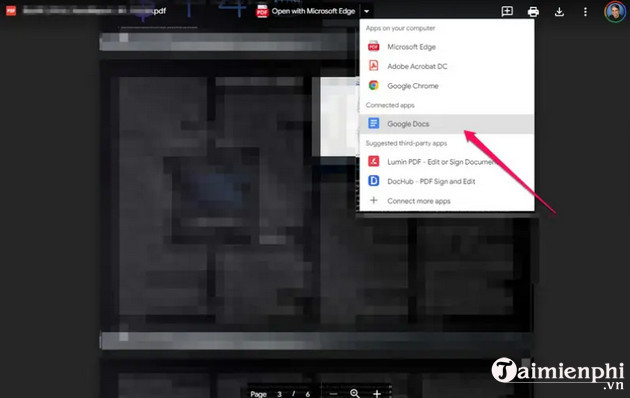
- Review the extracted content.
- In Google Docs, choose File > Download > Microsoft Word (.docx).
Do not use this route for sensitive documents unless Google Drive is an approved storage and processing location. Google Docs may extract text from simple scans, but OCR results still require careful proofreading.
Method 3: Export with Adobe Acrobat
Acrobat's export tools can convert PDF content to DOCX and may offer document-language settings for recognition. Available features and subscription requirements depend on the Acrobat product and plan.
- Open the PDF in Adobe Acrobat.
- Select Convert or Export a PDF.
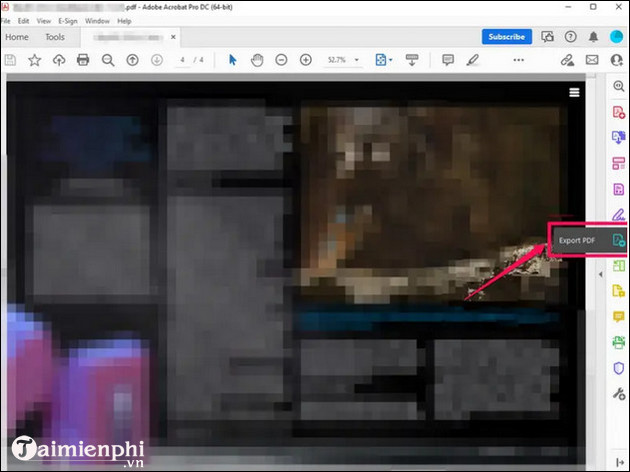
- Choose Microsoft Word, then select DOCX.
- If a language option appears, choose the language used in the document.
- Start the conversion and save the Word file.
Adobe's current PDF export guide lists the formats available in Acrobat on the web. Check whether the workflow uploads your document before using it with confidential material.
Which method should you use?
| Situation | Best starting point |
|---|---|
| Mostly text, Word already installed | Open the PDF in Word |
| No desktop Word and cloud upload is acceptable | Google Docs |
| Scan or complex PDF requiring export controls | Adobe Acrobat or another OCR-capable desktop tool |
| Highly confidential document | Approved local software |
| Only a short passage is needed | Copy permitted text instead of converting the whole file |
For the last case, see how to copy authorized PDF text into Word.
Fix the converted document
- Compare names, dates, amounts, formulas, and citations with the PDF.
- Rebuild damaged tables and columns instead of aligning text with spaces.
- Apply Word heading styles and remove unnecessary manual page breaks.
- If characters are garbled, use the checks in the PDF-to-Word font-error guide.
- If pages are images, run OCR and proofread the recognized text.
For larger batches or offline workflows, TipsMake's desktop PDF-to-Word software guide compares additional approaches.
Do not expect a perfect replica
PDF is a fixed-layout format, while Word stores editable paragraphs, tables, and other structured elements. Conversion software must infer that structure, so even a successful DOCX can differ from the source. Always perform a visual and textual review before sending, publishing, or relying on the converted document.
Related Articles
 How to Convert Word Files to PDF Beautifully: Practical Guide8 minutes read
 Add Another Tool to Convert Word Files to PDF for Free: Word to PDF2 minutes read
 Convert PDF to Word, Convert PDF Files for Free12 minutes read
 3 Simple Ways to Convert Excel Files to Word That You Should4 minutes read
 2 Ways to Convert JPG Image File to PDF: JPG to PDF3 minutes read
 Tools for Converting PDF to Word8 minutes read
Reader Comments 0
Sign in with email or Google to join the discussion.