Table of Contents
The best PDF-to-Word method depends on the file. Open a text-based PDF directly in Microsoft Word for a private, local conversion. Use optical character recognition (OCR) for a scan or photo. Use an online converter only when the document is not sensitive and you accept the service’s upload, retention, and account terms.
No converter can guarantee the original layout. Columns, tables, footnotes, forms, fonts, equations, and page breaks often need manual repair after conversion.
Choose a conversion method
| Method | Best for | Main caution |
|---|---|---|
| Microsoft Word desktop | Ordinary text PDFs; local processing | Complex layouts can reflow |
| Adobe Acrobat export | PDF workflows and OCR, depending on plan | Features may require a paid plan |
| Google Docs | Simple text extraction and collaborative editing | Upload and formatting changes |
| CloudConvert | Browser conversion with selectable output | Review current limits and file policy |
| Smallpdf | Web or mobile workflow | OCR and repeated use may depend on plan |
| pdfFiller | Conversion plus document editing | Account, subscription, and storage terms |
| PDF2DOC | Simple browser-based batch conversion | Avoid confidential files; verify output |
Convert a PDF locally with Microsoft Word
- Make a copy of the PDF.
- In desktop Word, choose File > Open and select the PDF.
- Accept the notice that Word will create an editable copy.
- Review the converted document, then choose File > Save As and save it as
.docx.
This works best when the PDF contains embedded text. If you cannot select words in a PDF viewer, the pages may be images and require OCR.
Convert a PDF on the web
A typical web converter asks you to upload a PDF, processes it on a remote server, and returns a DOCX file. Before uploading, read the current privacy and deletion policy, confirm the domain, and remove confidential pages when possible. Never upload passwords, identity documents, medical records, contracts, or unpublished business material to an unknown service.
Example: pdfFiller on a computer
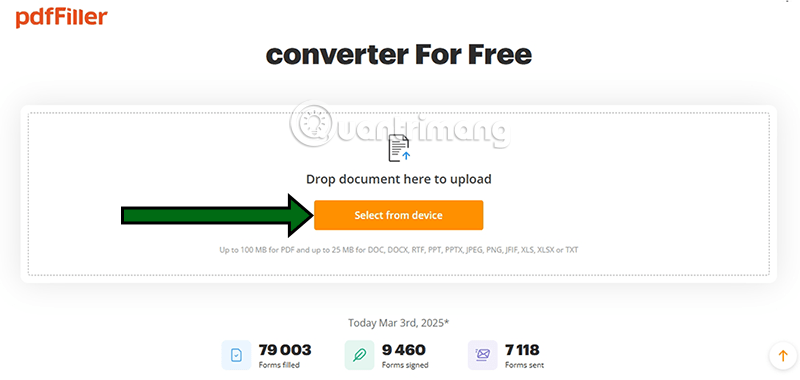
Step 1: Open the verified pdfFiller site and choose the option to select a file from your device.
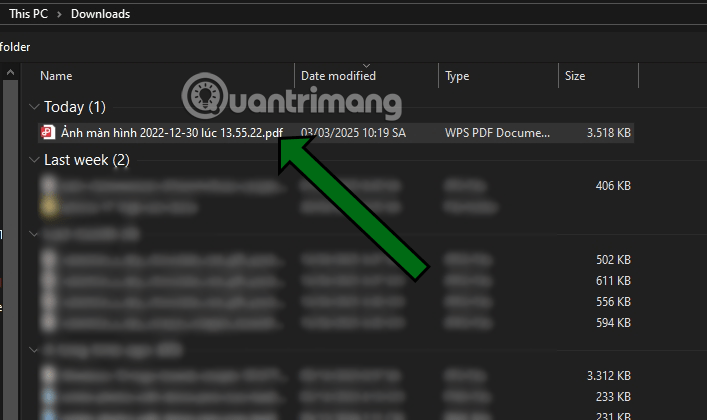
Step 2: Select the intended PDF. Check the filename and document sensitivity before confirming the upload.
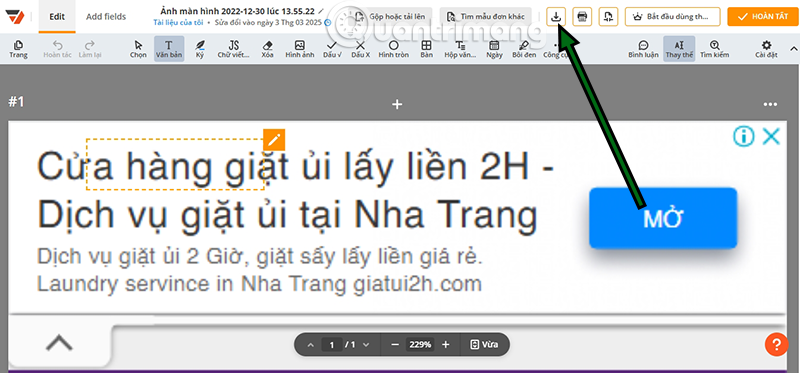
Step 3: After processing, review the available editing and export controls. The interface and plan requirements can change.
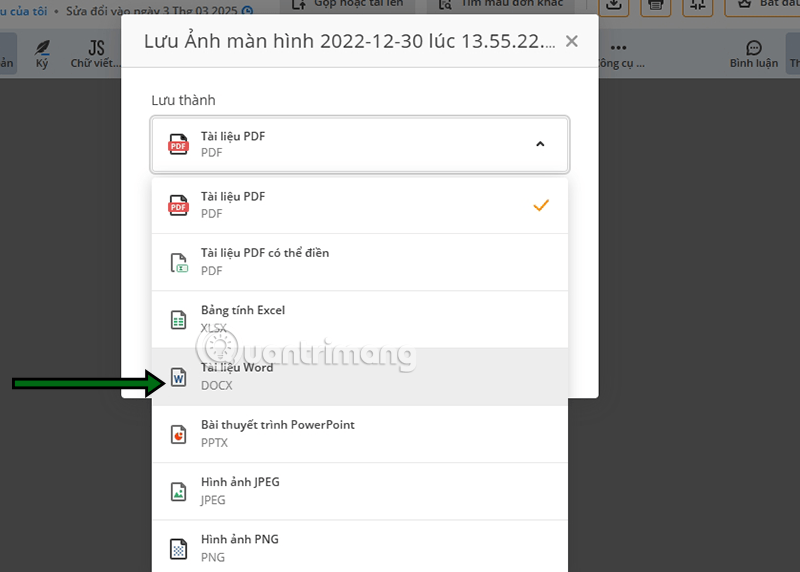
Step 4: Choose Word or DOCX as the output rather than an image format if editable text is required.
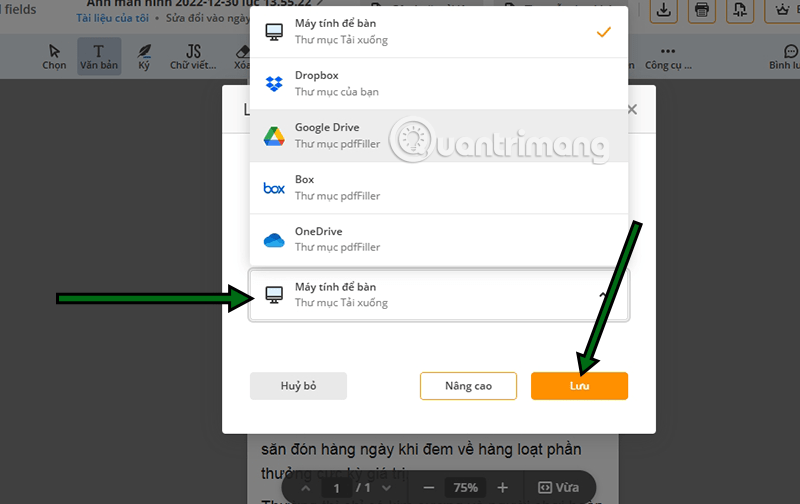
Step 5: Save to the device or an approved cloud account. Grant the service access only to the specific storage location it needs, and remove that access afterward if it is no longer required.
Example: PDF2DOC
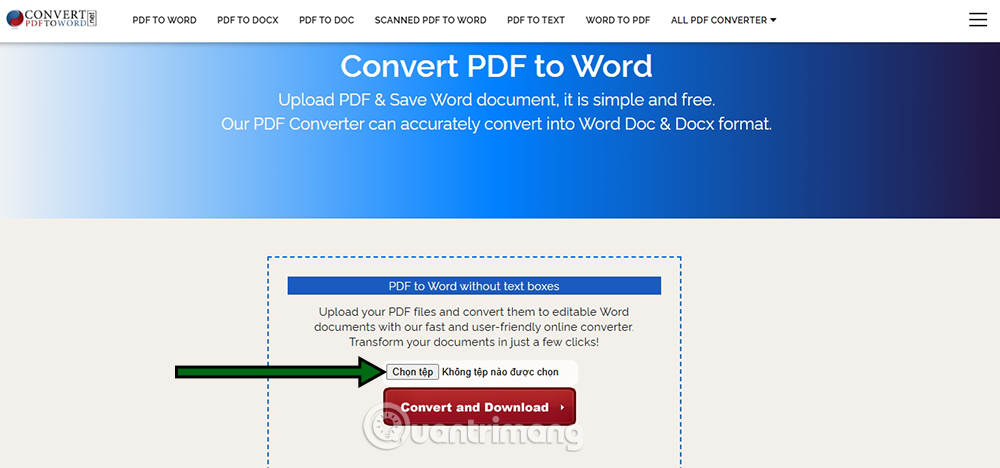
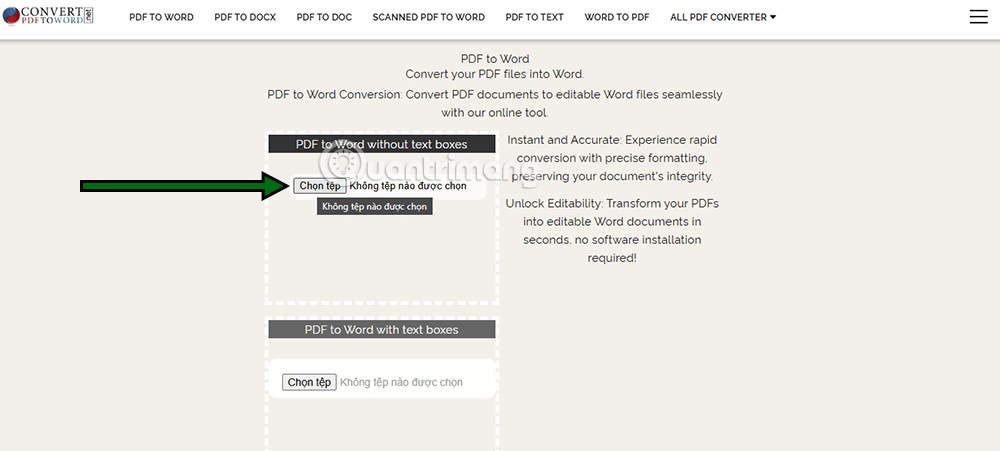
Open the official service over HTTPS, select PDF to DOC or DOCX, upload the file, and wait for conversion.
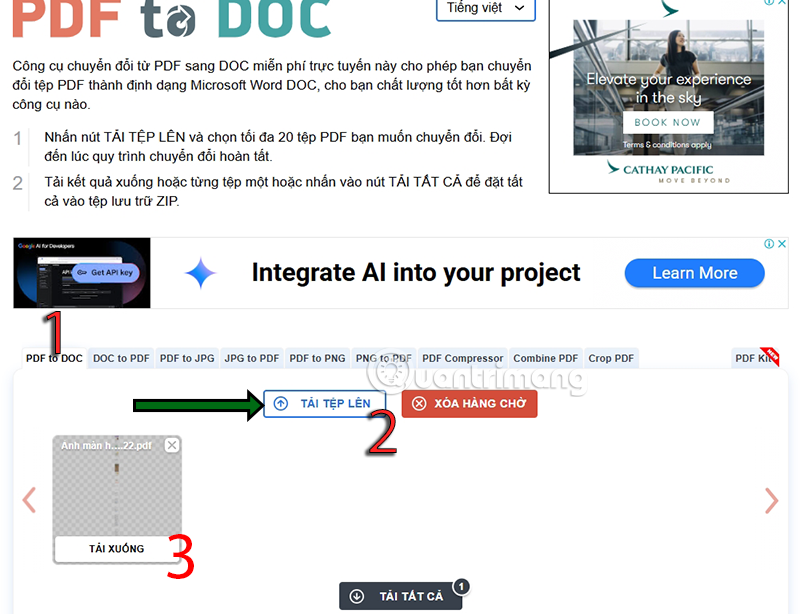
Download the result and scan it with your device’s security software before opening. For multiple files, a service may return a ZIP archive.
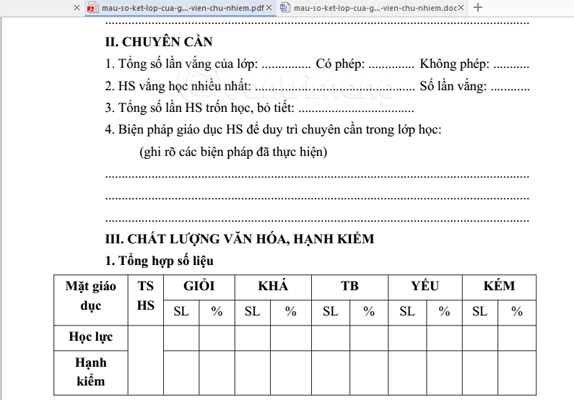
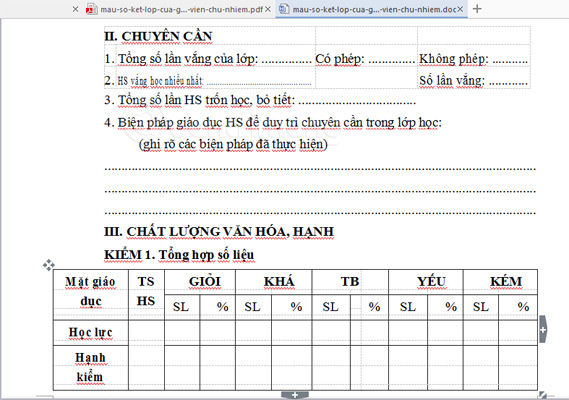
Compare the source and converted copy page by page. Do not assume fonts, spacing, or tables were preserved perfectly.
Other one-page converters
The exact button labels vary, but the flow is normally Choose file > Convert > Download. Beware of advertisement buttons that imitate the real download control.
Convert a scanned PDF with OCR
A scan contains pictures of text. Choose a tool that explicitly offers OCR and select the document language before conversion. OCR quality depends on resolution, rotation, contrast, handwriting, and layout. Always verify names, dates, account numbers, decimal points, and accented characters against the page image.
If the document is sensitive, use an approved desktop OCR application rather than a public upload site. Keep the original PDF as the authoritative source.
Convert PDF to Word on iPhone or Android
The safest mobile workflow is an official app from the device’s app store or a trusted browser service. App screens and paid features change, so confirm the current listing and publisher before installation.
Example mobile workflow with Smallpdf
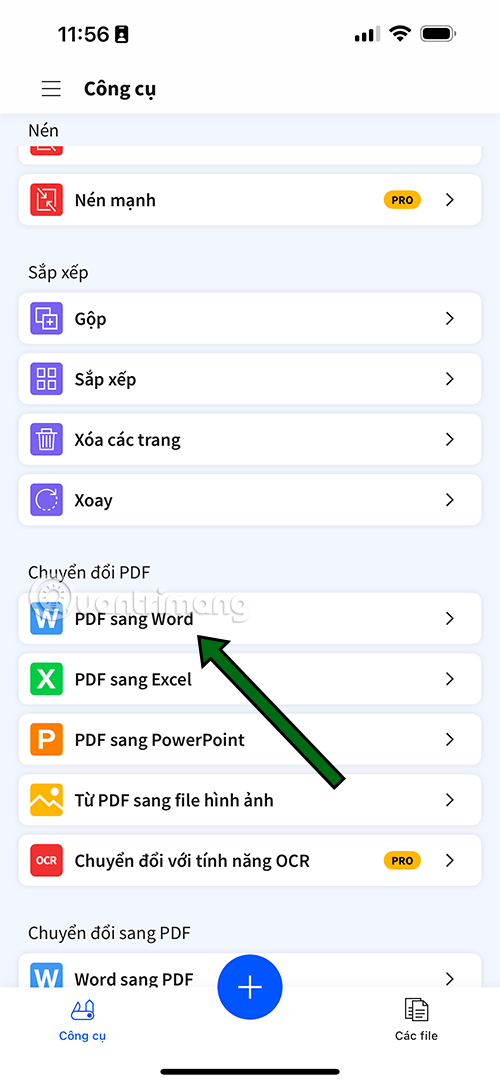
Open the app and select PDF to Word.
Add the PDF from local Files or an approved storage provider.
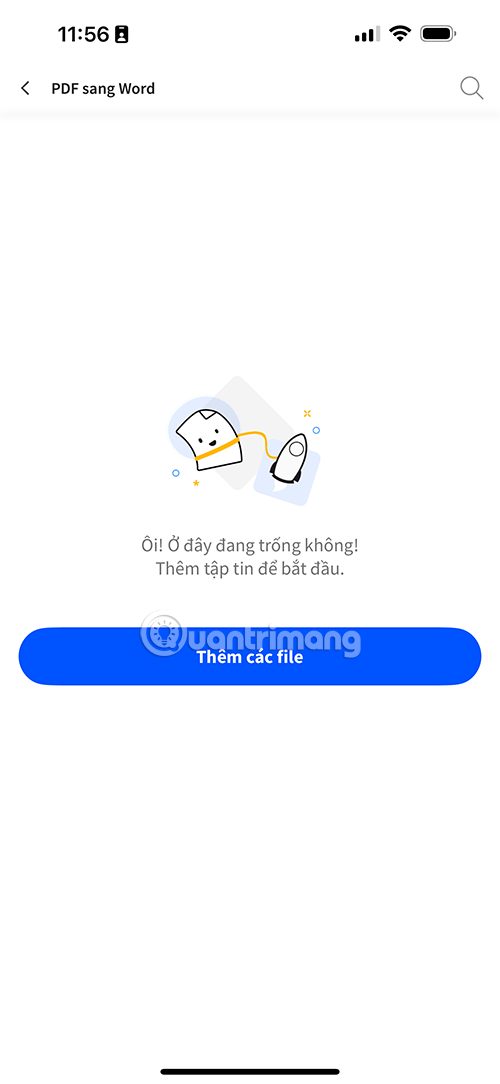
Use the system file picker to locate the document.
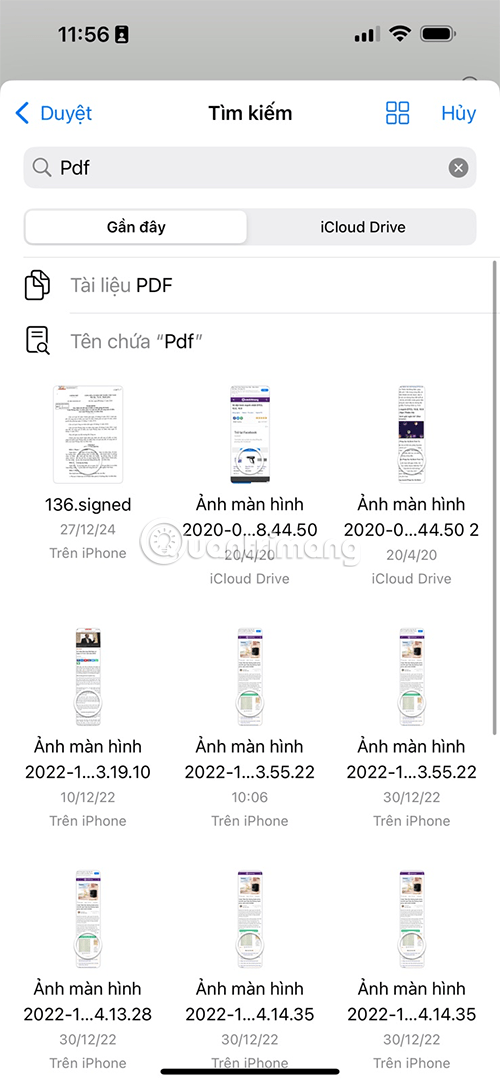
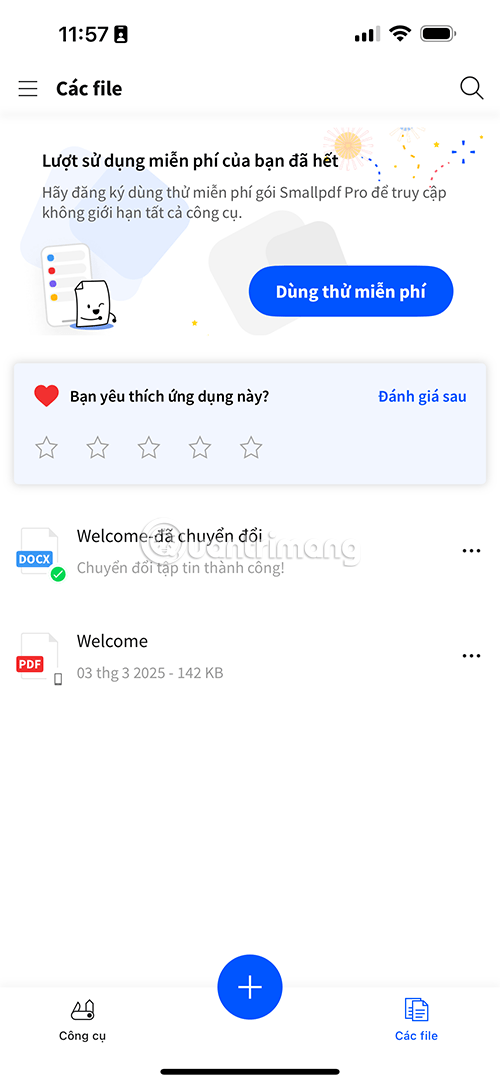
Wait for processing to finish; keep the app open if it does not support background conversion.

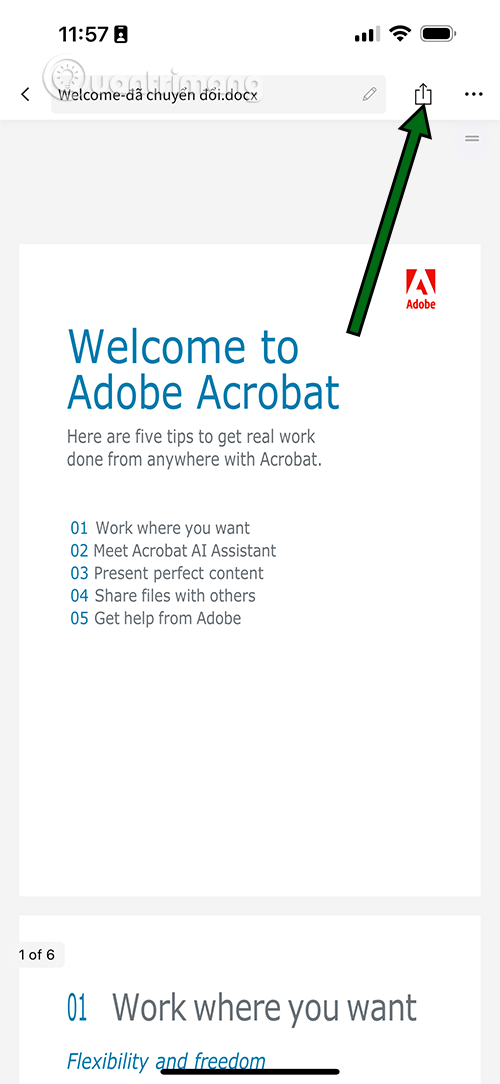
Select the converted item and preview it.
Use the Share control to export the file.
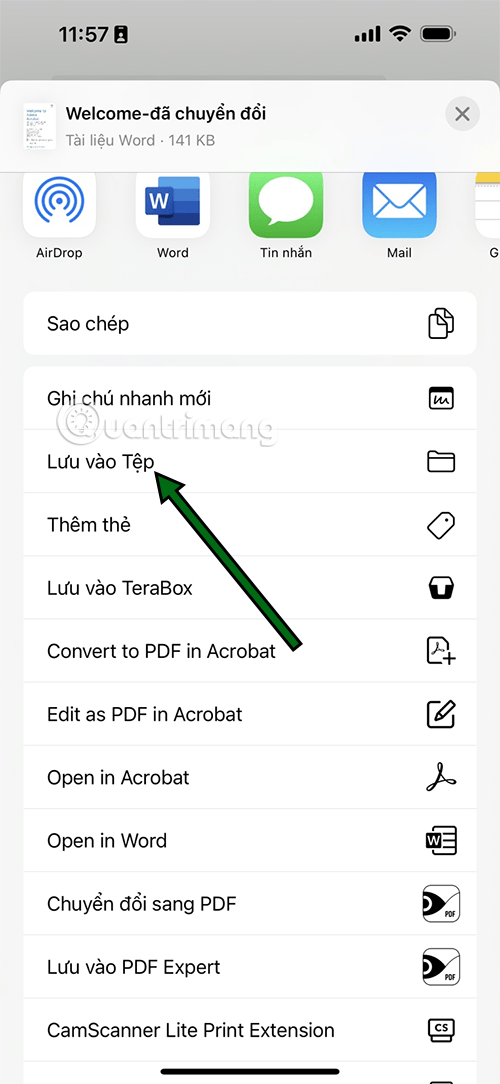
Choose Save to Files and select a folder you can find later.
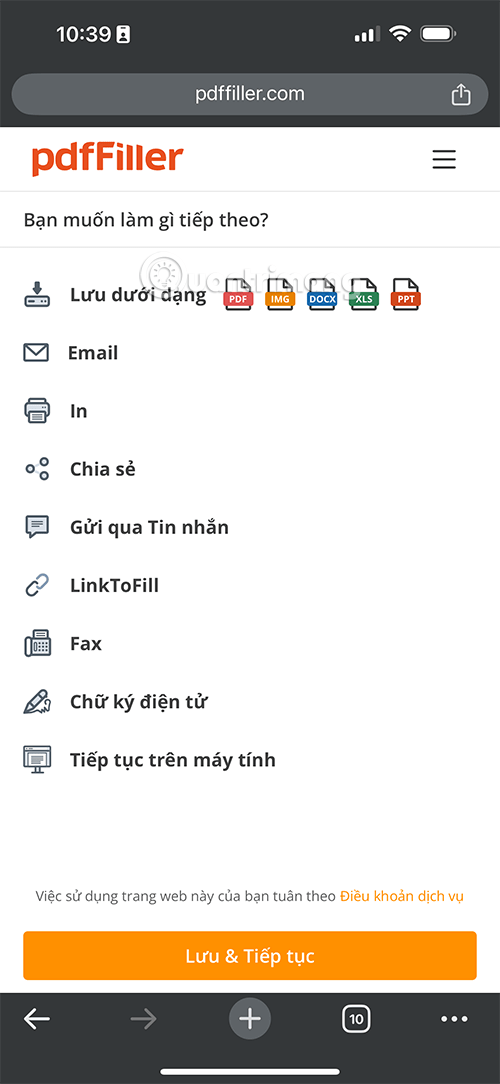
Example mobile browser workflow with pdfFiller
Open the verified site in the browser rather than following an unexpected ad or message link.
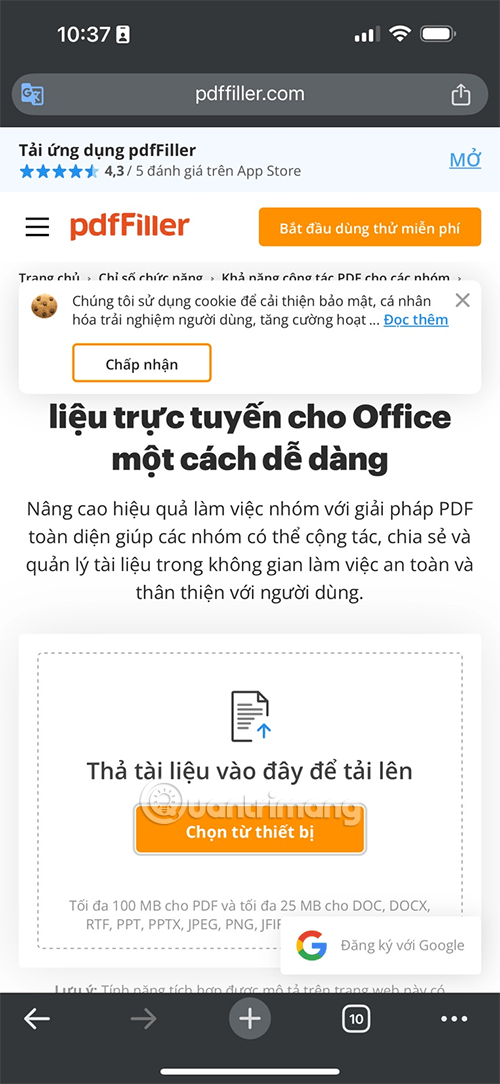
Choose a file from the device or a storage provider.
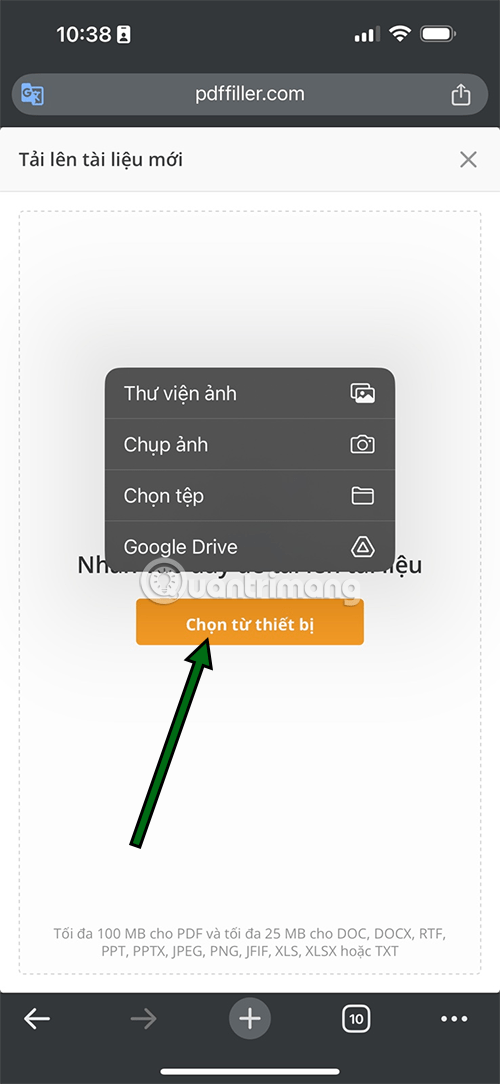
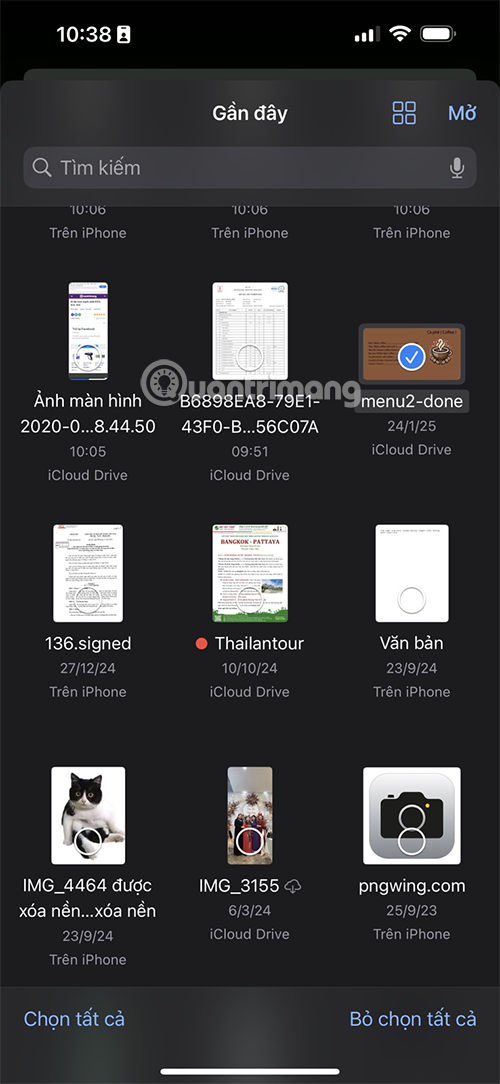
Select the intended PDF and confirm the upload.
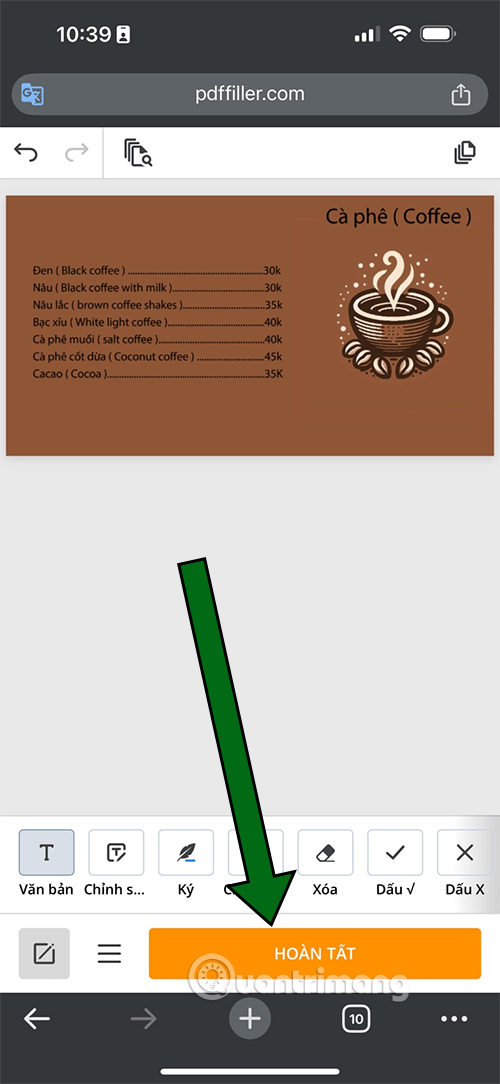
After processing, start editing only if needed.

Review the document and finish the editing session.
Choose Save as and select Word. Check for a subscription confirmation before accepting any charge.
Check the converted DOCX
- Compare every page with the PDF, including headers, footers, page numbers, tables, and footnotes.
- Run spelling and grammar checks, but do not accept changes blindly.
- Verify hyperlinks and remove any link added by a converter.
- Check image order, captions, alt text, and text boxes.
- For OCR, verify every critical number and proper name manually.
- Save a clean copy under a new filename and retain the original PDF.
Related Articles
 Instructions for Transferring PDF Files to Word Are Free of3 minutes read
 How to Convert PDF Files to Word Online Very Fast3 minutes read
 How to Convert PDF to Word on Mac OS, Without Font Errors10 minutes read
 Revealing How to Fix Image Errors When Converting Word to PDF Explained7 minutes read
 Converting Word to PDF with Table of Contents Errors and How to Handle It6 minutes read
 Common Errors When Converting PDF to Word Files5 minutes read
Reader Comments 0
Sign in with email or Google to join the discussion.