Table of Contents
The safest way to remove software is to run its own uninstaller through Windows Settings or Control Panel. Deleting the program folder or its Registry entry does not uninstall it and can leave services, drivers, scheduled tasks, and shared components behind.

Use Windows Installed apps first
- Close the program and save any data you want to keep.
- Open Settings > Apps > Installed apps in Windows 11 or Apps & features in Windows 10.
- Find the exact program, open its menu, and choose Uninstall.
- Follow the vendor's removal wizard and restart Windows if requested.
For older desktop programs, open Control Panel > Programs > Programs and Features, select the program, and choose Uninstall.
When the uninstall entry is broken
If the program is missing from Installed apps, the Uninstall button fails, or Windows reports corrupt installer data, try these steps in order:
- Restart Windows and rerun the normal uninstaller.
- Download the current installer from the software vendor and choose Repair, if available. A repair can restore the missing uninstall data.
- Use the vendor's official cleanup tool for products such as antivirus software, drivers, or large development suites.
- Use Microsoft's Program Install and Uninstall troubleshooter for a damaged Windows Installer entry.
What the Registry entries mean
Windows stores uninstall metadata under keys such as HKEY_LOCAL_MACHINESOFTWAREMicrosoftWindowsCurrentVersionUninstall.
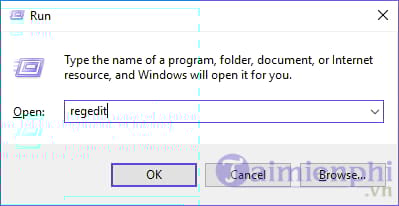
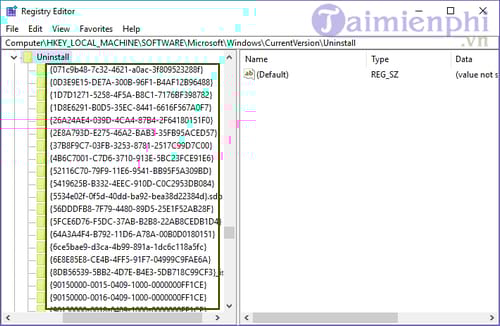
The DisplayName value identifies an entry, while UninstallString can point to the program's real uninstaller.
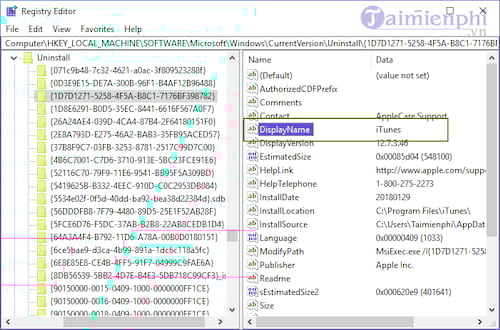
Do not delete this key to uninstall software. Doing so only hides or damages the entry. It does not remove program files or background components.
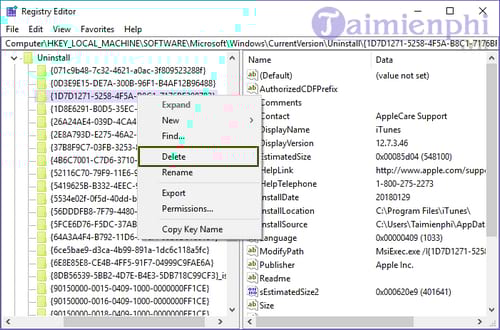
An administrator may remove an orphaned entry only after confirming the software is already gone, exporting a Registry backup, and documenting the exact key. Editing HKEY_CLASSES_ROOTInstallerProducts manually is especially risky and should be avoided.
Review leftover files cautiously
After a successful uninstall, check the vendor's documentation before deleting profile folders. Keep license files, projects, presets, email stores, browser profiles, databases, or game saves you may need. Shared vendor folders can belong to other installed products.
A reputable uninstaller can scan for leftovers, but its matches still require review.
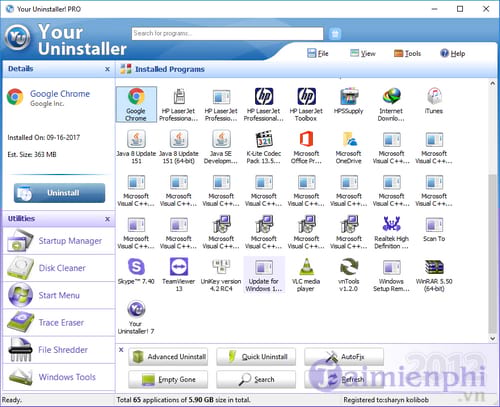
See the general Windows program-uninstall guide and the detailed procedure for removing stubborn programs with Your Uninstaller. Removing unused software can free storage, but it does not guarantee a faster PC.
Related Articles
 7 Ways to Completely Remove Software on Windows 106 minutes read
 How to Use Your Uninstaller to Remove Software Completely8 minutes read
 How to Completely Remove Applications from Your PC Using Your Uninstaller3 minutes read
 How to Completely Remove Coc Coc?3 minutes read
 How to Completely Remove IDM (Internet Download Manager) from the Computer3 minutes read
 Completely Remove URL Mal Virus -- Http://107.170.47.18113 minutes read
Reader Comments 0
Sign in with email or Google to join the discussion.