Table of Contents
Advanced Uninstaller PRO is a Windows utility for removing applications and reviewing leftover files. Windows already includes an uninstaller, so install this tool only if you need its additional removal or installation-monitoring features.
Before installing
- Download the current installer from the developer's official website.
- Check the current Windows requirements on that page; old version numbers and requirements may no longer apply.
- Save your work and create a restore point before using deep-cleaning features.
- Read every setup screen and decline optional products or browser changes you do not want.
Install Advanced Uninstaller PRO
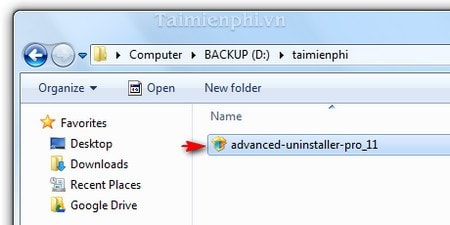
Open the downloaded installer. Confirm that its publisher matches the expected developer before approving the Windows security prompt.
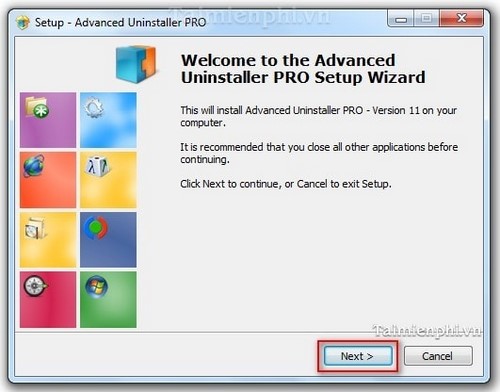
Select Next to continue.
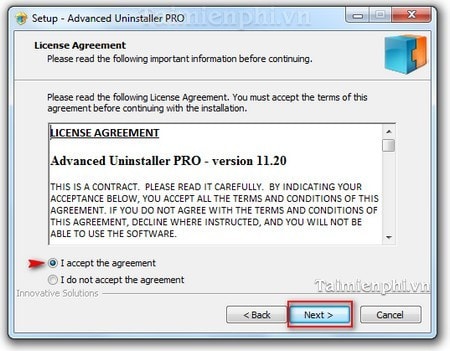
Read the license terms. Select I accept the agreement only if you agree, then choose Next.
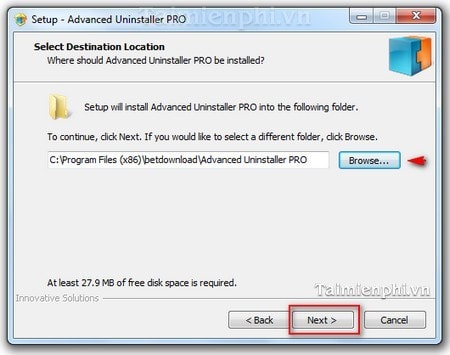
Review the destination folder. The default Program Files location is appropriate for most users; change it only when you have a specific reason.
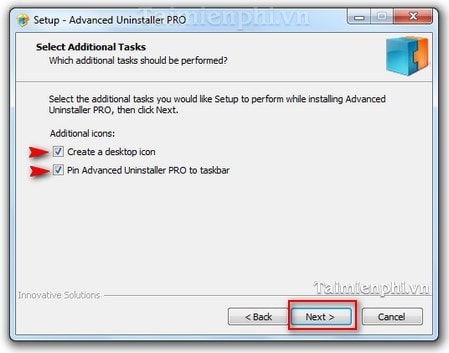
Select the desktop and taskbar shortcuts you want, then continue. Review any other checkboxes on this screen.
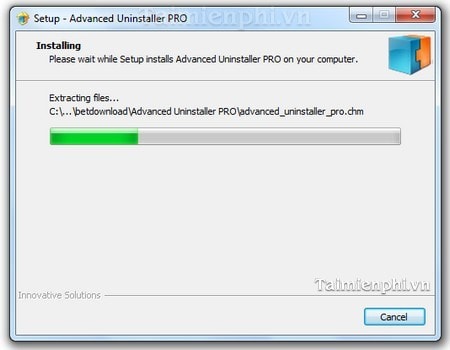
Wait while setup installs the program.
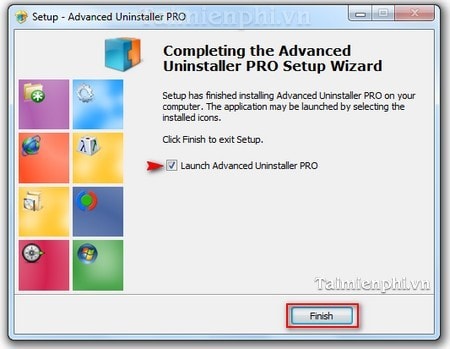
Choose whether to launch the program, then select Finish.
First-run safety checks
When the main interface opens, verify the installed version and update status.
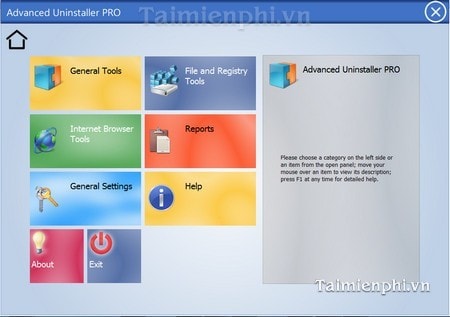
Use the standard application uninstaller before scanning for leftovers. Review matched files and Registry entries carefully because vendor folders and shared components may be used by other programs. Do not run Registry cleanup as routine maintenance.
If you only need to remove a normal app, follow the built-in Windows uninstall procedure. For comparison, see the list of free software uninstaller tools.
Related Articles
 Uninstall Applications on Your Computer with Advanced Uninstaller Pro4 minutes read
 How to Install Iobit Uninstaller4 minutes read
 How to Completely Remove Applications from Your PC Using Your Uninstaller3 minutes read
 Your Uninstaller - Your Uninstaller Download and4 minutes read
 Iobit Uninstaller - Software to Uninstall Applications on PC5 minutes read
 Your Uninstaller - Software to Thoroughly Uninstall5 minutes read
Reader Comments 0
Sign in with email or Google to join the discussion.