Table of Contents
Your Uninstaller can launch a program's normal uninstaller and then scan for files or Registry entries that may remain. Use it only when Windows' built-in uninstall option is insufficient, and review every proposed leftover before deletion.
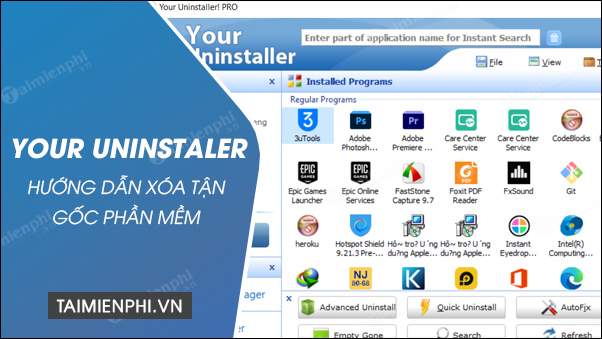
Before you start: download the current installer from the developer's official site, save open work, back up application data, and create a restore point. Removing software is difficult to undo; reinstalling is usually the recovery method.
Uninstall a listed program
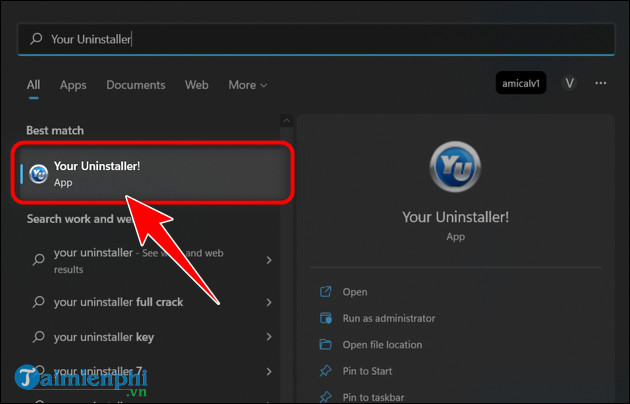
Open Your Uninstaller.
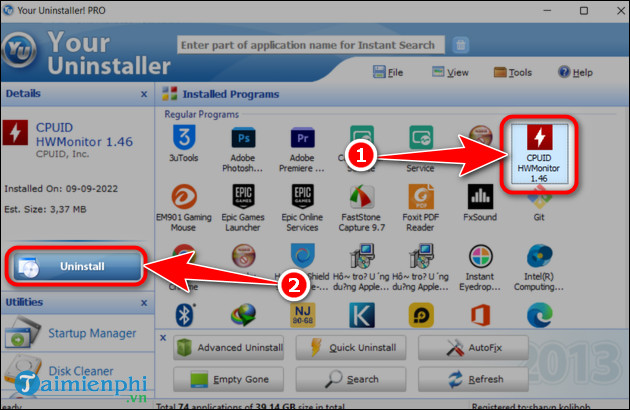
Select the exact program and choose Uninstall. Verify the publisher and install path if similarly named entries appear.
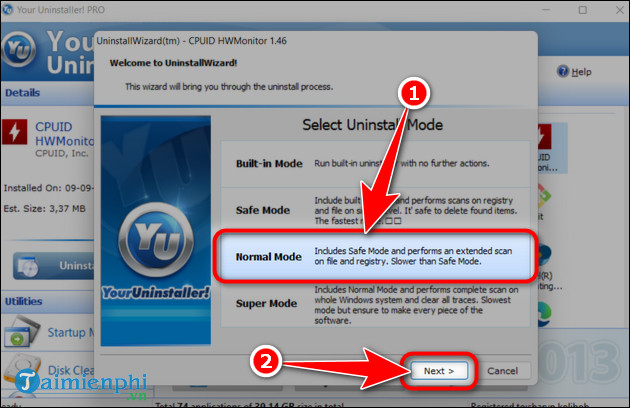
Choose an uninstall mode. Start with Built-in or Safe; these reduce the chance of matching unrelated files. Use a deeper mode only when the normal uninstaller has failed and you have a current backup.
Confirm that you selected the correct application.
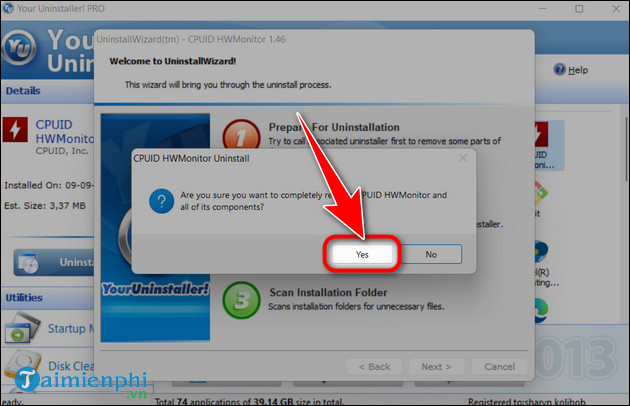
- Follow the application's own uninstaller. Keep user data if you may reinstall the program.
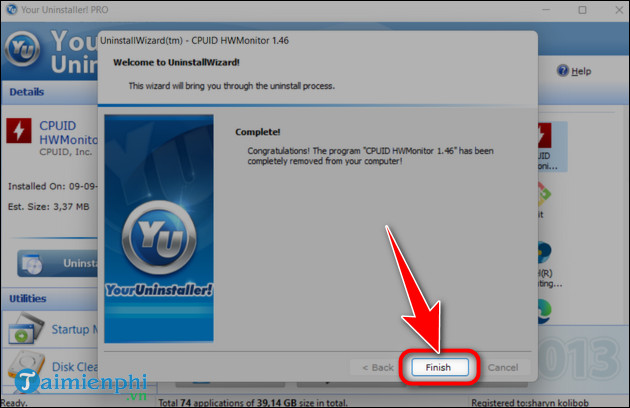
When Your Uninstaller presents leftover files or Registry entries, expand the results and select only items clearly belonging to the removed program. Choose Next to continue.
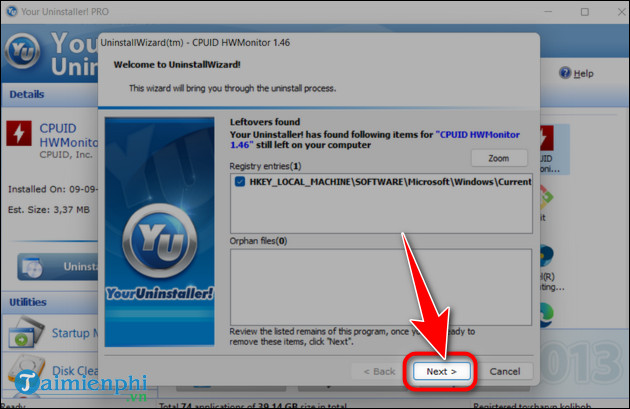
Select Finish and restart Windows if requested.
Handle a missing or damaged uninstall entry
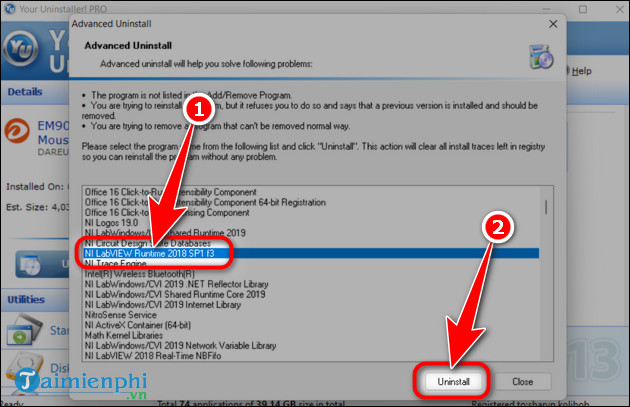
Use Advanced Uninstall only when a program still exists but is absent from the normal list or its uninstall record is damaged.
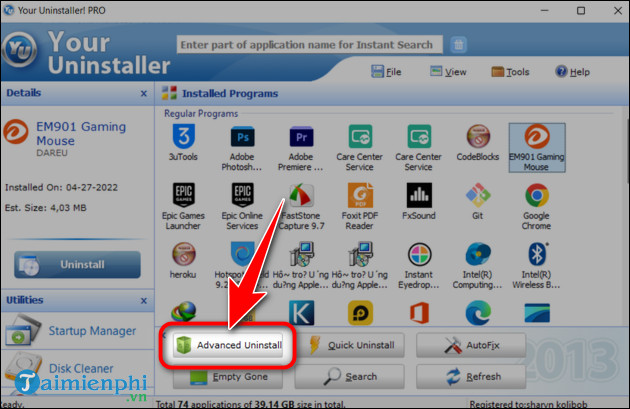
Select the program or verified installation path, then run its uninstaller if available. Do not select a parent folder such as Program Files or a shared vendor directory.
Safer alternatives
Try Settings > Apps > Installed apps or Control Panel first. If an installer or uninstaller is blocked by corrupt setup data, Microsoft's Program Install and Uninstall troubleshooter may repair the entry without a broad leftover scan. See the general Windows uninstall guide and the comparison of free uninstaller tools for other options.
After removal, test Windows and the applications that shared the same vendor or runtime. Restore from the backup or reinstall the affected component if a deeper scan removed something still in use.
Related Articles
 How to Use Smarty Uninstaller to Remove Software Completely on7 minutes read
 How to Use IObit Uninstaller to Completely Remove Software on Windows: Practical5 minutes read
 How to Use Your Uninstaller to Remove Software Completely8 minutes read
 How to Use Your Uninstaller to Completely Remove Software - Delete 'Stubborn'8 minutes read
 Your Uninstaller - Your Uninstaller Download and4 minutes read
 Summary of the Best Uninstall Software, Completely Remove Stubborn6 minutes read
Reader Comments 0
Sign in with email or Google to join the discussion.