Table of Contents
Disk Cleanup (cleanmgr.exe) is a built-in Windows utility that removes selected temporary and system files. It can free storage space, but it is not a general performance repair tool. Review each category before deletion.
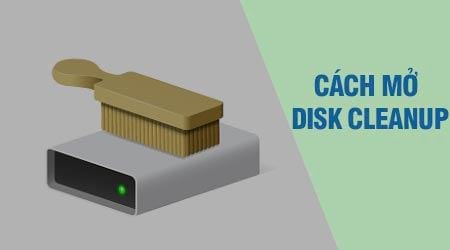
Open Disk Cleanup from Search
Open Start, type Disk Cleanup or cleanmgr, and select the matching result.
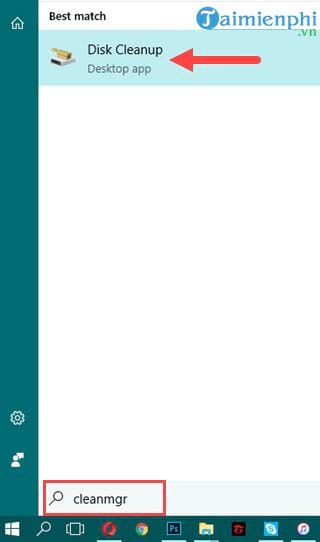
Open Disk Cleanup from Run
Press Windows + R, type cleanmgr, and press Enter.
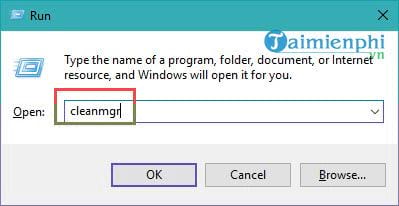
Open it from Command Prompt
Open Start, type cmd, and select Command Prompt.
Type
cleanmgrand press Enter.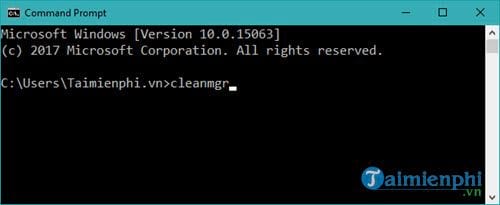
Administrator rights are not required for ordinary user-file cleanup. Use Clean up system files inside Disk Cleanup when you intentionally need the elevated system categories.
Open it from PowerShell or Windows Terminal
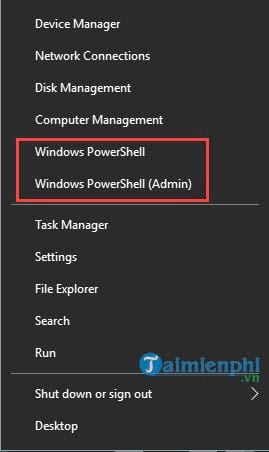
Open PowerShell or Windows Terminal from Start or the Windows + X menu.
Run
cleanmgr.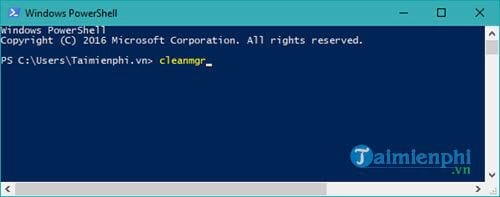
Open it from Control Panel
Open Control Panel.
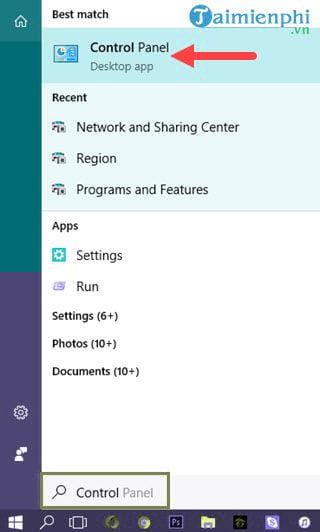
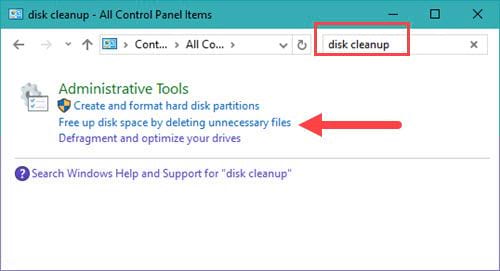
Search for disk cleanup and select Free up disk space by deleting unnecessary files.
Administrative Tools on older Windows versions
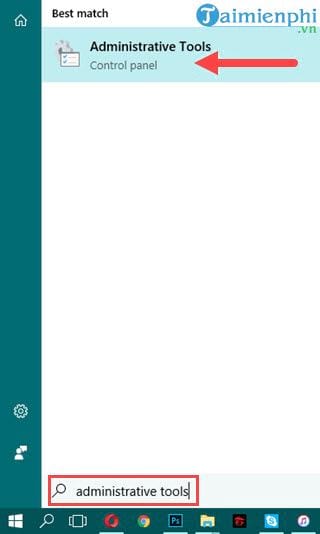
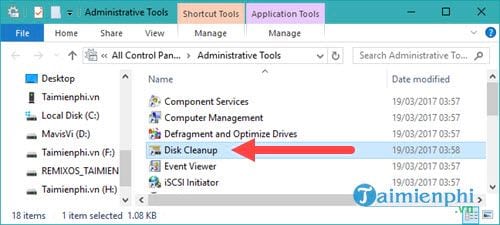
Some older versions list Disk Cleanup under Windows Administrative Tools.
Choose what to clean
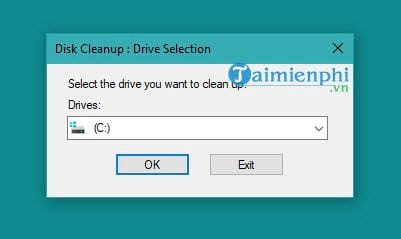
Select the drive to scan, normally the Windows system drive, and choose OK.
Review the calculated categories and descriptions. Select only data you no longer need.
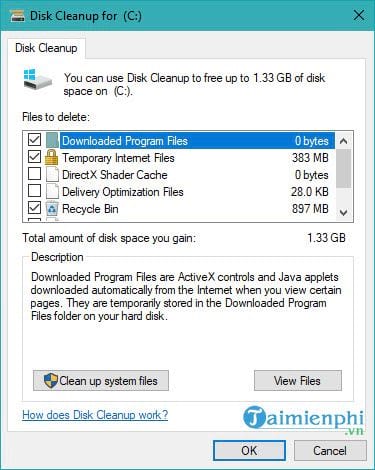
- Choose OK > Delete Files.
Pay special attention to Downloads, Recycle Bin, previous Windows installations, device-driver packages, and installation files because removal may limit recovery or rollback. For a modern Settings workflow, see how to clear temporary files in Windows 10. The command-line version is covered in cleaning Windows with Command Prompt.
Related Articles
 Can't Find Disk Cleanup Win 11, How to Find It Quickly5 minutes read
 What Can Be Deleted in Windows Disk Cleanup?7 minutes read
 Free Up Hard Drive Space Automatically on Windows 10 with Disk7 minutes read
 How to Clean Up Windows 10 According to the Timetable6 minutes read
 Error Missing Disk Cleanup on Windows 10/8/7, This Is a Fix3 minutes read
 Microsoft Will Delete the Downloads Folder in Disk Cleanup on3 minutes read
Reader Comments 0
Sign in with email or Google to join the discussion.