Table of Contents
This updated guide explains how to combine 3D models and morph in powerpoint with clear steps, practical tips, and useful context. Combining 3D models and Morph in PowerPoint will bring a much more special artistic effect to users. Then the 3D model in PowerPoint slide has smoother, more unique movement for those who view the presentation slide.
How to Combine 3D Models and Morph PowerPoint
Step 1:
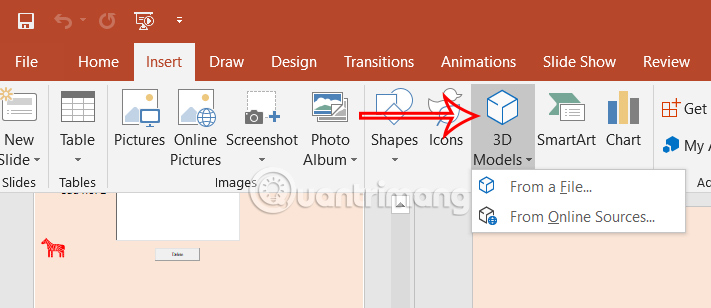
In the PowerPoint interface, users choose Insert and then select 3D Models to insert the model into the slide. You choose the 3D model according to your needs and the topic you want to use.
Step 2:
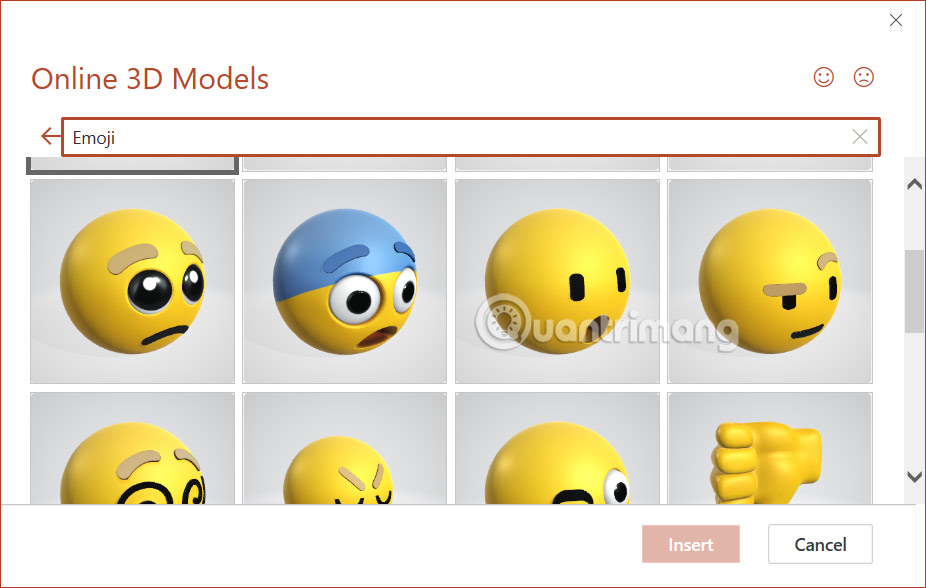
You enter the model keyword in the search bar or you can download it from a file on your computer. If you like it, select the model and select Insert to insert it into the slide.
Step 3:
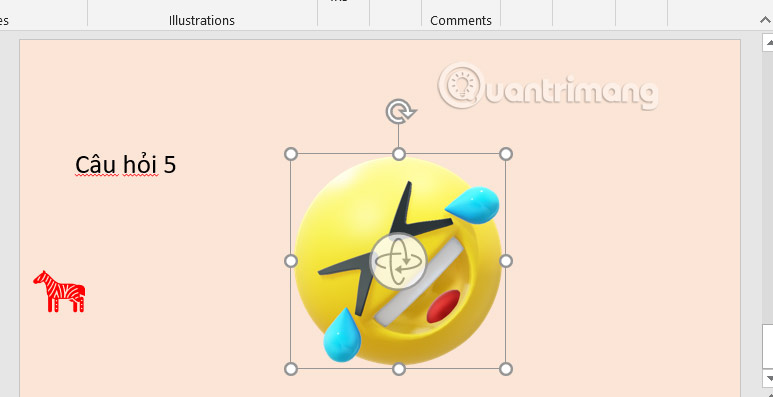
The model in the slide still has the option to change the position and customize the size according to each person's requirements.
Step 4:
select the model slide, then right-choose and select Duplicate Slide to duplicate the slide.
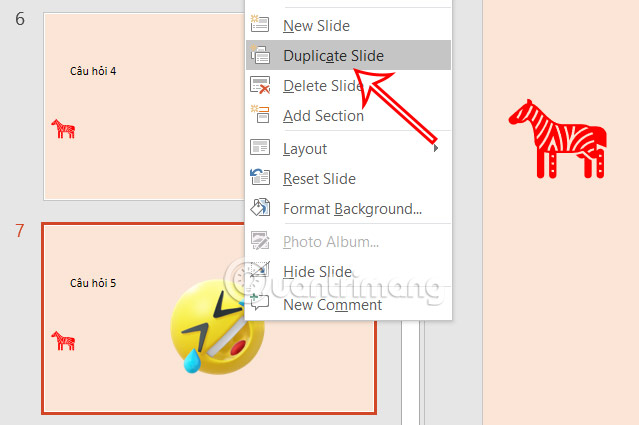
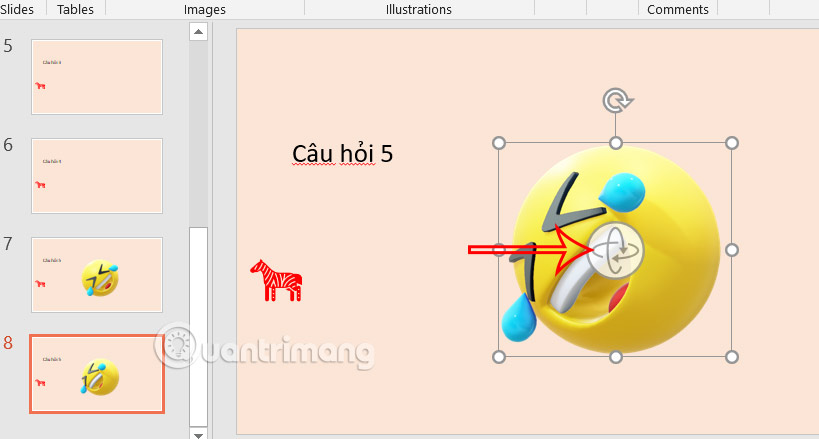
We'll rotate the model to another direction to create a transition. choose and hold the rotate icon in the middle of the copied 3D model to reveal the perspective you want to apply to the end of the transition from the previous slide.
Step 5:
select the copied second slide and then select Transitions to add the Morph transition effect to the 3D object.
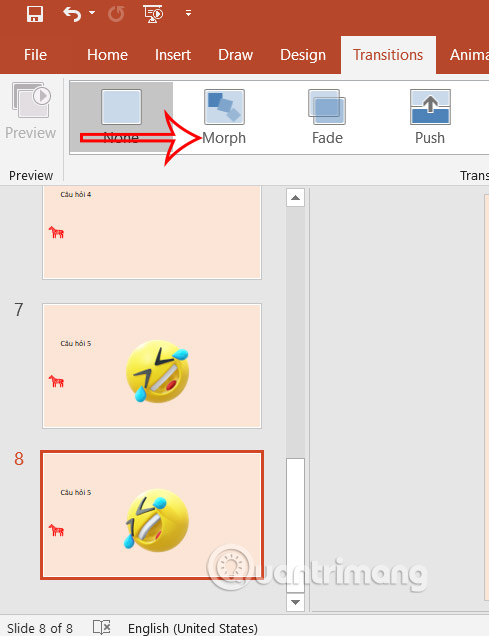
If you duplicate the last slide to create additional 3D model rotations, there is no need to add the Morph transition effect again because it has already been duplicated.
Video Tutorial on Combining 3D Models and Morph in PowerPoint
FAQ
What should I prepare before I combine 3d models and morph in powerpoint?
Review the requirements and options in the guide first. Having the correct device, app version, account access, or materials ready helps prevent avoidable errors.
How long does it take to combine 3d models and morph in powerpoint?
The time depends on the task and your setup. Most basic steps can be completed quickly, while downloads, updates, scans, or troubleshooting may take longer.
What should I do if the steps do not work?
Repeat the instructions in order, confirm that your software or device is supported, and check permissions, connectivity, and available updates before trying again.
Related Articles
 AI Morph - AI Photo and Video Editing Tool5 minutes read
 How to Use Magic Morph in Canva AI: Step-by-Step Guide4 minutes read
 How to Combine Motion Paths Animation Effects in PowerPoint5 minutes read
 Shapes Powerpoint: How to Include Shapes in Powerpoint3 minutes read
 How to Create Spotlight Effect in PowerPoint3 minutes read
 Steps to Insert and Animate 3D Models in PowerPoint7 minutes read
Reader Comments 0
Sign in with email or Google to join the discussion.