Table of Contents
CCleaner can remove temporary Windows and application files, browser caches, history, and selected cookies. This can free storage space, but it does not automatically optimize every PC or restore “like new” performance.
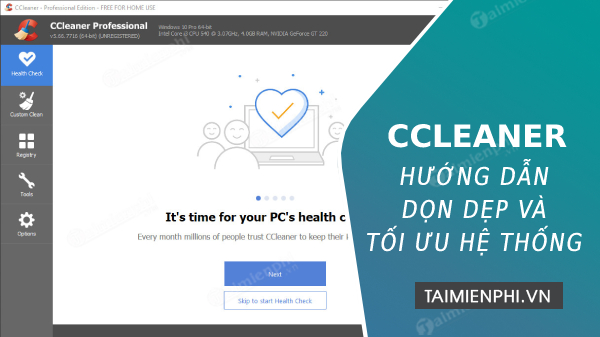
Before cleaning: update CCleaner, close browsers and other applications, save your work, and make sure important files are backed up. Use Analyze or a preview before deleting anything.
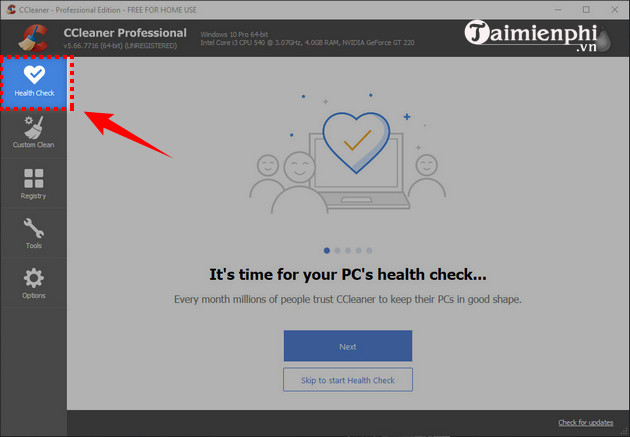
Run Health Check carefully
Health Check groups several maintenance suggestions. Review each result rather than accepting every change. Some recommendations may clear browser data, disable startup items, or promote paid features, depending on the installed edition.
Analyze temporary files
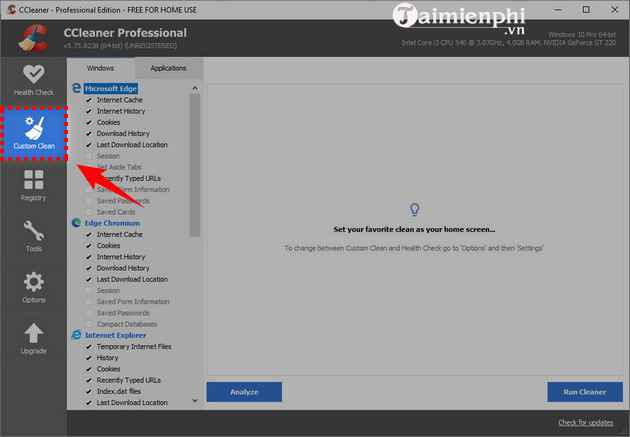
- Open Custom Clean or the equivalent cleaning screen in your version.
- Under Windows and Applications, select only categories you understand.
Choose Analyze and inspect the estimated files and space before cleaning.
- Keep download folders, saved passwords, form data, and session data unless you explicitly intend to remove them.
- Run the cleanup and reopen important apps to confirm that they work as expected.
Protect cookies and signed-in sessions
In Options > Cookies, keep cookies for sites where you want to remain signed in. Clearing all browser cookies can sign you out and reset site preferences. Cache removal is usually less disruptive, although the browser must download assets again.
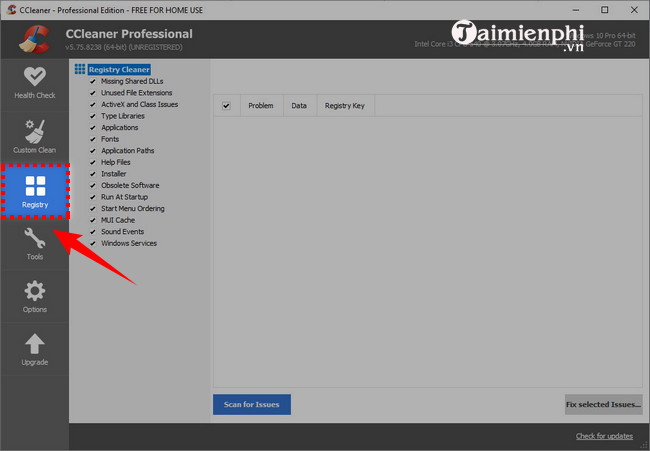
Avoid routine Registry cleaning
Unused Registry entries are rarely a meaningful cause of poor performance. Registry changes can affect shared components or application settings, so do not run the Registry cleaner as routine maintenance. If a specific troubleshooting procedure requires it, create a restore point and save the offered Registry backup first.
Understand the Tools section
The available tools can include uninstall management, startup entries, duplicate-file search, restore points, and drive wiping.
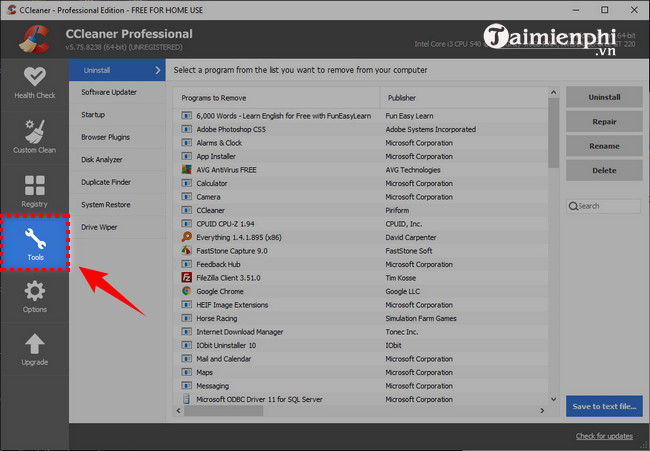
- Uninstall: prefer the application's own uninstaller or Windows Installed apps first.
- Startup: disable an entry before deleting it, then restart and test.
- Duplicate Finder: compare paths and contents; similar names do not prove files are safe to delete.
- System Restore: keep at least one known-good restore point.
- Drive Wiper: can make recovery impossible. Never use it on the wrong drive or as routine SSD maintenance.
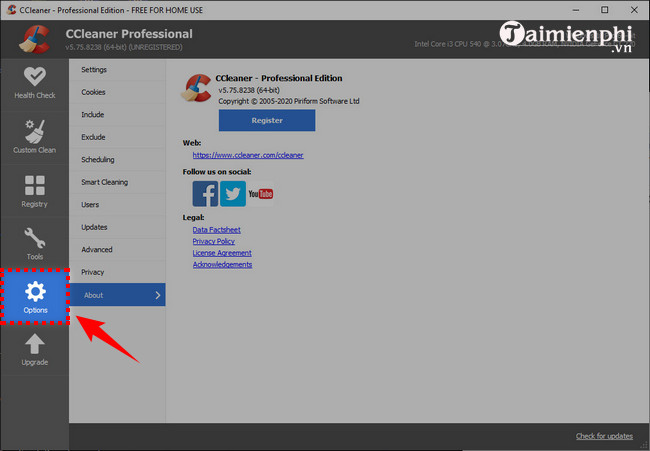
Review Options
Use Include and Exclude only with exact paths you have verified. A broad include rule can delete useful files. The About/Updates area shows the installed version and update controls.
Windows can handle many routine cleanup tasks without third-party software. See how to clear temporary files in Windows 10 and the guide to deleting junk files in Windows 10. If you use CCleaner, also keep it current with the separate CCleaner update procedure.
Related Articles
 Use Ccleaner to Clean Up Junk Files and Optimize Your System6 minutes read
 How to Use Ccleaner Software to Clean up Computer Trash8 minutes read
 Ccleaner Setup Starts the Same System3 minutes read
 How to Delete Junk Files on the Computer, Clean the Computer10 minutes read
 Optimize Your System with CCleaner4 minutes read
 PrivaZer - System Cleanup and Junk File Deletion4 minutes read
Reader Comments 0
Sign in with email or Google to join the discussion.