Table of Contents
CCleaner for Android can analyze storage, find temporary or leftover files, show large media, and help uninstall unused apps. It can recover storage space, but it cannot guarantee faster performance or better battery life on every phone.
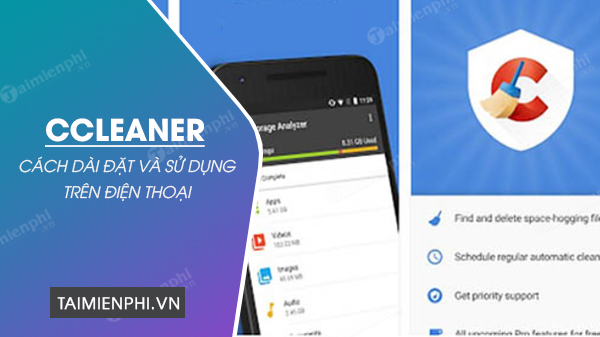
Install the official app
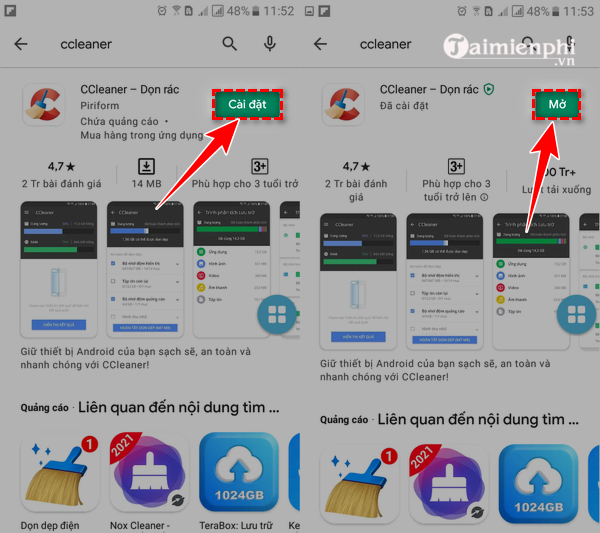
- Open Google Play and search for CCleaner – Phone Cleaner.
- Verify the app name, developer, permissions, and reviews before selecting Install.
When installation finishes, select Open.
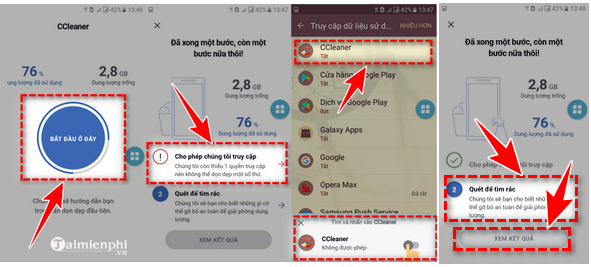
Android versions and phone manufacturers expose different storage permissions. Grant only the access required for a feature you intend to use. You can review or revoke it later under Settings > Apps > CCleaner > Permissions.
Analyze storage and use Quick Clean
- Open CCleaner and start the storage analysis.
Follow Android's permission prompts, then scan for removable items.
- Expand every category before cleaning. Check caches, downloads, received files, thumbnails, APK installers, and residual files individually.
Select only files you recognize and choose Quick Clean.
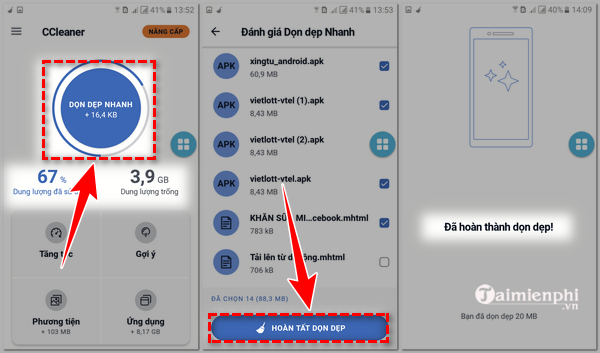
Do not rely on a projected storage total alone. A cache may be safe to rebuild, but a download, offline map, podcast, or messaging attachment may be the only local copy.
About Quick Boost
Some versions display a speed or memory-boost feature.
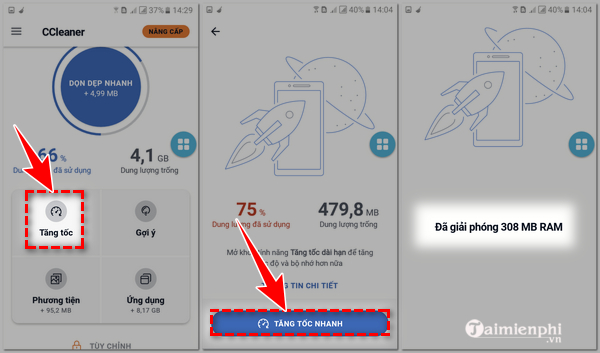
Closing background apps can free RAM temporarily, but Android normally manages memory itself and apps may reopen. Avoid repeatedly force-stopping messaging, navigation, accessibility, health, alarm, VPN, or security apps. Do not grant Accessibility access unless you understand why the feature needs it.
Review and remove unused apps
Open the app-management view to compare app size, recent use, and resource information.
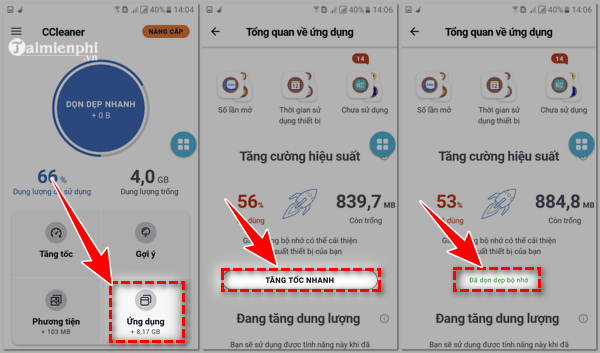
Uninstall only apps you recognize. Back up app-specific files and confirm that account data is synced. Preinstalled or work-managed apps may be unavailable for removal.
Manage photos, audio, videos, and files
The photo analyzer can group similar, old, dark, or blurry images, but its suggestions are not a guarantee that an image is disposable.
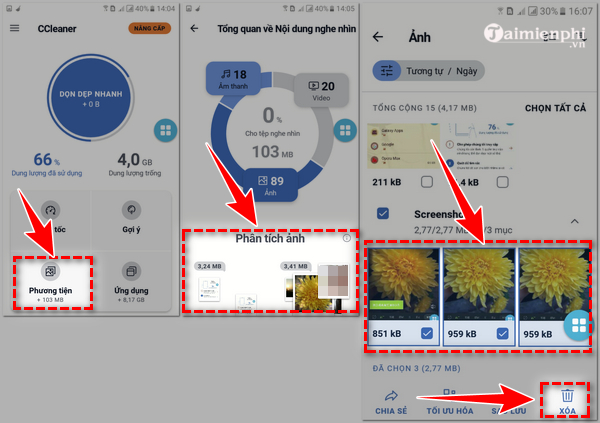
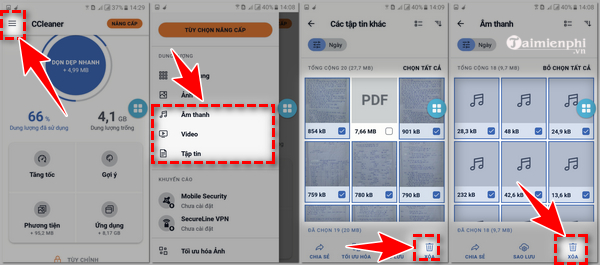
Open Audio, Video, or Files to find large items. Preview each file, check whether it is backed up, and then delete only the selected items.
Safer cleanup habits
- Back up photos and documents before a large cleanup.
- Use Android's built-in Storage settings first for a simple overview.
- Review permissions after cleanup and remove access you no longer want.
- Do not install cleaner apps from APK sites or advertisements.
For alternatives and a broader feature comparison, see Android cleaner apps worth considering. If the problem is Windows storage rather than phone storage, follow the separate guide to clear temporary files in Windows 10.
Related Articles
 How to Restoring Original Settings for Ccleaner3 minutes read
 CCleaner Has Been Hacked, Attached Malware, Things to Know and How to Fix It4 minutes read
 How to Use Ccleaner5 minutes read
 Use Ccleaner to Clean Up Junk Files and Optimize Your System6 minutes read
 Remove Ccleaner's Annoying Messages in 2 Steps2 minutes read
 How to Install the Android 10 Interface on All Android Phones4 minutes read
Reader Comments 0
Sign in with email or Google to join the discussion.