Table of Contents
You can remove BlueStacks through Windows Settings or Control Panel. Before uninstalling, back up any game data, files, or emulator instances that are not synced to an online account; uninstalling can delete local Android data.
Prepare for removal
- Close BlueStacks, BlueStacks X, and Multi-instance Manager.
- Use BlueStacks' backup feature for local data you need.
- Confirm that important games and apps are linked to an account.
- Save any files from shared folders outside the BlueStacks data directory.
Uninstall BlueStacks with Windows
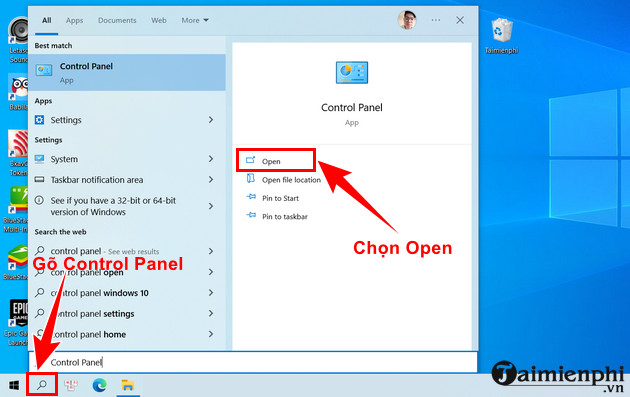
Open Start, search for Control Panel, and select Open. You can also use Settings > Apps > Installed apps on current Windows versions.
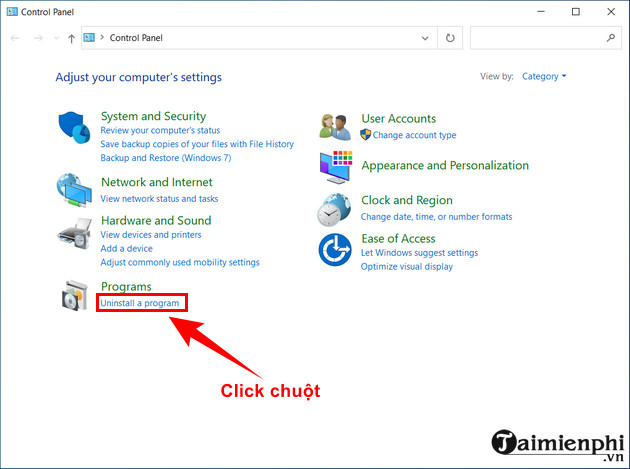
In Control Panel, select Programs > Uninstall a program.
Select BlueStacks 5, BlueStacks X, or another installed BlueStacks component.
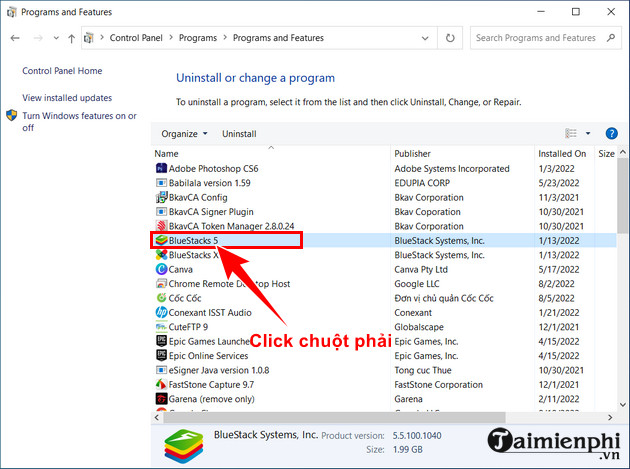
Choose Uninstall and follow the prompts. Repeat for remaining BlueStacks components you no longer need.
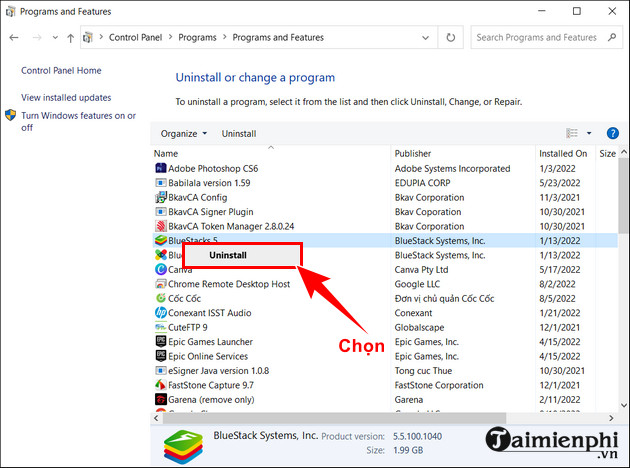
- Restart Windows after removal.
If BlueStacks files or services remain
Do not immediately delete entire folders under Program Files or ProgramData. They may contain shared components, logs needed for support, or local emulator data. First verify that BlueStacks is absent from Installed apps and no BlueStacks process is running.
If the normal uninstaller fails, obtain the current BlueStacks cleanup tool from the official BlueStacks support article for your installed product. Run it with administrator permission, restart Windows, and check Installed apps again. Avoid cleanup utilities from third-party download sites.
After uninstalling
Check free disk space and remove only clearly identified backups or exported installer files you no longer need. Windows can clean ordinary temporary files without a registry cleaner. If you want another emulator, compare maintained choices in the Android emulator overview. For a damaged installation, the BlueStacks troubleshooting guide may help before you remove the app.
Related Articles
 Speed up Tips for Bluestacks Emulator Software5 minutes read
 Bluestacks Is What Software? Is It Safe?6 minutes read
 Official Android Emulator Application Available on Mac OS X3 minutes read
 Bluestacks - Quality Android Emulator Software on PC: Key Facts12 minutes read
 Link Download Bluestacks 4.260.0.1032: Android Emulator4 minutes read
 Steps to Root Bluestacks Emulator on PC3 minutes read
Reader Comments 0
Sign in with email or Google to join the discussion.