Table of Contents
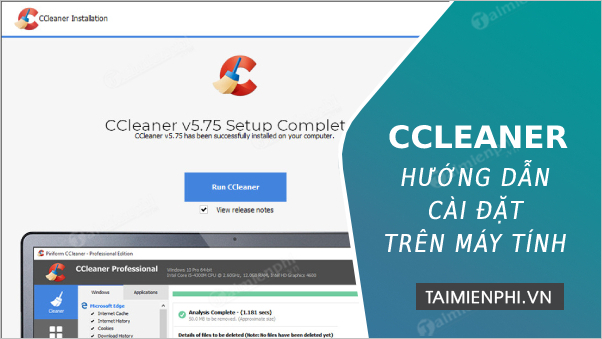
1. Instructions on how to install CCleaner
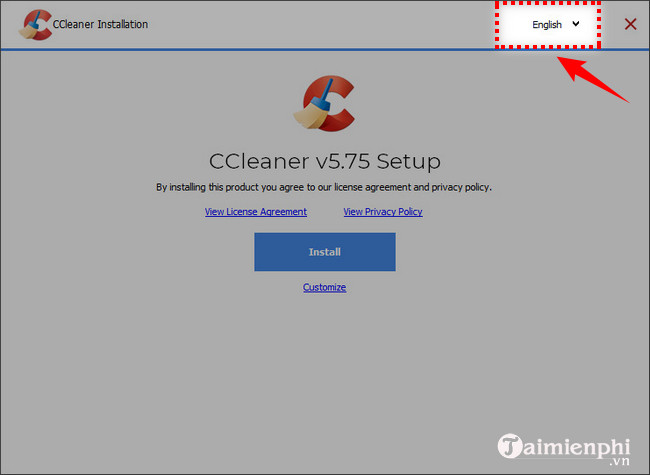
Step 1: Download CCleaner software - Run the downloaded file - A notification window will appear allowing you to choose the most suitable language to use. The utility offers 35 different languages for you to choose from.
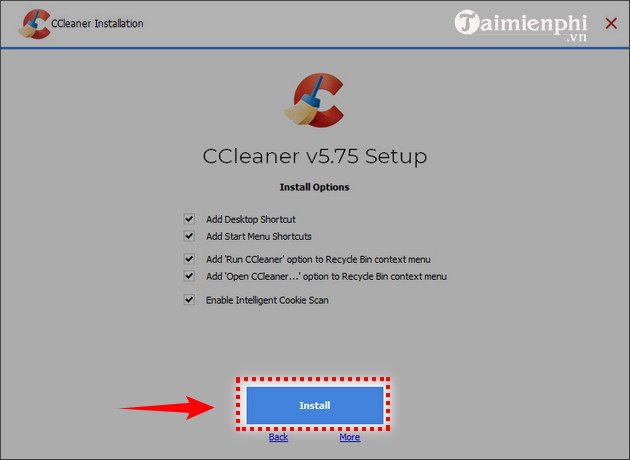
Step 3: Before installation, the manufacturer helps you add an icon to one of the following locations: (you can choose one or all of these locations if you wish). - Add Desktop Shortcut : adds a shortcut to the Desktop. - Add Start Menu Shortcut : places a shortcut on the Start Menu. - Add "Run CCleaner" option to Recycle Bin context menu : adds "Run CCleaner" to the Recycle Bin context menu. - Add "Open CCleaner." option to Recycle Bin context menu : adds "Open CCleaner" to the Recycle Bin context menu. Additionally, you can check " Automatically check ." to have the utility automatically update whenever a new version is available. Select Install .
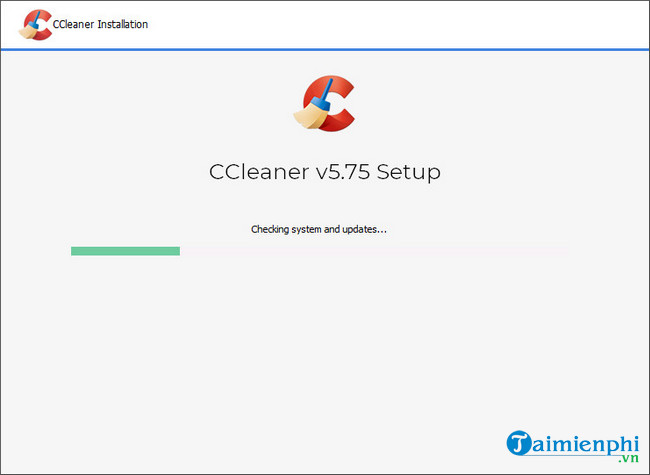
Step 4: It only takes a short time; wait for the extension to load completely, and then you can use it.
Step 5: Once the installation is complete, you can choose to check one or both of the options provided by the manufacturer: Run CCleaner to launch the program immediately or View Release notes to view release information. Click Finish to close the window.
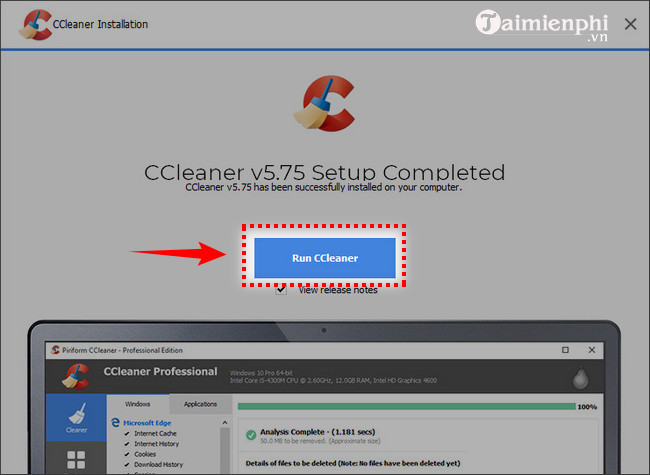
After installation, the software will have an interface like the image below.
2. Instructions for using CCleaner
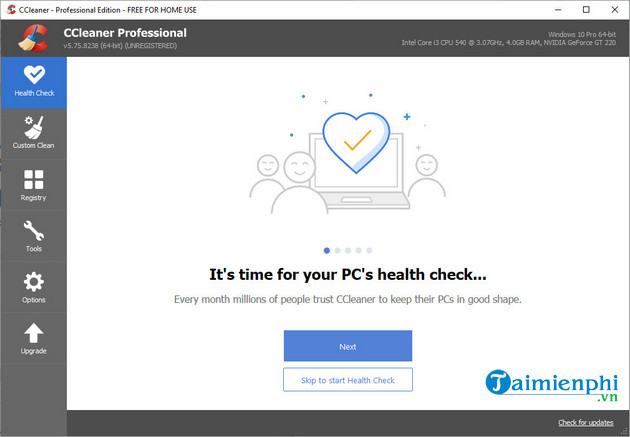
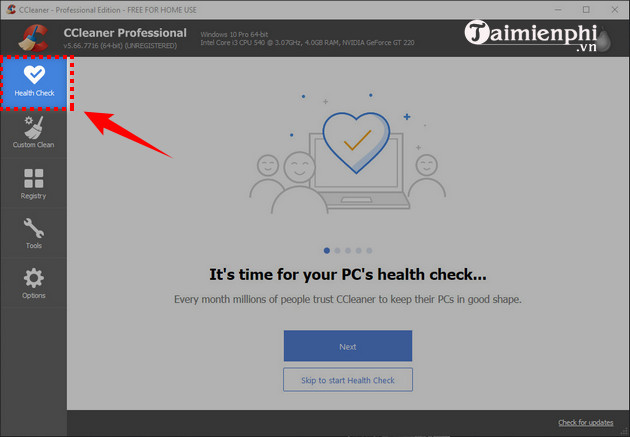
The main interface includes 5 sections: Health Check, Cleaner, Registry, Tools, and Options.
The Health Check section includes functions such as:
Checking your computer's health helps improve security, remove malicious websites, defragment your hard drive, and make your computer run faster.
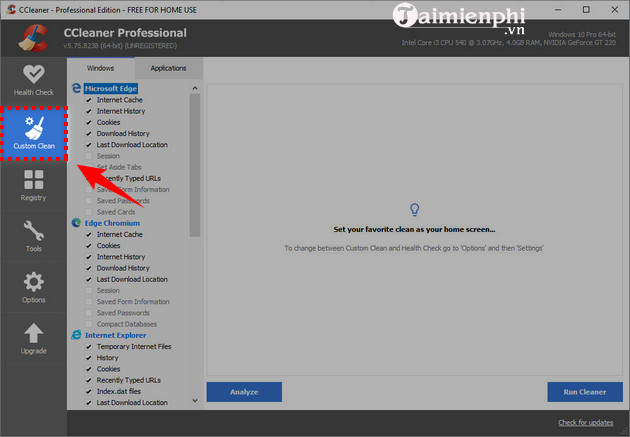
Cleaner section: Consists of 2 tabs: Windows and Applications - Windows tab: Includes functions to clean log files, junk files, temporary files, history, cookies, etc. of the Windows operating system. Select the type of files you want to clean by ticking the corresponding box. - Applications tab: Includes functions to clean log files, junk files, temporary files, history, cookies, etc. of applications. Select the type of files you want to clean by ticking the corresponding box. Applications here could include: Firefox, Microsoft Office, Adobe Reader, etc.
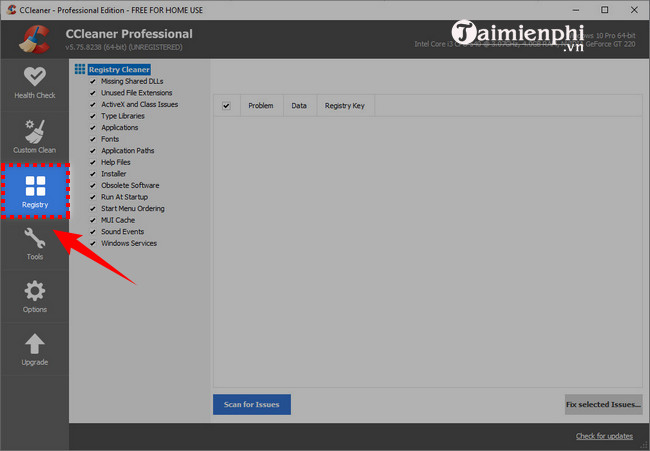
Registry: During the execution of files, cache is always stored in the Registry, which is one of the reasons why computers run slowly. The program will search and filter out unused cache files in the Registry to clean them. We just need to select the types of files to remove, such as library files, service files, application paths, DLL files, etc.
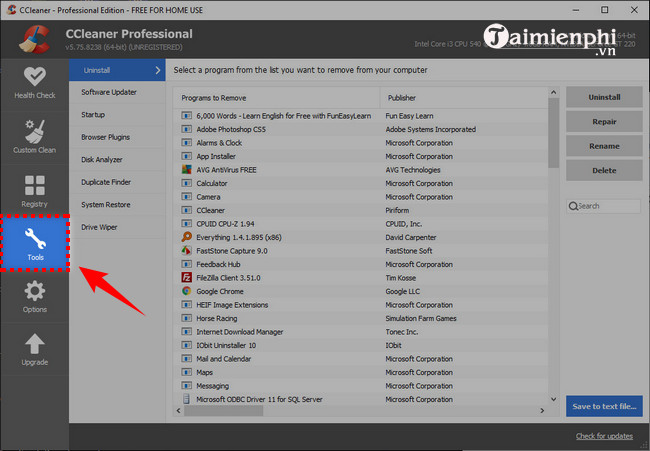
Tools section: Includes 5 tabs - Uninstall tab : Functions like Windows' add/remove program, but it's only used to remove applications already installed on the computer, rename them, or delete settings configured in the Registry. - Startup tab : Choose which applications will start with Windows, which applications start when Internet Explorer or Firefox is opened. Similarly, you can disable or delete applications as desired. - File Finder tab : Search for duplicate files on the hard drive. You can search by name, size, modification date, or content. - System Restore tab : Manages versions used for system restoration. - Drive Wiper tab : Similar to Windows' defragmentation program.
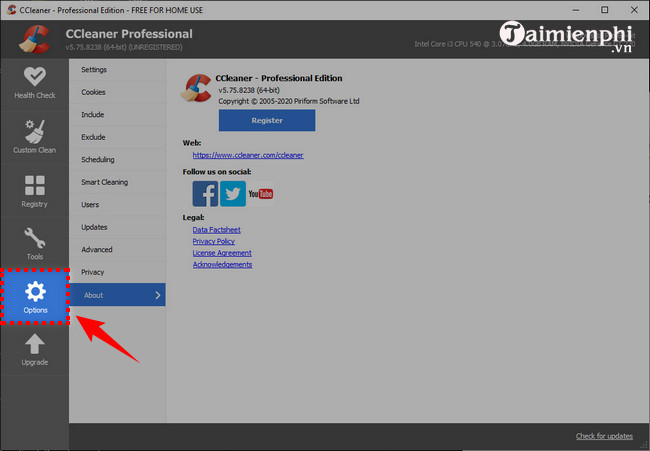
Options section: includes 6 tabs - Settings tab: Basic settings. - Cookies tab: Select the types of cookies you want to keep on your computer; when running Run Cleaner, the program will not delete those selected cookies. - Include tab: Select the types of files (*. tmp, *. log, etc.), folders, or drives you want to delete when running the program. - Exclude tab: Select the types of files (*. tmp, *. log, etc.), folders, or drives you want to delete the settings and usage parameters in the Registry when running the program. - Advanced tab: Advanced settings. - About tab: View the version you are using.
CCleaner helps clean up system junk, speeding up your computer quickly and safely. After successful installation, you can refer to additional instructions on how to use CCleaner optimally to keep your computer stable.
FAQ
How can you use Ccleaner to Clean Up Junk files and Optimize your System?
Is your computer running slow due to junk files and system cache? CCleaner helps clean up and optimize performance in just a few steps.
What should you know about instructions on how to install CCleaner?
Step 1: Download CCleaner software - Run the downloaded file - A notification window will appear allowing you to choose the most suitable language to use.
What should you know about instructions for using CCleaner?
The main interface includes 5 sections: Health Check, Cleaner, Registry, Tools, and Options.
Related Articles
 How to Clean Up Your PC, Delete Junk Files, and Optimize Your System Using Ccleaner5 minutes read
 Ccleaner Setup Starts the Same System3 minutes read
 Optimize Your System with CCleaner4 minutes read
 How to Use Ccleaner Software to Clean up Computer Trash8 minutes read
 Download Total PC Cleaner - a Tool to Help Clean Junk Files and4 minutes read
 Kaspersky Cleaner - Software to Clean, Remove Junk Files, Optimize the Best3 minutes read
Reader Comments 0
Sign in with email or Google to join the discussion.