Table of Contents
A TP-Link router normally has two different passwords: the Wi-Fi password used by phones and computers to join the network, and the administrator password used to open the router's settings. Changing one does not automatically change the other.
Before changing either password
- Connect the computer to the TP-Link router. Ethernet is preferable because a Wi-Fi password change disconnects wireless devices.
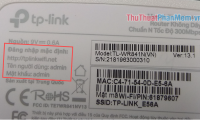
- Check the bottom label for the model, hardware version, default network name, and management address.
- Know the current local administrator password or linked TP-Link ID credentials.
- Choose two different, unique passwords: one for Wi-Fi access and another for router administration.
Sign in to the TP-Link management page
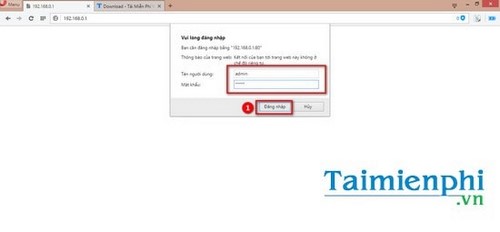
- Open a browser and enter tplinkwifi.net. If it does not open, try the router's gateway address, commonly 192.168.0.1 or 192.168.1.1.
- Enter the local administrator password. Newer routers ask you to create this password during setup, while some older models use admin for both username and password.
- If the router is linked to a TP-Link ID, use the correct local-password or TP-Link-account option shown on the page.
Do not manually assign an address or subnet merely because the login page does not load. First confirm that the computer is connected to the TP-Link router, turn off any VPN temporarily, and find the actual default gateway. TP-Link's official router login guide provides additional troubleshooting.
Change the TP-Link Wi-Fi password
This is the password every wireless device uses to connect.
- In a current interface, open Advanced > Wireless > Wireless Settings. Some firmware uses Basic > Wireless, Wireless Security, or a similar label.
- Select the network or radio band you want to edit. With Smart Connect enabled, 2.4GHz and 5GHz may share one network name and password.
- Replace the value labeled Password, Wireless Password, Pre-Shared Key, or Passphrase.
- Use WPA2-Personal or WPA3-Personal if available, then select Save.
- Reconnect every wireless device with the new password after the router applies the change.
TP-Link's current wireless-settings guide shows the menu used by recent Archer firmware. If you operate separate guest and main networks, update the intended one and review whether guest access should remain enabled.
Change the router administrator password
This credential protects the settings page. On recent TP-Link Wi-Fi routers:
- Go to Advanced > System > Administration.
- Enter the current password to authorize the change.
- Enter and confirm the new administrator password.
- Select Save, then sign in again if the router ends the session.
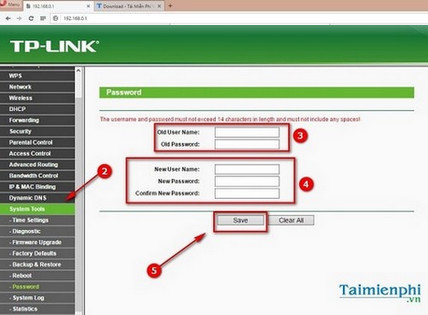
Older firmware may use System Tools > Password. It can ask for the old username and password as well as new credentials.
TP-Link's administrator-password instructions list the current paths for routers, DSL modem routers, range extenders, access points, and mobile Wi-Fi devices.
Menu paths on older TP-Link models
The exact route depends on product type and firmware. These legacy menu paths can still help with older hardware:
- TL-WR series such as TL-WR940N or TL-WR941ND: System Tools > Password.
- Some TD-W8960 series DSL modem routers: Management > Access Control > Password.
- Some older TD-W89xx and TD-88xx devices: Maintenance > Administration.
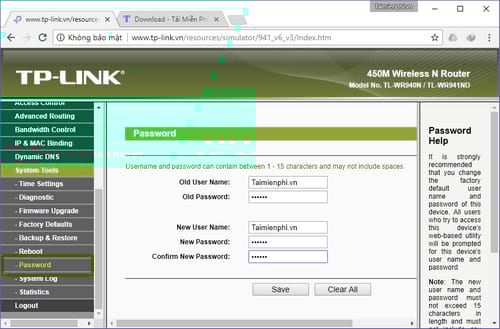
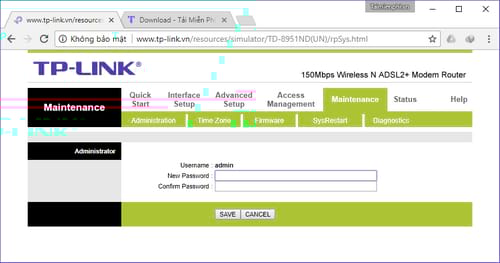
These screens change the administrator login, not necessarily the Wi-Fi password. Consult the manual for the exact model and hardware revision if the labels differ.
Use the TP-Link Tether app
For compatible products, TP-Link Tether can change wireless settings without navigating the web interface. Connect the phone to the router, open the router in Tether, and look under Wireless for the Wi-Fi name and password. The administrator credential is commonly under More > System > Manage Password or Tools > System > Login Account. Confirm compatibility on TP-Link's official Tether page.
If you forgot a password
- Forgot only the Wi-Fi password: sign in to the router over Ethernet and view or replace it in Wireless settings.
- Forgot the local administrator password: try the configured recovery option or linked TP-Link ID if the model supports it. Otherwise, a factory reset may be required.
- Forgot a TP-Link cloud-account password: use the account's Forgot Password flow; do not factory-reset the router before checking whether the problem is only the cloud login.
A factory reset erases custom configuration and may remove internet-provider settings, so treat it as a last resort. TipsMake's TP-Link Wi-Fi 6 setup guide can help after a reset.
Security checks after the change
Use different credentials for Wi-Fi and administration, disable remote administration unless you need it, and install firmware only for the exact hardware revision. Save both passwords in a password manager. If unknown devices keep returning, review how to prevent unauthorized Wi-Fi access.
Related Articles
 How to Change the Tp-link Wi-Fi Password?3 minutes read
 How to Change Wi-Fi Password, Change Wi-Fi Pass Vnpt, Fpt, Tenda7 minutes read
 How to Change Your Viettel Wi-Fi Password7 minutes read
 How to Change the TP-Link Wi-Fi Password: Step-by-Step Guide2 minutes read
 Change Wi-Fi Password: How to Change Vnpt Wi-Fi Password5 minutes read
 Change Wi-Fi Password: 2 Steps to Change Linksys Wi-Fi Password2 minutes read
Reader Comments 0
Sign in with email or Google to join the discussion.