Table of Contents
Windows can show the password for a Wi-Fi network saved on your own PC. In current Windows 11 builds, the quickest route is Settings > Network & internet > Wi-Fi. Windows 10 and older Windows 11 versions can use Wireless Properties or the built-in netsh command.
Only reveal credentials for a network you own or are authorized to use. Anyone who can sign in to the Windows account and pass the required security checks may be able to view saved network details, so lock the PC when it is unattended.
Fastest method in current Windows 11
- Open Settings.
- Select Network & internet > Wi-Fi.
- For the network currently in use, open Properties. For another saved network, choose Manage known networks and select its name.
- Next to Wi-Fi network password, select Show.
- Authenticate if Windows asks you to confirm your identity.
Some versions also display a QR code that another device can scan. Microsoft's current Wi-Fi instructions cover both the connected network and saved profiles.
Use Wireless Properties in Windows 11 or 10
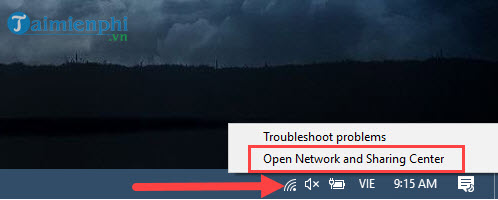
If the Show option is absent from Settings, the classic Control Panel route still works for the active Wi-Fi connection:
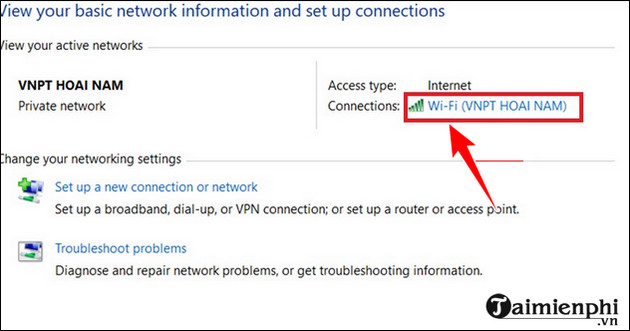
- Open Control Panel > Network and Internet > Network and Sharing Center.
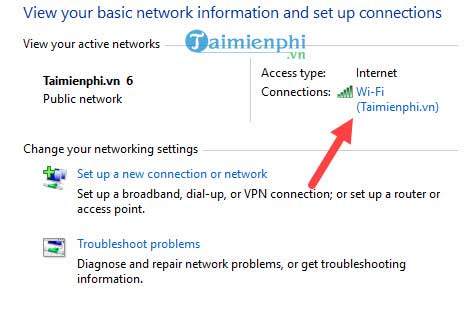
- Next to Connections, select the current Wi-Fi network name.
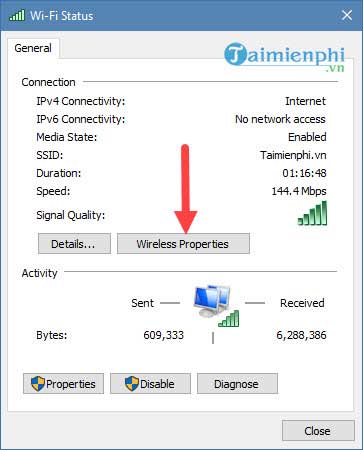
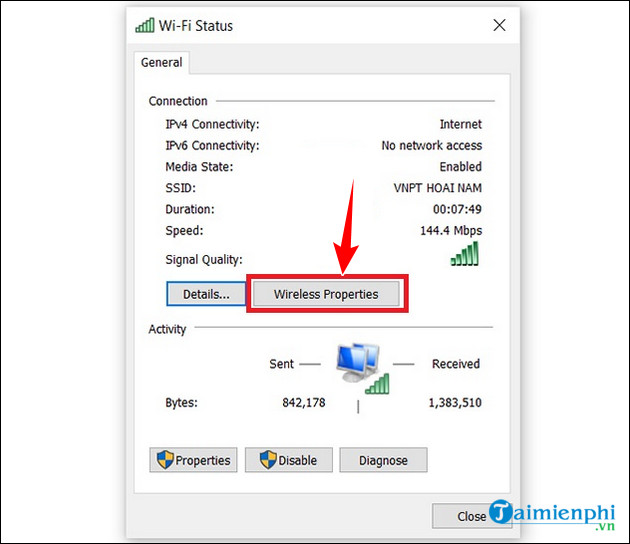
- In Wi-Fi Status, select Wireless Properties.
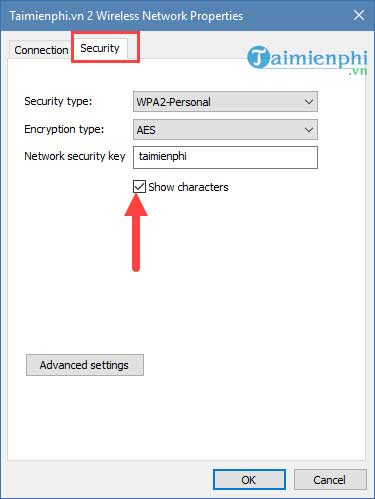
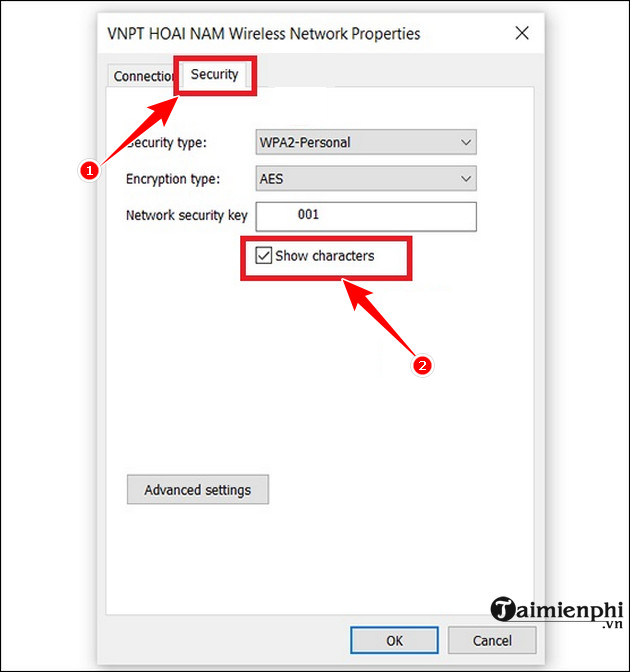
- Open the Security tab.
- Select Show characters. The password appears in Network security key.
The following screenshots show the older Windows 10 layout, but the Wireless Properties dialog remains recognizable.
Open Wireless Properties with the Run dialog
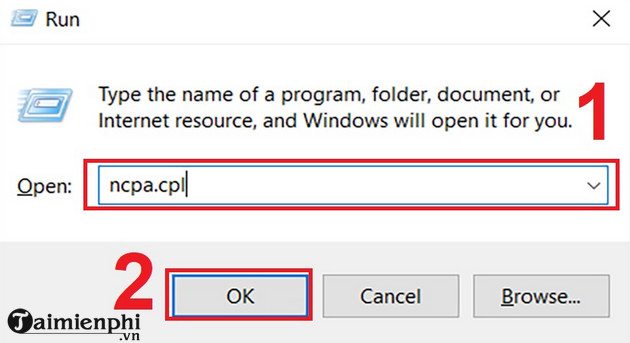
This is a shortcut to the same classic network interface:
- Press Windows + R, enter
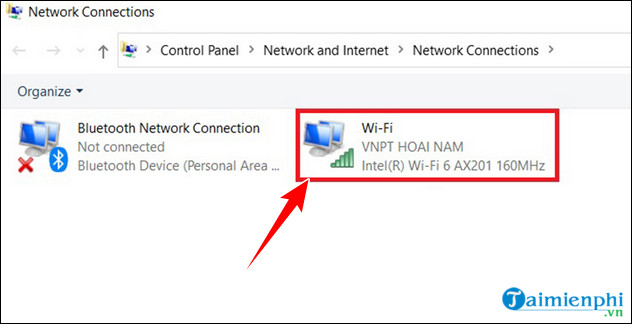
ncpa.cpl, and press Enter. - Double-click the active Wi-Fi adapter.
- Select Wireless Properties.
- Open Security, then select Show characters.
Find a saved password with Windows Terminal
The built-in netsh command is useful when you need a profile that is not currently connected.
- Open Windows Terminal or Command Prompt. If the key is not displayed, reopen it with Run as administrator.
- List saved profiles:
netsh wlan show profiles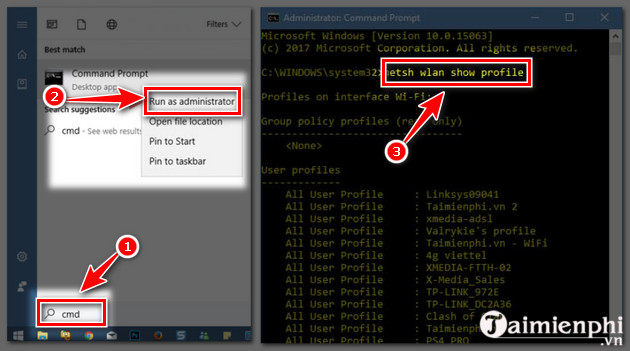
- Replace
NETWORK NAMEwith the exact profile name:
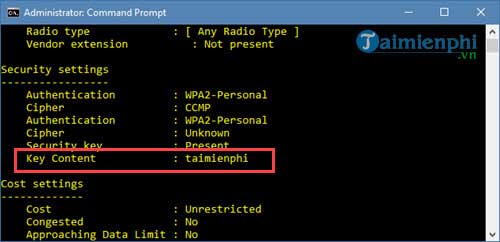
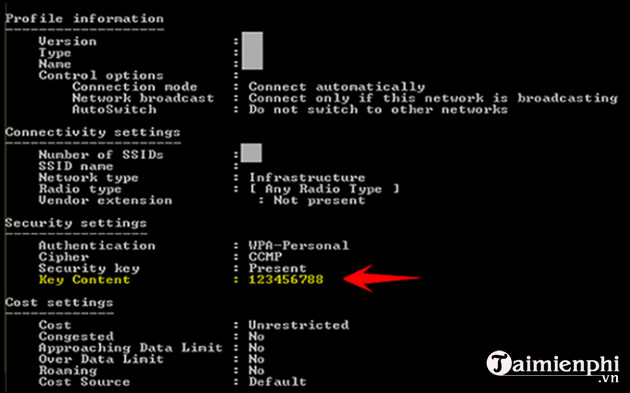
netsh wlan show profile name="NETWORK NAME" key=clear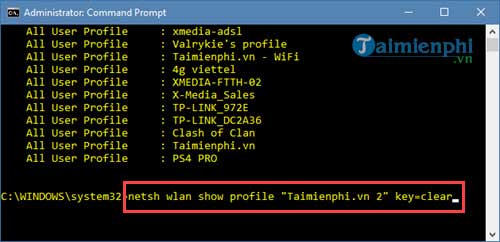
- Under Security settings, read Key Content. If that line is missing, the network may not use a stored personal password, or the current account may lack permission.
PowerShell notes
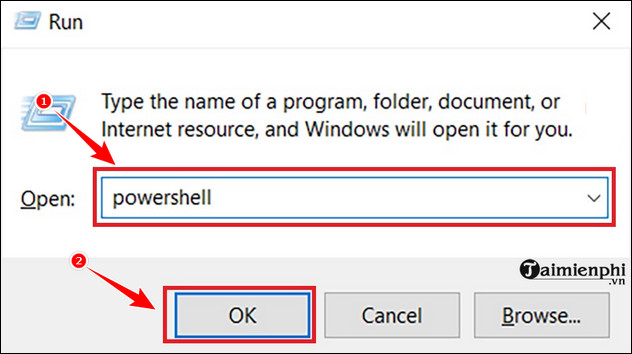
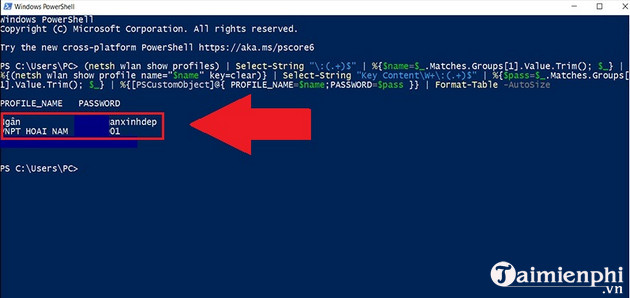
PowerShell can run the same netsh commands. Press Windows + R, enter powershell, and use the two commands above. Avoid scripts from unknown websites that dump every saved credential at once; reveal only the network you need and close the terminal afterward.
Windows 7 and 8: legacy instructions
Windows 7 and 8 are no longer suitable for general internet use without specialized extended support. The following steps are retained for an offline legacy machine:
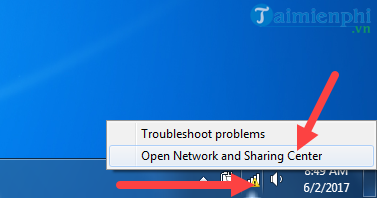
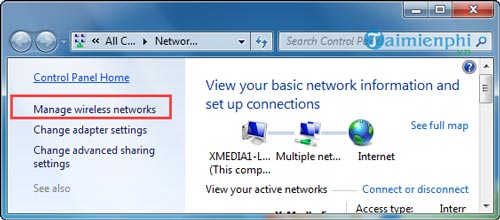
- Select the network icon and open Network and Sharing Center.
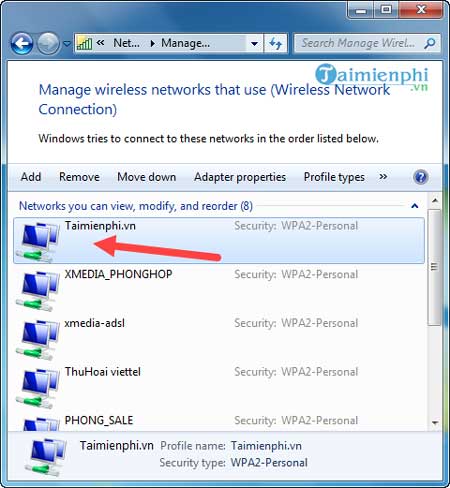
- Choose Manage wireless networks.
- Open the saved network's properties.
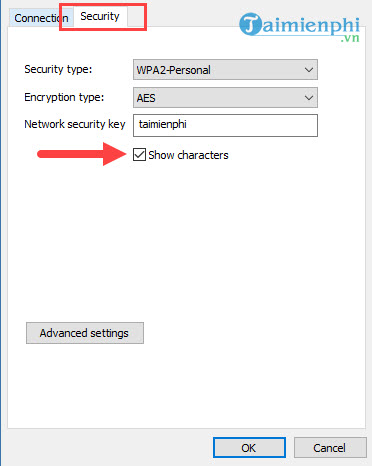
- On the Security tab, select Show characters.
Windows XP: archived command example
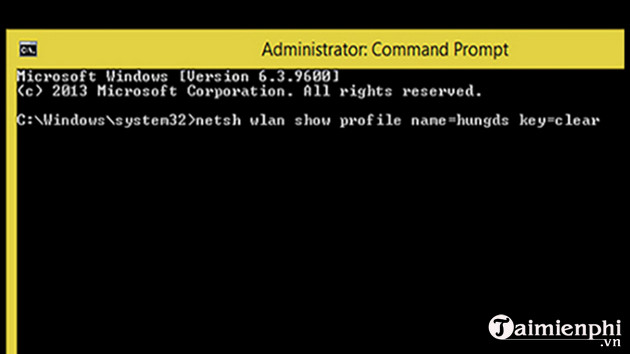
Windows XP is obsolete and should not be connected to the modern internet. On a legacy system that includes compatible wireless components, the old netsh wlan syntax may resemble the current command, but support varies by service pack and adapter. The screenshots are kept only for historical reference.
How to forget a saved Wi-Fi network
Forgetting a profile removes its stored connection details from that PC. It does not change the router password or disconnect other devices.
Windows 11 and 10
- Open Settings > Network & internet > Wi-Fi.
- Select Manage known networks.
- Find the network and select Forget.
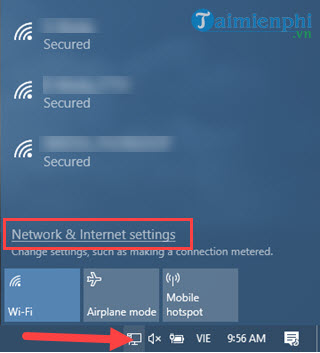
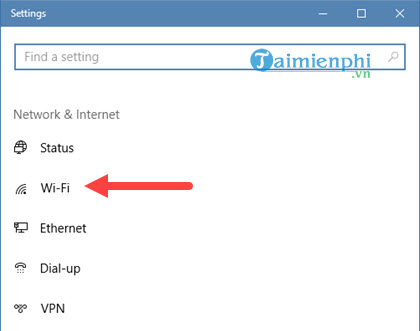
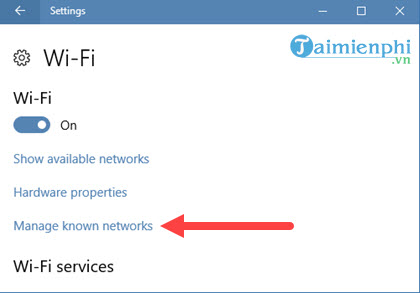
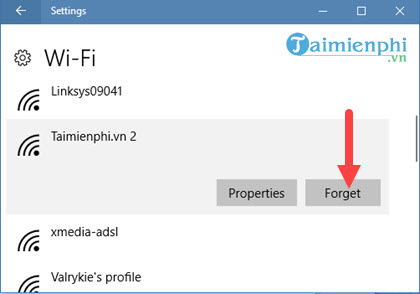
Microsoft recommends the same route when troubleshooting an authentication error. After forgetting the profile, select the network again and enter the current password. TipsMake's Windows 11 Wi-Fi troubleshooting guide covers additional causes of connection failure.
Windows 7 and 8
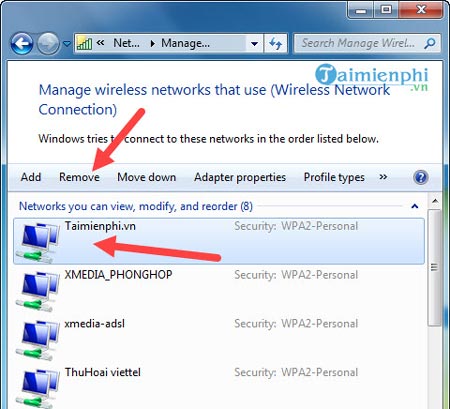
Open Manage wireless networks, select the profile, and choose Remove. This screenshot shows the legacy Windows 7 control panel.
Keep the recovered password secure
Do not paste a Wi-Fi password into a public document or send it through an untrusted channel. Store it in a password manager or share access with a QR code when possible. If people who should no longer have access know the password, change it in the router rather than merely forgetting the network on your PC.
Related Articles
 How to View Saved Wi-Fi Passwords on Windows 7/8/103 minutes read
 How to View Saved Wi-Fi Password on Windows - If You Accidentally13 minutes read
 How to View Connected Wi-Fi Password on Phone, Computer5 minutes read
 Forgot Your Saved Wi-Fi Password?6 minutes read
 How to See the Wi-Fi Password Is Connected on the Computer and Phone7 minutes read
 3 Ways to View Connected Wi-Fi Passwords on Your Android or iPhone Phone10 minutes read
Reader Comments 0
Sign in with email or Google to join the discussion.