Table of Contents
You can change a Viettel Wi-Fi password through the My Viettel app or the modem's local administration page. The app is the simplest option for a supported Viettel Internet contract; the browser method is useful when app-based modem management is unavailable.
Changing the password disconnects every wireless device. Keep a phone or computer connected by Ethernet if possible, and have the new password ready before saving.
Method 1: Change the password in My Viettel
- Update and open the My Viettel app.
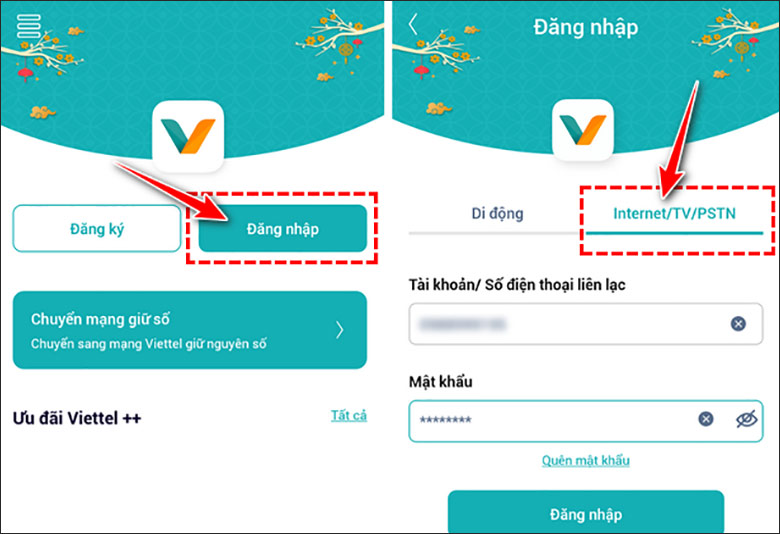
- Choose Log in, select the Internet/TV/PSTN service, and sign in with the phone number registered to the Internet contract.
- If the account has more than one contract, use the selector below the account name to choose the correct Internet contract.
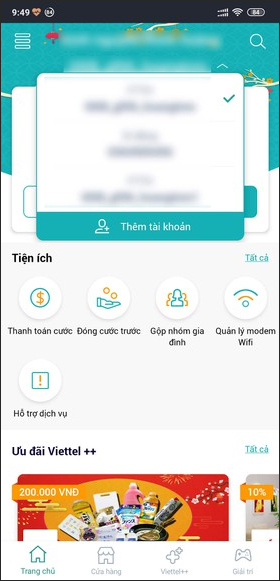
- Open Manage Wi-Fi modem.
- Choose Change Wi-Fi password, enter the new password, confirm it, and submit the change.
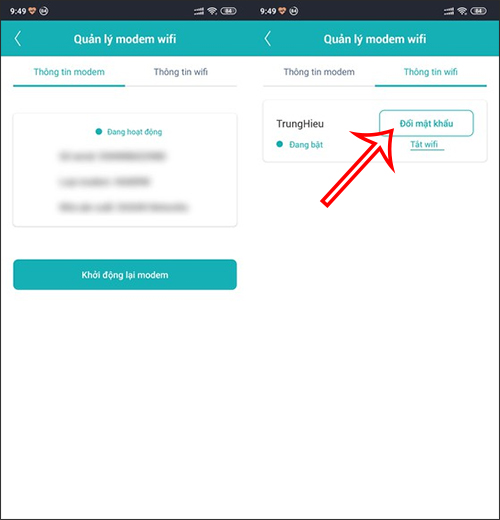
Wait for the modem to apply the setting, then reconnect phones, computers, TVs, cameras, and smart-home equipment with the new password. My Viettel menu names can vary slightly by app version.
Method 2: Change the password on a ZTE F670Y or similar modem
1. Find the modem login information
Check the label on the underside or rear of the modem. Record the management address, administrator username, and administrator password. The admin password is not necessarily the same as the current Wi-Fi password, and it may be unique to the device.
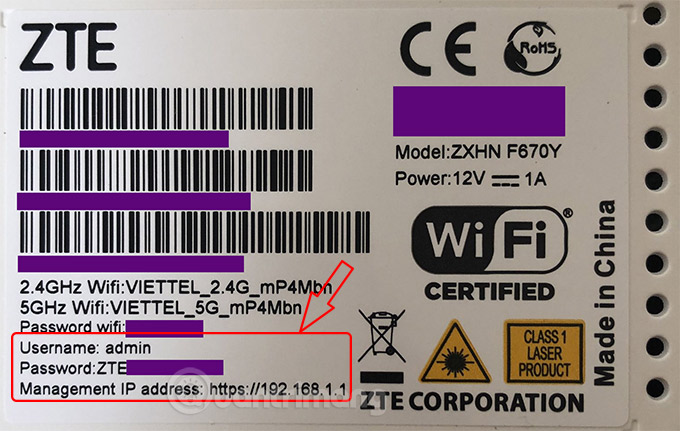
2. Sign in to the local page
- Connect to the Viettel modem by Wi-Fi or Ethernet.
- Open the management address printed on the label.
http://192.168.1.1is common, but use the device's actual gateway. - Enter the admin credentials from the label or the credentials previously configured by the account holder.
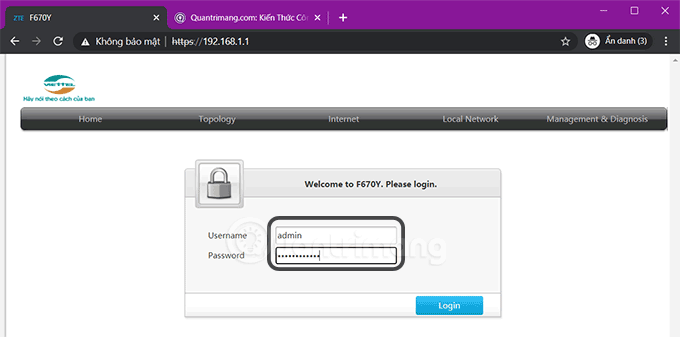
Do not repeatedly try generic passwords. If the credentials were changed and are unknown, contact Viettel support. A factory reset can erase ISP-specific configuration, so do not reset the modem solely to recover the admin password unless Viettel instructs you to do so.
3. Open the wireless settings
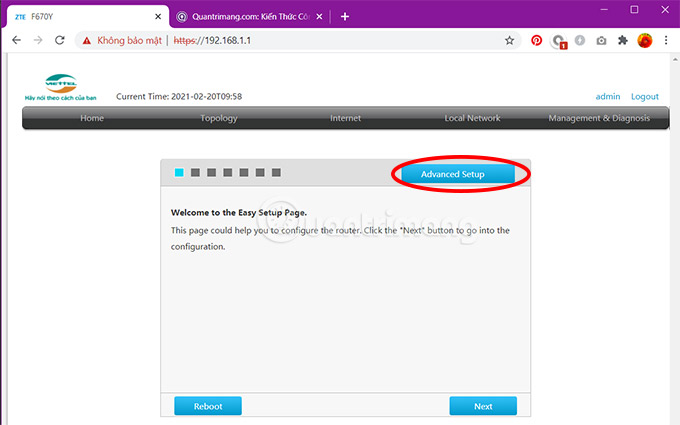
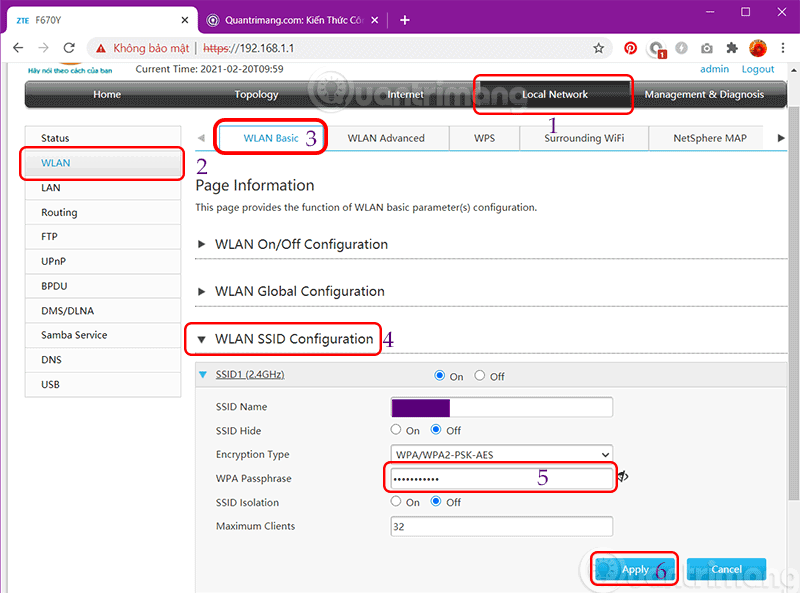
Select Advanced Setup, then open Local Network > WLAN > WLAN Basic. Expand WLAN SSID Configuration.
4. Set and save the new password
- Select the correct SSID. Dual-band modems may list separate 2.4GHz and 5GHz networks.
- Find WPA Passphrase, Pre-Shared Key, or Password.
- Enter a unique password of at least 12 characters when the modem permits it.
- Choose Apply or Save.
- Repeat for another SSID if the bands use separate passwords.
Method 3: Older Viettel modem interfaces
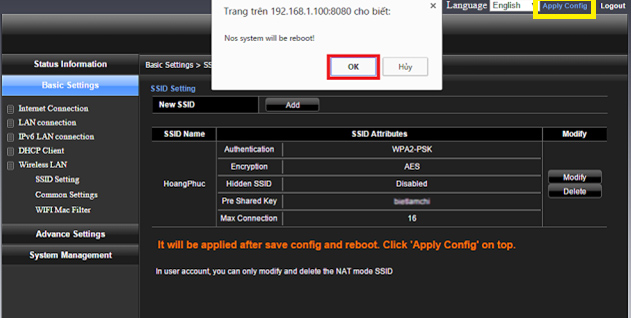
Older equipment may use a different address and menu. For example, some H640W installations used http://192.168.1.100:8080. Confirm the gateway and credentials on the modem label rather than assuming that address or a universal admin/admin login.
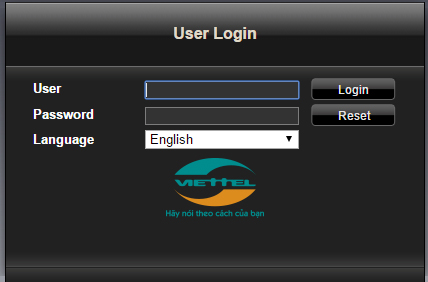
After signing in, look for one of these paths:
- Basic Settings > Wireless LAN > SSID Setting
- Network > WLAN > Security
- Wireless > Wireless Security
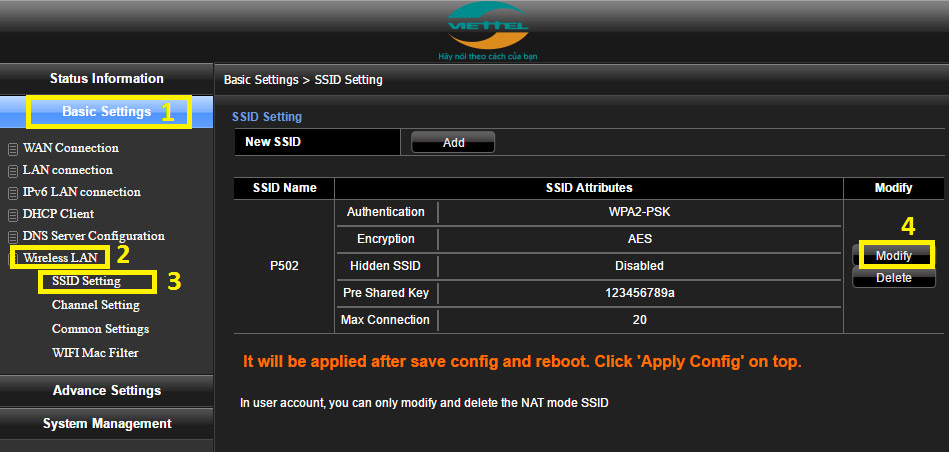
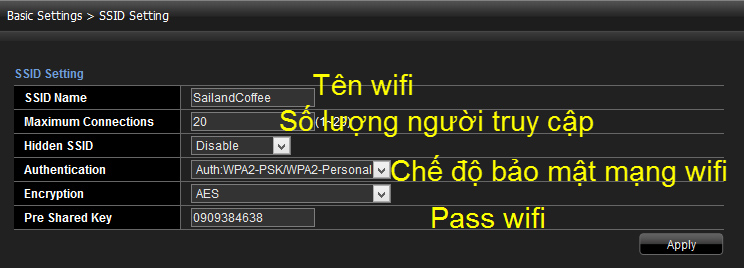
Select the Wi-Fi network, then change Pre-Shared Key, WPA/WAPI Passphrase, or the equivalently named password field. Change the SSID only if you also want a new network name.
Choose Apply Config, Apply, or Save. Restart only if the interface requests it or the new setting does not take effect.
Choose a secure Wi-Fi password
- Use at least 12 characters when supported.
- Prefer a long, unique passphrase that is not used for email, banking, or other accounts.
- Avoid names, phone numbers, addresses, contract numbers, and predictable patterns.
- Use WPA3-Personal if every required device supports it; otherwise use WPA2-Personal with AES.
- Do not enable WEP, WPA/TKIP, or WPS PIN to accommodate an obsolete device.
If devices will not reconnect
- Forget the old network profile on the device.
- Select the correct SSID and enter the new password carefully.
- Check whether 2.4GHz and 5GHz were configured separately.
- Restart the client device and, if necessary, the modem.
- For an offline camera or smart plug, follow that device's Wi-Fi setup process again.
If you cannot access the modem
- Confirm the device is connected to the Viettel modem rather than mobile data or another router.
- Use the default gateway shown in the phone or computer's network details.
- Try the My Viettel app instead of guessing admin credentials.
- Contact Viettel's fixed broadband support at 1800 8119 for the current access method.
Viettel's official modem login guide confirms the My Viettel and local-admin options. For other router brands or providers, use the broader TipsMake Wi-Fi password guide, then review more Wi-Fi security and troubleshooting articles.
Related Articles
 How to Changing Viettel Wi-Fi Modem Password3 minutes read
 How to Change Wi-Fi Password, Change Wi-Fi Pass Vnpt, Fpt, Tenda7 minutes read
 Change Wi-Fi Password: 2 Steps to Change Linksys Wi-Fi Password2 minutes read
 The Easiest Way to Change Your FPT Wi-Fi Password on a Computer or Phone5 minutes read
 How to Change Wi-Fi Dlink Password for Network Operators3 minutes read
 How to Connect Wifi Device22 minutes read
Reader Comments 0
Sign in with email or Google to join the discussion.