Table of Contents
Windows uses blue and red to display spelling errors in Word. If you want to change the underline color of the spelling check in Word, follow the article below.
Windows uses blue and red to indicate spelling errors in Word. With Windows 365, you can choose spelling underline colors like purple for contextual corrections. All these options are coded in the program and are not visible on the Options screen. In case you want to change the spelling underline color in Word, follow the article below.
Change underline color of Word spell check using Registry Editor
Step 1:
First, Open the Registry Editor interface And then access the path below.
ComputerHKEY_CURRENT_USERSoftwareMicrosoftShared ToolsProofing Tools
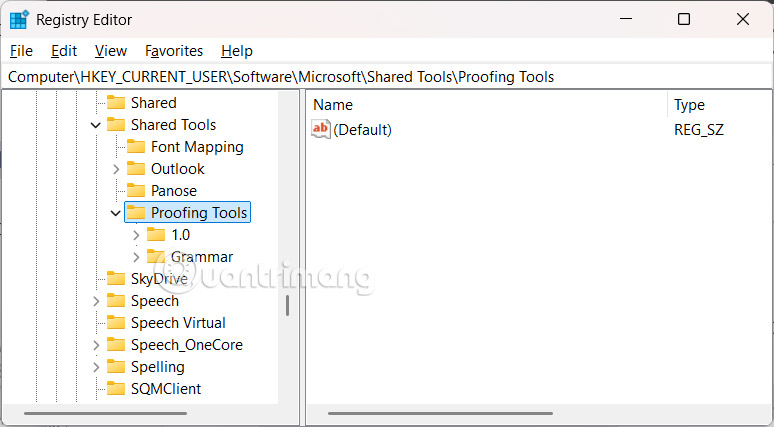
Step 2:
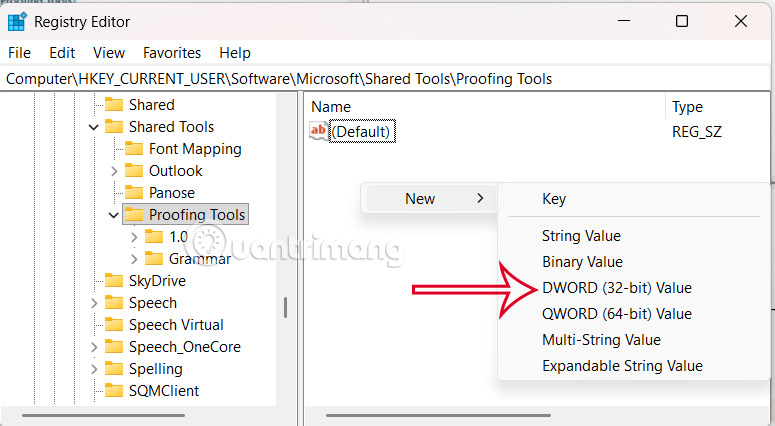
In the right pane, right-click on the blank space in the pane and Select New then select DWORD Value .
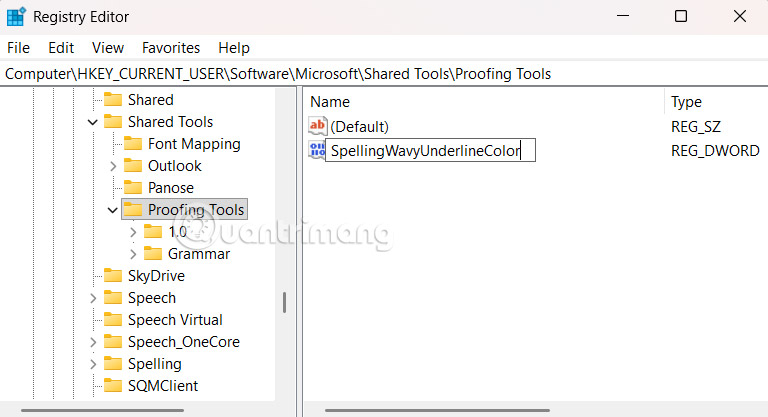
Enter SpellingWavyUnderlineColor As the name for the value.
Step 3:
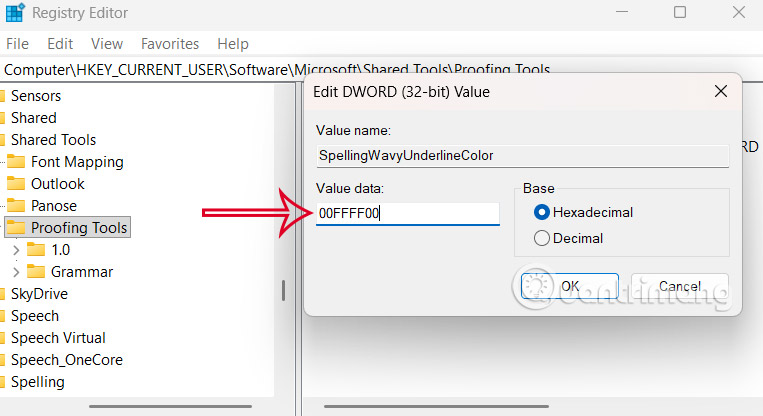
Double-click the SpellingWavyUnderlineColor value , then Select Hexadecimal . Now you need To enter the RGB color you want to change into Value data And then click OK. This value will change the underline color of the spelling check in Word.
You can refer to the color code table In this guide.
- Standard color code table for programmers and designers
You continue to create the following values with the above operations.
- GrammarWavyUnderlineColor: change the color of underlined grammar errors.
- ContextualSpellingWavyUnderlineColor: change the underline color of spelling differences based on context.
Finally restart your computer for the changes to take effect.
FAQ
How do you change the underline color of word spell check: step-by-step guide?
In practical terms, Windows uses blue and red to display spelling errors in Word. If you want to change the underline color of the spelling check in Word, follow the article below.
What should you check before getting started?
Review the requirements, compatible device or software version, and any warnings described in the guide before making changes.
What should you do if the steps do not work?
Repeat the steps in order, confirm that your app or system is up to date, and review the troubleshooting details provided above.
Related Articles
 How to Turn Off Spell Check in Word - Turn Off Red Underline in Word4 minutes read
 How to Remove Red Underline in Word, Turn Off Red Underline Spell4 minutes read
 How to Easily and Effectively Remove Red Underlines in Word4 minutes read
 How to Turn Off Spell Checking in Word, Powerpoint (Remove the Red2 minutes read
 How to Remove the Underline, Delete the Red Brick, Blue Brick Under4 minutes read
 How to Turn Off Spell Checking in Word3 minutes read
Reader Comments 0
Sign in with email or Google to join the discussion.