Table of Contents
This practical guide explains how to change Google password on computer, phone. Follow the steps in order, review the requirements first, and use the troubleshooting notes when a setting or option does not work as expected.
How to changing Google password on PC
Step 1:
First, users access the link below to enter the Google Account Management interface.
- Google Account Management
Step 2:
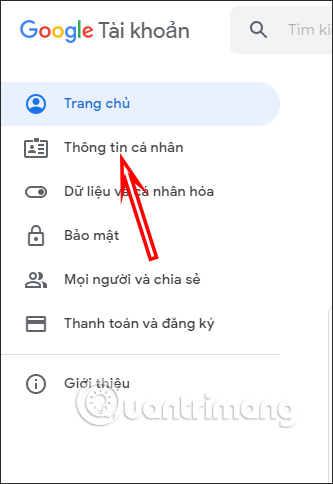
Then at this interface, look to the list on the left side of the screen and select Personal Information to manage all your personal Google account information.
Step 3:
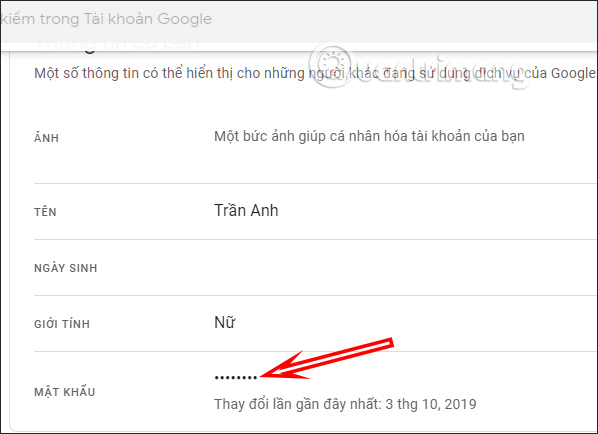
Switch to the new interface, here you will see all your personal account information. Look down at the Password section and click to change. At this time you will be asked to re-enter your password to confirm your identity.
Step 4:
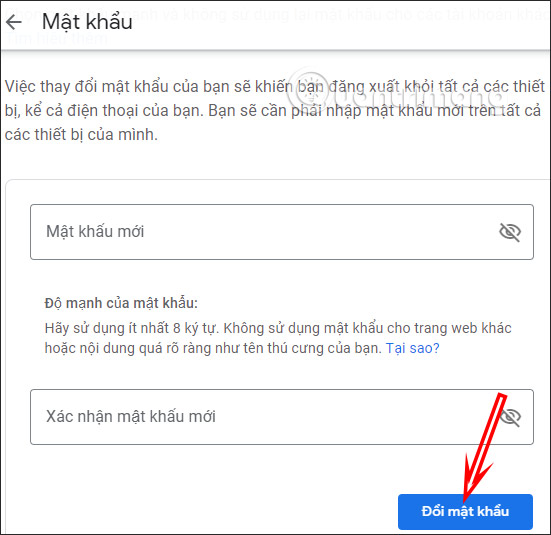
Display the Google account password change interface. First, enter the new password , then confirm the new password again. Finally, click Change password below to save.
After changing your password, we will log out of all devices, including your phone.
How to changing Google Android password
Step 1:
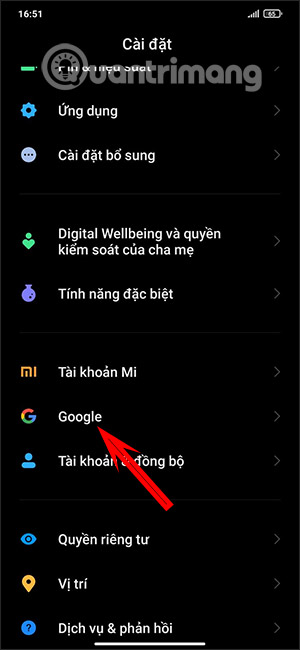
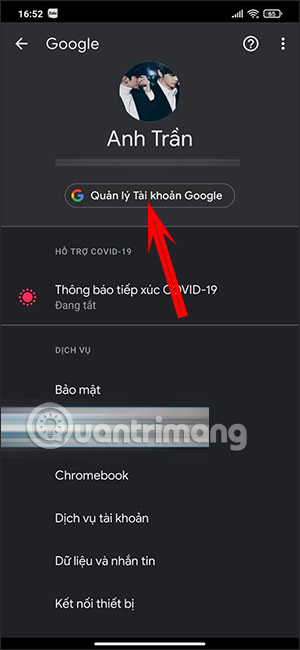
You open Settings on the device, then scroll down, select Google . Then we continue to select Google Account Management .
Step 2:
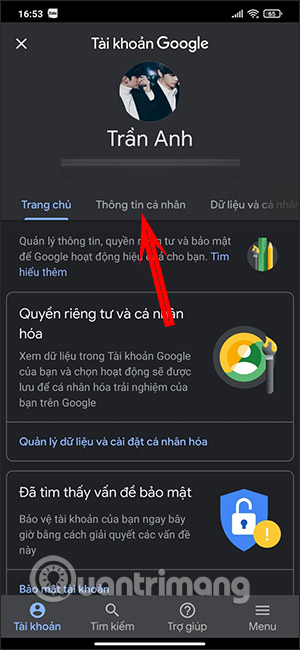
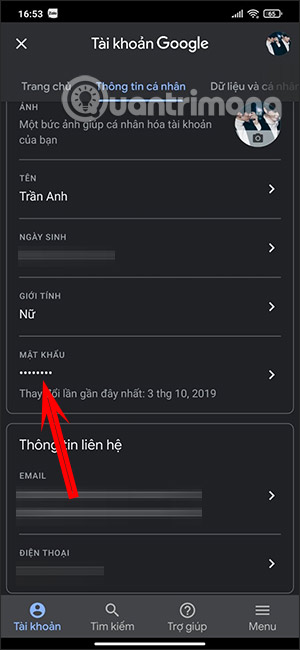
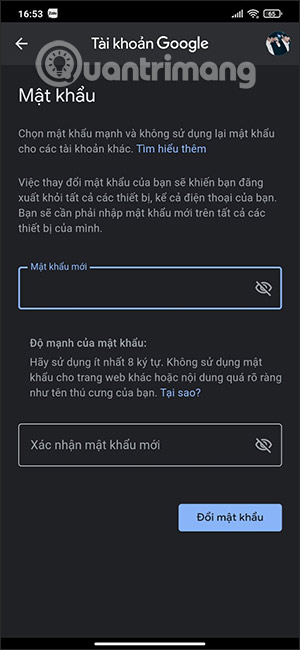
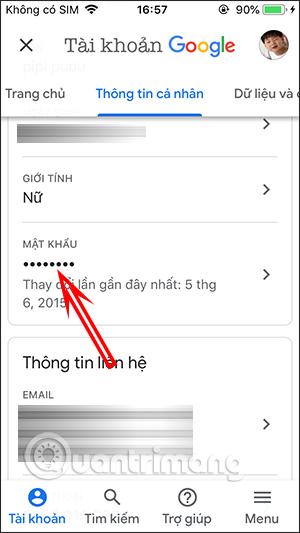
In the new interface, users select Personal Information , then also select Password to proceed with the change. Finally, you enter the new password to change.
How to change Google password on iPhone
Step 1:
On iPhone, you can use the Gmail app or access the Google account management website in part 1.
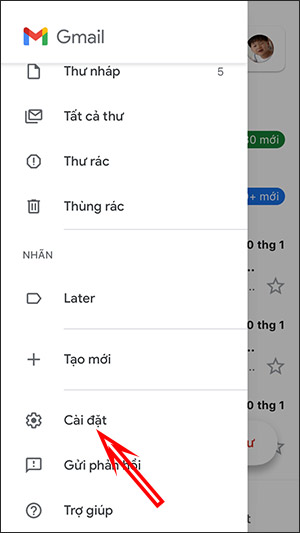
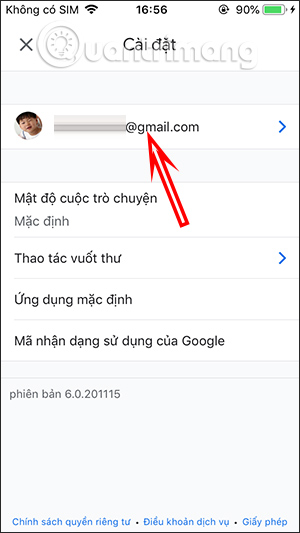
At the Gmail interface, select the 3-dash icon and select Settings . select the email address whose password you want to change.
Step 2:
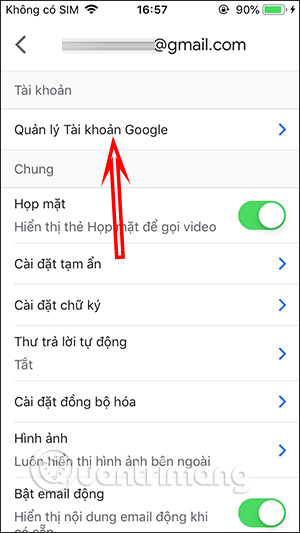
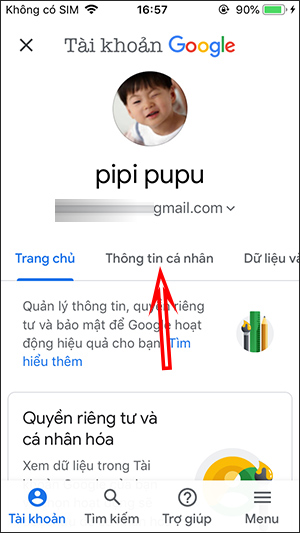
Continue to select Manage Google Account and then select Personal Information . Then you also select Password and proceed to change the password.
FAQ
How to changing Google password on PC?
First, users access the link below to enter the Google Account Management interface.
How to changing Google Android password?
You open Settings on the device, then scroll down, select Google. Then we continue to select Google Account Management.
How to change Google password on iPhone?
On iPhone, you can use the Gmail app or access the Google account management website in part 1.
Related Articles
 How to Change Your Computer, Phone and Mac Passwords4 minutes read
 How to Change Your Wi-Fi Password Using an iPhone6 minutes read
 How to Change Your Computer Password for the Most Popular Operating Systems7 minutes read
 Change Your Facebook Password on Your Phone, How to Change Mk Fb5 minutes read
 How to Change or Reset Your Spotify Password7 minutes read
 How to Change Your Viettel Wi-Fi Password7 minutes read
Reader Comments 0
Sign in with email or Google to join the discussion.