Table of Contents
The way to change a computer login password depends on the operating system and account type. On Windows, the password may belong to a Microsoft account, a local account, or an organization. On macOS it belongs to a local user account, while most Linux systems use the passwd command or a desktop account panel.
These steps assume you know the current password. A forgotten password requires the platform's recovery process and identity checks.
Change a password in Windows 11 or Windows 10
- Press Windows-I to open Settings.
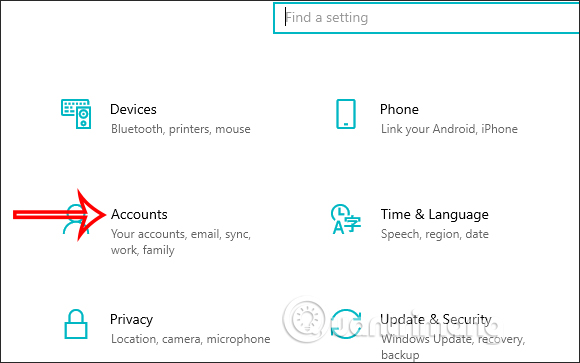
- Select Accounts > Sign-in options.
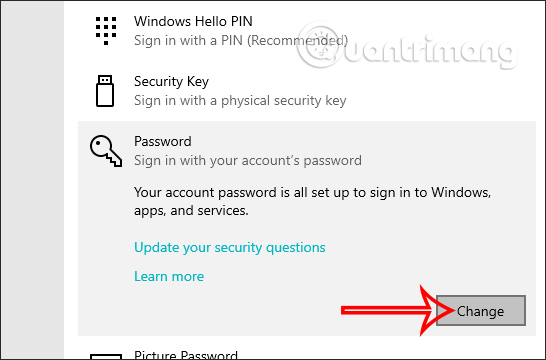
- Expand Password and select Change.
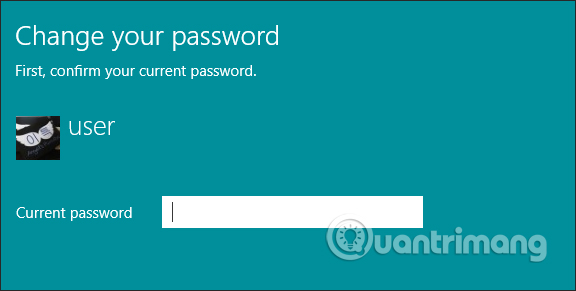
- Enter the current password when Windows asks for it.
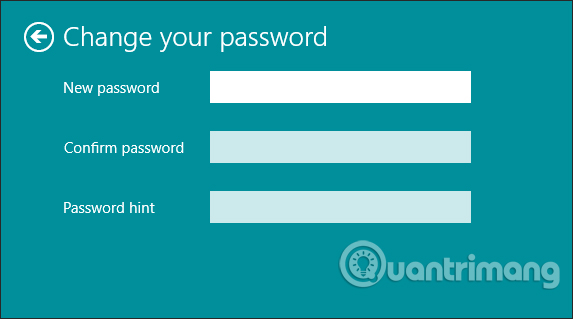
- Enter and confirm the new password, then complete the wizard.
If you sign in with a Microsoft account, this changes the Microsoft account password used across Microsoft services, not only the current PC. A local account password applies only to that Windows account on that device. Work or school accounts may be controlled by an organization's password policy; use the approved self-service portal or contact the administrator if the option is unavailable.
Password and PIN are different
A Windows Hello PIN is tied to a particular device and is not the same as the account password. To change it, open Settings > Accounts > Sign-in options > PIN (Windows Hello) and select Change PIN. From the sign-in screen, use I forgot my password or I forgot my PIN for the matching credential.
If the option is hidden, confirm whether the account is personal, local, or organization-managed before attempting a reset.
Change a Mac login password
- Open Apple menu > System Settings.
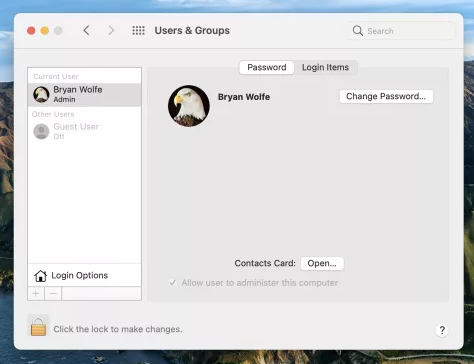
- Select Users & Groups, then click the information button beside your account.
- Choose Change, enter the old login password, and enter the new password twice.
- Add a safe hint and confirm the change.
On macOS Monterey or earlier, use System Preferences > Users & Groups. The older interface is shown below.
The Mac login password is not the Apple Account password used for iCloud and the App Store. An administrator can reset a different local user's password, but that reset may leave the user's old login keychain inaccessible. If you have forgotten your own password, use the reset message at the login window or macOS Recovery instead of trying random utilities.
If the current login password is unknown, use the authorized recovery path described in this forgotten-password guide.
Change a Linux password
On most Linux distributions, open a terminal and run:
passwdEnter the current password, then type the new password twice. The terminal normally shows no characters while a password is being entered; this is expected.
An administrator with sudo permission can change another local user's password with:
sudo passwd USERNAMEReplace USERNAME with the real account name. This resets that user's password without requiring the old one, so use it only on a system you are authorized to administer. Directory-managed Linux accounts may require the organization's identity service rather than the local passwd command.
For account administration details, read how to set and change a Linux user password.
Legacy Windows 7 and Windows 8 steps
Windows 7 and Windows 8 are out of support and should not be used for routine internet-connected work. The following screenshots are retained for legacy or offline systems. Plan an upgrade rather than relying on password changes to make an unsupported operating system secure.
Windows 7
- Open Control Panel.
- Select User Accounts and Family Safety > User Accounts.
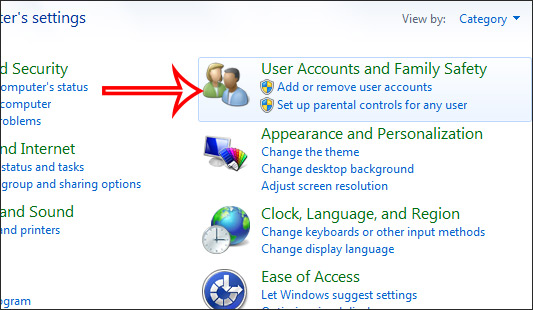
- Choose Change your password, enter the current and new passwords, and save the change.
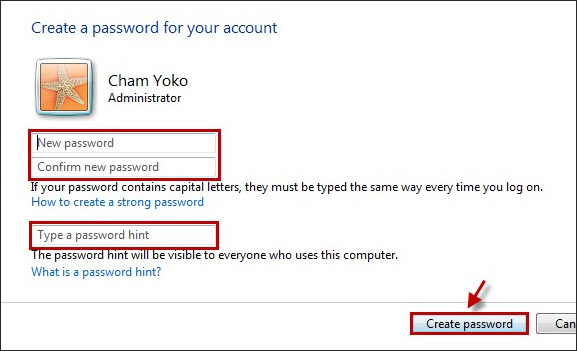
Windows 8
- Open the Settings charm and choose Change PC settings.
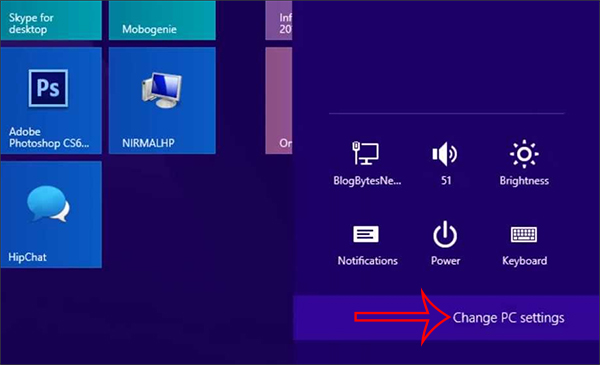
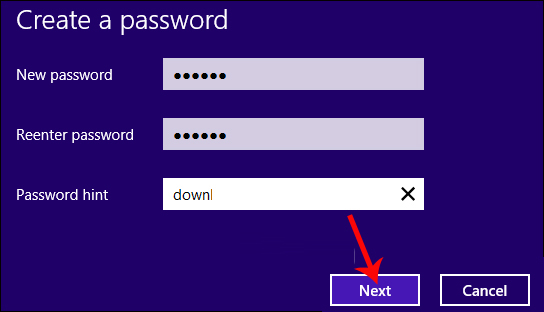
- Open Users or Accounts > Sign-in options, depending on the Windows 8 release, and choose Change your password.
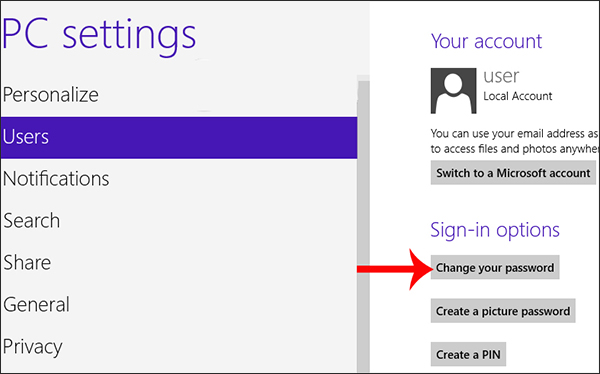
- Enter the old password, enter the replacement twice, and complete the prompt.
Use a stronger password without creating a lockout
- Use a long, unique password or passphrase for each account.
- Do not reuse the computer password for email, cloud storage, or banking.
- Store credentials in a reputable password manager rather than a plain-text note.
- Keep recovery information current before changing a Microsoft, Apple, or managed account password.
- After the change, lock the screen and test the new credential before restarting or signing out everywhere.
A strong password is only one layer of device security. Keep the operating system supported and updated, enable disk encryption, use automatic screen locking, and protect the account's recovery methods. This guide to setting a secure password covers the basics.
Related Articles
 How to Change Your Computer, Phone and Mac Passwords4 minutes read
 How to Set and Change a User Password in Linux6 minutes read
 How to Change Wi-Fi Password, Change Wi-Fi Pass Vnpt, Fpt, Tenda7 minutes read
 How to Change the Tp-link Wi-Fi Password?3 minutes read
 Change the Forgotten Password on Windows 86 minutes read
 How to Change Your Windows User Account Password on a Computer5 minutes read
Reader Comments 0
Sign in with email or Google to join the discussion.