Table of Contents
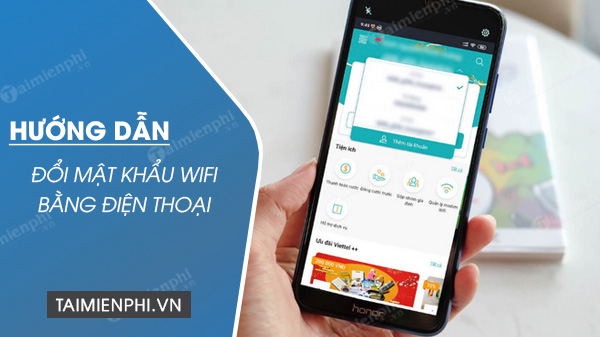
You can change a router's Wi-Fi password from any modern phone; the process is essentially the same on iPhone, Samsung, Oppo, and other Android devices. Use your internet provider's app when it supports modem management, or open the router's local administration page in a mobile browser.
Before you start
- Connect the phone to the Wi-Fi network you want to manage.
- Keep the internet contract's registered phone number available for OTP verification.
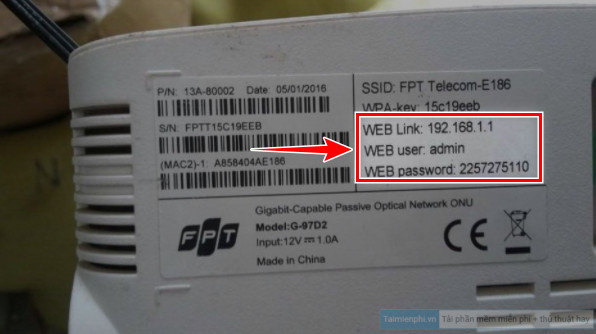
- Check the router label for its management address and administrator details.
- Choose a new password before editing the settings.
A password change disconnects every wireless device. Phones, computers, TVs, cameras, and smart-home products must reconnect with the new password. Changing it can remove people who should no longer have access, but it does not by itself fix weak signal or an internet-provider outage.
Method 1: Use your provider's mobile app
For provider-supplied routers in Vietnam, the official app is usually the simplest route because it avoids model-specific menus:
- FPT: open Hi FPT, select the internet contract, and use the Wi-Fi or modem-management option. FPT's current support page describes the route as the three-dot menu beside the Wi-Fi name, followed by Change Wi-Fi name and password.
- Viettel: sign in to My Viettel with the number associated with the service, open the Internet account and modem-management area, then select the Wi-Fi password option. See Viettel's official phone instructions.
- VNPT: sign in to My VNPT, choose the internet service and modem management, then open the wireless security settings. VNPT provides a current Wi-Fi password guide.
App labels may change after an update. Select the correct contract and network name before saving, especially if your account manages more than one location or separate 2.4GHz and 5GHz networks.
Method 2: Use the router's web page
- Open Safari, Chrome, or another browser on the connected phone.
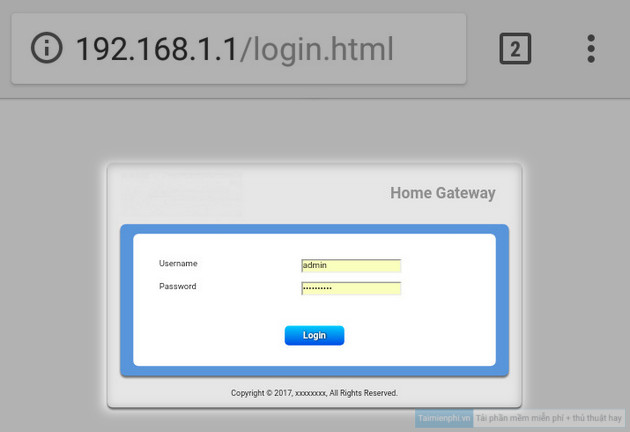
- Enter the management address printed on the router label. Common examples are 192.168.1.1, 192.168.0.1, and 192.168.100.1, but use the label or the network's router/gateway value rather than guessing.
- Sign in with the router administrator password. This is not necessarily the same as the Wi-Fi password, and modern routers often require a custom password created during setup.
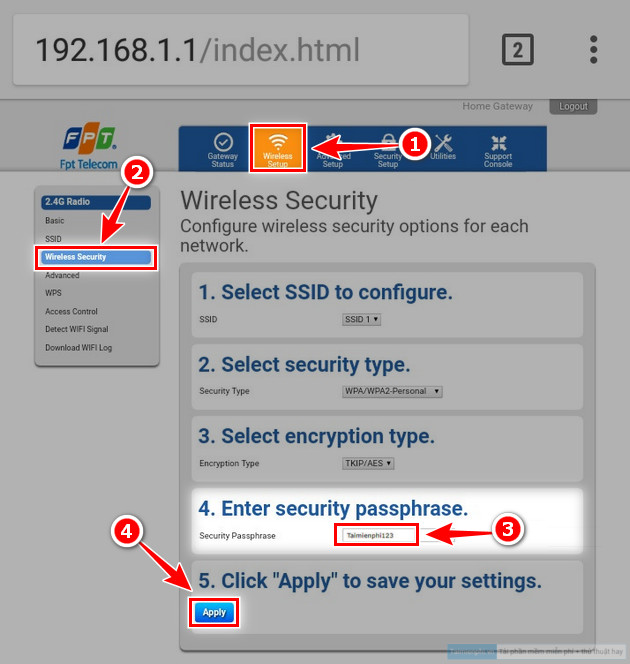
- Open a menu named Wi-Fi, Wireless, WLAN, or Network.
- Choose the correct band or network name, then open Security.
- Replace the value labeled Wi-Fi Password, Passphrase, Pre-Shared Key, or WPA Key.
- Tap Save or Apply and allow the router to restart if required.
If the page does not open, temporarily disable mobile data and any VPN so the browser stays on the local network. You can also use TipsMake's guide to find the router's default gateway. Do not factory-reset a provider router merely because you cannot remember the administrator password; ask the provider for recovery help first.
What about router manufacturer apps?
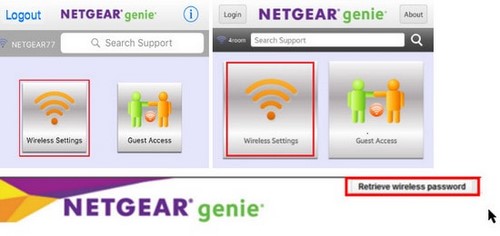
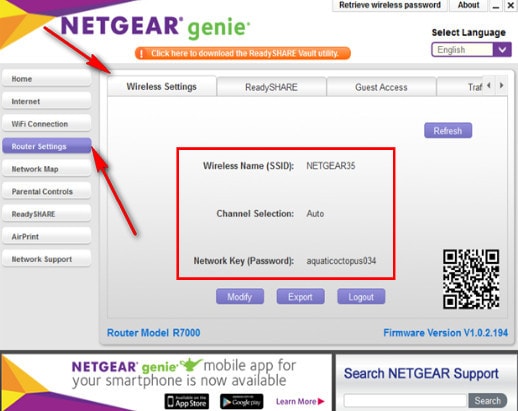
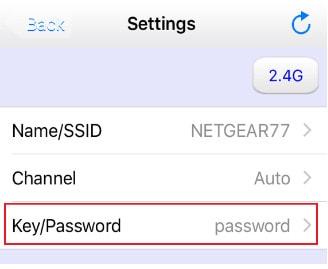
A manufacturer app can manage a compatible retail router, but it cannot configure every modem just because it is installed on the same phone. Use the app made for the exact router brand and model—for example, TP-Link Tether for supported TP-Link products or NETGEAR Nighthawk for supported NETGEAR products—and download it from the official app store.
The screens below come from an older NETGEAR utility. They are preserved to show the general idea, but the interface and supported products have changed.
Choose a safer Wi-Fi password
Use a long, unique password that is not based on your phone number, address, or network name. Select WPA2-Personal or WPA3-Personal when available and avoid WEP or obsolete WPA modes. Store the new credential in a password manager instead of reusing an account password.
Reconnect after the change
On each device, select the Wi-Fi network and enter the new password. If it keeps trying the old credential, choose Forget This Network or Forget, then join again. If you changed the 2.4GHz and 5GHz networks separately, verify that both have the intended password.
Unexpected devices returning after a password change may indicate that the credential was shared again or that another network is still open. Review TipsMake's steps for preventing unauthorized Wi-Fi access and disable WPS if you do not use it.
Related Articles
 How to Change Your Computer, Phone and Mac Passwords4 minutes read
 How to Create an Android Phone Password Changes Every Hour5 minutes read
 Change Your Facebook Password on Your Phone, How to Change Mk Fb5 minutes read
 Instructions to Change Garena Password on the Phone6 minutes read
 Samsung, Xiaomi, Huawei, Oppo and Nokia Timelines and Models Are3 minutes read
 List of Devices to Be Android 8 - Android O of Samsung, Huawei, LG9 minutes read
Reader Comments 0
Sign in with email or Google to join the discussion.