Table of Contents
This practical guide explains how to turn off automatic saving of screenshots to Google photos. Follow the steps in order, review the requirements first, and use the troubleshooting notes when a setting or option does not work as expected.
How to turn off automatic saving of screenshots to Google Photos
Step 1:
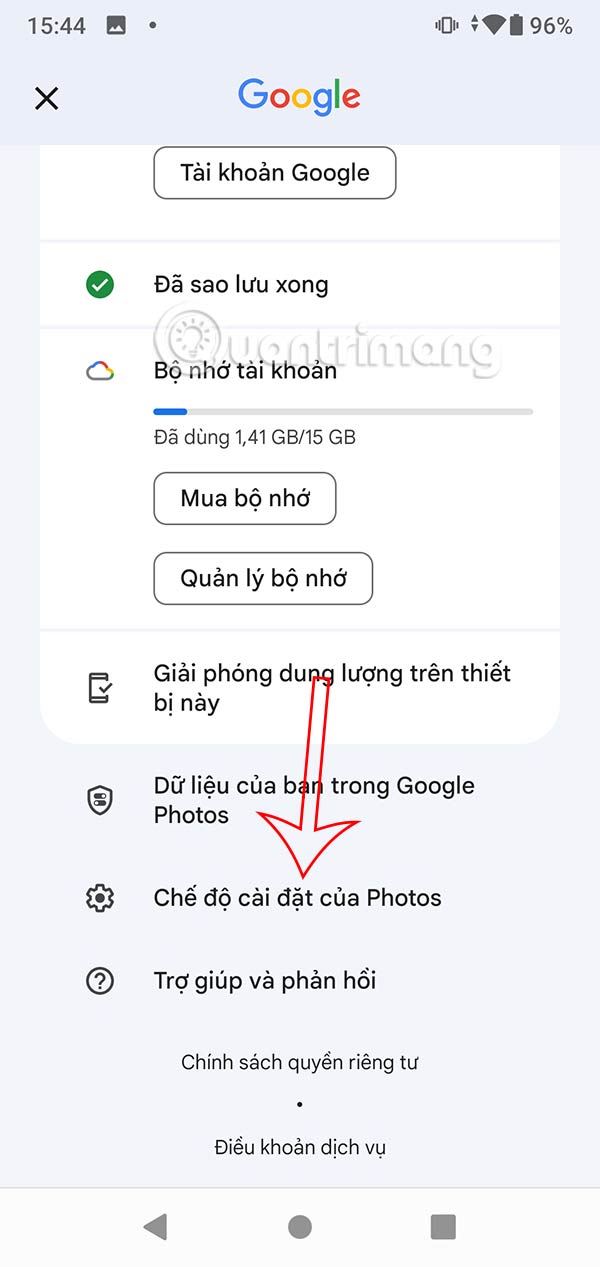
At the Google Photos application interface, select the avatar and select Photos Settings .

Step 2:
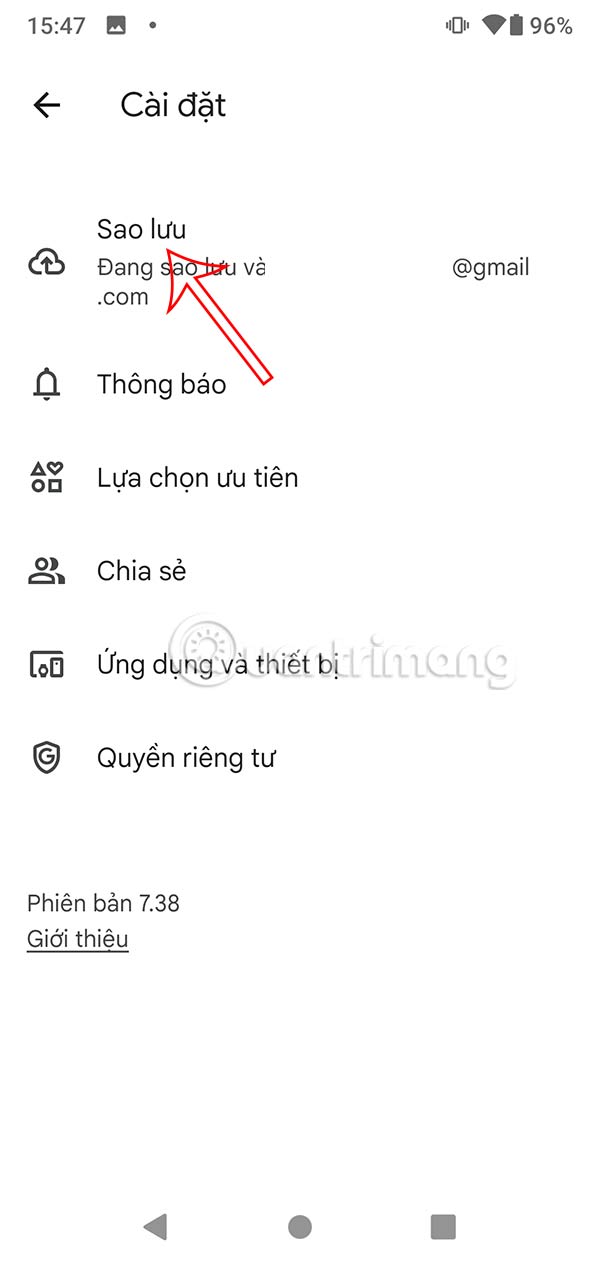
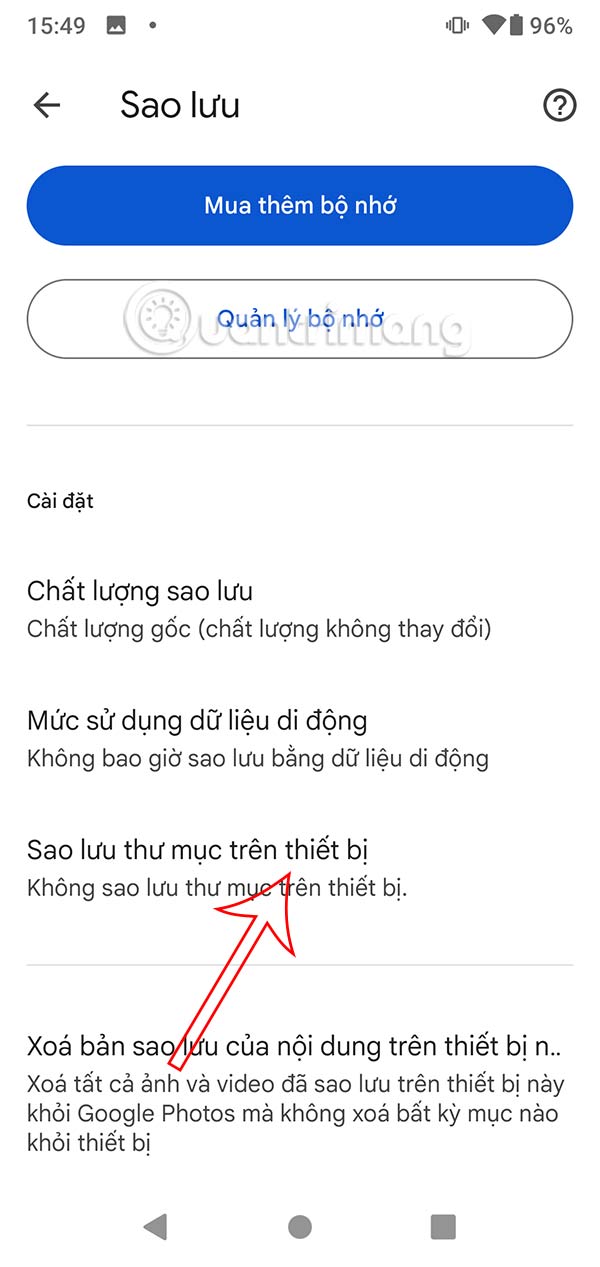
Go to the next interface, select Backup . Continue in the interface as shown, the user clicks on the Backup folder settings on the phone to adjust.
Step 3:
Now the user will see the items being backed up on Google Photos. We just need to turn off the Screenshots item .
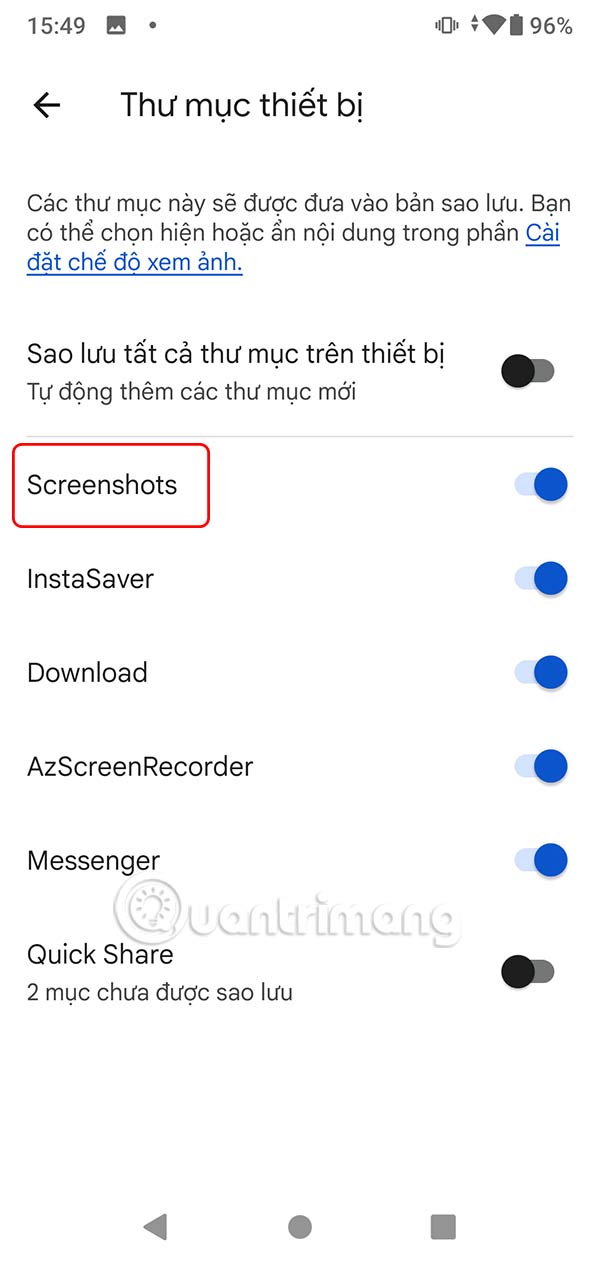
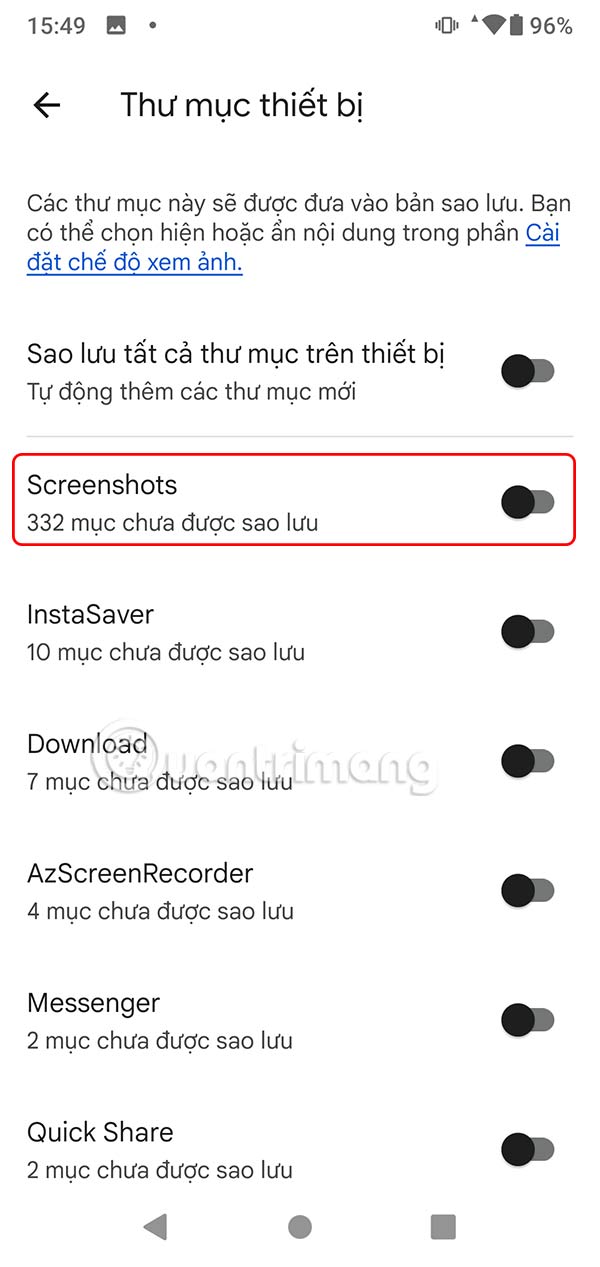
This way, future screenshots will no longer be automatically saved to Google Photos.
Step 4:
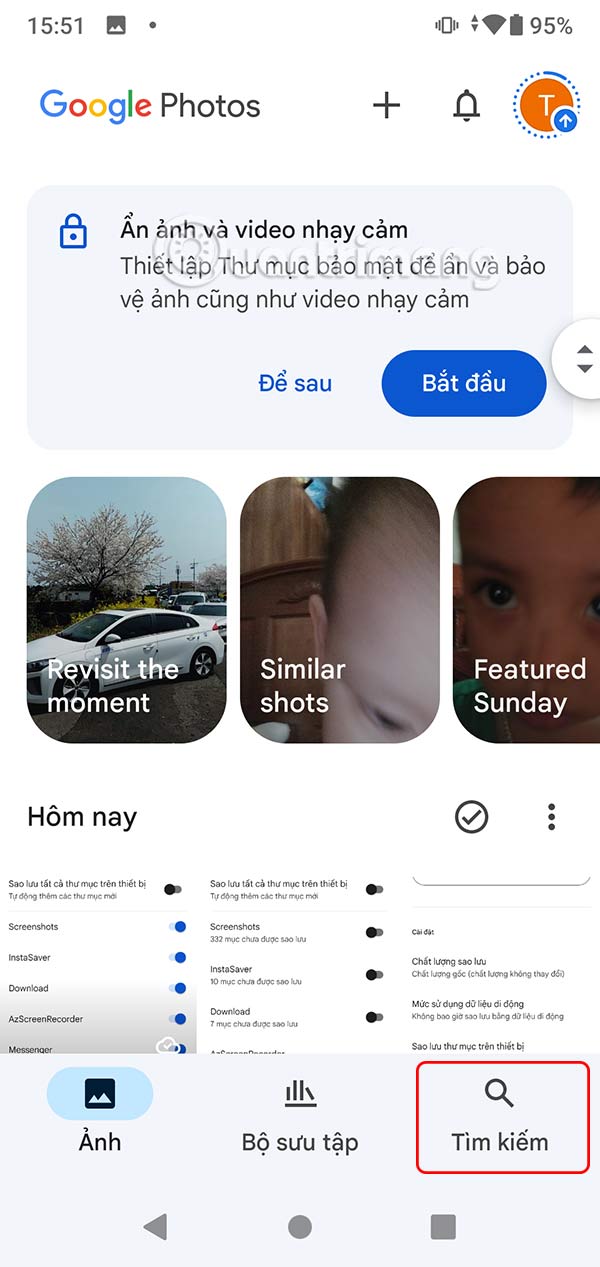
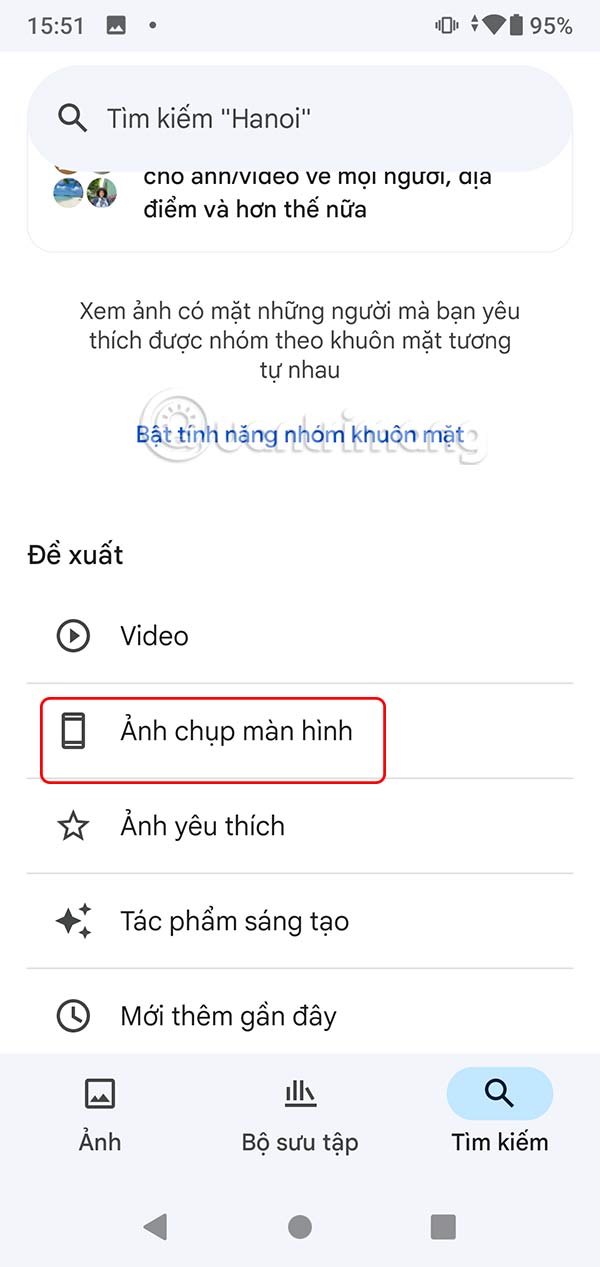
If you want to delete screenshots saved on Google Photos before, tap Search and then tap Screenshots to delete all photos.
FAQ
How to turn off automatic saving of screenshots to Google Photos?
At the Google Photos application interface, select the avatar and select Photos Settings.
What does this guide cover?
This guide explains turn off automatic saving of screenshots to Google photos, including the main steps, important details, and practical considerations.
Who is this guide for?
It is designed for readers who want a clear, practical overview and a reliable process they can follow without unnecessary complexity.
Related Articles
 Turn Off Automatic Saving of Snipping Tool Screenshots: How-To Guide2 minutes read
 How to Turn Off Automatic Google Photos Photo Sync3 minutes read
 How to Turn Off Saving Whatsapp Photos to Your Phone2 minutes read
 Instructions to Save Screenshots Directly to Dropbox3 minutes read
 How to Turn Off Automatic Slideshow in iPhone Photos4 minutes read
 How to Automatically Adjust to Daylight Saving Time in Windows 114 minutes read
Reader Comments 0
Sign in with email or Google to join the discussion.