Table of Contents
Microsoft Copilot’s privacy controls are separate: turning off memory does not delete chat history, deleting a chat does not necessarily remove saved memories, and disabling web search changes how answers are grounded rather than erasing existing data. Review each control that matters to you instead of relying on one master switch.
This guide covers the Microsoft Copilot app used with a personal Microsoft account. Work or school accounts use organization-managed protections and settings. Microsoft released a redesigned Copilot app on August 18, 2026, so older installations may show different menus.
Before changing anything, identify your Copilot version
Update the Copilot app from its official store, then open Settings. In the redesigned app, memory and web-search controls are under Personalization. An older app may instead show Privacy with toggles for training on conversation and voice activity.
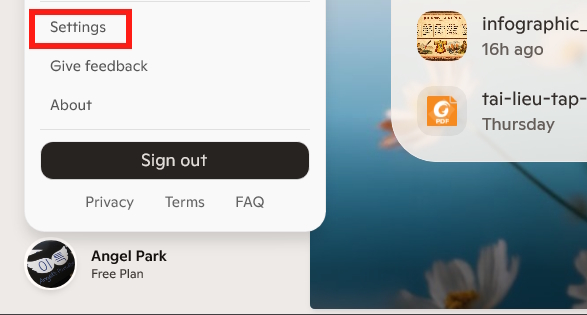
If your screen matches the older screenshots below, use the legacy instructions near the end of this article. Microsoft’s current Copilot privacy overview links to both versions.
Turn off Copilot Memory in the current app
- Open Microsoft Copilot and sign in with your personal Microsoft account.
- Open Settings, then select Personalization.
- Turn Saved memories off.
This stops Copilot from saving new memories for personalization. It does not automatically delete memories that were already saved, and it does not delete your chat history.
Review or delete saved memories
- Go to Settings > Personalization.
- Under Saved memories, select Manage saved memories.
- Select Delete beside one memory, or choose Delete all memories.
Review the list rather than assuming that deleting a conversation removed every preference Copilot saved from it. After deleting, start a new chat and ask what Copilot remembers if you want to confirm the change.
Delete one Copilot conversation
- Open the Chats list in the left navigation.
- Find the conversation you want to remove.
- Select the More menu beside it, then select Delete.
- Confirm the deletion if prompted.
Deleting a chat and deleting saved memories are distinct actions. If the chat contained a preference that Copilot saved as memory, check both places.
Export or delete all Copilot activity history
For the complete activity-history controls, open Microsoft’s privacy dashboard while signed in to the same account. Locate the Copilot section, then choose the available export or deletion action and review the scope before confirming.
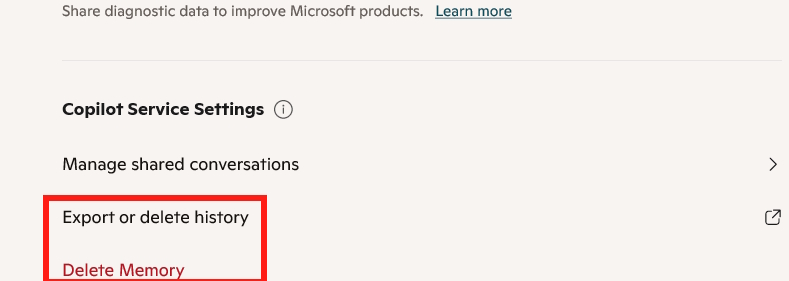
For a related walkthrough of exporting activity, see how to share a Copilot chat and export Copilot activity history. Microsoft’s current activity-history page is the authoritative reference for the redesigned app.
Turn web search off
- Open Settings, then Personalization.
- Under Advanced, turn Web search off.
This prevents Copilot from using live web search to improve its answers. It does not disable Copilot, erase history, or guarantee that an answer contains no knowledge learned previously. Leave search on when you need current information and are comfortable with the query being used to retrieve web results.
What changed in the redesigned Copilot app
Microsoft’s current documentation says that prompts, responses, and file contents in the redesigned consumer Copilot app are not used to train foundation models. Optional feedback may be used to improve Copilot, but Microsoft says it is not used to train those foundation models.
That differs from the older app, which included explicit training controls. Do not follow an old screenshot blindly: first confirm which version and account type you are using.
Privacy controls in the older Copilot app
If the app has not been updated and displays the legacy interface, select your profile picture, choose Settings, then open Privacy.
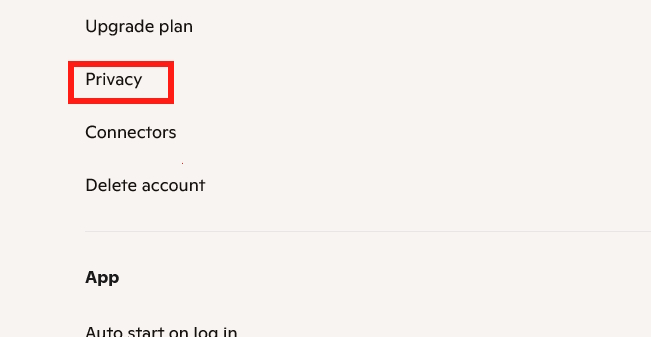
The older interface may offer Training on conversation activity and Training on voice conversations. Turn off each setting if you do not want future eligible text or voice activity used for model training.
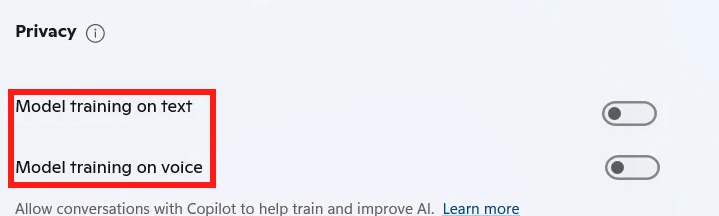
In the older app, personalization and memory are also separate from model training. Microsoft says a user can opt out of training while keeping personalization on. To minimize personalization, turn off the relevant memory controls and delete saved memories separately.
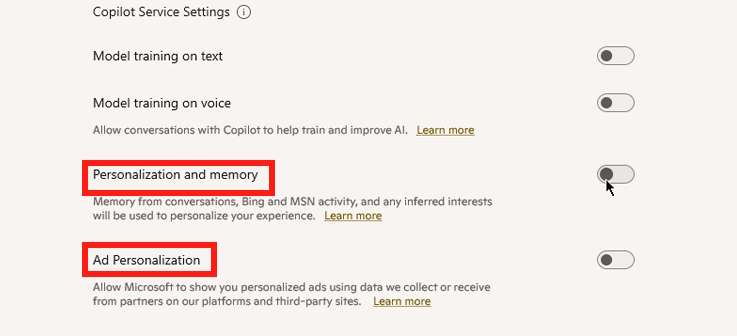
Personalized advertising is another independent control. In the older experience, Microsoft directs users to their Microsoft account’s personalized-ad settings to turn off “See ads that interest you.” Turning off Copilot memory alone does not disable personalized ads.
What each action actually does
| Action | Effect | What it does not do |
|---|---|---|
| Turn off Saved memories | Stops new Copilot memories | Does not delete existing memories or chats |
| Delete saved memories | Removes selected personalization memories | Does not delete chat history |
| Delete a chat | Removes that conversation from history | May not remove a separately saved memory |
| Delete all activity history | Removes the selected Copilot activity covered by the dashboard action | Does not change every other Microsoft privacy setting |
| Turn off web search | Stops live web retrieval for Copilot answers | Does not erase prior chats or memory |
| Turn off legacy training toggles | Excludes future eligible activity from model training in the older app | Does not disable personalization, ads, safety, or required processing |
Practical privacy checklist
- Use the correct personal, work, or school account before changing settings.
- Update the app so Microsoft’s current instructions match your menus.
- Delete both a sensitive chat and any saved memory derived from it.
- Do not paste passwords, payment data, confidential files, or another person’s private information into Copilot.
- Review permissions when using camera, microphone, screen sharing, connected apps, or agents.
- Recheck settings after a major product update, because available controls can change.
Privacy settings reduce particular uses of your data; they do not make sensitive disclosure risk-free. Share only information you are authorized and comfortable to provide.
Related Articles
 How to Clear Copilot Memory on Your Computer4 minutes read
 Hey Copilot on Windows 11: Hands-Free AI or Just a Privacy Headache: Key Facts7 minutes read
 Check These Privacy Settings Immediately If You Use Claude Frequently6 minutes read
 How to Control Which Sites Copilot Can Browse in Microsoft Edge14 minutes read
 What Is Microsoft Copilot AI? How to Use It Effectively?6 minutes read
 9 Windows Privacy Settings You Should Change Right Now9 minutes read
Reader Comments 0
Sign in with email or Google to join the discussion.