Table of Contents
Microsoft Copilot can use saved memories to personalize future chats. You can delete one memory, erase all saved memories, or turn the feature off. Saved memory and conversation history are separate: clearing one does not automatically clear the other.
The available menus depend on whether you use a personal Microsoft account or a work or school account, as well as your Copilot version and organization policy.
Review what Copilot remembers
Open Copilot and sign in to the account whose data you want to manage. Select your profile icon and open Settings or Memory. In current personal-account interfaces, saved-memory controls may appear under Personalization.
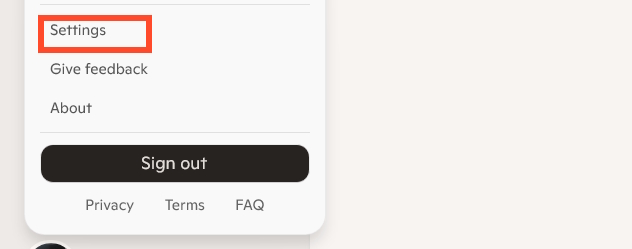
Before deleting anything, you can ask Copilot, “What do you know about me?” This helps identify saved details, but the settings list is the authoritative place to review and remove them.
Delete one saved memory
- Open Settings > Personalization.
- Find Saved memories and select Manage.
- Select the delete icon beside the memory you want to remove.
You can also ask Copilot to forget a particular detail, such as: “Forget that I prefer weekly summaries.” Return to the memory list to confirm that it was removed.
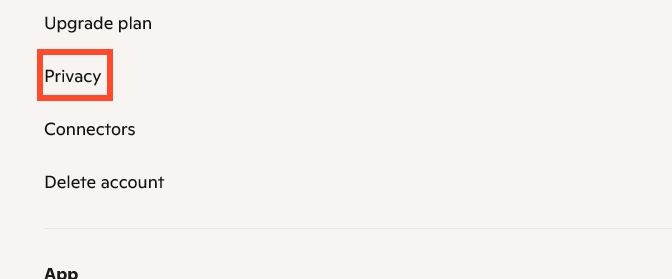
Delete all saved memories
In the saved-memory management pane, choose Delete all memories and confirm the action. Microsoft states that this removes saved memories but does not delete conversation history.
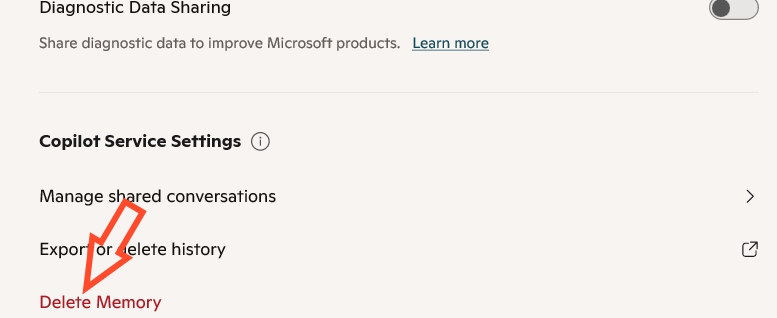
Microsoft's Copilot privacy controls provide the current personal-account steps.
Turn off memory without deleting it
Go to Settings > Personalization and turn off Saved memories. Turning the switch off stops Copilot from applying or adding saved memories, but Microsoft notes that existing saved memories remain until you delete them.
If the option is missing or locked, the feature may not be available for the account, region, or version, or an administrator may control it for a work or school account.
Delete Copilot conversation history separately
Conversation history contains prompts and responses. For a personal Microsoft account:
- Sign in to the Microsoft privacy dashboard with the same account used in Copilot.
- Open Privacy, then the Copilot activity-history section.
- Choose Delete all activity history, review the confirmation, and select Clear.
Microsoft also offers an export option if you want to review or preserve a copy before deletion. See the official Copilot activity history guide for the current dashboard path.
Older Copilot interface in Microsoft Edge
Some versions placed privacy and storage controls inside the Copilot pane in Microsoft Edge. Open the Copilot icon, use the menu, and look for Settings, Privacy, or Personalization.
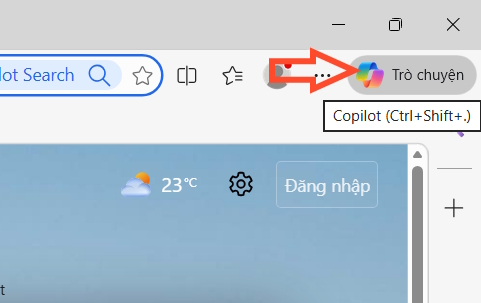
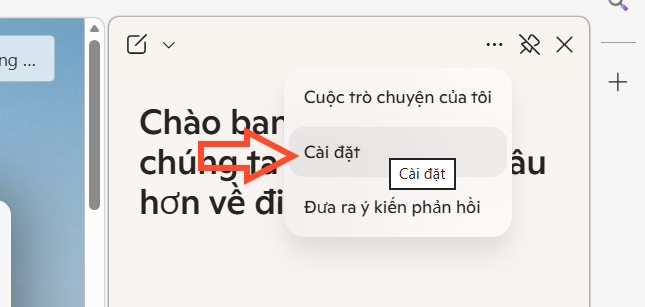
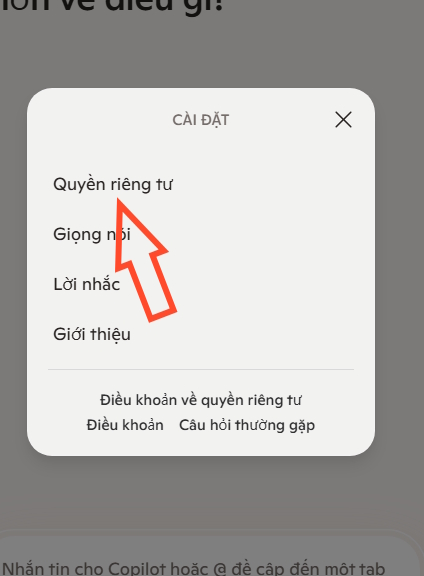
If those controls are no longer present, use Copilot's main settings and the Microsoft privacy dashboard. Clearing ordinary Edge browsing data or site cache is not the same as deleting server-side Copilot memory or activity history.
Work or school accounts
Microsoft 365 Copilot uses organization-managed controls. Saved memories may be found in Copilot Chat under Settings > Personalization, while activity-history deletion can be available through the work-account data and privacy portal. Administrators may disable personalization or control whether users can manage it.
Deleting a chat does not necessarily delete a saved memory created from that chat. In some Microsoft 365 configurations, turning off chat-history personalization starts a separate deletion process for inferences based on previous conversations. Follow the organization's retention policy and contact its administrator when a control is unavailable.
Verify the result
- Close and reopen Copilot after changing the settings.
- Return to the saved-memory list and confirm that deleted items are gone.
- Ask Copilot what it remembers, while treating the settings page as the primary record.
- Check that the correct personal, work, or school account is active.
- Review memory and conversation history separately.
These steps control Copilot memory and activity associated with the selected account. They are different from Windows Recall snapshots, browser history, diagnostic data, and files stored in OneDrive or Microsoft 365.
Related Articles
 How to Clear the Browser Cache: Step-by-Step Guide3 minutes read
 Instructions on Disabling New Tab Copilot on Microsoft Edge3 minutes read
 Instructions to Clear Cache on Twitter Are Very Simple3 minutes read
 How to Use Copilot Vision to Analyze Screen Content4 minutes read
 How Is Copilot Pro Different from Copilot? Should I Upgrade Explained7 minutes read
 How to Turn Off Copilot in Windows 11: Step-by-Step Guide4 minutes read
Reader Comments 0
Sign in with email or Google to join the discussion.