Table of Contents
Browse with Copilot in Microsoft Edge can navigate and interact with supported websites on your behalf. Edge provides allow and block lists so you can decide which sites the browsing feature may access.
The lists apply to Copilot's interactive browsing capability, not to ordinary browsing in Edge. They also do not replace website permissions, Microsoft account controls, or your organization's security policies.
Open the Browse with Copilot settings
- In Edge, select Settings and more (the three-dot menu) and choose Settings.
- In the left sidebar, select Copilot and AI.
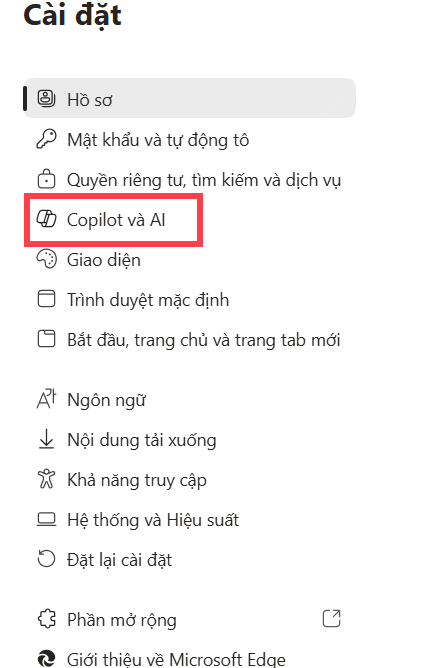
- Open Browse with Copilot or Manage Browse with Copilot. Wording may differ slightly by Edge version.
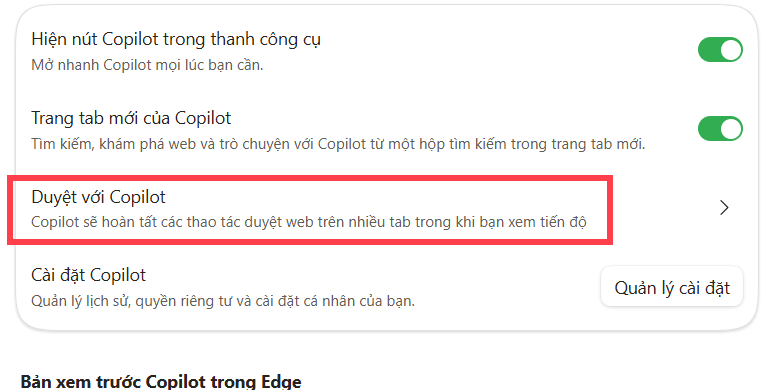
You can also enter edge://settings/ai in the address bar and look for the Browse with Copilot controls. If the section is missing, update Edge and confirm that the feature is available for your account, region, and device.
Open the URL allow and block lists
- Under the Browse with Copilot settings, choose Manage what URLs can or cannot be accessed.
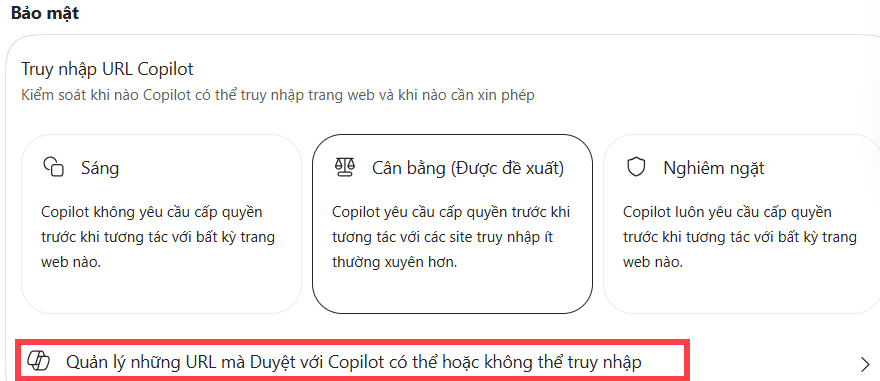
The page separates sites Copilot may access from sites it must not access. According to Microsoft, a site that is not already on the allow list requires your approval before Copilot can interact with it. The block list lets you prohibit selected sites entirely.
Add a website to the allow or block list
- Choose Add in either Sites Copilot can access or Sites Copilot cannot access.
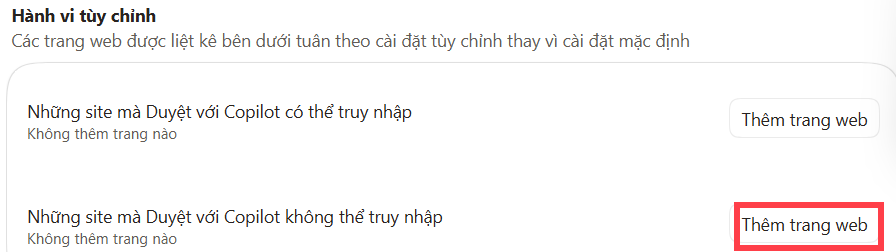
- Enter the site or domain requested by the dialog, then select Add.
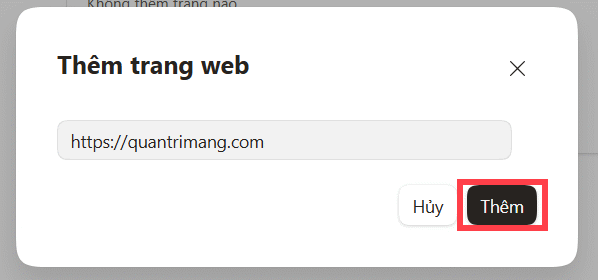
Use the narrowest entry that covers the task. For example, allow a specific service rather than a broad parent domain when Edge supports that pattern. Check the saved entry carefully so a spelling error does not approve an unintended domain.
Edit, move, or remove an entry
Find the website in the list, open its three-dot menu, and choose the available action. You can edit the URL, remove it, or move it between allowed and blocked states.
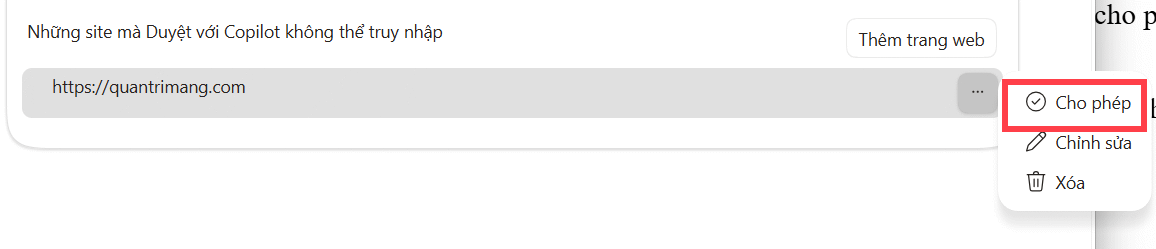
Reopen the settings page after editing and verify that the site appears in the intended list. Then test with a non-sensitive page before asking Copilot to perform a consequential action.
Which sites should you block?
Consider blocking sites where an automated mistake or exposed page context would have serious consequences, including:
- banking, payment, tax, and investment accounts;
- password managers and identity-provider administration;
- health portals and insurance accounts;
- production cloud consoles and domain registrars;
- HR, payroll, legal, and confidential client systems; and
- any site your employer prohibits AI tools from accessing.
An allow-list entry is permission, not a guarantee that every action is correct. Read the proposed action, verify the target page and values, and keep manual control over purchases, financial transfers, account deletion, access changes, and legally significant submissions.
What changes on a work or school device?
If you use Edge with a managed work profile, an administrator can define which sites Copilot may browse. The list may be read-only or more restrictive than a personal profile. Microsoft documents separate management controls, and an empty organizational allow list can make Browse with Copilot unavailable.
To see the effective setting, go to Edge Settings > Copilot and AI > Allow Copilot to browse with me and check which sites are available. If an option is disabled or marked as managed, contact your IT administrator rather than changing profiles to bypass the policy.
Allow/block lists versus page context
Browse with Copilot can interact with a site. Copilot's page context or Context Clues settings separately control whether page information helps answer a prompt. Changing one control does not necessarily change the other.
If you want to prevent Copilot from using the current page, title, open tabs, or recent browsing context for responses, review Copilot's Privacy or Context Clues setting as well. The exact controls depend on whether you are using a personal Microsoft account or Microsoft 365 Copilot Chat.
If the setting is missing
- Open Settings > About Microsoft Edge and let Edge install available updates.
- Restart the browser after updating.
- Check that you are signed into the intended Edge profile.
- Look for a “Managed by your organization” notice.
- Confirm that Browse with Copilot is available in your region and account type.
Microsoft changes Copilot features frequently. The official Browse with Copilot help page provides the current menu names and behavior if your version differs from the screenshots.
A safer default configuration
For personal use, keep the allow list small and add a site only when you have a clear task. Put high-risk sites on the block list, review permissions periodically, and remove temporary entries after the task. On managed devices, follow the organization's list and data-handling policy.
Even on an allowed site, do not paste passwords, one-time codes, recovery keys, private authentication links, or payment-card details into a Copilot prompt. The browser's site controls reduce exposure; they do not make sensitive automation risk-free.
Related Articles
 Instructions on Disabling New Tab Copilot on Microsoft Edge3 minutes read
 How to Delete Copilot History in Edge Windows5 minutes read
 Instructions on Using Copilot Suggestions in Microsoft Edge's On-page Search Feature6 minutes read
 How to disable Copilot on Microsoft Edge in Windows 113 minutes read
 Manage and Delete Browsing Data on Microsoft Edge15 minutes read
 What to Do If Copilot Doesn't Work on Edge?3 minutes read
Reader Comments 0
Sign in with email or Google to join the discussion.