Table of Contents
If you use Claude regularly, review four controls: location use, model improvement, incognito chats, and memory. They affect different things and are easy to confuse. Turning off optional location use does not hide your country from security systems; an incognito chat is not zero-retention; and deleting a conversation does not necessarily remove a separate memory entry created from it.
The menu can differ between consumer, Team, and Enterprise accounts and during phased rollouts. Use the current labels shown in your account and consult Anthropic's privacy documentation when a setting is absent.
1. Understand Claude's location controls
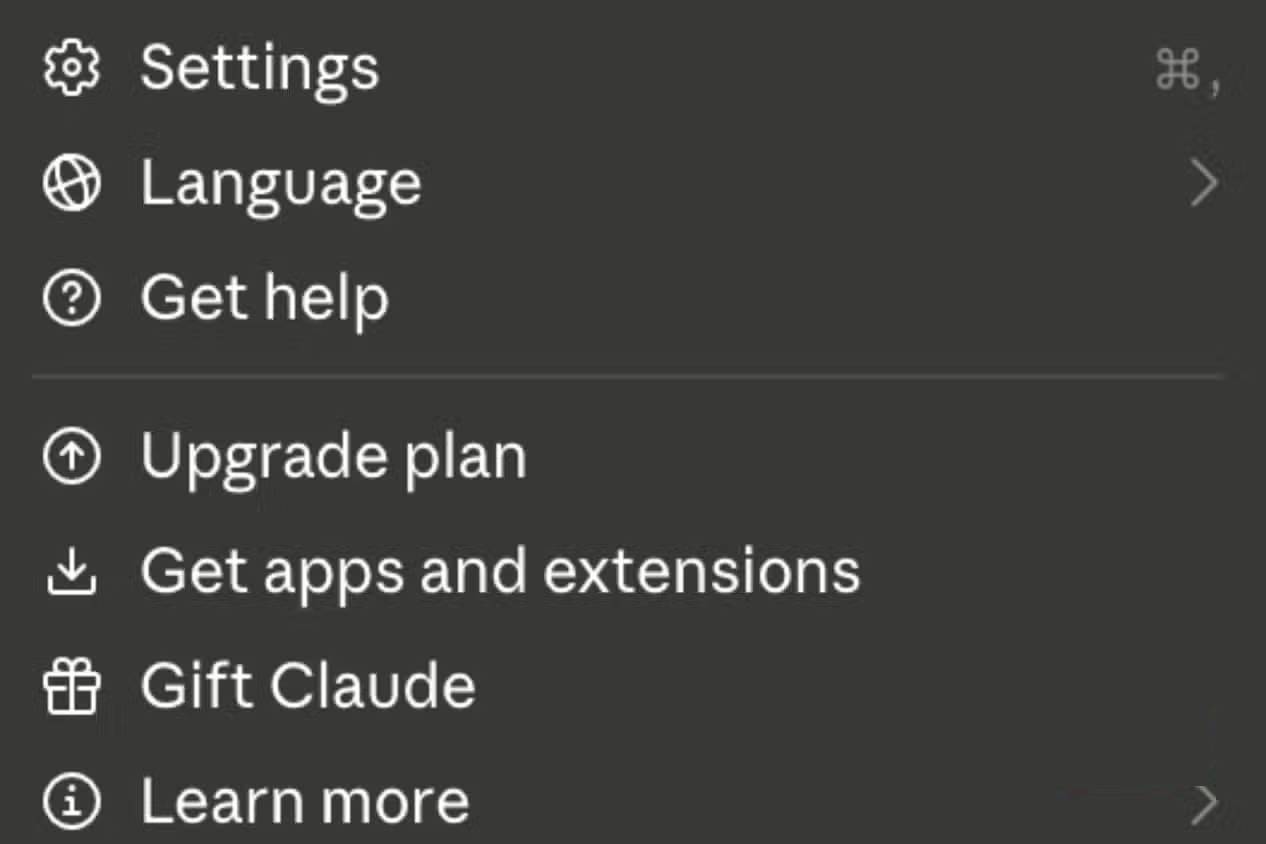
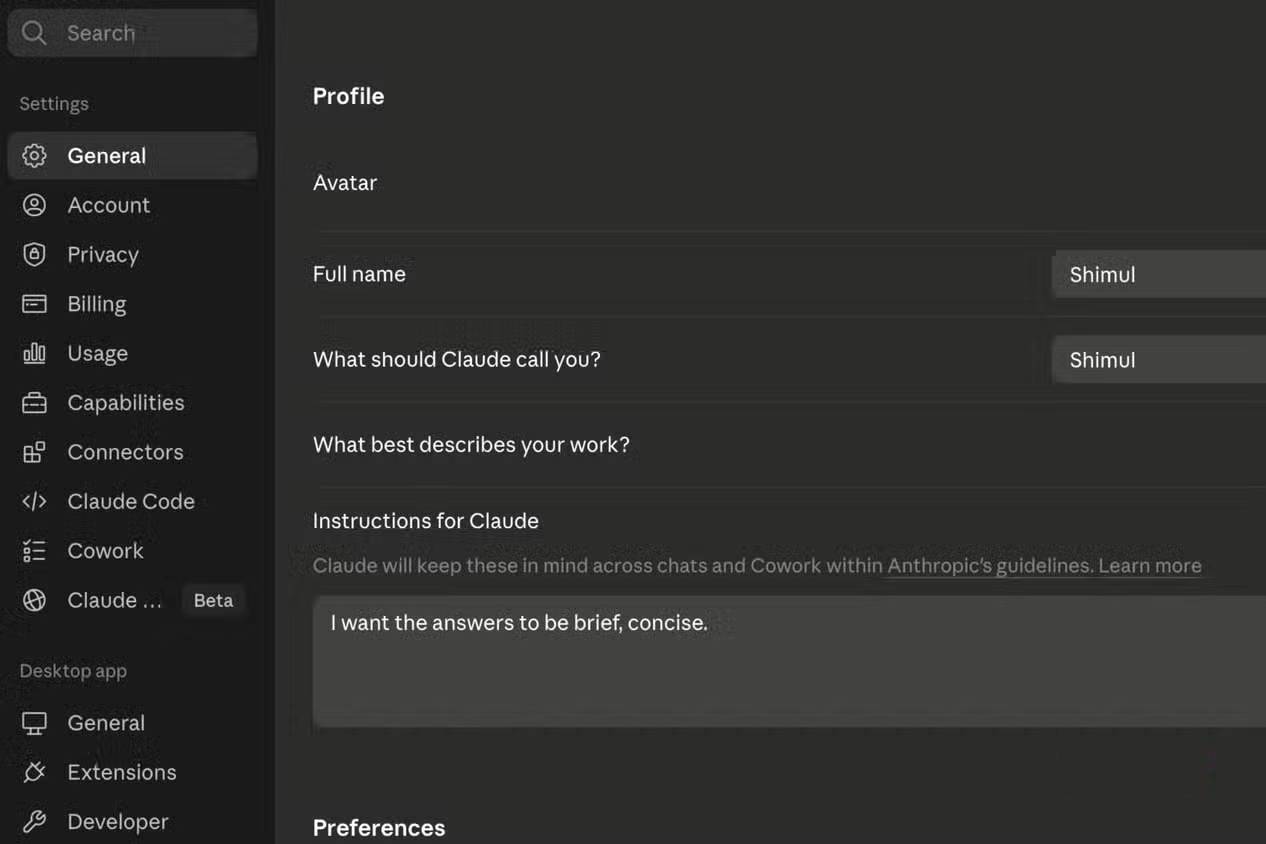
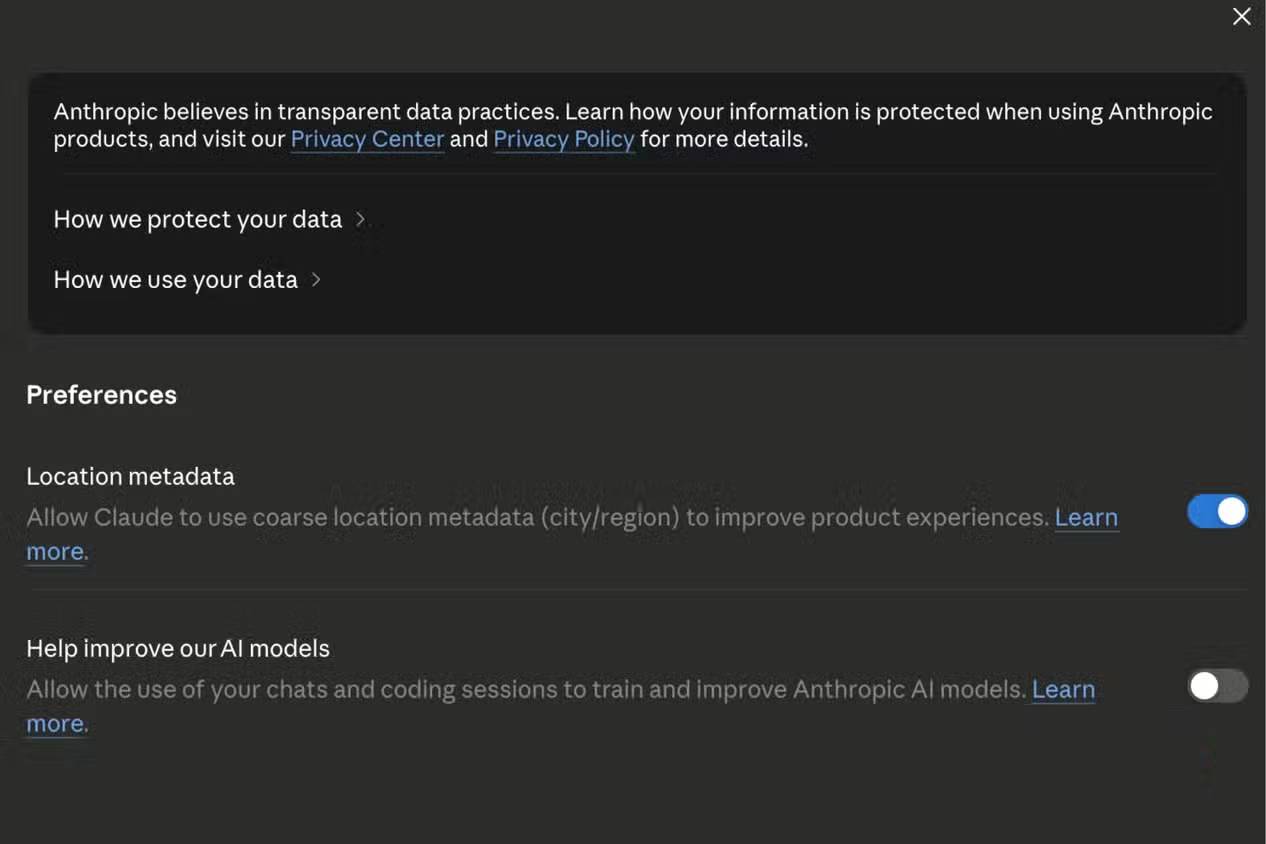
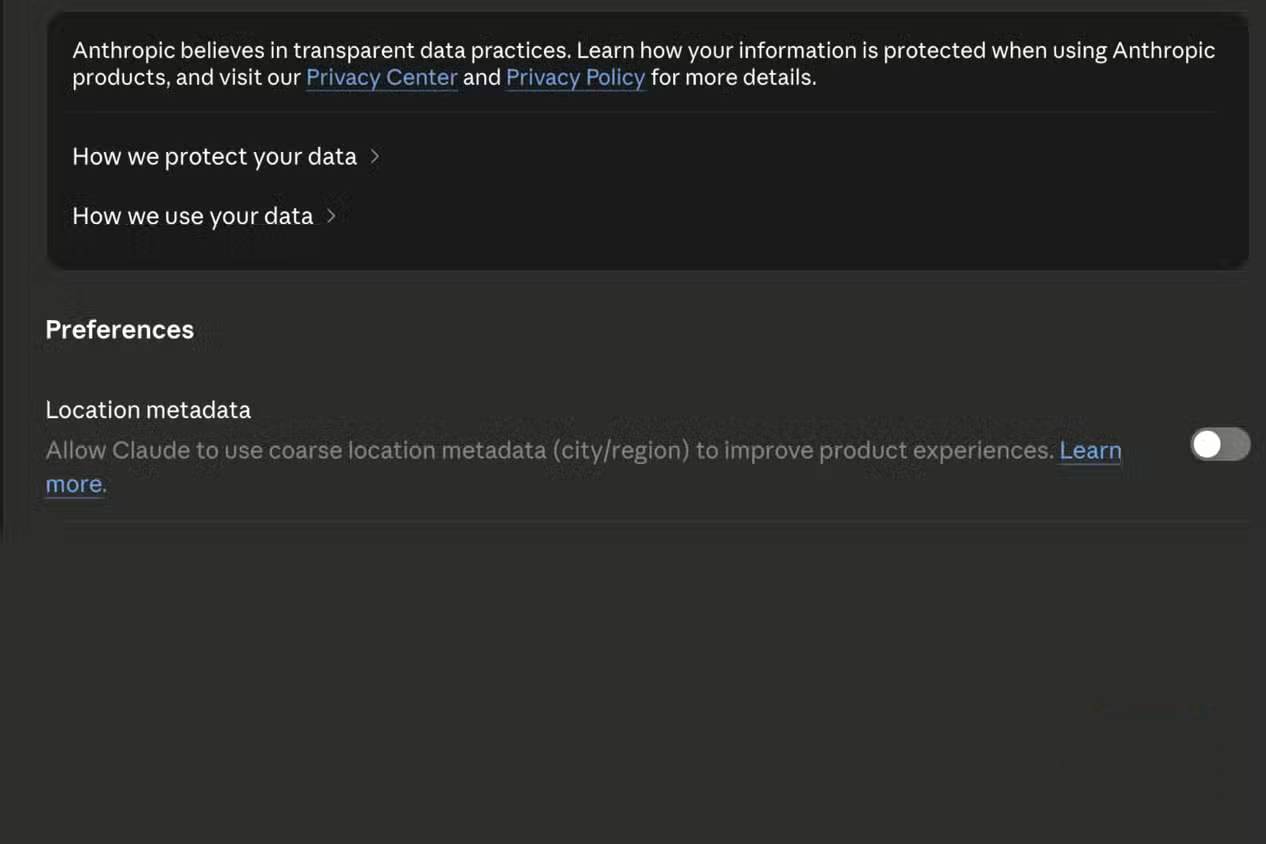
Anthropic distinguishes optional location use for product features from location inferred for platform security. For consumer products, Claude may use an IP address to infer a coarse city or region when a feature such as web search benefits from local results. You can disable that optional use in the privacy dashboard. Mobile-app and browser-extension location permissions may also need to be changed in the operating system or browser.
Separately, Anthropic says it uses IP address and other signals to infer a coarse country or region for anti-abuse, terms enforcement, and regional availability. That security use cannot be disabled with the product-feature toggle. In other words, switching off Location metadata should not be described as making your location invisible.
To review the option on a consumer account:
- Open Claude and select your name or profile menu.
- Open Settings, then Privacy.
- Find the location option used to enhance product features and choose whether local results justify it.
- On a phone, also open the device's app permissions and check whether Claude can access device location.
Read Anthropic's location explanation for the current distinction.
2. Decide whether chats may improve Claude
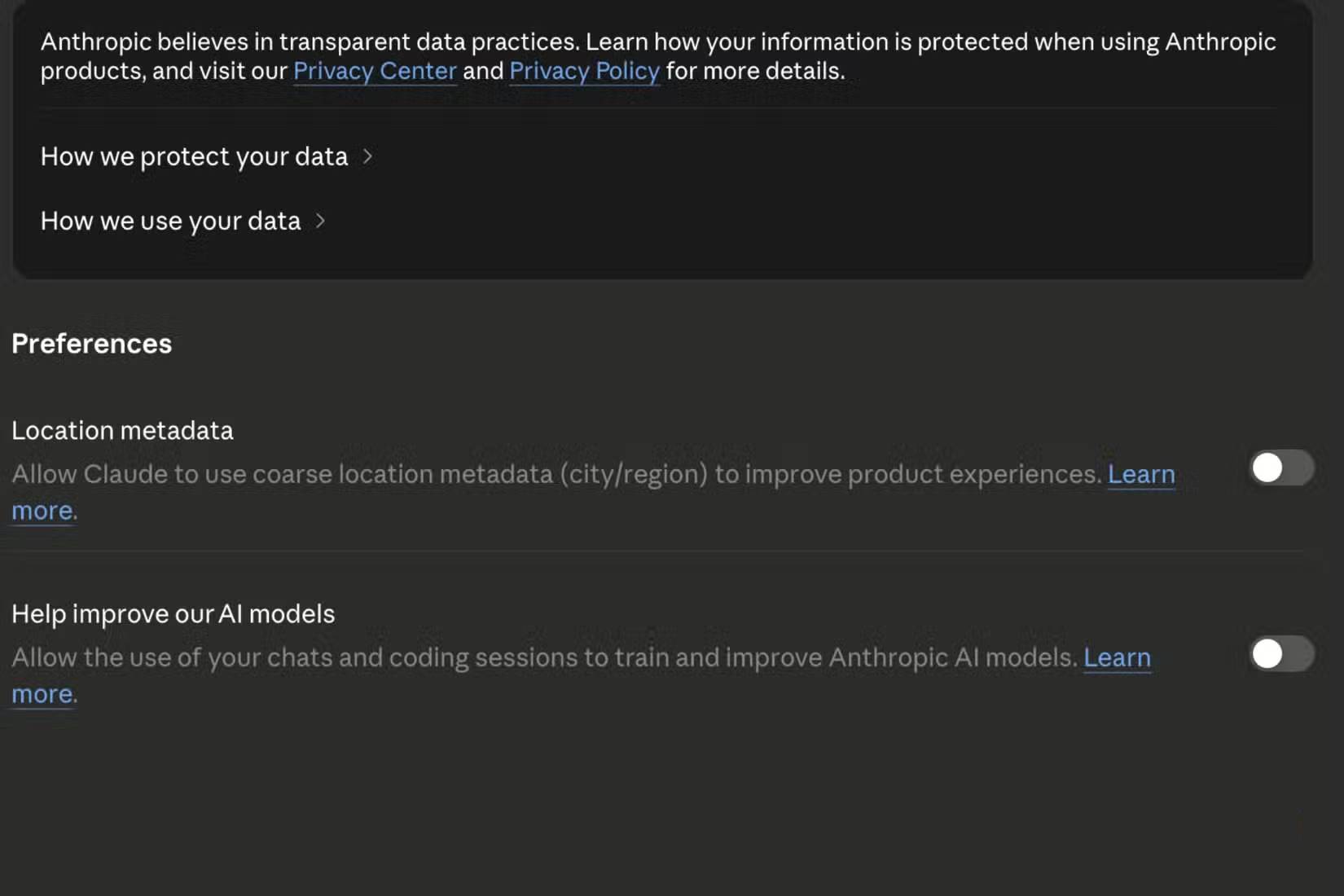
On consumer accounts, the Help Improve our AI models control determines whether eligible chats and coding sessions may be used for model improvement. Go to Settings > Privacy and review the switch. Anthropic's current instructions cover both desktop and mobile.
This setting is not the only circumstance in which data may be reviewed. Anthropic's policy separately discusses conversations flagged for safety review and material submitted through explicit feedback. Read the policy rather than treating one toggle as a complete data-handling contract.
Account type also matters. Anthropic states that inputs and outputs from commercial products such as Claude for Work and the API are not used for model training by default. Consumer Free, Pro, and Max accounts follow the consumer policy. If an employer supplies the account, follow the organization's rules and ask its administrator which retention and compliance controls apply.
Anthropic's model-improvement settings guide provides the current path. If you allow improvement, review the associated retention explanation before using the account for private work.
3. Use Incognito for temporary separation—not secrecy
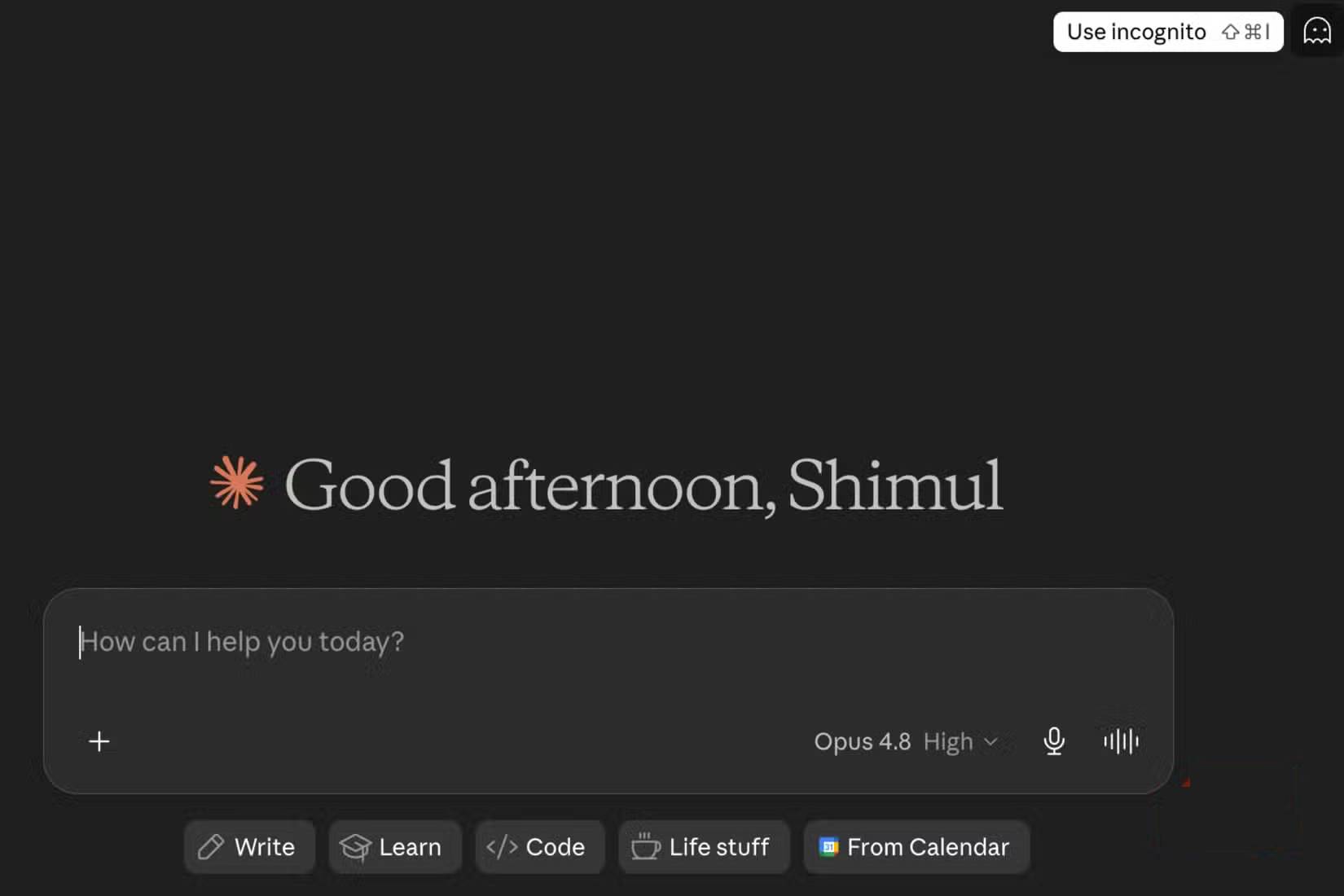
An Incognito chat does not appear in normal chat history, does not use existing Claude memory, is not added to future memory entries, and is not used to improve Claude. These properties make it useful for a temporary topic you do not want mixed into routine history or personalization.
It is not equivalent to a private, unretained, end-to-end encrypted notebook. Anthropic says Incognito chats are retained for 30 days by default for safety, or longer under an Enterprise organization's custom retention policy. Team and Enterprise chats can also be included in organizational exports or compliance systems available to account owners.
To start one, begin a new non-project chat and select the ghost icon. Confirm that the interface shows the Incognito label before entering content. Save any result you need before closing it because the chat cannot be reopened or converted to a regular chat.
See Anthropic's Incognito documentation for current retention and organization details.
4. Review memory and past-chat search separately
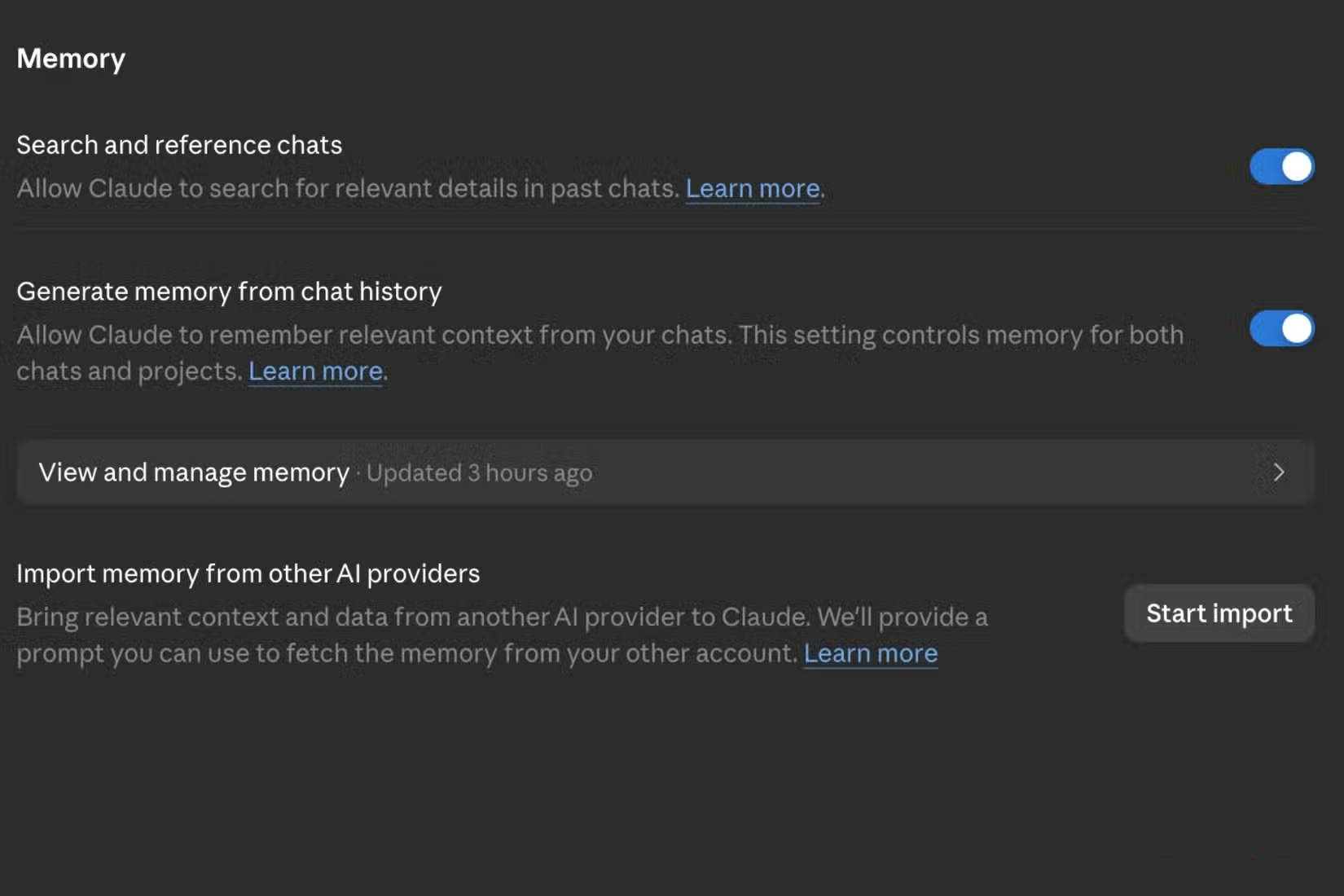
Memory can save recurring preferences, work context, project details, and communication style. Past-chat search lets Claude retrieve relevant earlier conversations. They improve continuity, but they also widen the context available to a new response.
In the current interface, look under Settings > Memory. Some accounts with the legacy experience may still show the controls under Settings > Capabilities. Review:
- Generate memory from chats: allows Claude to create and update memory entries.
- Search and reference chats: allows retrieval from eligible previous conversations.
- Individual memory entries: inspect, correct, or delete items that are inaccurate or too sensitive.
- Project memory: remember that each project can have a separate context and summary.
Pausing memory keeps existing entries but stops using or creating them. Resetting memory permanently deletes stored memories and cannot be undone. Deleting a source conversation may not delete a related memory entry in the newer memory experience, so review the memory panel directly after cleaning chat history.
Anthropic's memory guide explains the current controls and rollout differences. If you are comparing assistants with different approaches to history and personalization, see our Claude and ChatGPT comparison.
5. Audit shared chats, connected data, and exports
Privacy is broader than the four headline toggles. Complete the review with these checks:
- Shared chats: in Settings > Privacy, inspect the log of shared conversations and unshare links you no longer intend to expose.
- Connectors: remove Google Workspace, Microsoft 365, or other connections you no longer use. Check whether a connector has read-only or write-capable tools.
- Projects and files: delete outdated uploads, especially documents containing personal, client, financial, employment, or source-code secrets.
- Account security: use a unique password where applicable, enable the strongest sign-in protection offered, and review active sessions.
- Data export: consumer users can request an export from the web or desktop privacy settings. Use it to understand what is associated with the account before making deletion decisions.
- Organization ownership: know whether a work or school administrator can access exports, apply retention rules, or enable compliance tooling.
What not to put into any AI chat
Settings reduce exposure; they do not make unrestricted disclosure safe. Avoid entering passwords, authentication tokens, private keys, full payment-card data, government ID images, unreleased financial results, confidential client records, medical records, or information prohibited by an employer or contract.
For document review, make a redacted copy and remove hidden metadata when possible. Replace real names and account numbers with consistent placeholders. Give Claude only the fields required for the task. If privacy is the deciding factor in your assistant choice, review alternatives and their policies rather than relying on marketing labels; our overview of privacy-focused apps provides a broader starting point.
A practical Claude privacy checklist
- Confirm whether the account is consumer, Team, Enterprise, or API-based.
- Review optional location use and device-level location permission.
- Set the model-improvement option intentionally.
- Inspect memory entries and past-chat search.
- Use Incognito only with its retention limits understood.
- Remove stale shared links, connectors, projects, and uploaded files.
- Follow organizational data rules before uploading work material.
- Recheck settings after major product updates because menus and defaults can change.
Related Articles
 Turn Off These 5 Google Settings to Improve Your Privacy: Explained6 minutes read
 Claude AI Can Now Read Health Data and Provide In-depth, Personalized Analysis4 minutes read
 How to Test Your Financial Plan in Various Situations with Claude10 minutes read
 Facebook Recommends That 2 Billion Users Re-check Privacy3 minutes read
 9 Windows Privacy Settings You Should Change Right Now9 minutes read
 Guide to Controlling Privacy Settings on Copilot4 minutes read
Reader Comments 0
Sign in with email or Google to join the discussion.