Table of Contents
This practical guide explains how to share chat on copilot. Follow the steps in order, review the requirements first, and use the troubleshooting notes when a setting or option does not work as expected.
Export Copilot activity history
First, select the link below to go to the Microsoft account privacy management page.
- Visit Microsoft privacy page
After logging into your account, select Privacy , then look to the side and select Copilot .
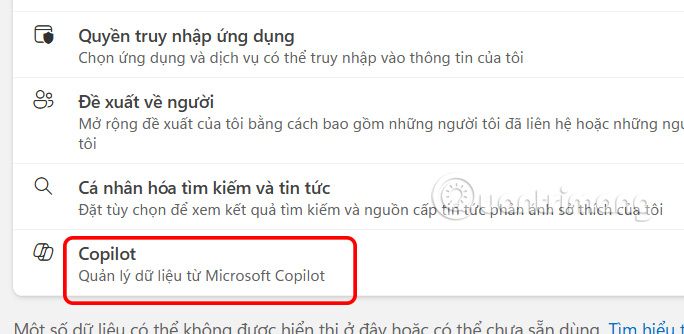
Next, in the new interface at Your Copilot Activity History , you click Export all Activity History to export to a csv file.

Share Copilot chat from app
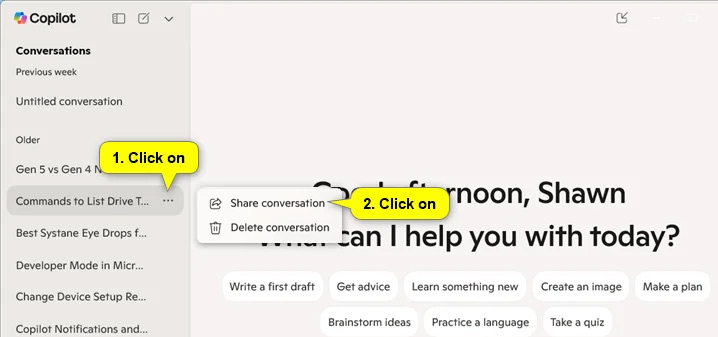
Open the Copilot app and then log in to your Microsoft account. Next, click the 3-dot icon in the conversation you want to share, then select Share conversation .
Share Copilot chat from website
Step 1:
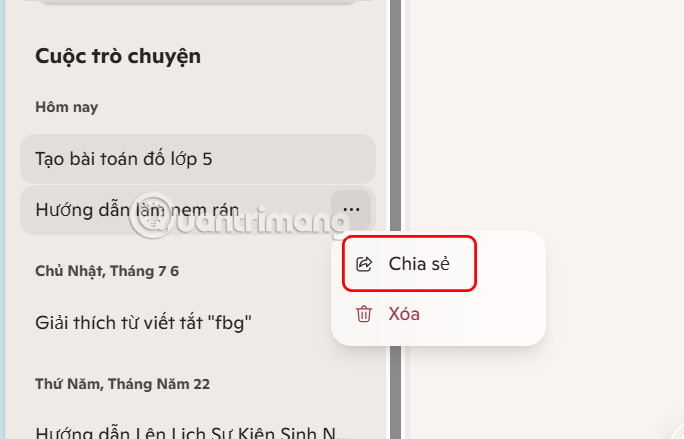
You access the Copilot website and also log in to your Microsoft account. Next, on the left side of the interface, select the 3-dot icon in the conversation you want to share and select Share .
Step 2:
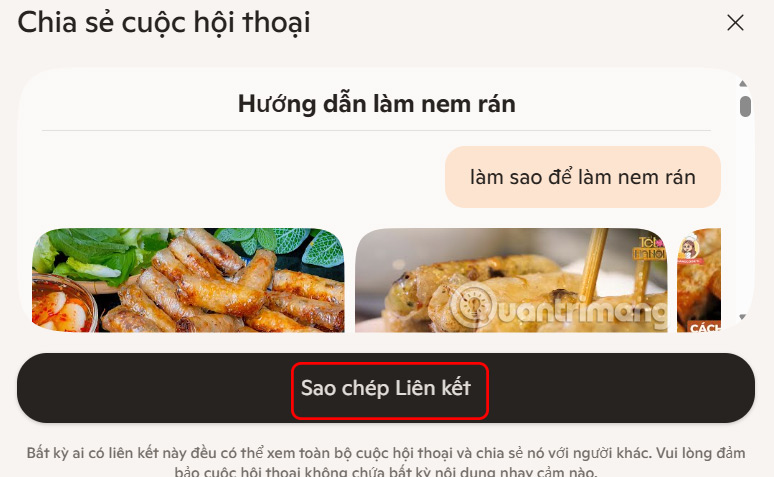
Just click Copy link to proceed with sharing the Copilot chat.
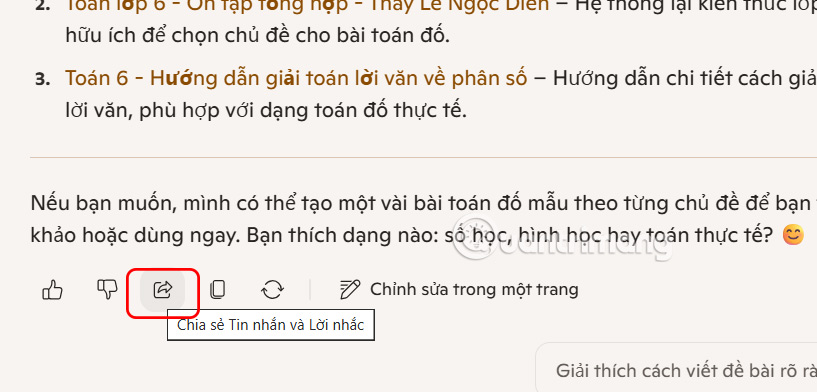
How to share current Copilot chat
In each current chat on Copilot, there is a sharing option for you to do when needed. Then we just need to share via link and we are done.
Share Copilot chat on Edge
Step 1:
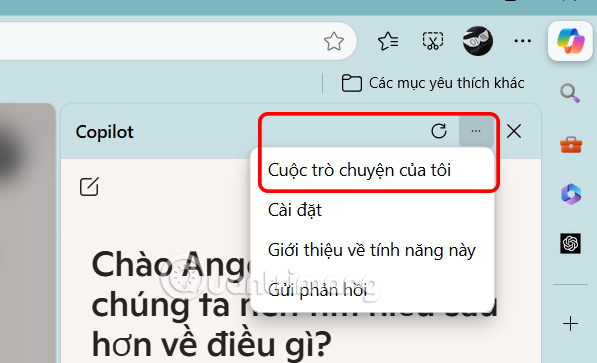
In the Edge browser, select the Copilot icon, then select the 3-dot icon in the display interface, select My Conversations .
Step 2:
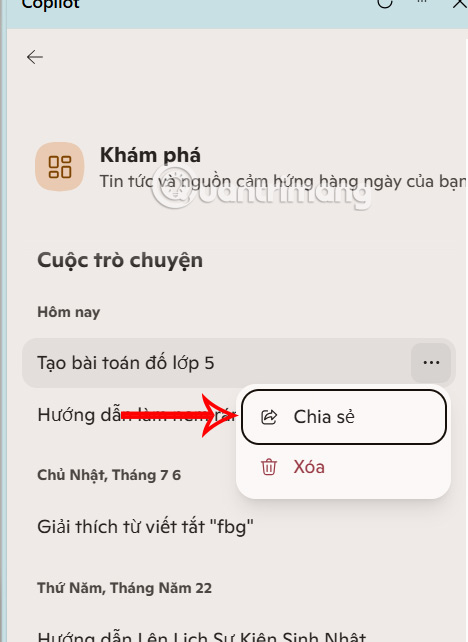
Shows all the Copilot chats you've made. In the chat you want to share, click the 3-dot icon and select Share to do so.
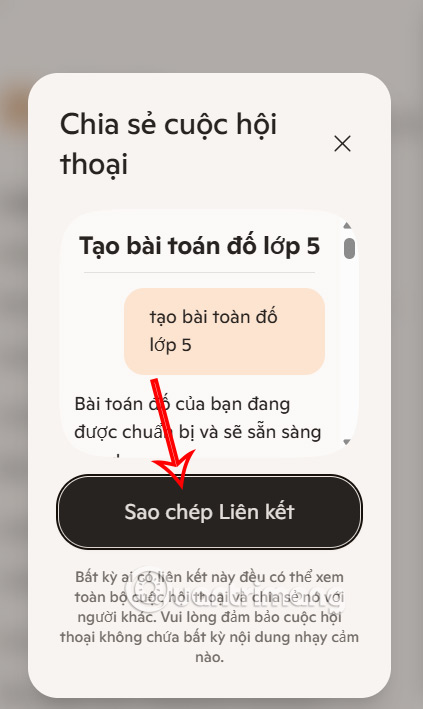
Now You only need to click Copy Link and you're done.
FAQ
What should you know about export Copilot activity history?
First, select the link below to go to the Microsoft account privacy management page.
What should you know about share Copilot chat from app?
Open the Copilot app and then log in to your Microsoft account. Next, click the 3-dot icon in the conversation you want to share, then select Share conversation.
What should you know about share Copilot chat from website?
You access the Copilot website and also log in to your Microsoft account. Next, on the left side of the interface, select the 3-dot icon in the conversation you want to share and select Share.
How to share current Copilot chat?
In each current chat on Copilot, there is a sharing option for you to do when needed. Then we just need to share via link and we are done.
Related Articles
 How to Copy the Chat Link Copilot in Windows3 minutes read
 How to Turn Off Share with Copilot on Windows 11: Step-by-Step Guide4 minutes read
 Microsoft Rebranded Bing Chat as Copilot to Compete with ChatGPT Explained7 minutes read
 How to Use Copilot in Telegram3 minutes read
 4 Copilot Voice Features That Make Chatting Easier7 minutes read
 How Is Copilot Pro Different from Copilot? Should I Upgrade Explained7 minutes read
Reader Comments 0
Sign in with email or Google to join the discussion.